
Participants can select courses of interest through the ICE Institute course catalog. Courses that have been paid for are automatically enrolled in the participant's account and are ready to be studied.
Searching for Courses
The course catalog can be accessed by selecting the Courses menu on the participant dashboard.
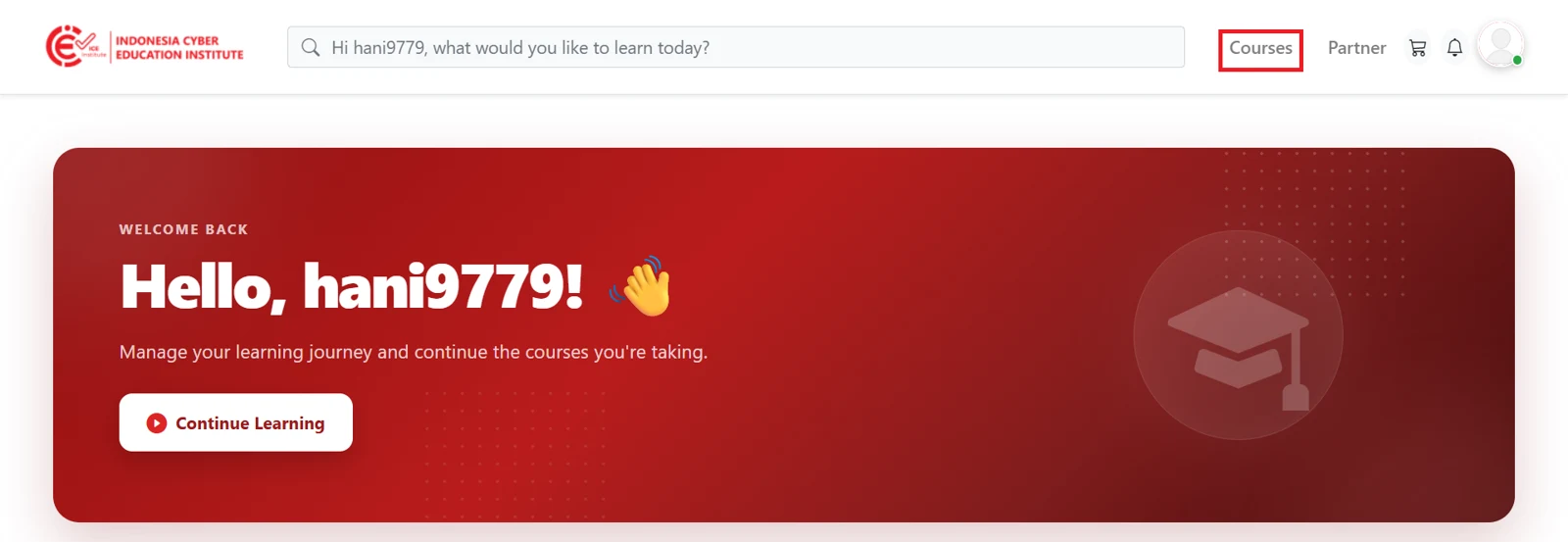
Figure 2.1 - Courses menu
The catalog page displays all courses available on ICE Institute as cards. Each card contains brief information about the course, allowing participants to browse and compare options before deciding which course to take.
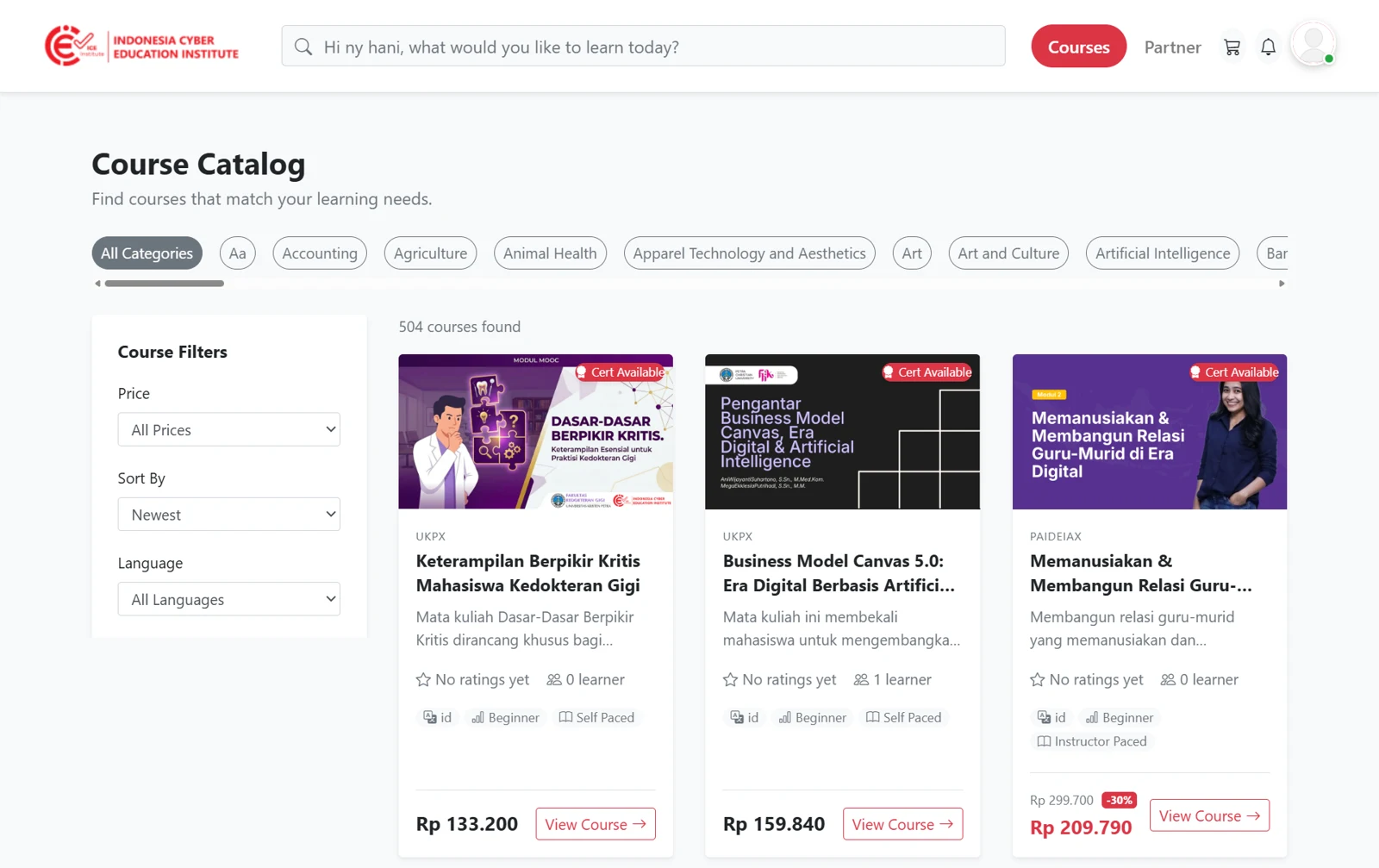
Figure 2.2 - Course catalog
To find a course more quickly, participants can type the course name in the search bar. Participants can also use the filters on the left side of the page to narrow down courses based on specific criteria as needed.
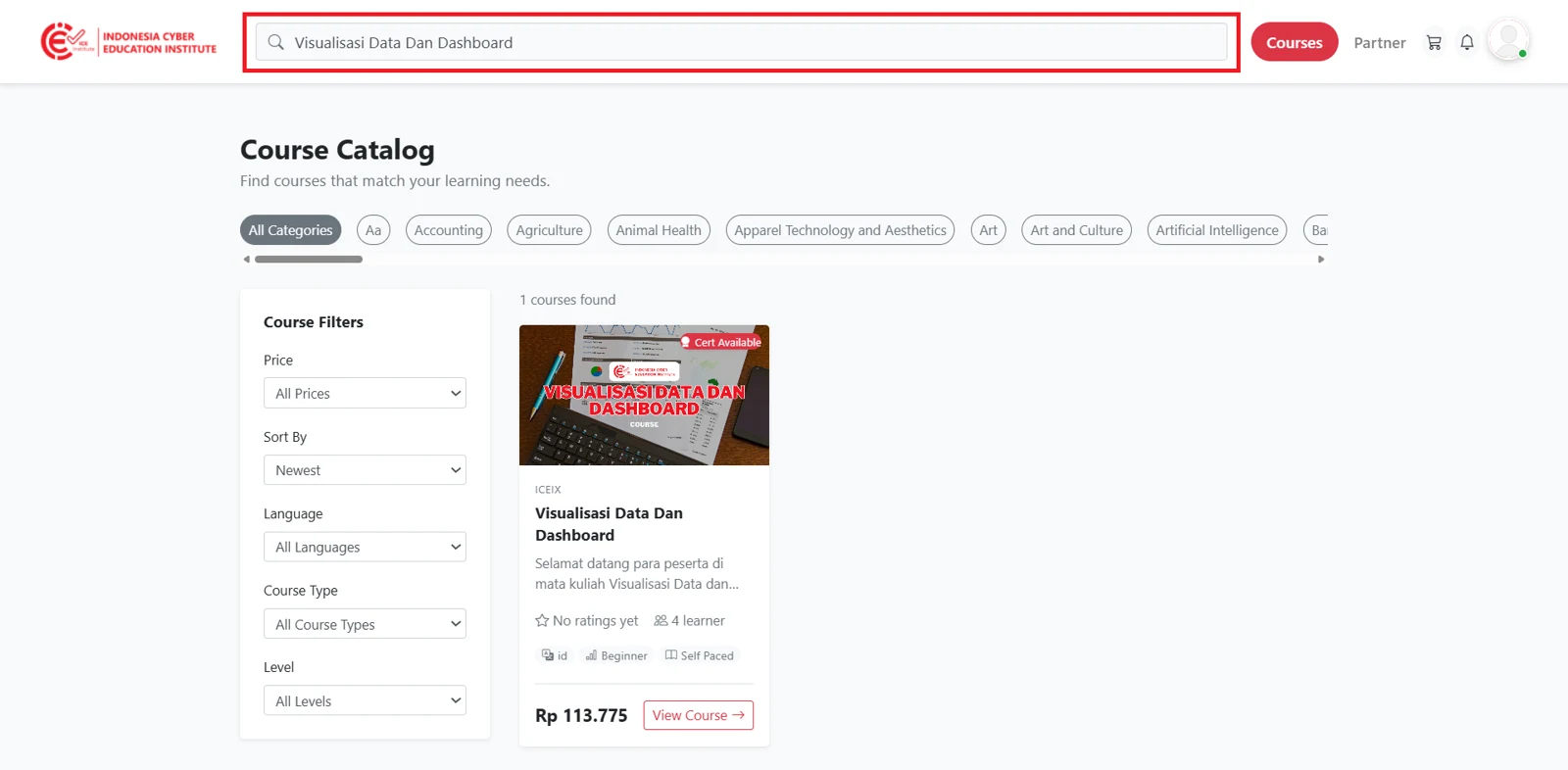
Figure 2.3 - Search and filters
Courses matching the search will be displayed along with their key information, such as the course name, a brief description, and the price.
To view more detailed information, participants can click View Course on the selected course.
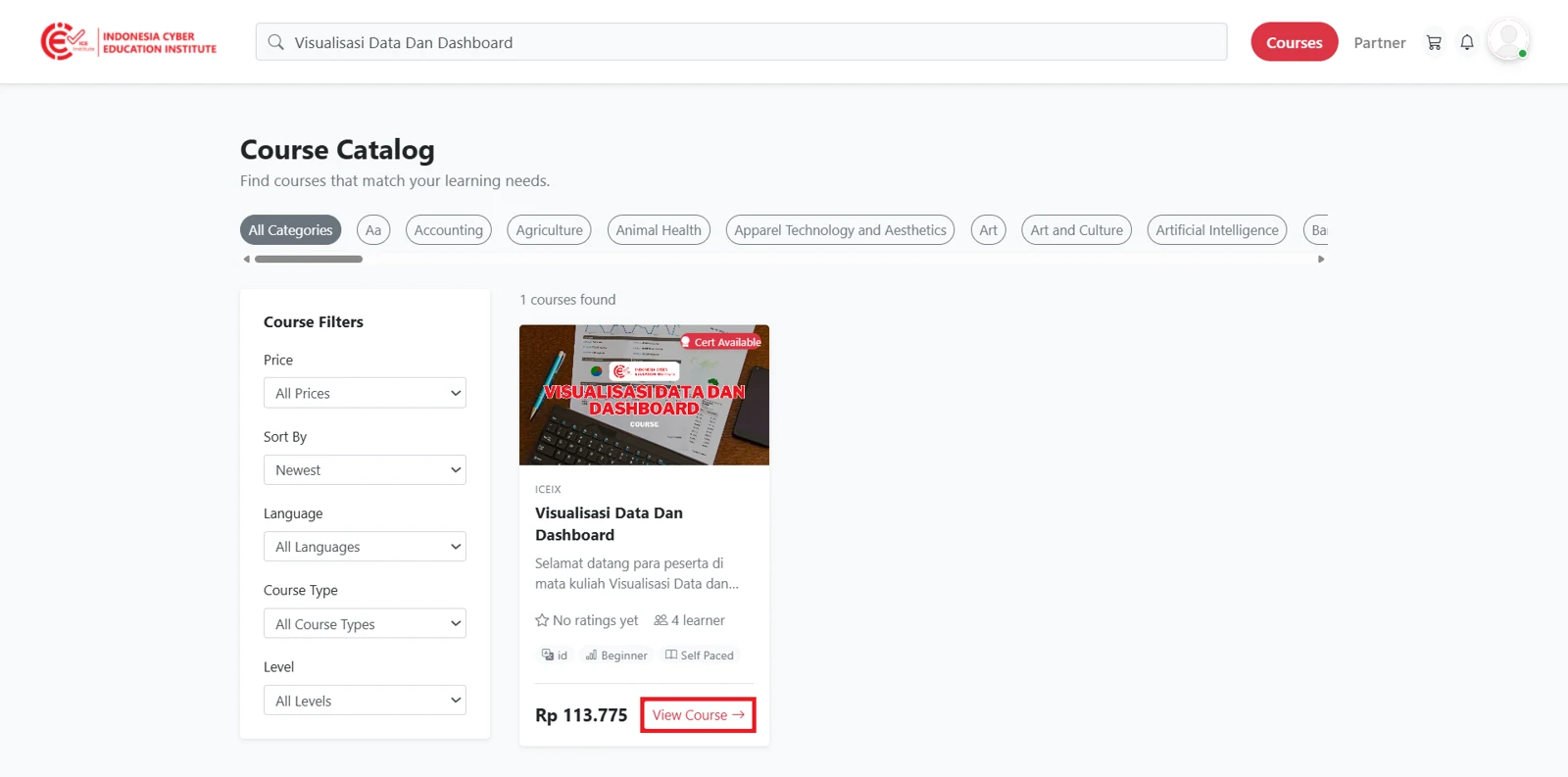
Figure 2.4 - Selecting a course
Viewing Course Details
The course details page contains comprehensive information to help participants decide whether to take the course. At the top of the page, participants can read a brief course description. The full description can be displayed by selecting Show More.
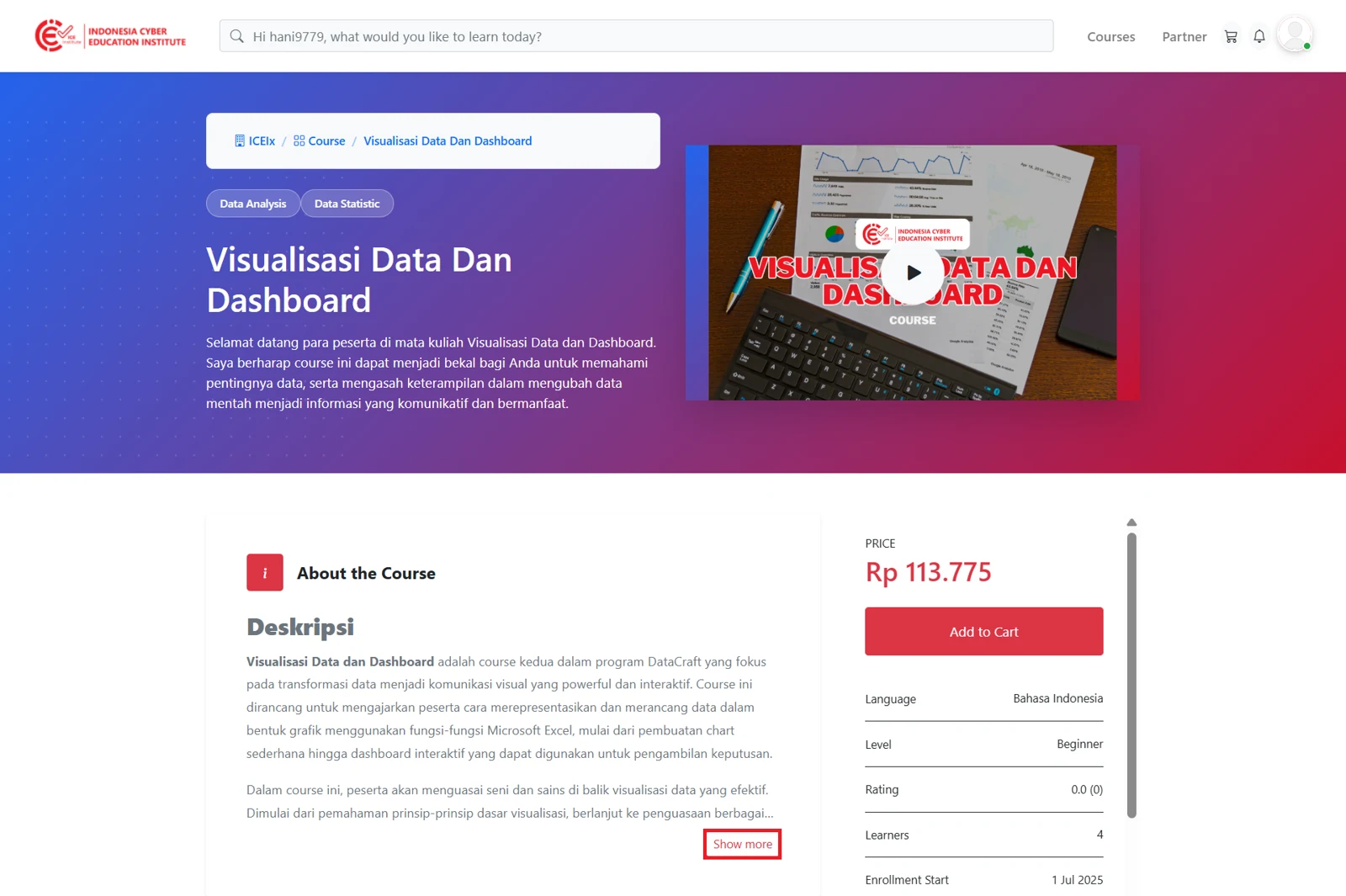
Figure 2.5 - Course description
Below the description, the Course Materials section displays the structure of the course content, giving participants an overview of the topics covered.
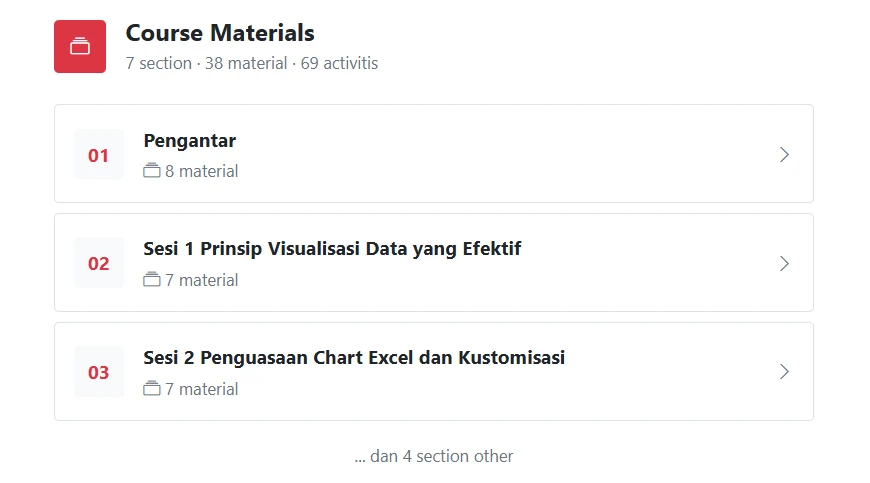
Figure 2.6 - Course materials
This page also displays information about the course instructor, reviews from other participants for consideration, and a sample of the certificate awarded upon completing the course and meeting the passing requirements.
Using the Cart
Adding to the Cart
On the course details page (see Section 2.2), participants can click Add to Cart to add the course to their cart.
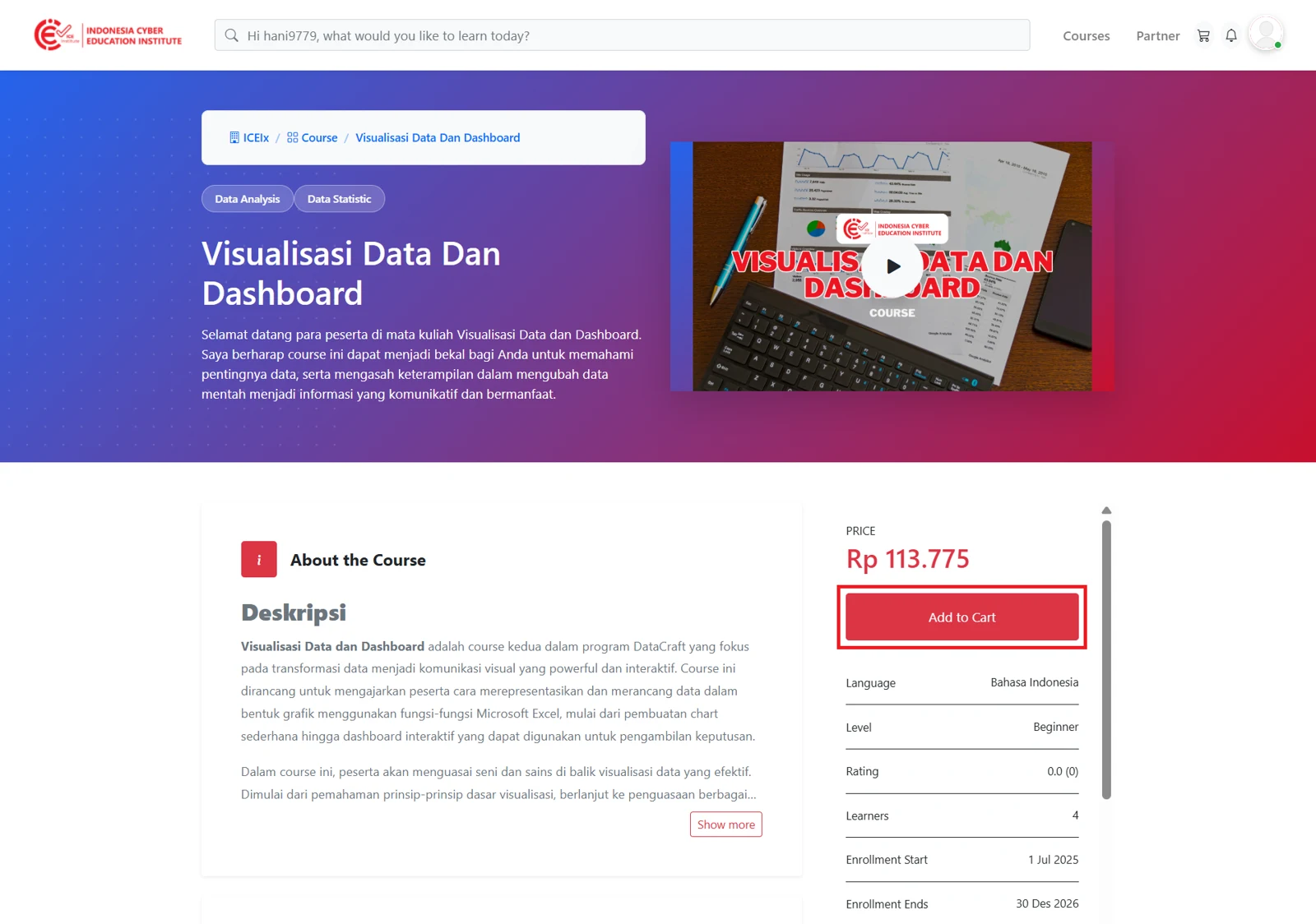
Figure 2.7 - Adding to the cart
Managing the Cart
The cart page displays the courses that have been added, along with an order summary and the total price.
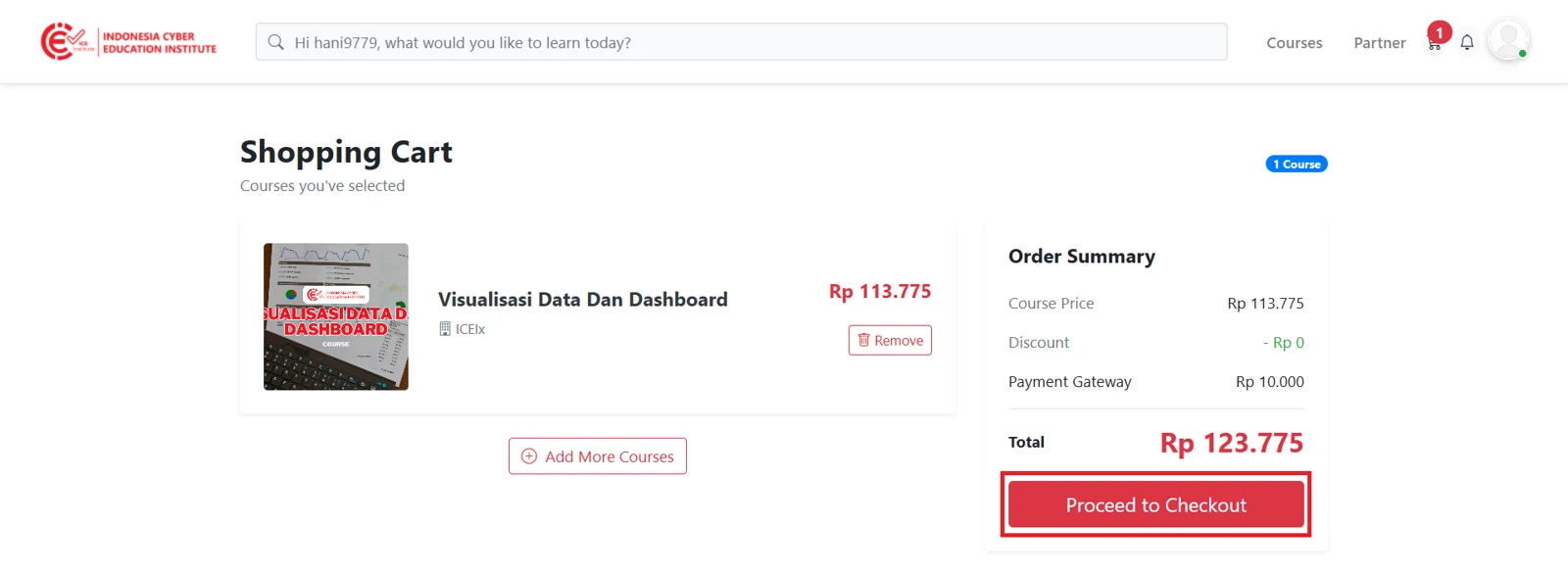
Figure 2.8 - Cart
Participants can remove a course by clicking Remove, or add other courses by selecting Add More Courses.
Proceeding to Payment
Once the order is correct, participants can click Proceed to Checkout to continue to the payment stage (see Figure 2.8).
Making a Payment
Order Summary
After clicking Proceed to Checkout, participants will be directed to the order summary page. Payments on ICE Institute are processed through Xendit using a Virtual Account (VA) number. To generate a VA number, participants can click Pay Now.
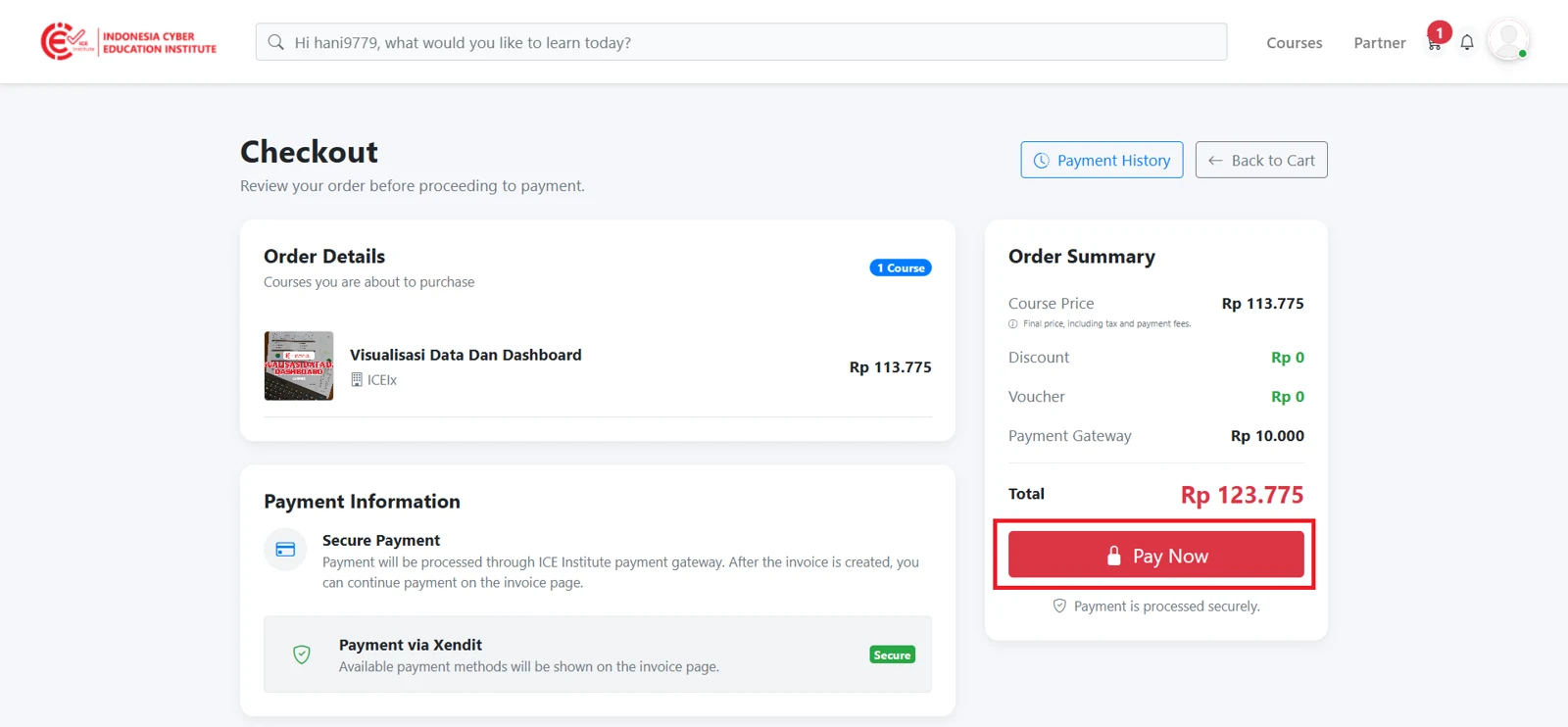
Figure 2.9 - Order summary
Selecting a Payment Method
After clicking Pay Now, a payment pop-up window will appear. Participants can select the bank they wish to use for payment from the available options: BNI, BSI, BRI, BJB, Permata Bank, Mandiri, or other banks. For example, participants who wish to pay through Mandiri can select Mandiri.
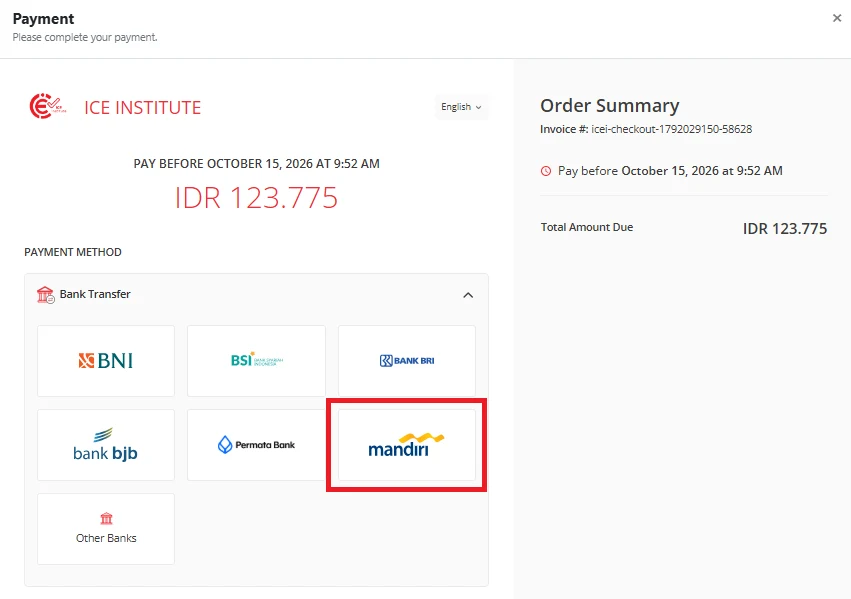
Figure 2.10 - Payment method selection
Completing the Payment
Once a bank has been selected, the VA number will be displayed along with payment instructions. Participants can copy the VA number and complete the payment through the banking services of the selected bank.
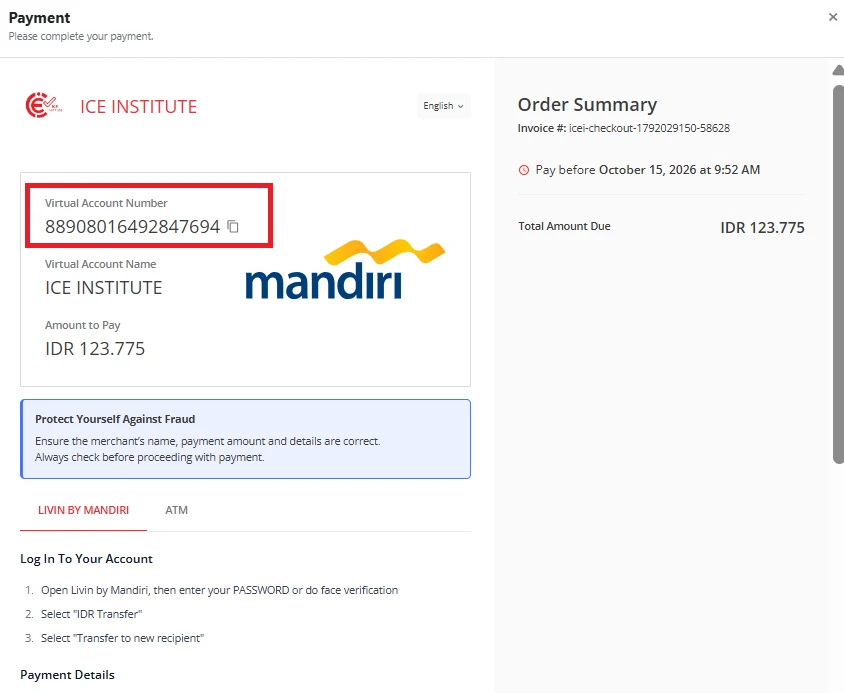
Figure 2.11 - Virtual account number
To close the pop-up window, participants can click anywhere outside the window. Participants will then be directed to the checkout page, which contains the invoice and payment status information.
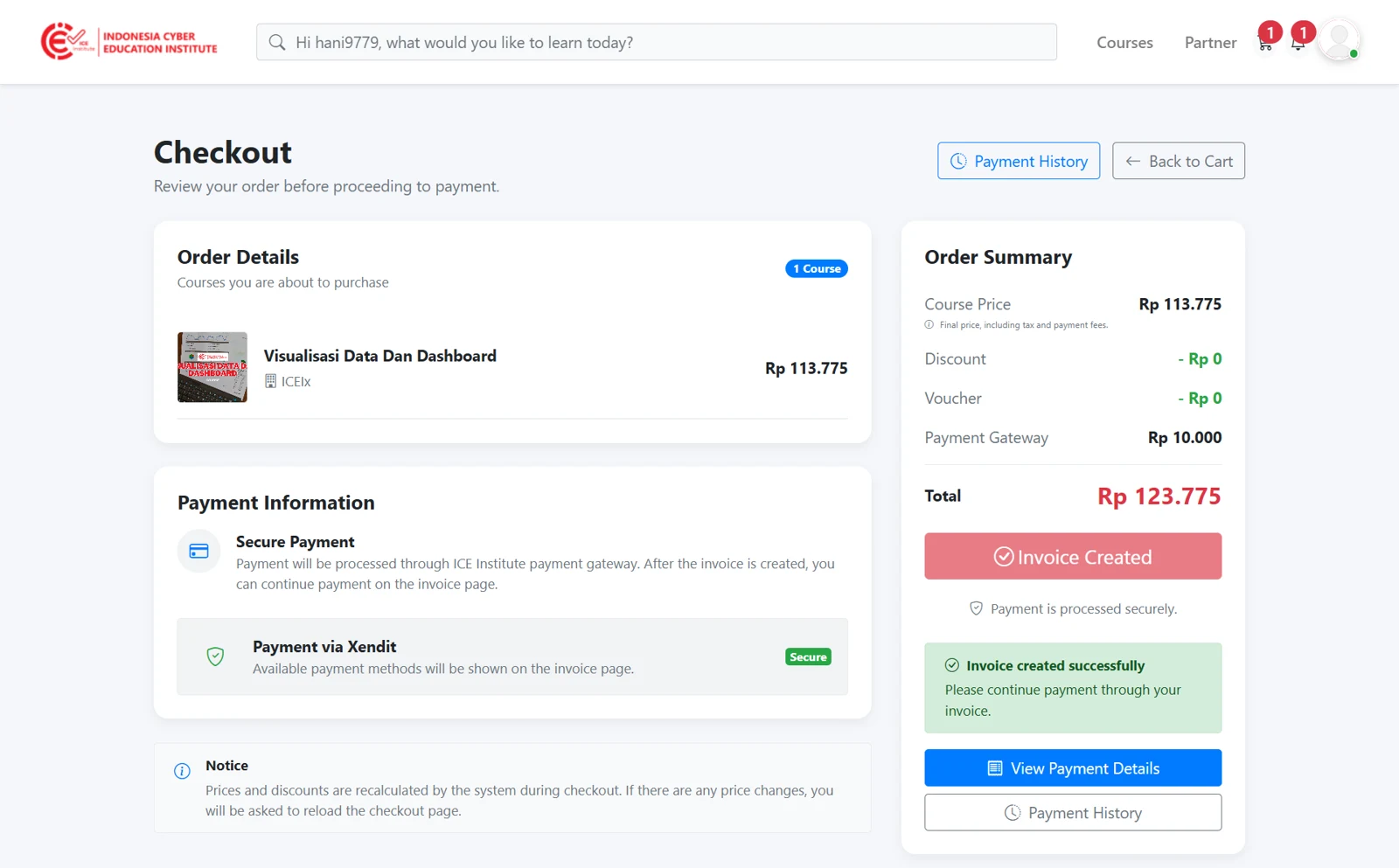
Figure 2.12 - Checkout page
Checking the Payment Status
On the checkout page, the payment status can be monitored in the Payment Details section. Once the payment is successful, the status will change to Completed.
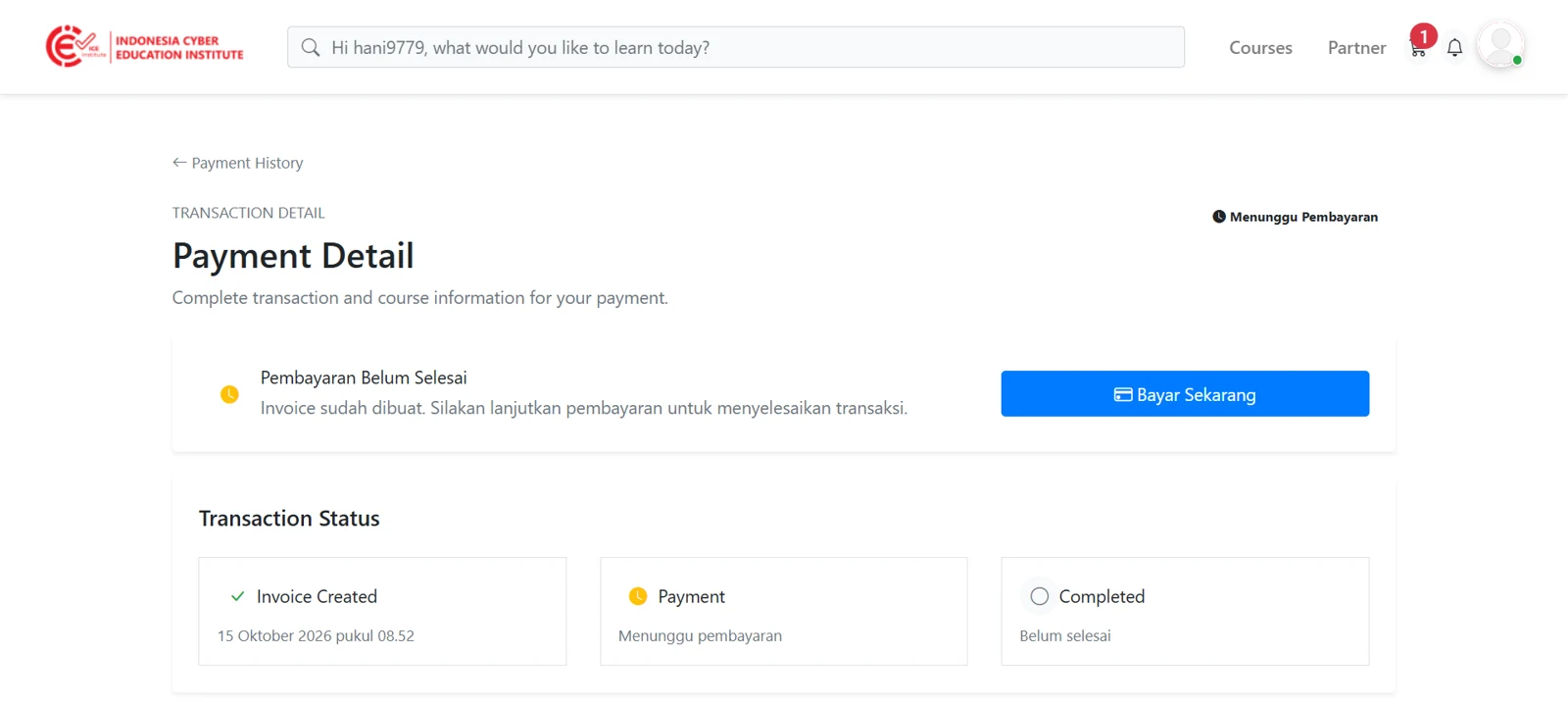
Figure 2.13 - Payment details
The full transaction history can also be viewed in the Payment History section, which displays the status of each payment: awaiting payment, expired, or successful.
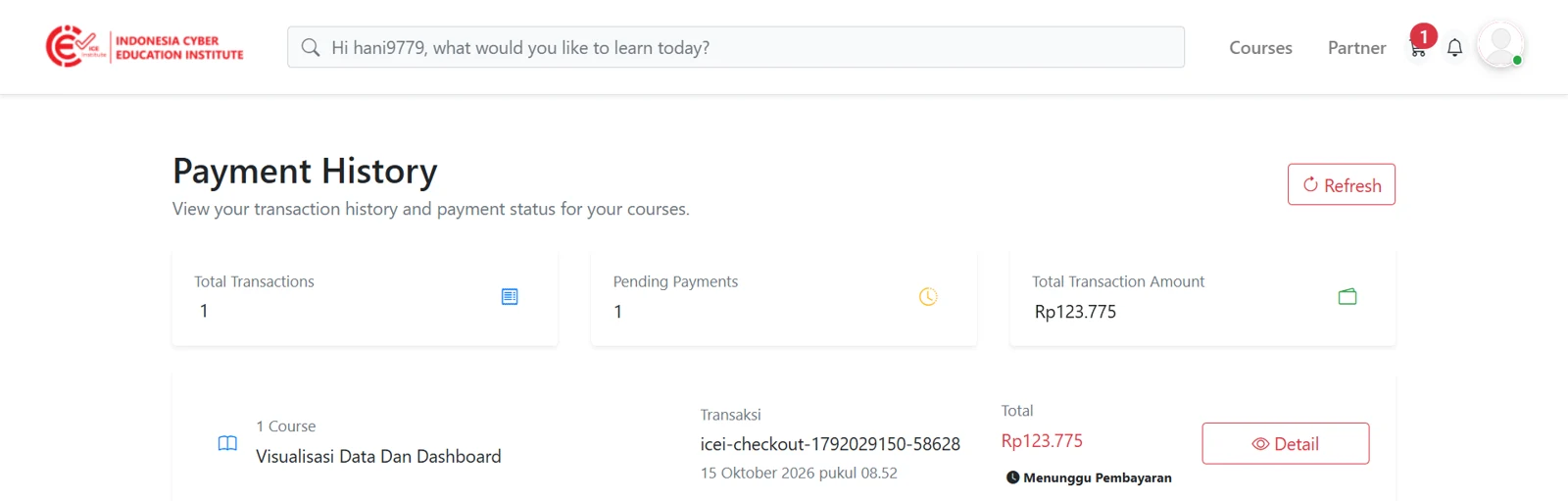
Figure 2.14 - Payment history
Once the payment has been completed successfully, the status in Payment Details will change to Completed. Participants will then be automatically enrolled in the courses they have paid for.
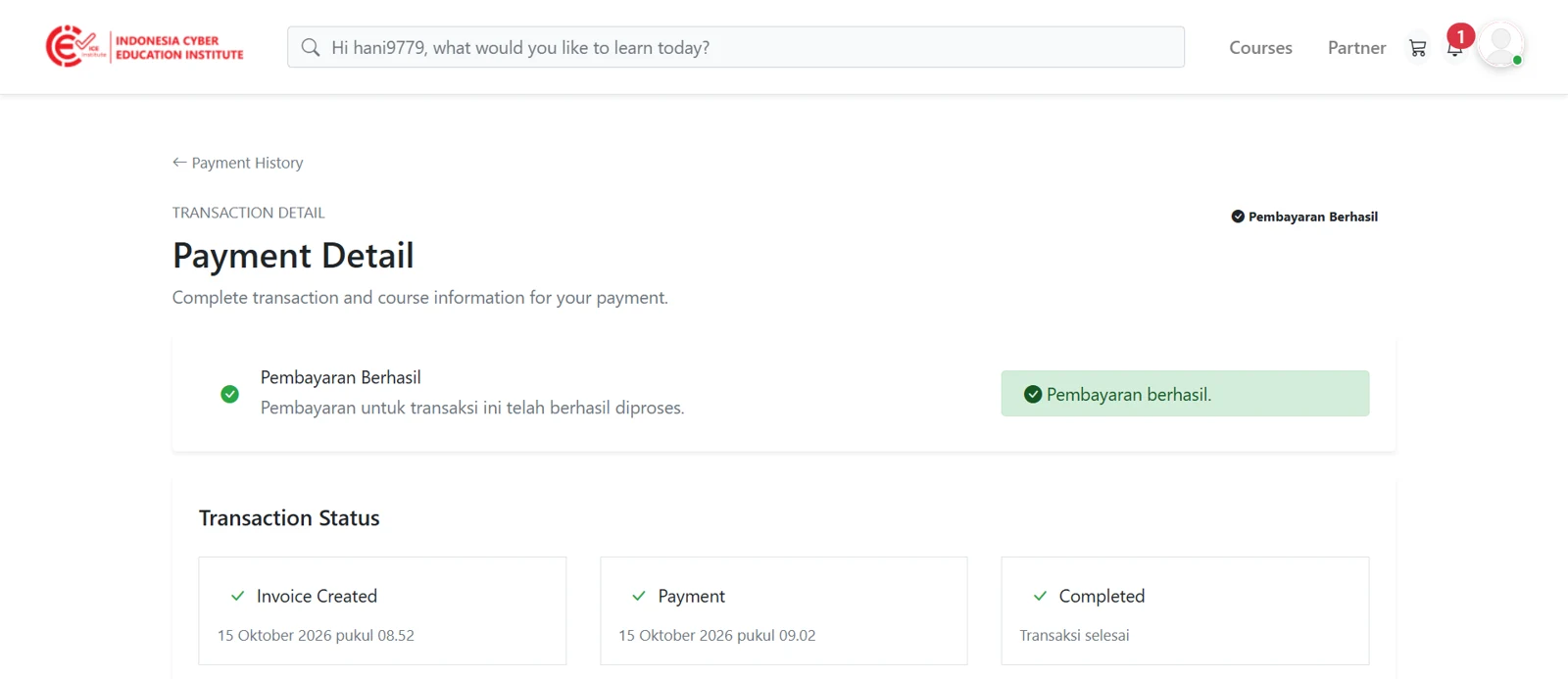
Figure 2.15 - Successful payment
Accessing Courses
Enrolled courses can be accessed by selecting the profile icon in the upper-right corner and then selecting My Courses.
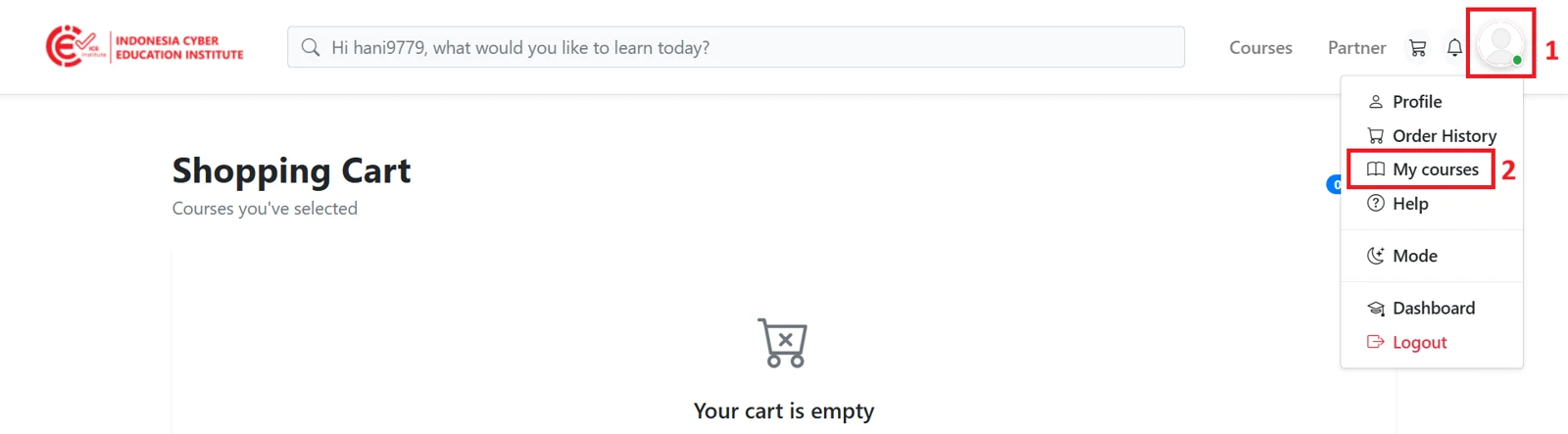
Figure 2.16 - My Courses menu
After selecting My Courses, participants will be directed to a page listing all of their enrolled courses.
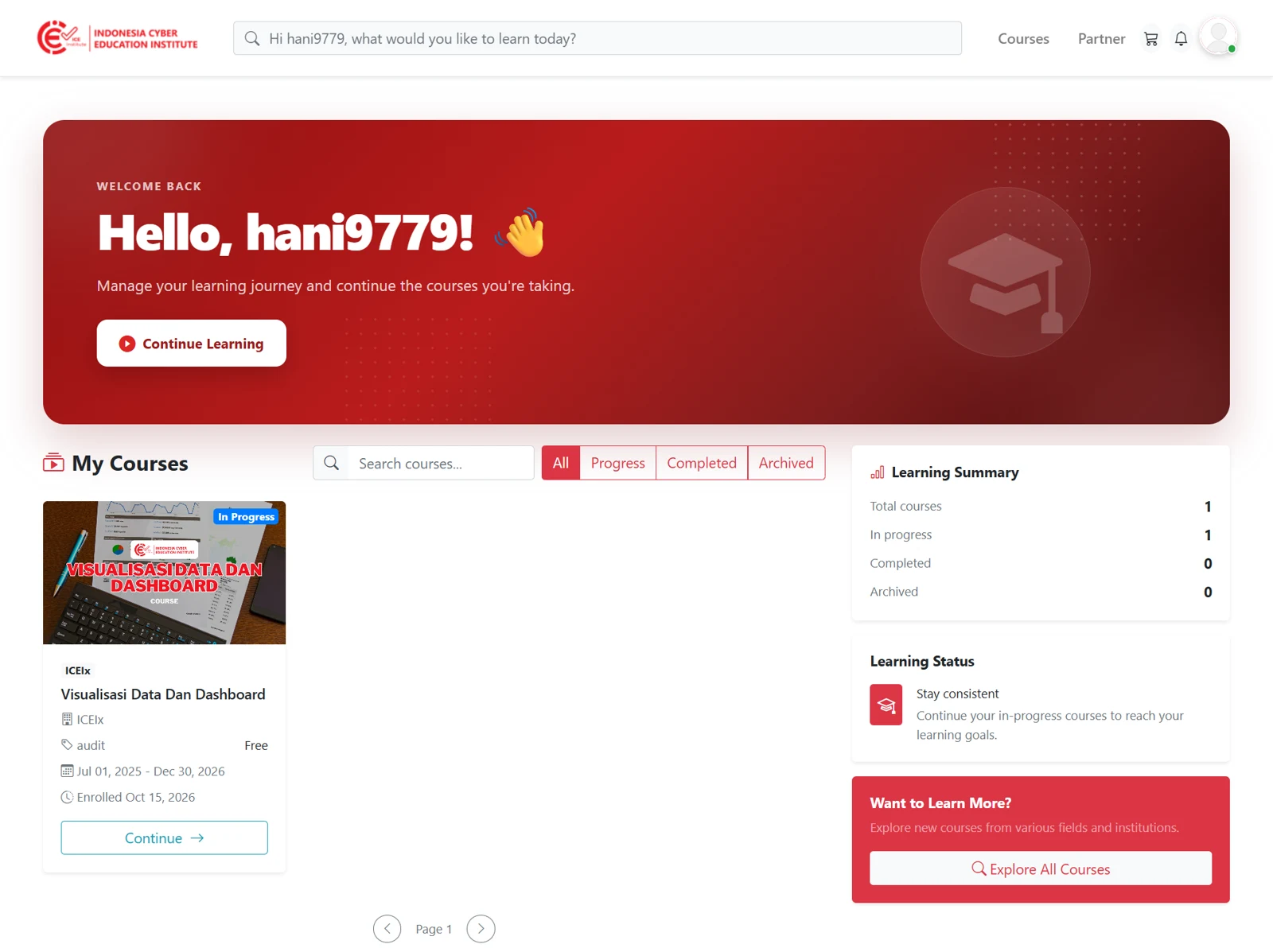
Figure 2.17 - Enrolled courses