Digital certificates may be issued by participants who have completed a course and achieved the minimum passing grade in accordance with the course requirements. Certificates are only awarded for paid courses; free courses may still be completed in full but do not award a certificate.
Participants can determine whether a course awards a certificate from the label shown in the course catalog. The Cert Available label indicates that the course awards a certificate, while the Self Paced label indicates that the course can be studied independently without a certificate. Participants who require a certificate are advised to check this label before enrolling.

Figure 4.1 - Course labels in the catalog
Completing Personal Information
Before claiming a certificate, participants must ensure that the name on their account is correct, as this name will be printed on the certificate. The name can be updated by selecting the profile icon in the upper-right corner of the page and then selecting Profile.
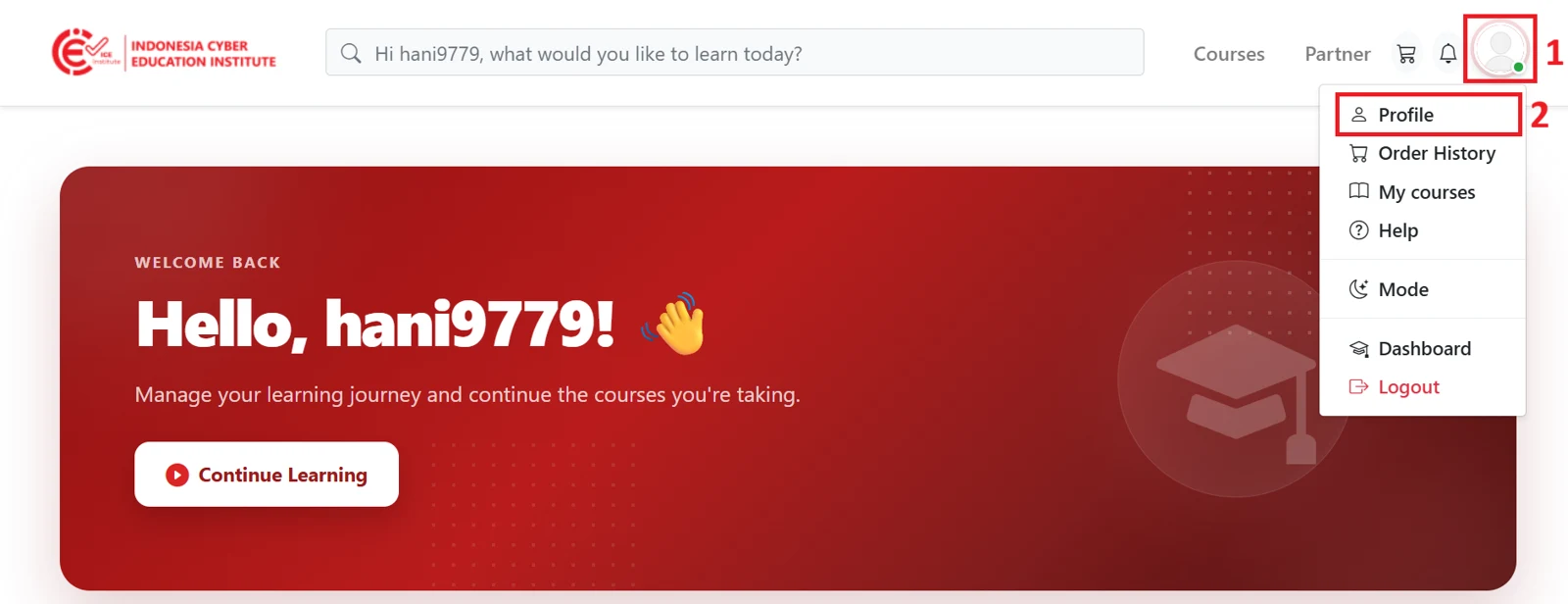
Figure 4.2 - Profile menu
On the profile page, the name used on the certificate appears in the Display Name field. To update this name, participants can click Edit below the field.
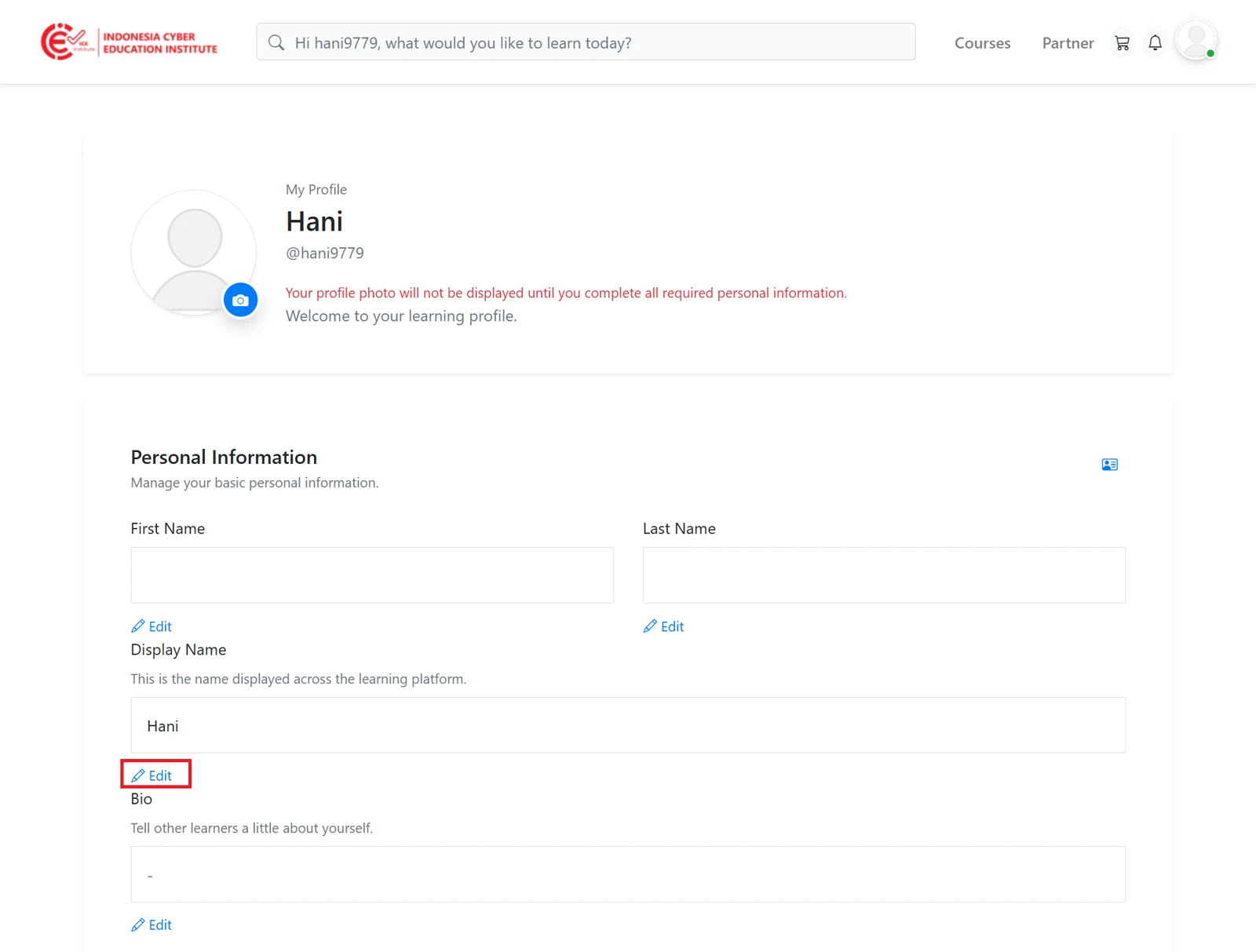
Figure 4.3 - Display Name field
Participants then enter their full name exactly as it appears on their identity documents, such as their national ID card (KTP) or academic diploma, and click Save to save the changes.

Figure 4.4 - Updating the Display Name
⚠ IMPORTANT |
|---|
The name in the Display Name field will be printed on the certificate. Please ensure that the name is spelled correctly before claiming the certificate. |
Completing the Evaluation
Before claiming a certificate, participants must complete the course evaluation located at the end of the course materials. Once all questions have been answered, participants can click Kirim (Submit) to submit the evaluation.
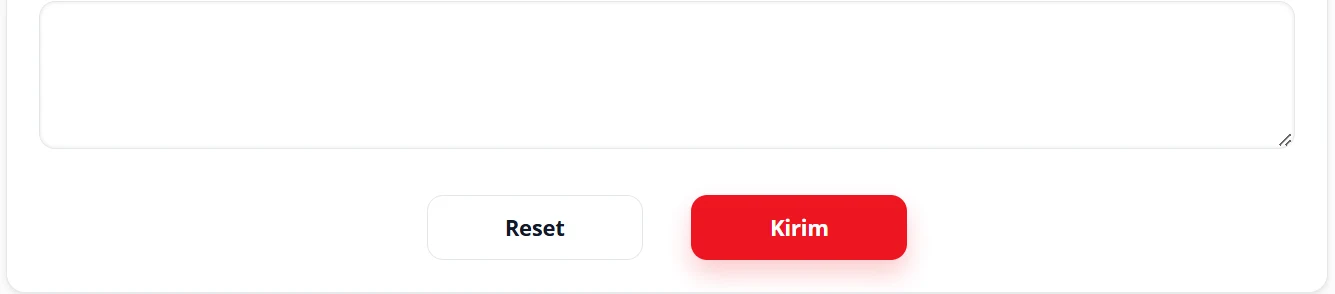
Figure 4.5 - Submitting the evaluation
Claiming the Certificate
Once the evaluation has been submitted successfully, a notice will be displayed reminding participants to ensure that the name in the Display Name field is correct, as described in Section 4.1.
If the name is correct, participants can click Generate Certificate at the end of the course materials to issue their digital certificate.
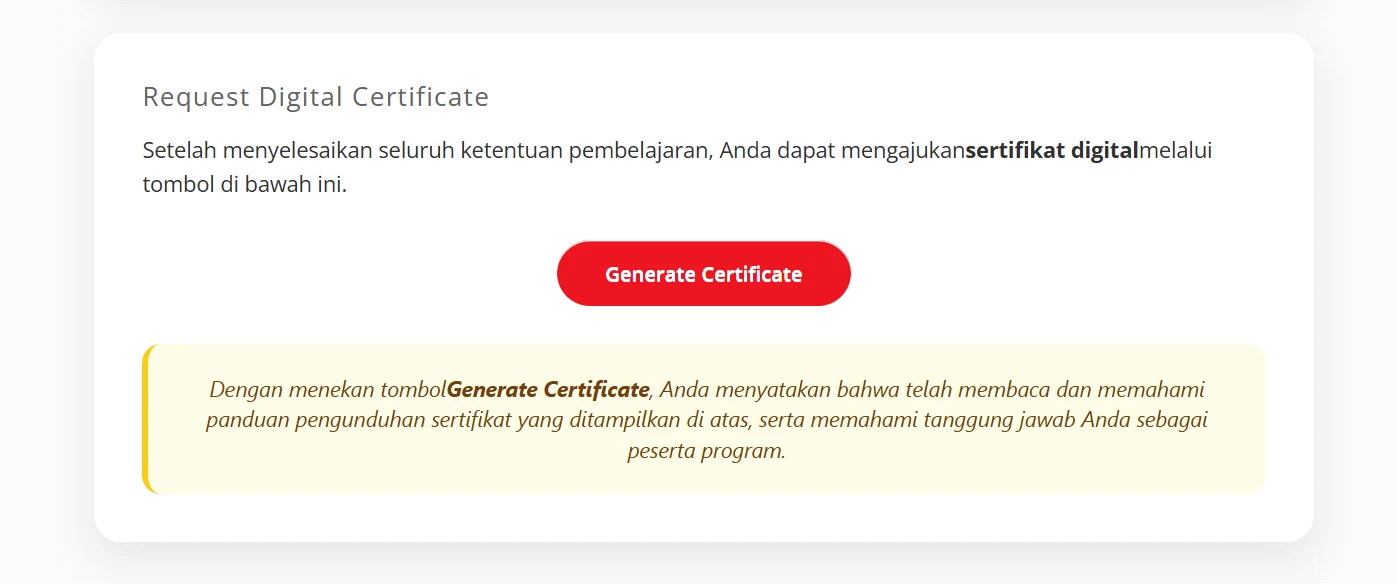
Figure 4.6 - Generating the certificate
Downloading the Certificate
After Generate Certificate is clicked, the digital certificate will be displayed immediately in the participant's name.
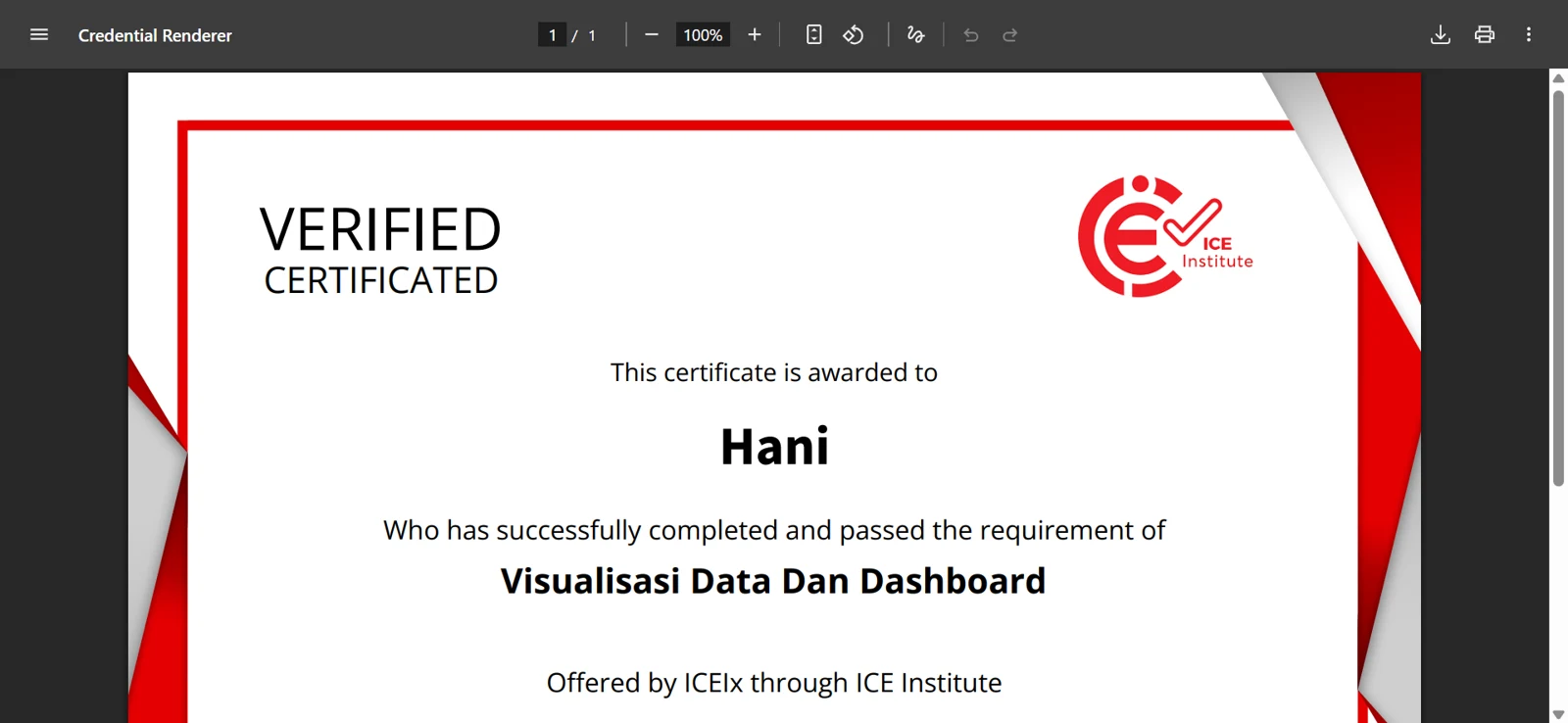
Figure 4.7 - Digital certificate
Issued certificates can also be viewed again at any time from the My Courses page. On this page, participants can click Certificate on a completed course to display its certificate.
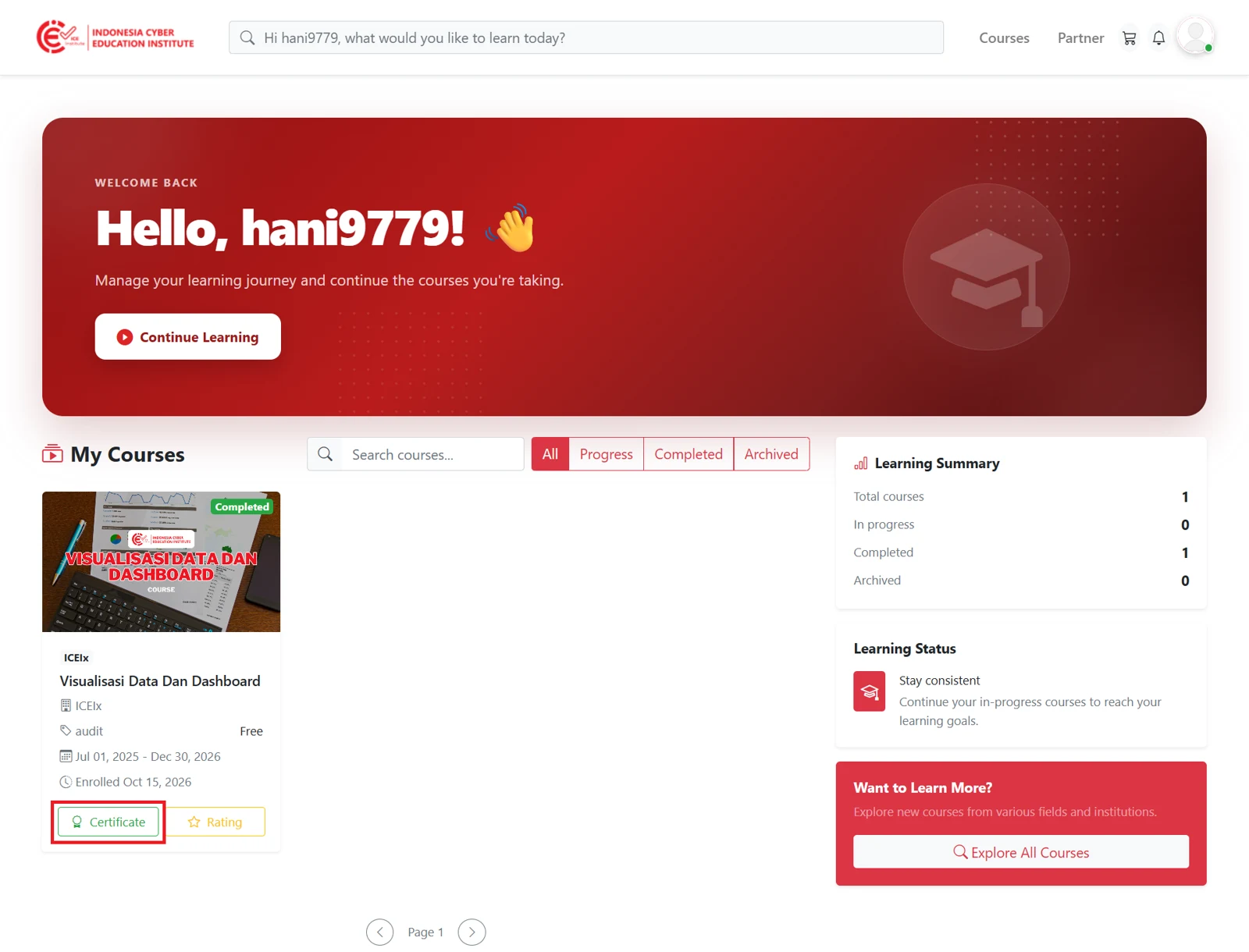
Figure 4.8 - Certificate on My Courses
Requesting a Name Change on the Certificate
If a certificate has been issued but the name shown on it is incorrect, participants can request a name change by following the steps below.
Before submitting a request, participants must first update the name in the Display Name field as described in Section 4.1. This step is important to ensure that certificates for subsequent courses do not use the incorrect name again.
Next, participants open the certificate issuance email sent by ICE Institute for the course whose name needs to be corrected, and then click View My Certificate.
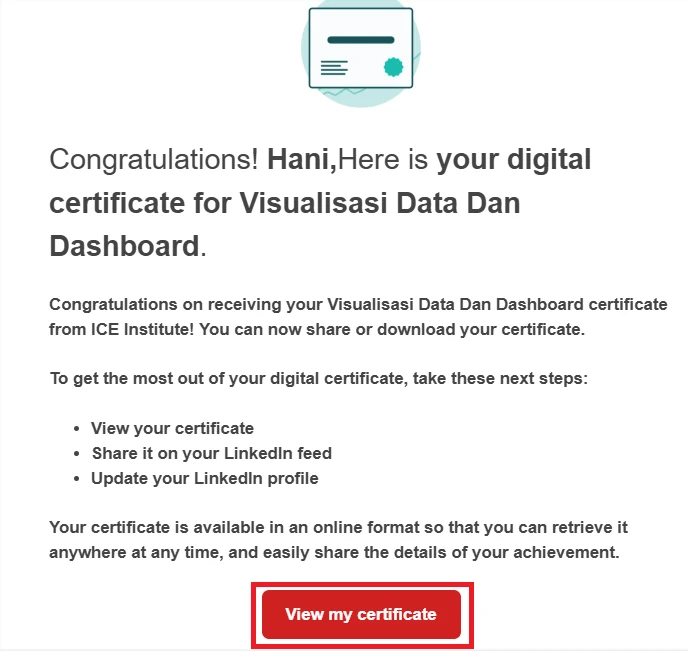
Figure 4.9 - Certificate email
On the certificate page, participants select More.
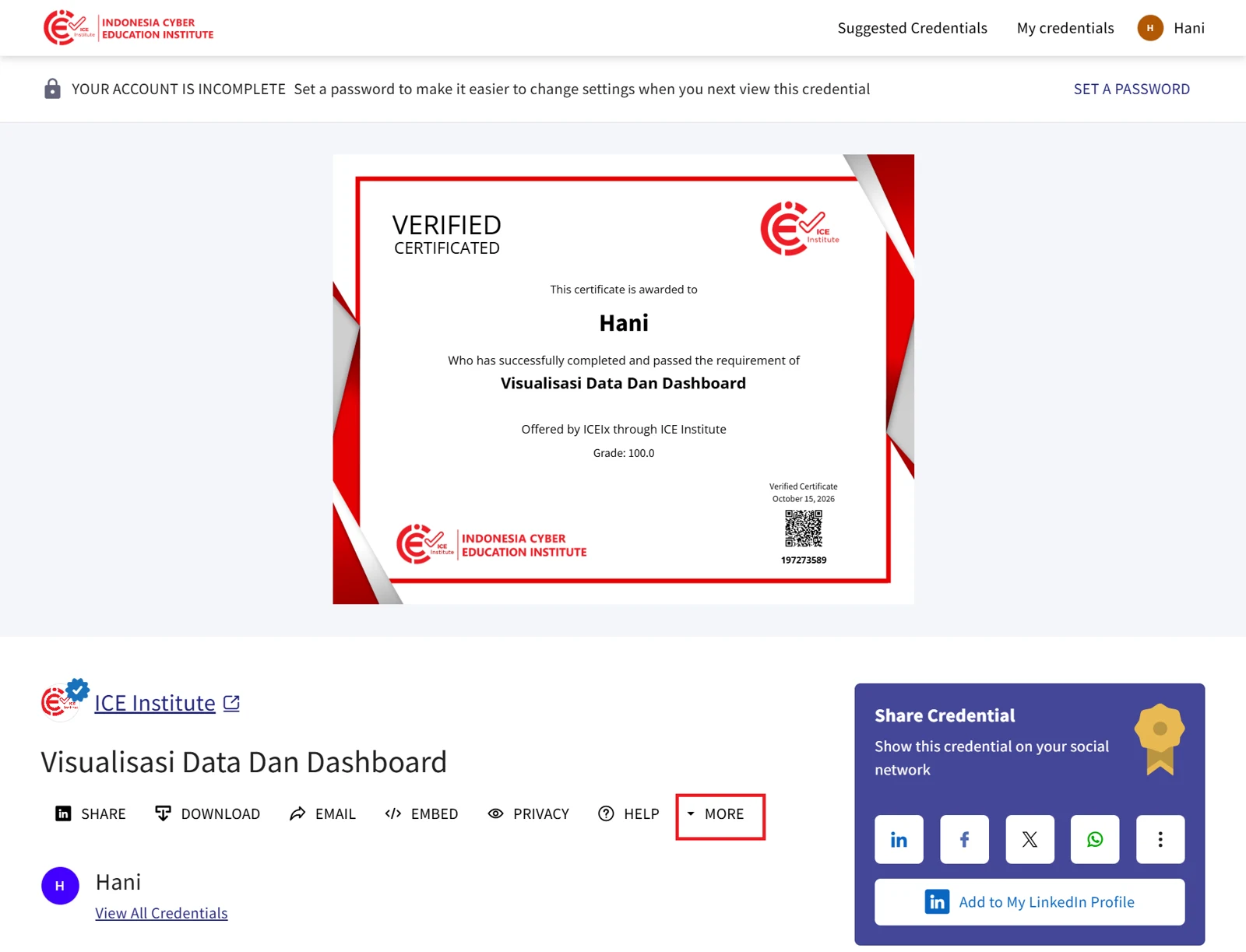
Figure 4.10 - More menu
Participants then select Request Name Change.
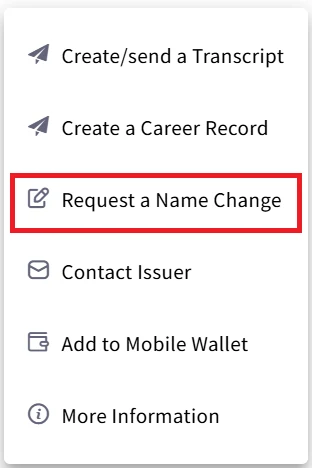
Figure 4.11 - Name change option
The Request a Name Change pop-up window will then appear. Participants enter the correct name in the New name on the credential field and re-enter the same name in the Confirm new name field. Once both fields have been completed, participants can click Request to submit the request.
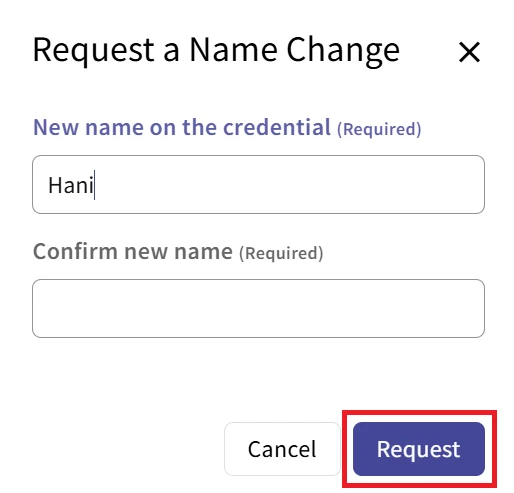
Figure 4.12 - Name change form
The request will be reviewed by staff. Once approved, the name on the certificate will be updated to the requested name, and the updated certificate can be viewed again through the certificate email or the My Courses page.