
Participants who encounter issues while using ICE Institute can request assistance through the help feature available in the system.
Submitting a Support Ticket
The help feature can be accessed by selecting the profile icon on the homepage and then selecting Help.
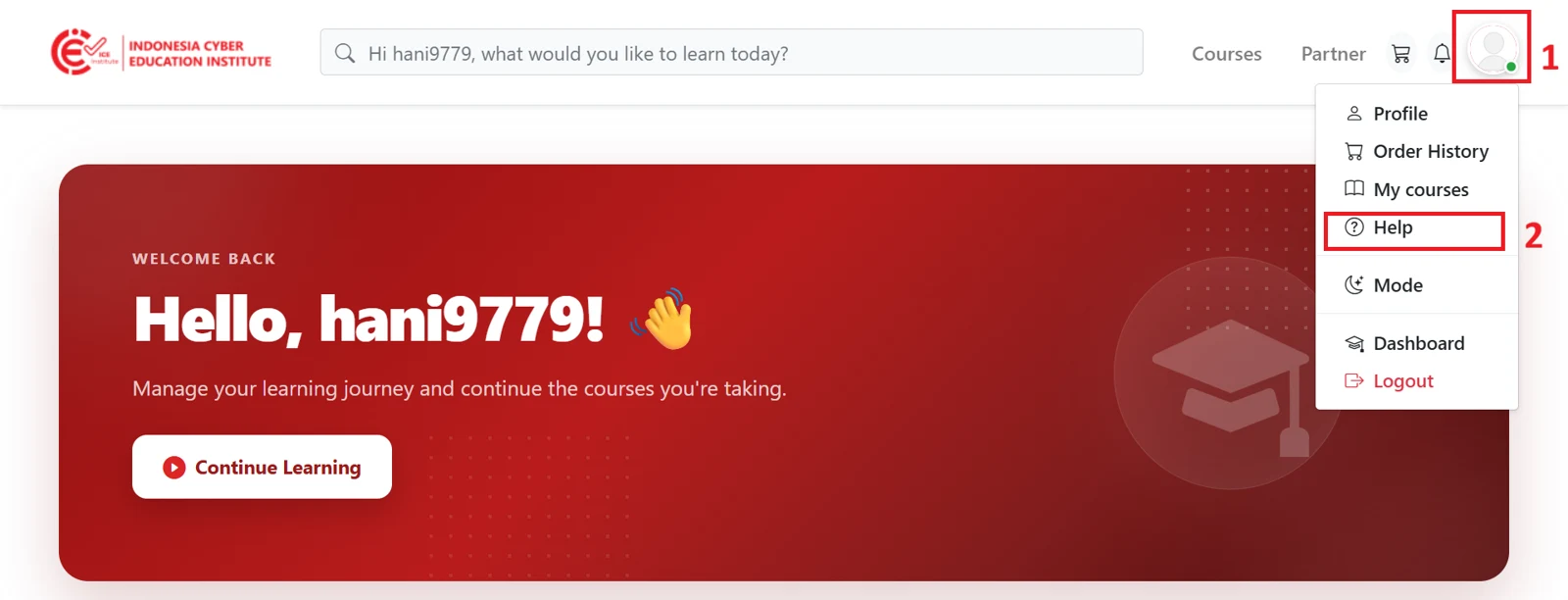
Figure 6.1 - Help menu
On the help page, participants can click Create Ticket to submit a new request.
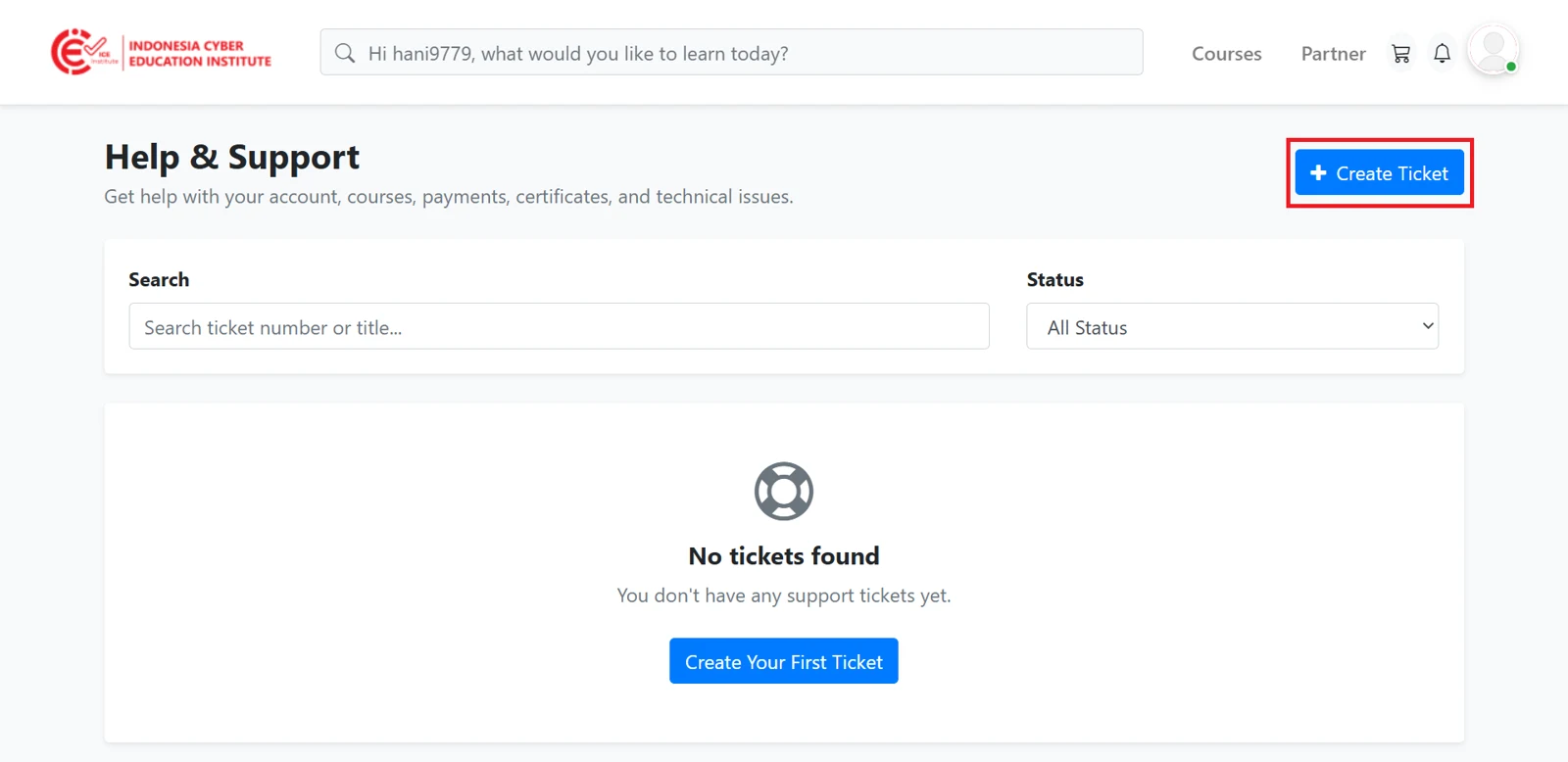
Figure 6.2 - Help page
Participants then complete the support ticket form by entering a title for the issue in the Subject field, selecting the type of issue under Category, and describing the issue in detail in the Description field. Participants may also attach screenshots or supporting documents under Attachments, and then set the priority level under Priority. Once all fields have been completed, participants can click Submit Ticket.
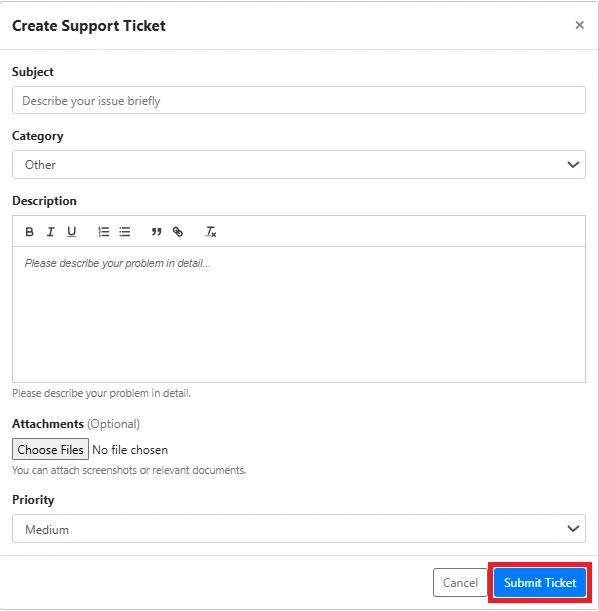
Figure 6.3 - Support ticket form
A successfully submitted ticket will appear on the help page with the status Open.
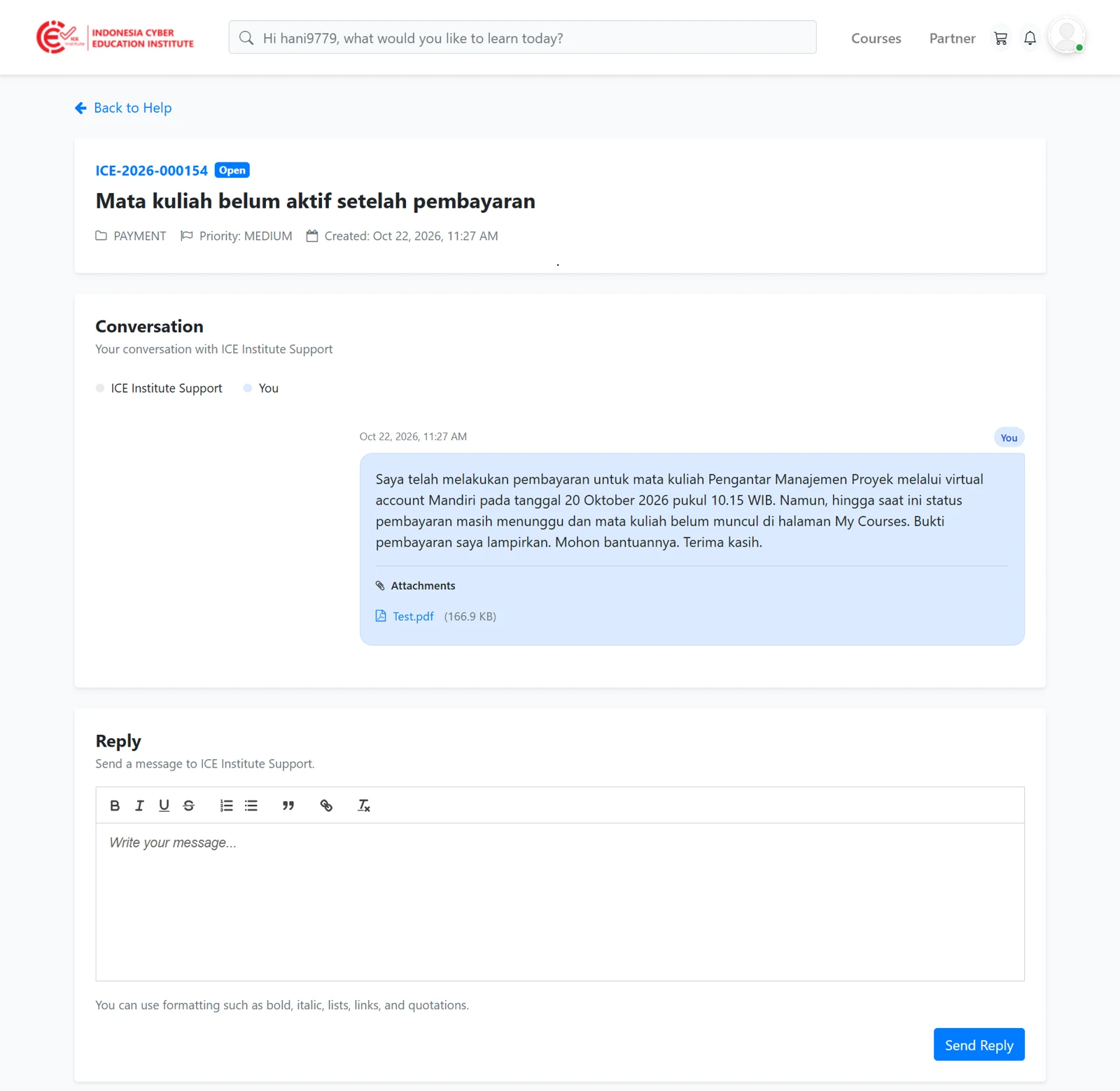
Figure 6.4 - Ticket with Open status
During handling, the ticket status may change according to its stage, as follows.
Status | Keterangan |
|---|---|
Open | The ticket has been submitted successfully and is awaiting a response from staff. |
In Progress | The ticket is being handled by staff. |
Waiting for User | Staff are awaiting a response or additional information from the participant. The participant must reply to the ticket for handling to continue. |
Resolved | The issue has been marked as resolved by staff. |
Closed | The ticket has been closed. The participant can no longer send replies or questions on this ticket. |
Viewing Ticket Replies
When staff have replied, participants will receive a notification. To read the reply, participants can reopen the Help menu via the profile icon (see Figure 6.1).

Figure 6.5 - Reply notification
On the Help & Support page, participants can view a list of submitted tickets along with their ticket number, status, and last-updated date. A specific ticket can be located quickly using the Search field or the Status filter.
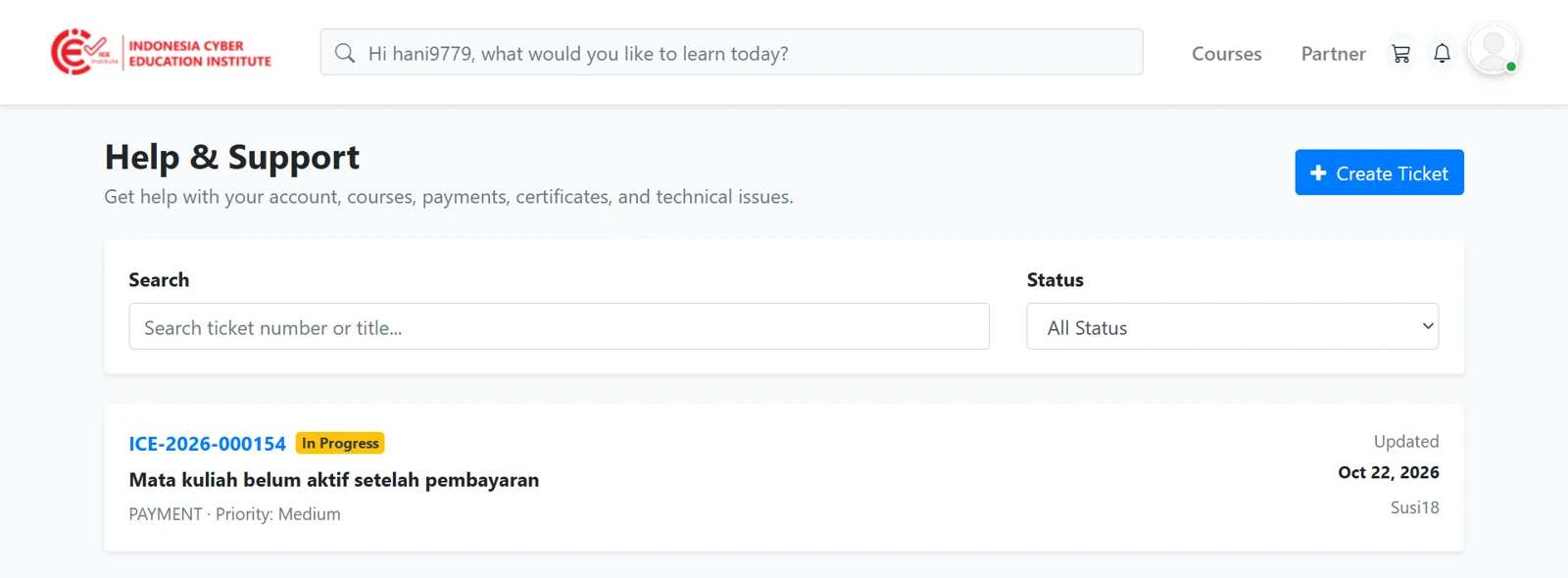
Figure 6.6 - Ticket list
To read a staff reply, participants can select the ticket number or title they wish to view. The ticket details page displays the full conversation between the participant and staff, along with ticket information such as status, category, and priority.
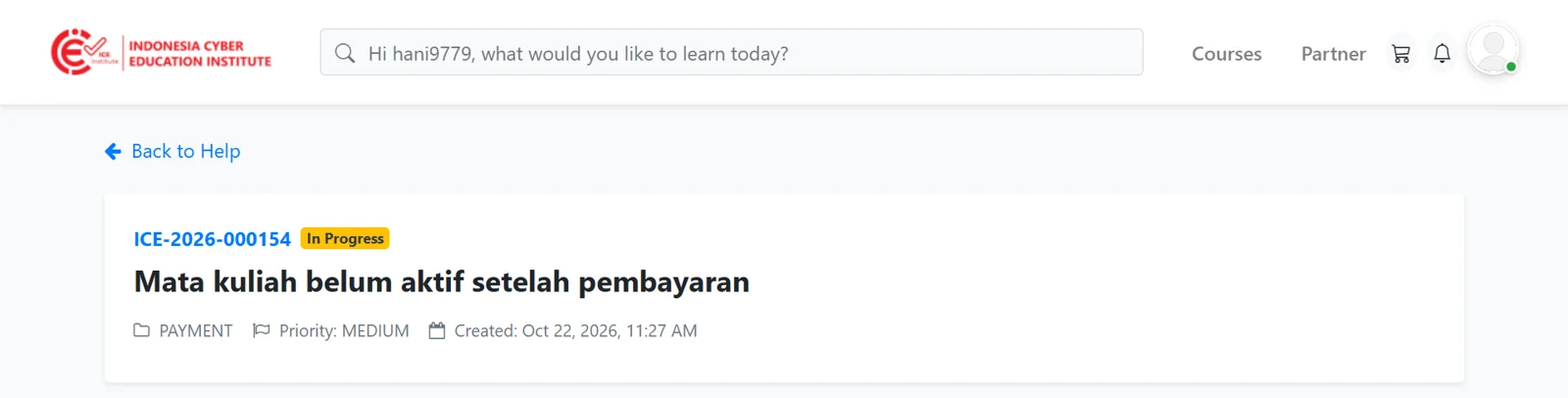
Figure 6.7 - Ticket details
Below this, the Conversation section displays all messages between the participant and staff, including any attachments sent. Messages from the participant are marked with the You label, while replies from staff are marked with the Support label.
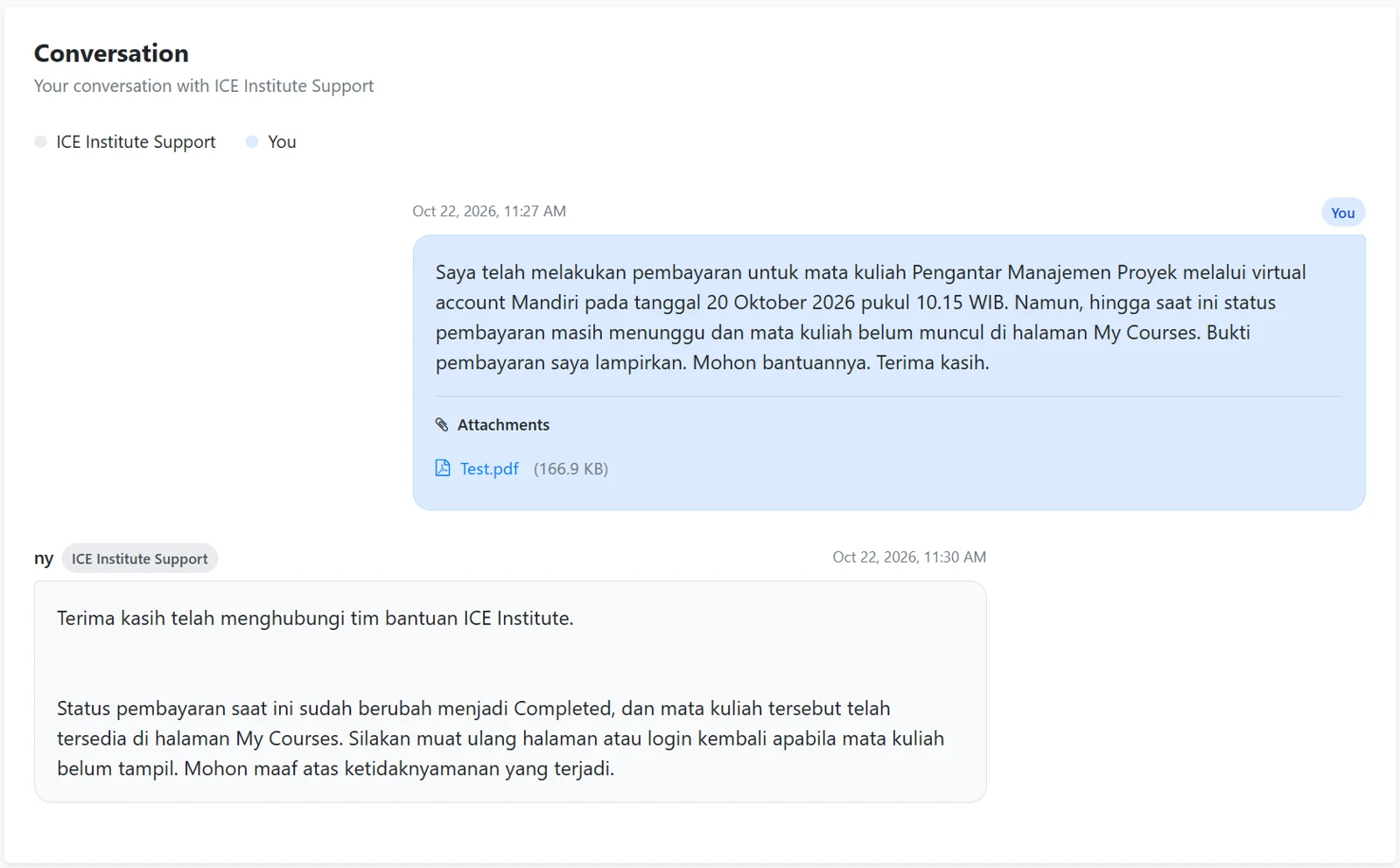
Figure 6.8 - Ticket conversation
To respond to a staff reply, participants can write a message in the Reply section and then click Send Reply.
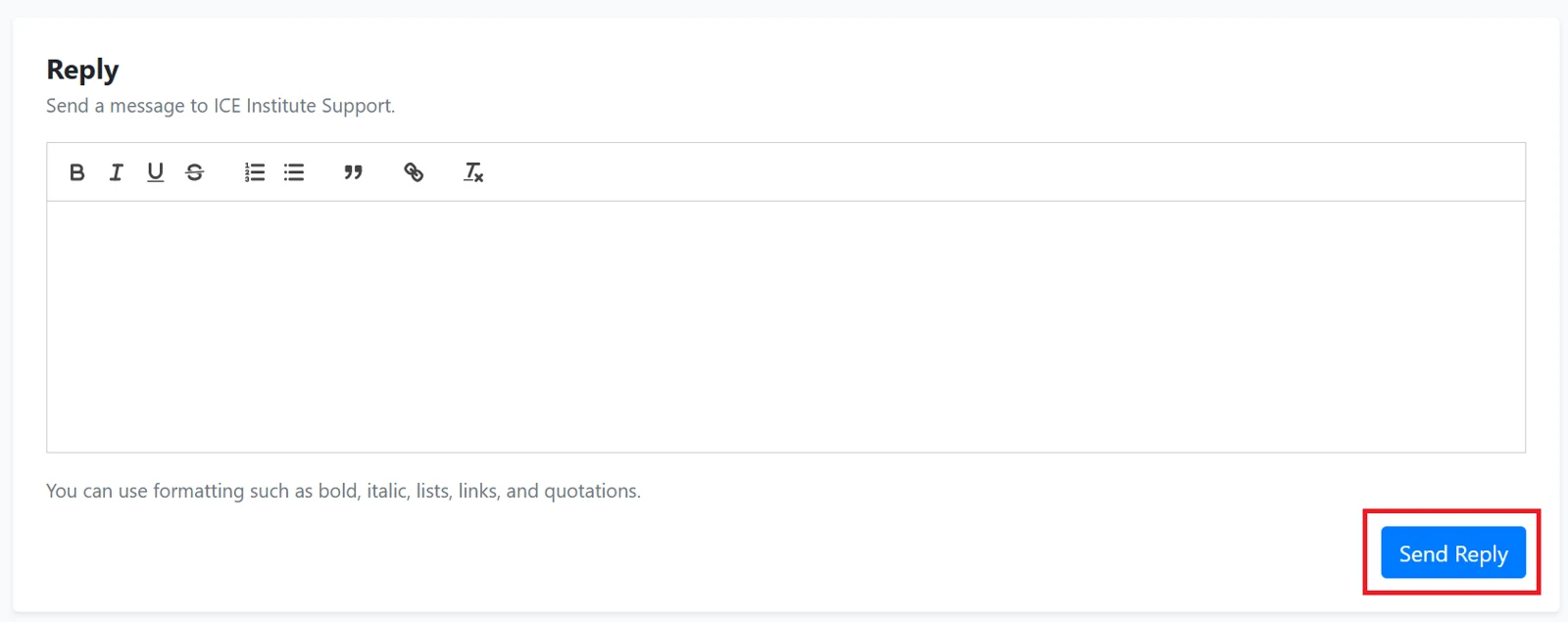
Figure 6.9 - Replying to a ticket