Before starting to learn, every participant must have an ICE Institute account.
Preparation
ICE Institute can be accessed through a web browser on a desktop computer, laptop, or mobile phone. A stable internet connection is required throughout the learning process.
Before registering, participants should prepare the following personal details: their full name as stated on their official identification, an active email address, and an active phone number. The full name will be printed on the certificate, while the email address will be used for account verification.
Preparing these details in advance will speed up registration and help prevent data errors, particularly in the name printed on the certificate.
To begin using ICE Institute, open https://icei.ac.id in a web browser, scroll down the page, and click Visit Marketplace.

Figure 1 - Visit Marketplace
Participants will then be directed to the ICE Institute learning homepage. The menus at the top of the page serve the following functions.
Menu | Fungsi |
|---|---|
Search bar | Search for courses directly by name or keyword. |
Courses | Open the catalog of all available courses. |
Partner | View the list of course provider partners. |
Cart icon | View the courses that have been selected for purchase. |
Bell icon | View notifications, such as course enrollment information, payment status, and replies to support tickets. |
Profile icon | Log in to an account or access the account menu. |
Figure 2 - LMS homepage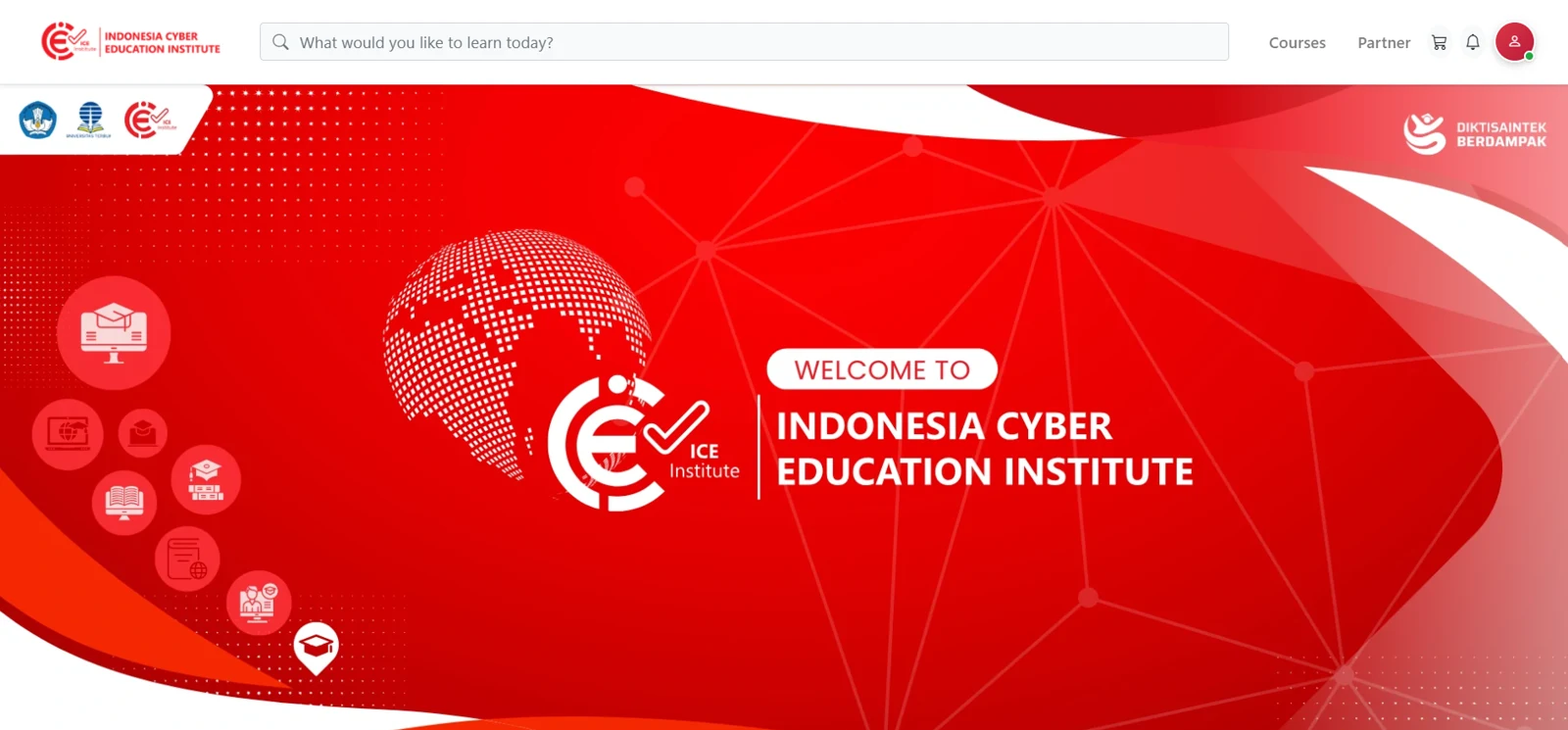
By scrolling further down the page, participants can find information about ICE Institute, including the learning flow, subject categories, the latest and most popular courses, course provider partners, and frequently asked questions.
Account Registration
Participants who do not yet have an account can register by opening the ICE Institute platform, selecting the profile icon on the homepage, and then selecting Login.
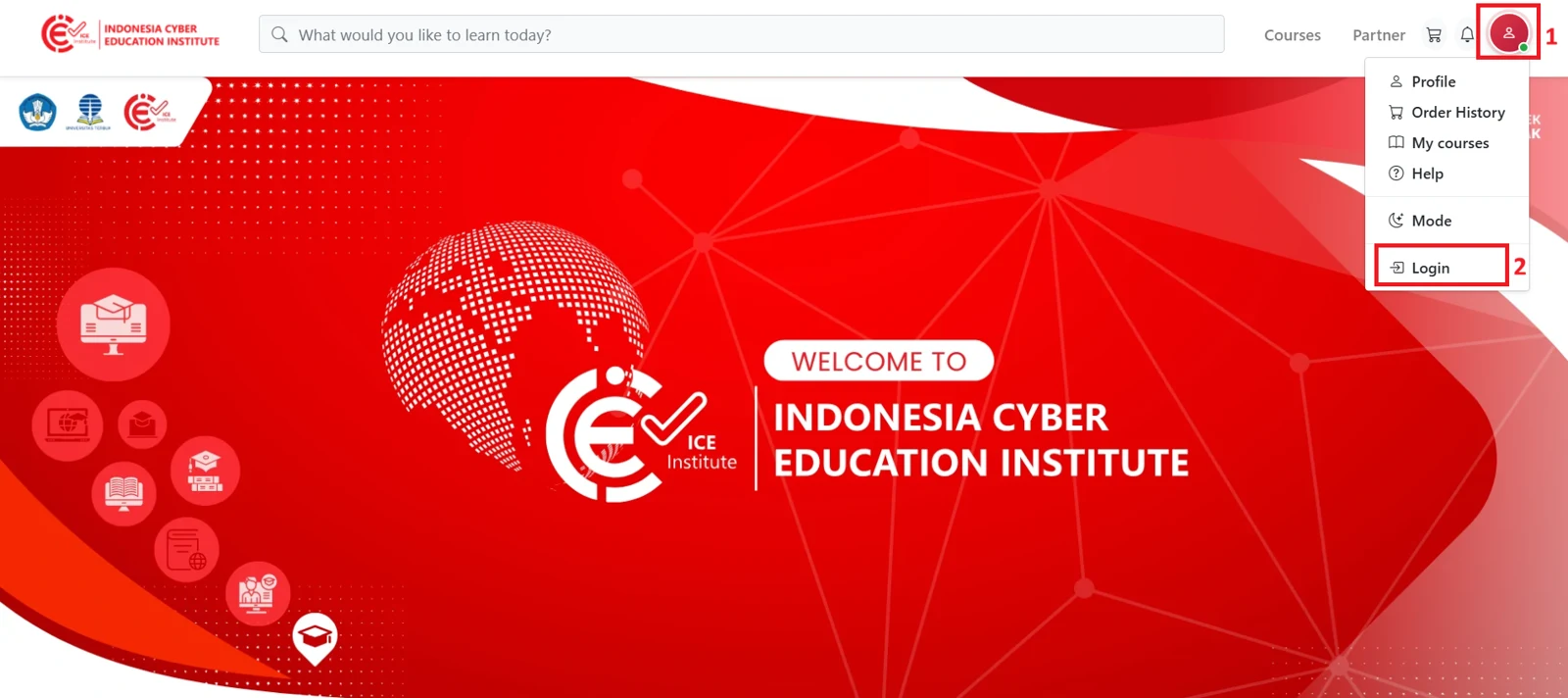
Figure 1.1 - Login Menu
On the login page, participants can create an account in one of two ways: by selecting Google to use a Google account, or by clicking Register to complete the registration form.
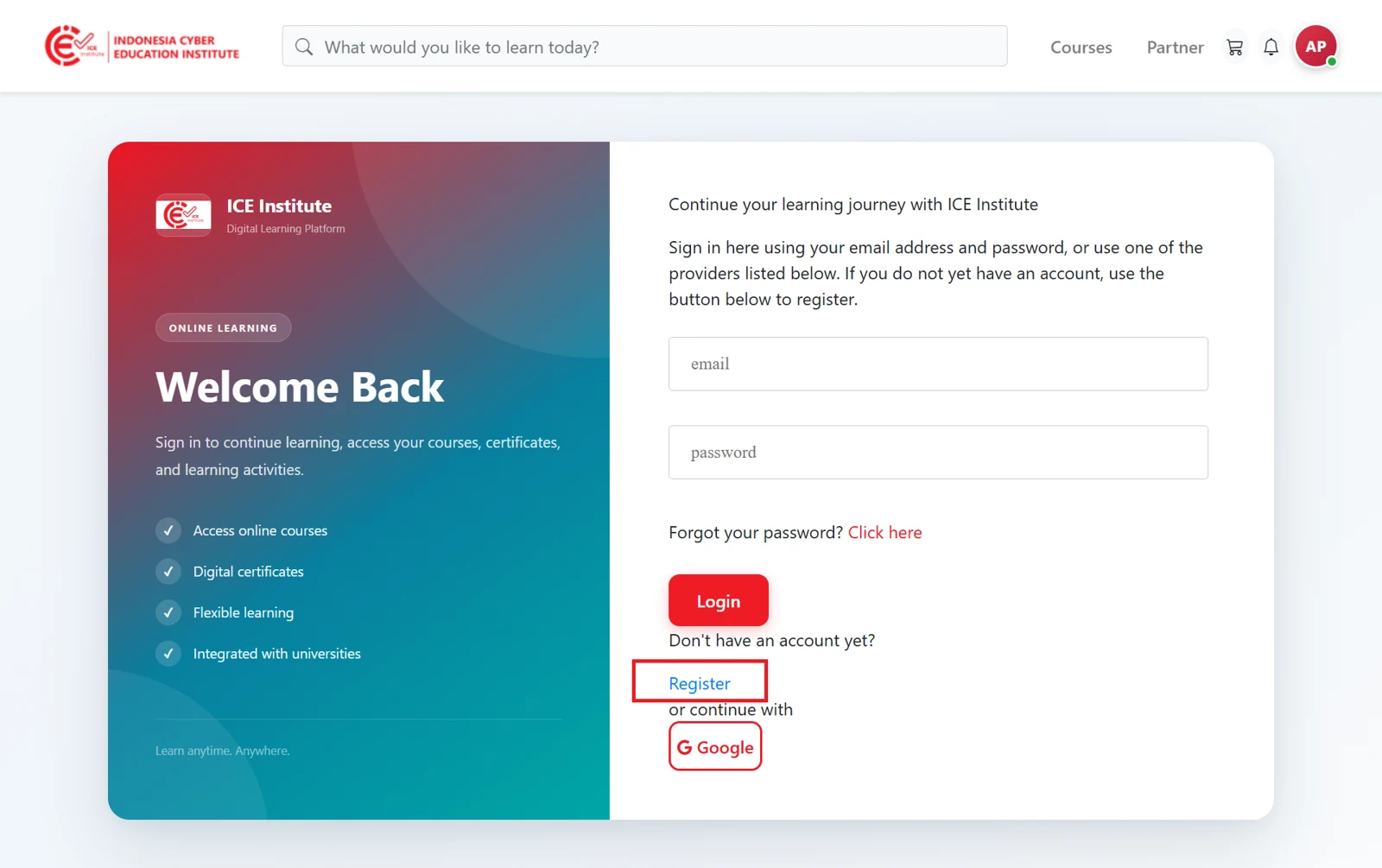
Figure 1.2 - Login page
To register with a Google account, participants select Google, choose the account they wish to use, and then complete the required information to finish registration.
To register using the registration form, participants select Register, fill in their username, full name, email address, password, and institution of origin, and then click Create Account.
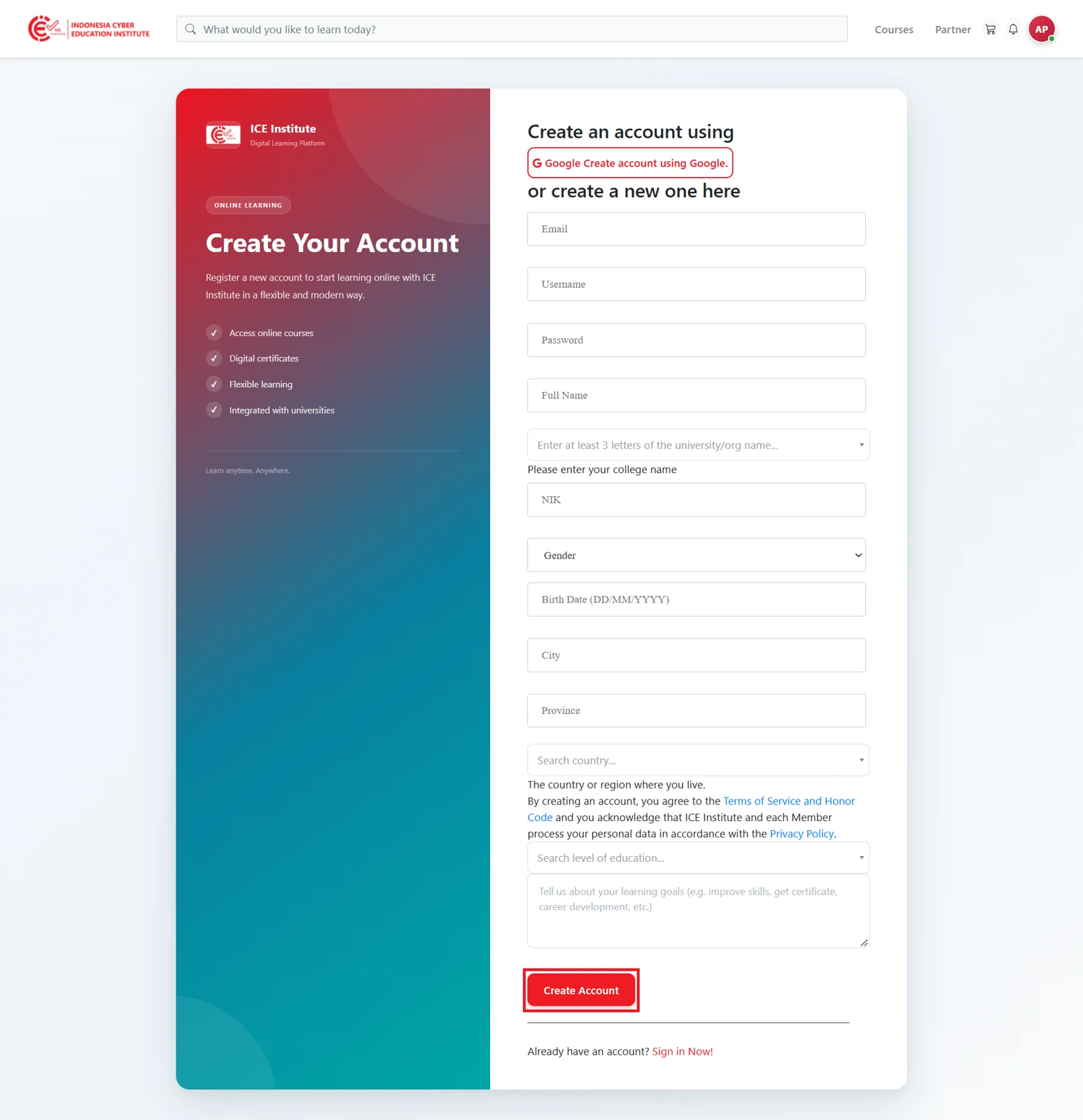
Figure 1.3 - Registration form
Once the form has been submitted, ICE Institute will send a verification link to the registered email address. The account will be activated once the participant opens this link. If the email is not received, participants should check their Spam or Promotions folder.
After the form is submitted, the participant dashboard will display a notice prompting the participant to activate their account via email.
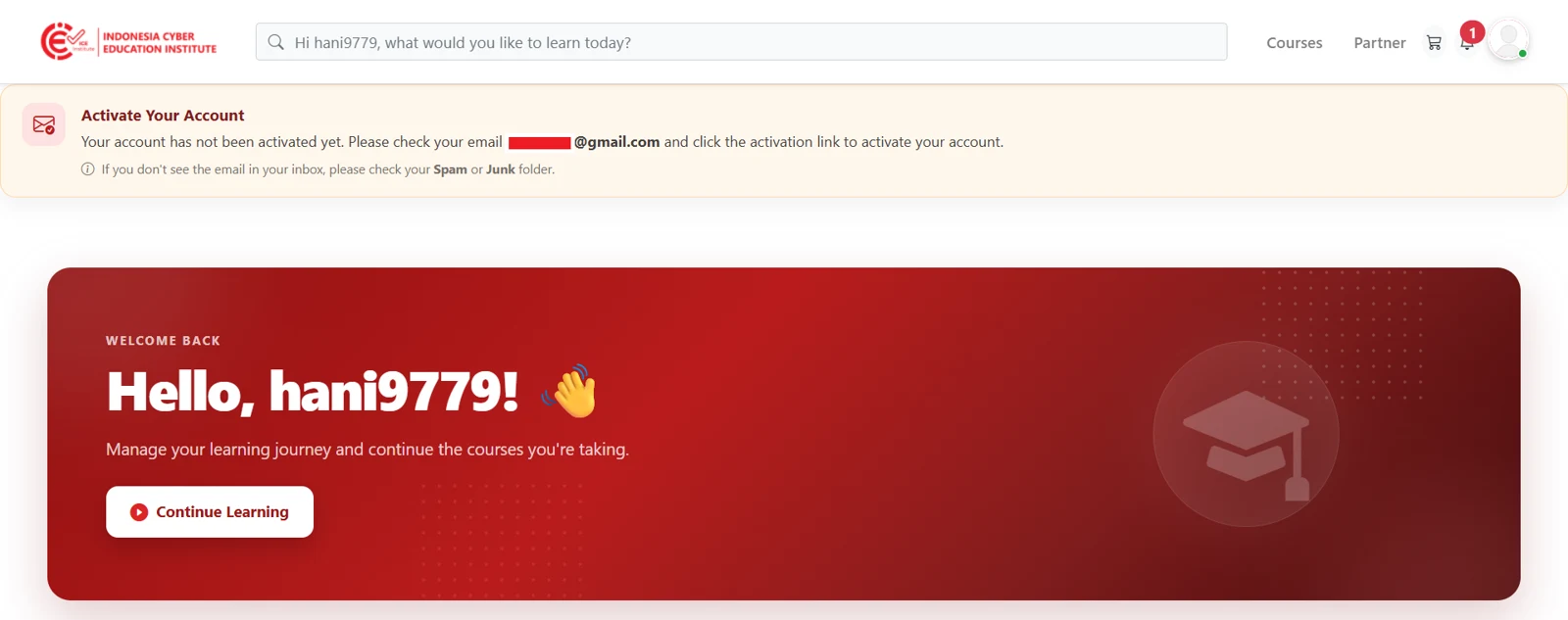
Figure 1.4 - Activation notice
Email Address Verification
ICE Institute will then send an activation email to the registered email address. In this email, participants can click Activate Your Account to activate their account. If the email is not received, participants should check their Spam or Promotions folder.
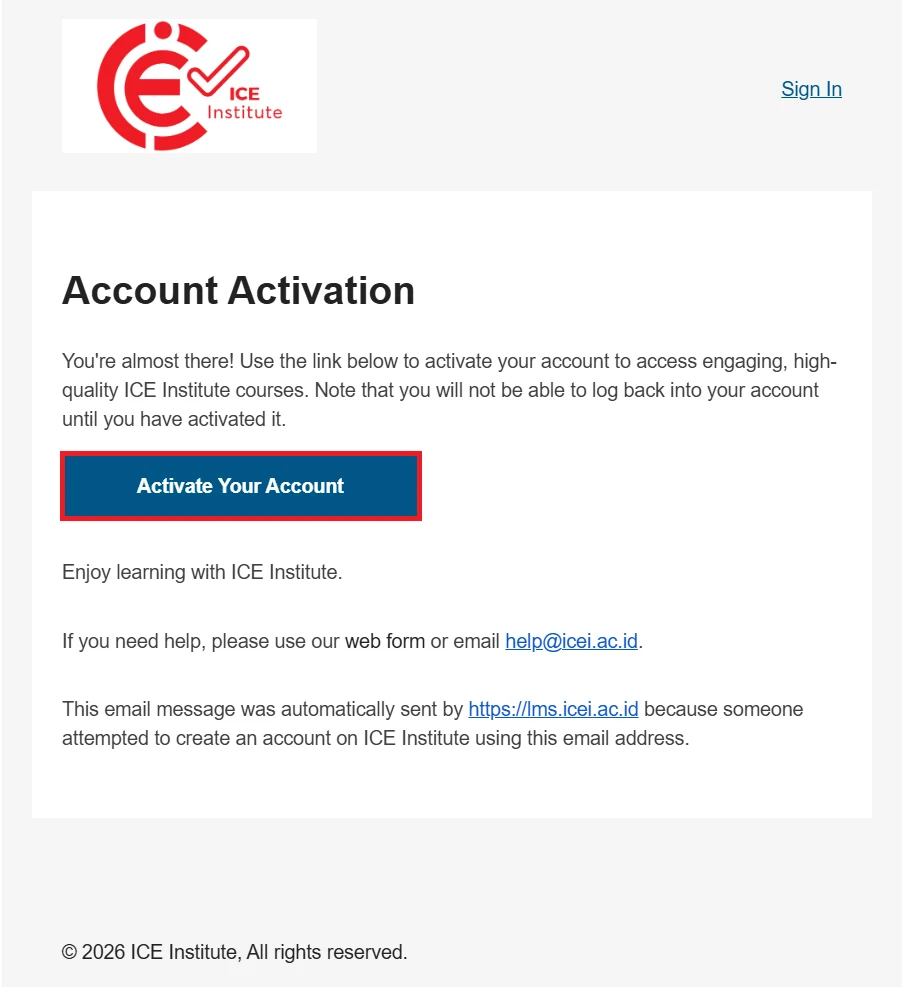
Figure 1.5 - Activation email
Once the account has been successfully activated, participants will be redirected to the dashboard and may begin using ICE Institute, including completing their profile information.
Account Access
To access ICE Institute on subsequent visits, participants can select the profile icon on the homepage and then select Login (see Figure 1.1). On the login page, participants enter their registered email address and password, and then click Login.
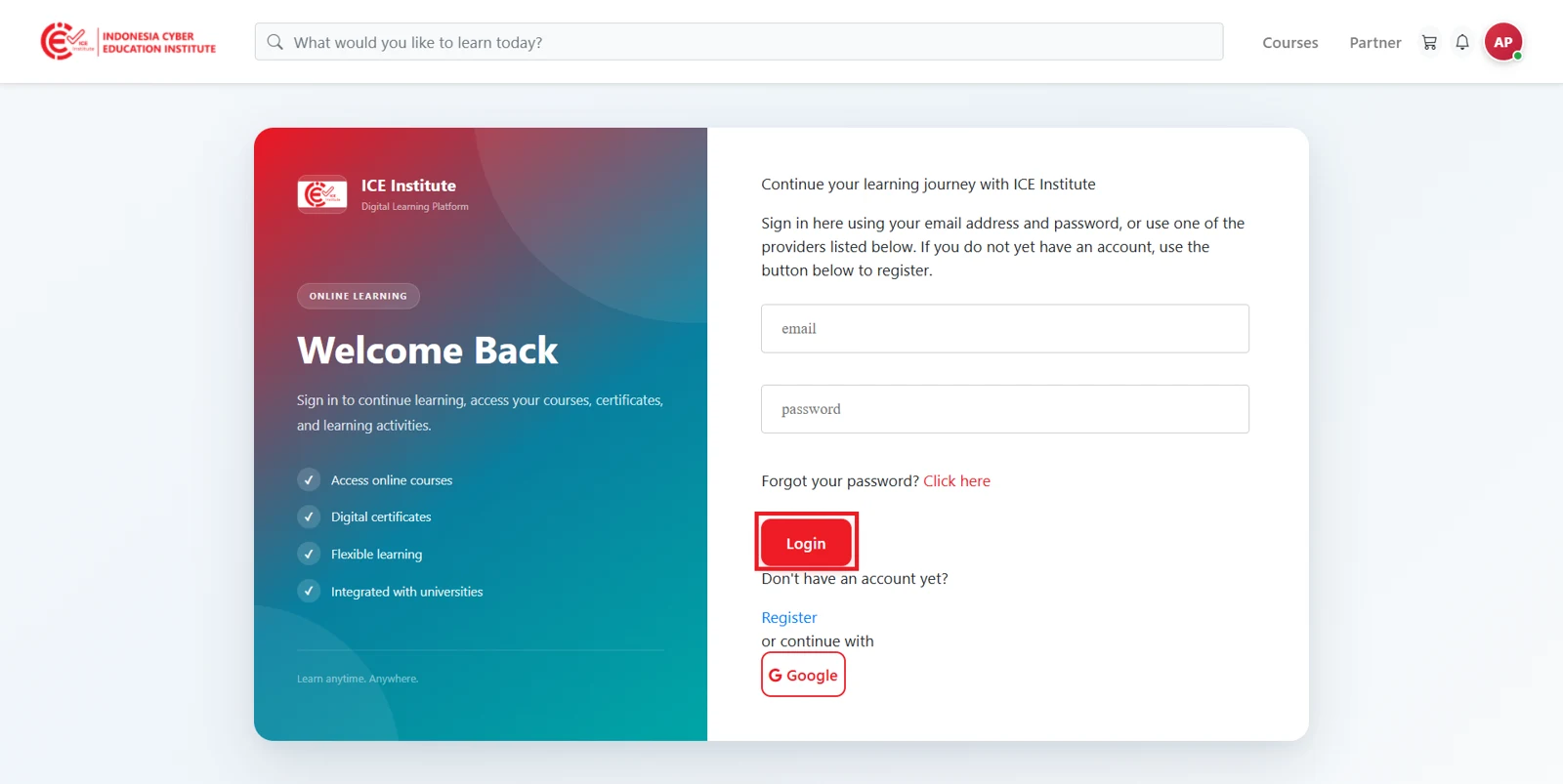
Figure 1.6 - Login form
Participants who have forgotten their password can recover it as described in Section 1.4.
After logging in successfully, participants will be directed to the dashboard and may carry out learning activities on ICE Institute.
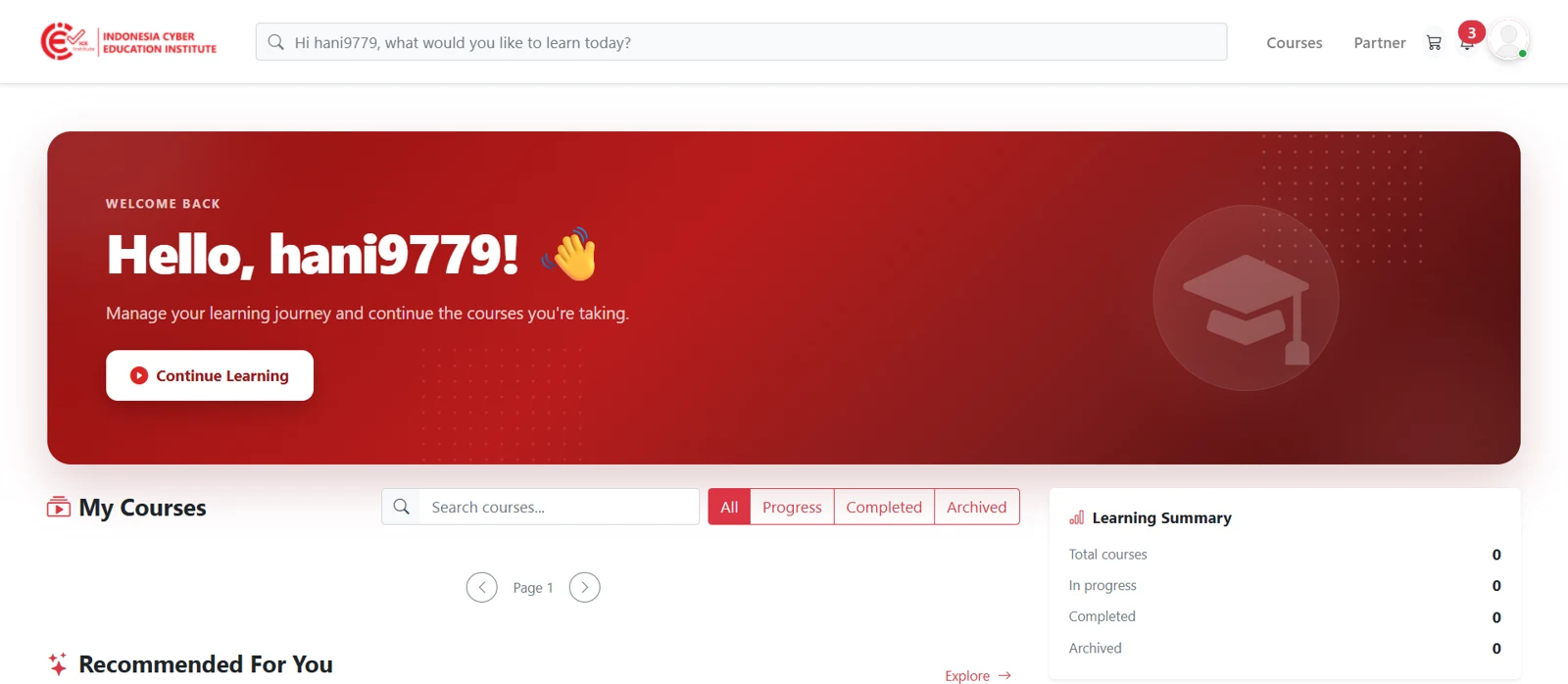
Figure 1.7 - Participant dashboard
Password Recovery
Passwords can be recovered from the login page by selecting the Click here link next to Forgot Password?.
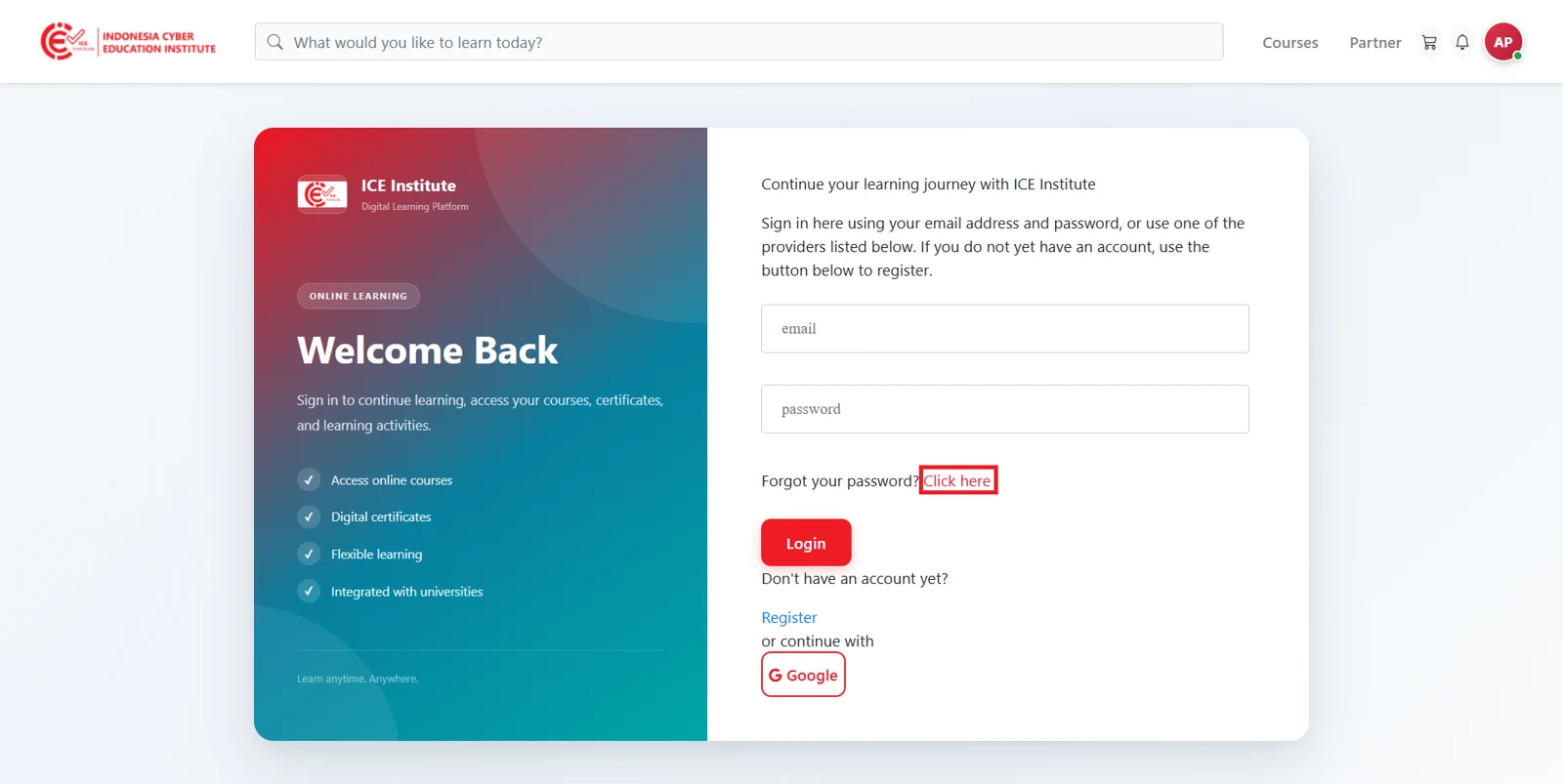
Figure 1.8 - Forgot password link
Participants will then be directed to the password recovery form. On this form, participants enter their registered email address and click Recover my Password.
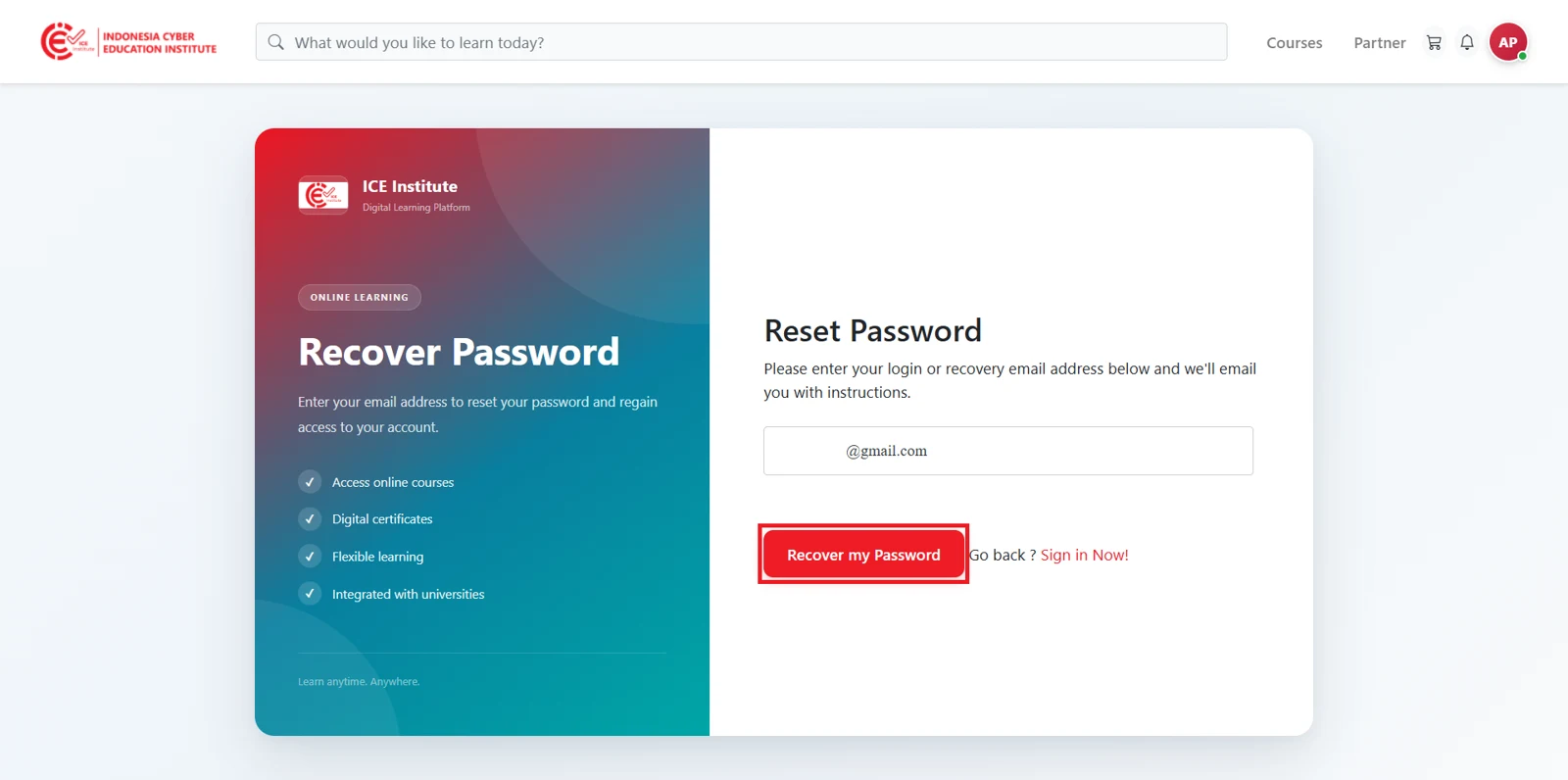
Figure 1.9 - Recovery form
ICE Institute will send a password recovery email to that address. In this email, participants can click Change My Password to open the password reset page. If the email is not received, participants should check their Spam or Promotions folder.
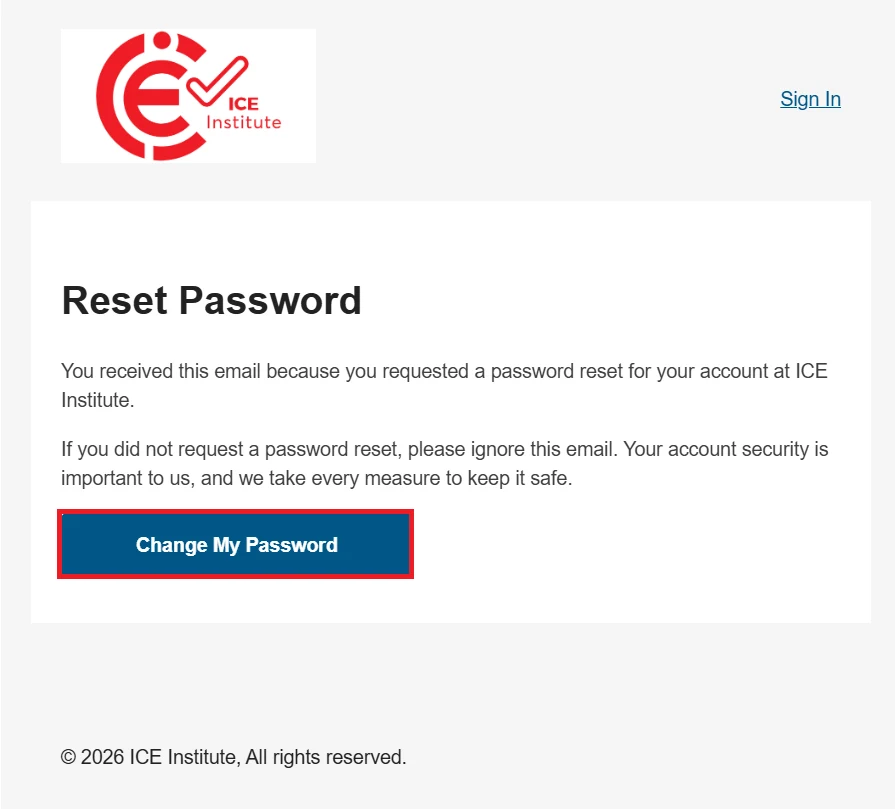
Figure 1.10 - Recovery email
Participants then enter a new password in the New Password field, re-enter it in the Confirm Password field, and click Reset My Password.
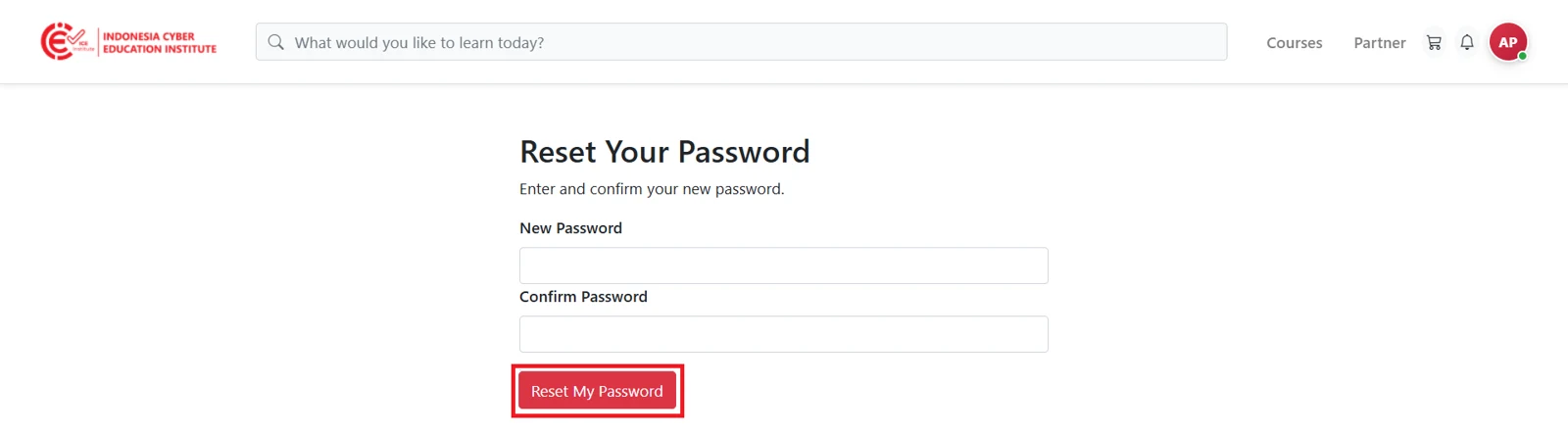
Figure 1.11 - New password form
Once the password has been successfully updated, participants can log in again with the new password using the login form (see Figure 1.6)