
The main page of the Partner Administration site provides an overview of the partner’s activities and performance. Through the dashboard, administrators can monitor information related to courses, learners, instructors, enrollment, revenue, and recent transactions in one place.
The dashboard consists of the following main sections:
Dashboard
The Dashboard menu is the main page of Partner Administration, providing an overview of the partner’s information and activities. This page helps administrators monitor statistics, access key features, track enrollment and revenue trends, and review recent transactions in one place.
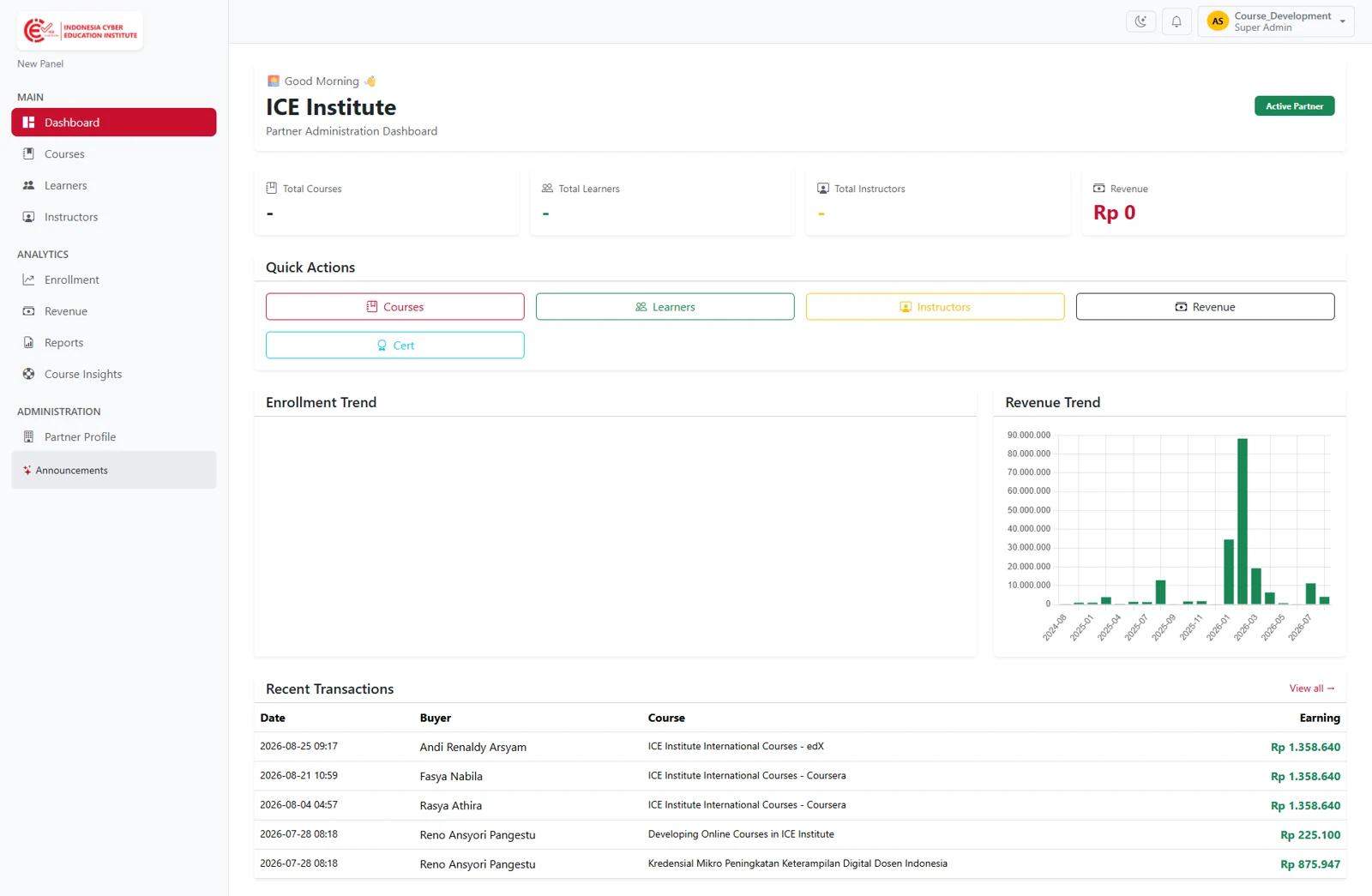
Figure 3.1 – Dashboard Menu
The dashboard consists of the following main sections:
3.1.1 Statistics Cards
The Statistics Cards section displays the partner's key statistics through several information cards. Each card presents an important metric that helps administrators quickly understand the partner's current status and performance.
The available statistics include:
Total Courses – Displays the total number of courses managed by the partner.
Total Learners – Displays the total number of enrolled learners.
Total Instructors – Displays the total number of instructors associated with the partner.
Revenue – Displays the total revenue generated from the partner's courses.
3.1.2 Quick Actions
The Quick Actions section provides shortcuts to frequently used features, including:
Courses – Access and manage courses.
Learners – View learner information.
Instructors – Access instructor information.
Revenue – View revenue-related information.
Cert – Access certificate-related features.
This section helps administrators access important functions more quickly without using the sidebar menu.
3.1.3 Enrollment Trend
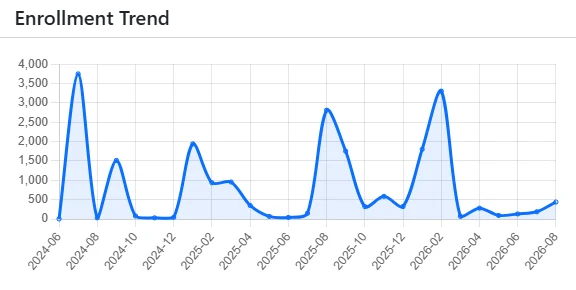
Figure 3.2 – Enrollment Trend
The Enrollment Trend section provides an overview of learner enrollment activity over time.
This information helps administrators monitor learner participation and identify changes or patterns in enrollment across the partner’s courses.
3.1.4 Revenue Trend
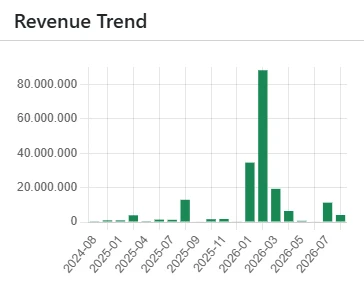
Figure 3.3 – Revenue Trend
The Revenue Trend section displays revenue performance over time in a graphical format.
Administrators can use this information to monitor changes in revenue and identify periods with higher or lower earnings.
3.1.5 Recent Transactions

Figure 3.4 – Recent Transactions
The Recent Transactions section displays the latest transactions made through the partner’s courses.
The table includes the following information:
Date – The date and time of the transaction.
Buyer – The name of the buyer or learner who made the transaction.
Course – The name of the purchased course.
Earning – The revenue generated from the transaction.
Courses
The Courses menu is used to manage and monitor all courses available under the partner. This page provides an overview of the number of courses based on their status, as well as a list of courses with relevant information that administrators can use to manage each course.
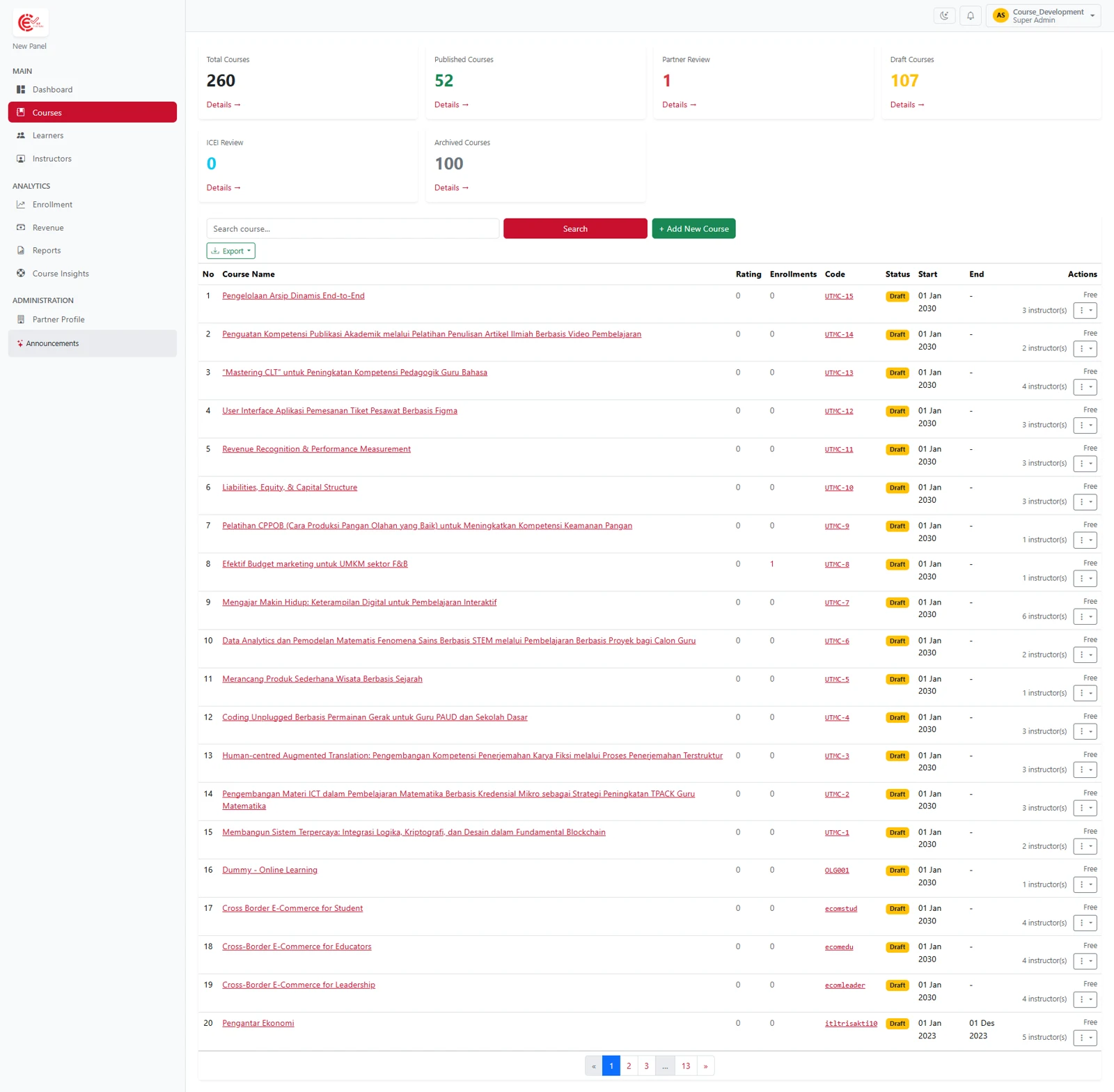
Figure 3.5 – Courses Dashboard
3.2.1 Statistics Cards
This section displays the number of courses based on their category or status:
Total Courses – Displays the total number of available courses.
Published Courses – Displays the number of courses that have been published.
Partner Review – Displays the number of courses that are currently awaiting or undergoing partner review.
Draft Courses – Displays the number of courses that are still in draft status.
ICEI Review – Displays the number of courses that are currently undergoing review by ICE Institute.
Archived Courses – Displays the number of courses that have been archived.
3.2.2 Search and Add New Course
This section provides features for searching and adding courses.
Search Course – Used to search for a course based on the available course information.
Search – Runs the search based on the entered keyword.
Export – Used to export learner data in Excel or CSV format.
+ Add New Course – Used to add a new course to the system.
3.2.3 Course List
The Course List section displays a list of courses in a table. The information displayed includes Course Name, Rating, Enrollments, Code, Status, Start, End, and Actions.
In the Actions column, administrators can select several actions for the respective course:
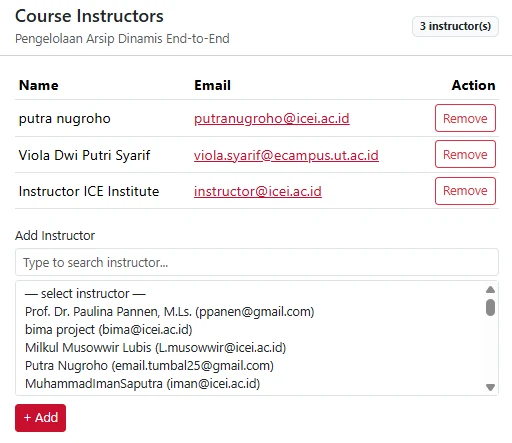
Figure 3.6 – Course Instructors
Manage Instructors – Used to manage the instructors assigned to the course, including adding or managing instructors.
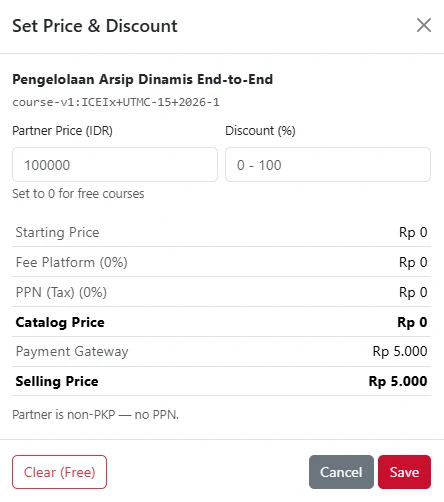
Figure 3.7 – Set Price & Discount
Set Price – Used to set the Partner Price and Discount for the course. The specified values are then calculated by the system to determine the applicable Selling Price.
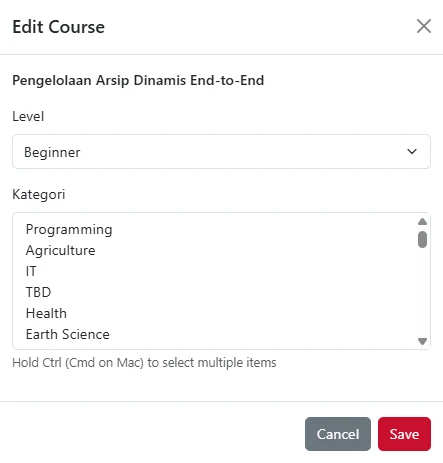
Figure 3.8 – Edit Course
Edit – Used to modify or update course information.
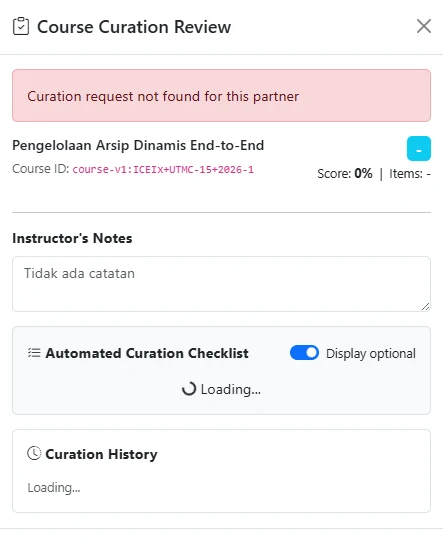
Figure 3.9 – Course Curation Review
Review History – Used to view the Course Curation Review history, including the course’s review results and status.
Learners
The Learners menu is used to view and monitor learner data for learners enrolled in the partner’s courses. This page displays a summary of the number of learners by category, along with detailed learner information.
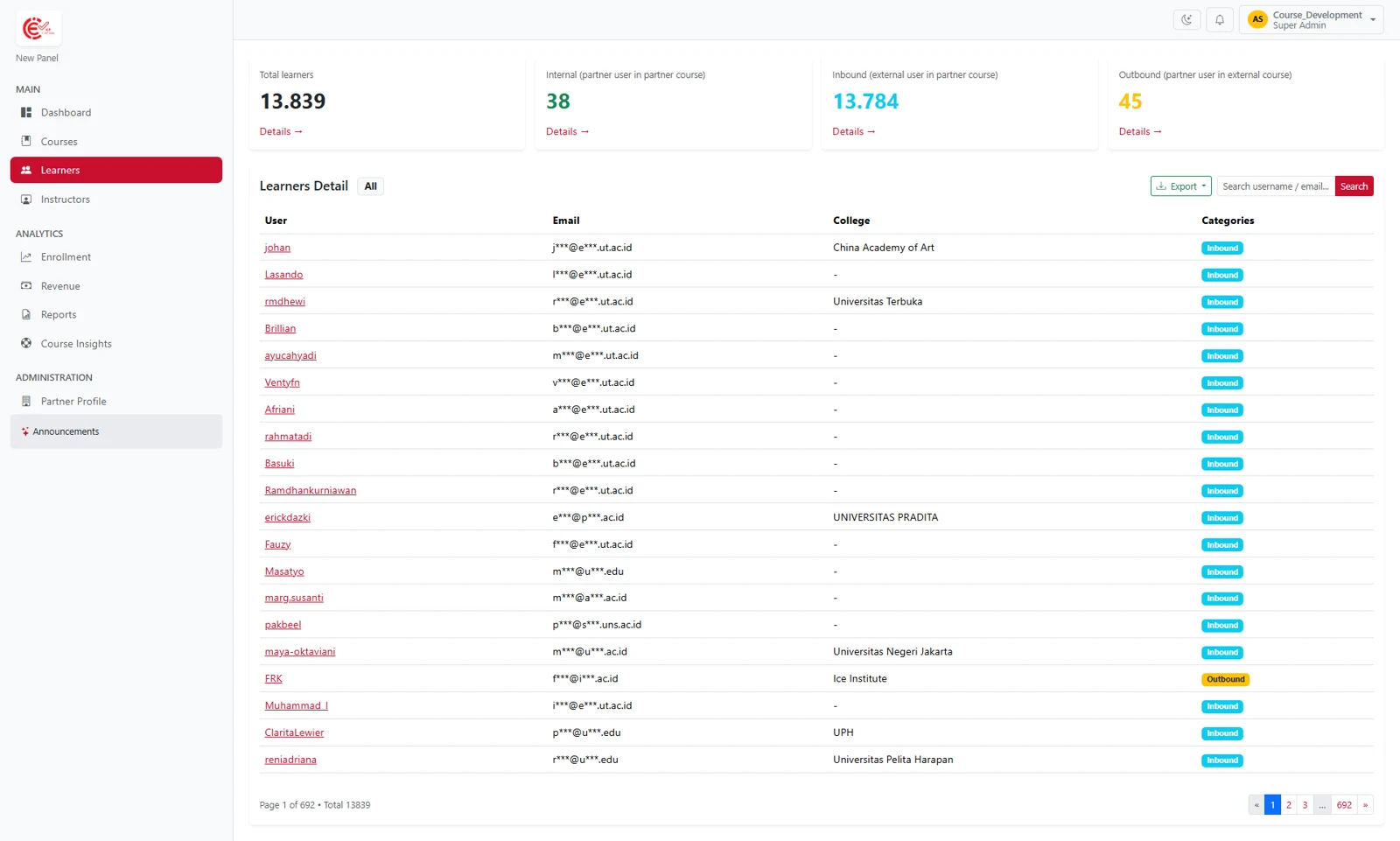
Figure 3.10 – Learners Dashboard
3.3.1 Statistics Cards
This section displays the number of learners based on their category:
Total Learners – The total number of learners currently registered on the platform.
Internal – The number of users from the partner organization who take courses offered by the same organization (partner user in partner course).
Inbound – The number of external users who take courses offered by the partner organization (external user in partner course).
Outbound – The number of users from the partner organization who take courses offered by other organizations or partners (partner user in external course).
3.3.2 Search and Export
This section provides features for searching and exporting learner data.
Search username / email – Used to search for learners by username or email address.
Export – Used to export learner data in Excel or CSV format.
3.3.3 Learners Detail
The Learners Detail section displays a list of learners in a table. Administrators can view the following information:
User – Displays the learner’s username or account name, shown as a red clickable link to the learner’s detailed profile.
Email – Displays the learner’s email address.
College – Displays the learner’s institution or university.
Categories – Displays the learner’s category, such as Inbound or Outbound.
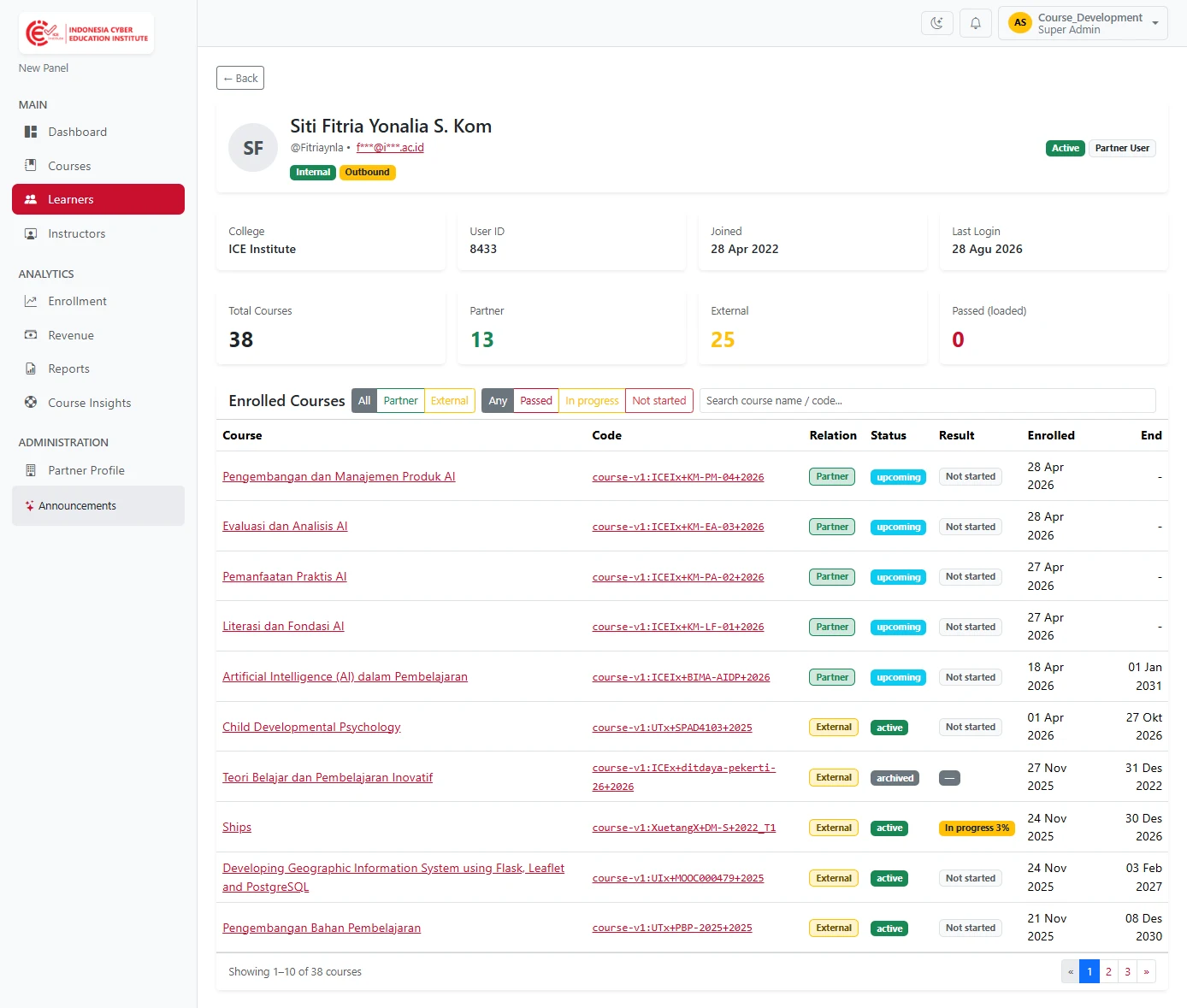
Figure 3.11 – Learners Detail
Through this page, the partner can gain full visibility into the learner’s academic record, enrollment status, and history of all courses taken on the platform.
Instructors
The Instructors menu is used to manage and monitor instructor data registered under the partner organization. This page displays a summary of instructor statuses, along with a list of instructors and information about the courses they teach.
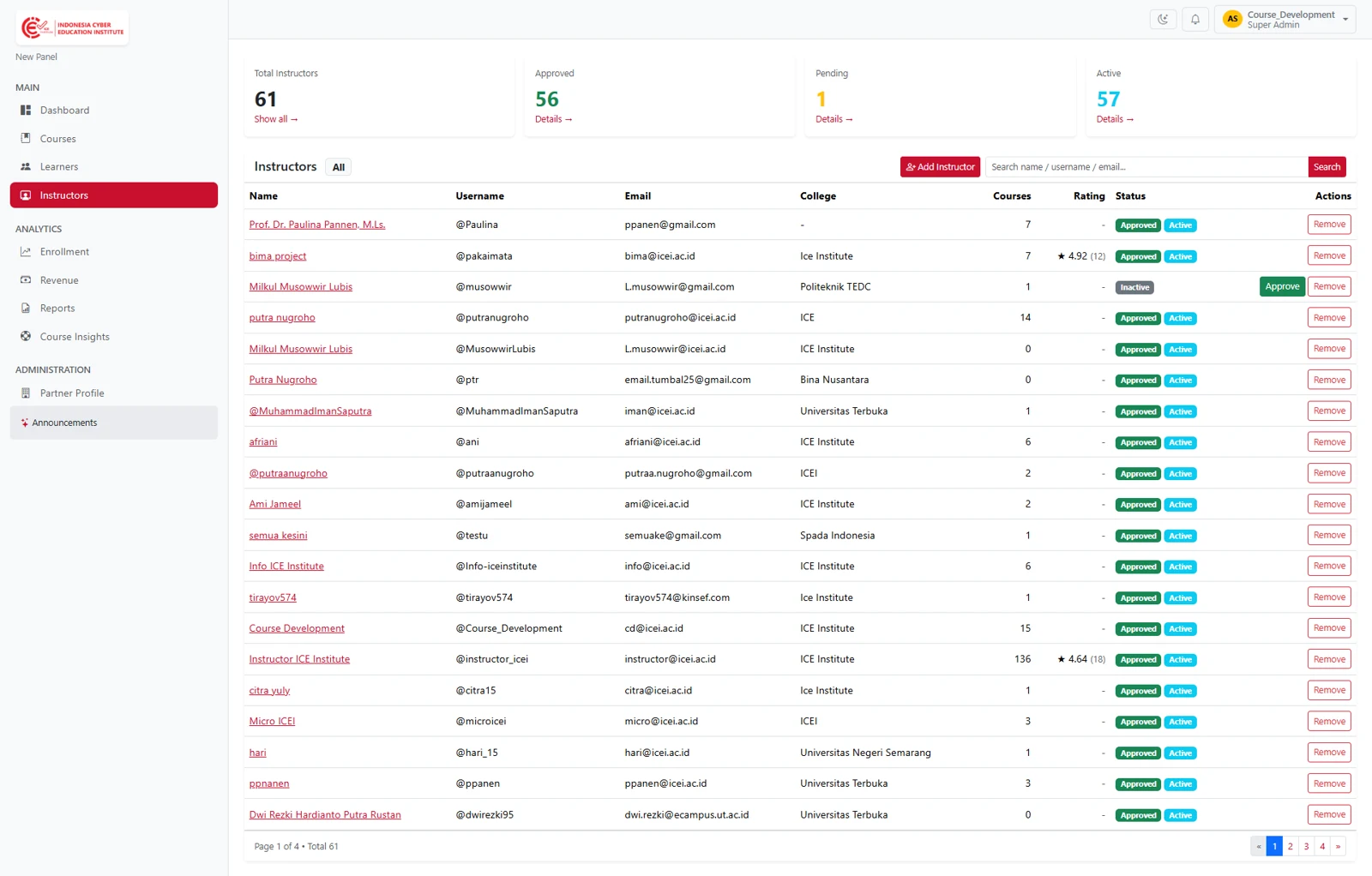
Figure 3.12 – Instructors Menu
3.4.1 Statistics Cards
This section displays the number of instructors based on their status:
Total Instructors – Displays the total number of instructors.
Approved – Displays the number of instructors who have been approved.
Pending – Displays the number of instructors awaiting approval.
Active – Displays the number of currently active instructors.
3.4.2 Search and Add Instructor
This section provides features for searching and adding instructors.
Search name / username / email – Used to search for an instructor by name, username, or email.
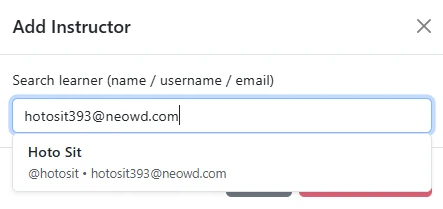
Figure 3.13 – Add Instructor
+ Add Instructor – Used to add a new instructor.
Click to open the instructor addition form.
In the Search learner (name / username / email) field, enter the name, username, or email of the user to be appointed as an instructor, then select the appropriate user from the search results.
After selecting the user, click Add Instructor to add the instructor to the partner organization.
The system will send a notification to the newly appointed instructor. The notification will appear in the Notifications menu, informing the user that they have been appointed as an instructor at the partner organization.
3.4.3 Instructors Detail
The Instructors section displays a list of instructors in a table. The available information includes:
Name – Displays the instructor’s name, which can be selected to view more details.
Username – Displays the instructor’s username.
Email – Displays the instructor’s email address.
College – Displays the instructor’s institution or university.
Courses – Displays the number of courses taught by the instructor.
Rating – Displays the instructor’s rating based on the courses they teach.
Status – Displays the instructor’s approval and active status.
Actions – Provides options to approve or remove the instructor from the partner organization.