The partner creates a new course by setting up its course framework. The framework includes basic course information, such as Course Name, Course Code, Run/Term, Category, Instructor, and Level. The partner then assigns the appropriate lecturer to the newly created course.
Set Up Course Framework
At this stage, Partners can set up the course framework using the Add New Course feature by completing the basic information required to create a new course.
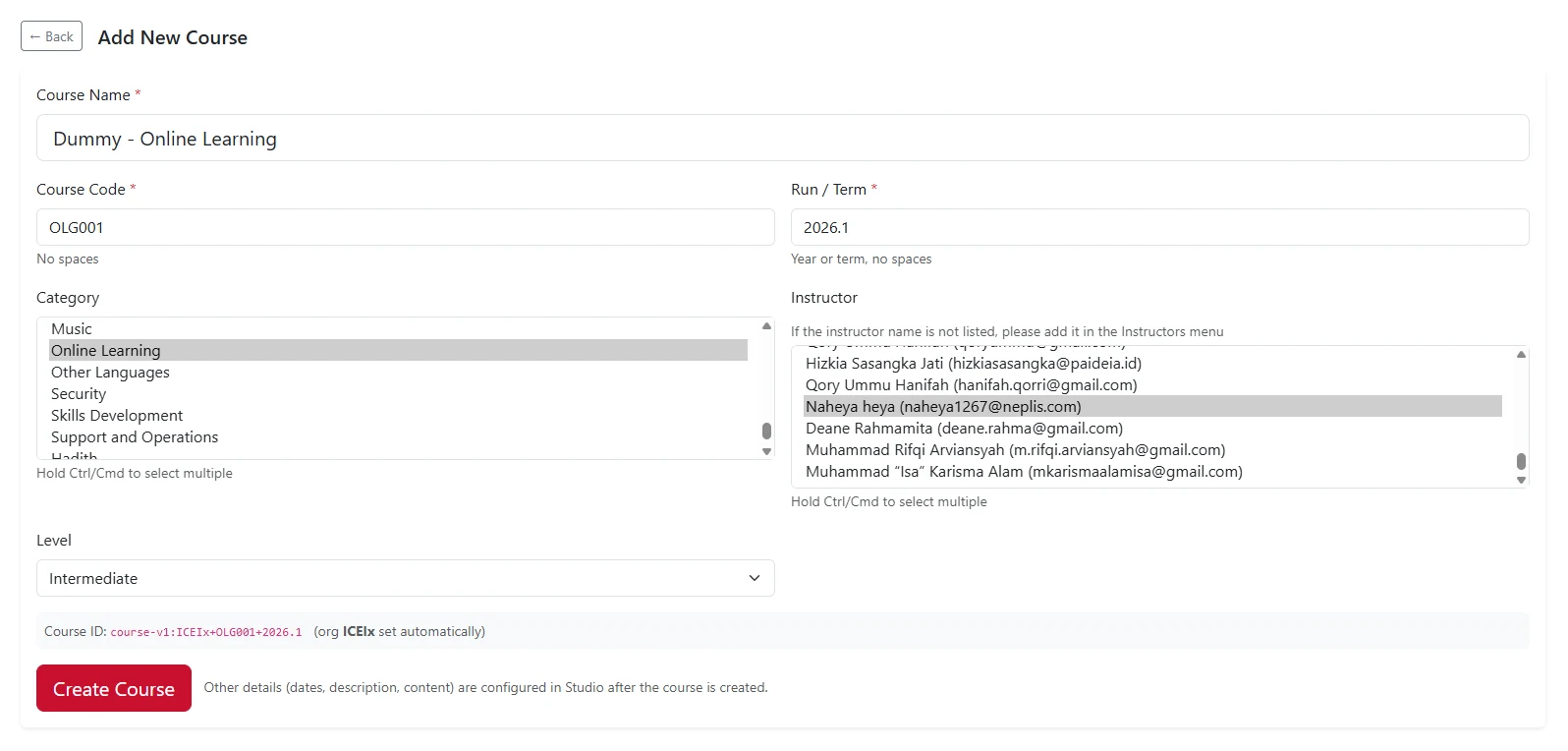
Figure 2.1 – Add New Course Feature
The information to be completed includes:
Field | Description |
|---|---|
Course Name | Enter the name of the course. |
Course Code | Enter a unique code for the course. The course code must not contain spaces. |
Run / Term | Enter the year or term in which the course will be offered. This field must not contain spaces. (e.g., 2025.1 for Semester 1 of 2025). |
Category | Select one or more categories that best represent the course. |
Instructor | Select the instructor(s) assigned to the course. If the instructor’s name is not available, add the instructor first through the Instructors menu. Multiple instructors can be selected. |
Level | Select the appropriate course level, such as Beginner, Intermediate, or other available options. |
Once all the basic information has been completed, the system will automatically generate the Course ID.Review the entered information, then click to create the course.
Course Content Development
After the lecturer has been assigned, the Lecturer will develop the course content, including the course structure, learning materials, assessments, and grading policy. Once the course is complete, the Lecturer will submit it for review.
Institutional Review
Partner Administrator reviews the course that has been developed and submitted by the Lecturer. The review is conducted to ensure that the course information, learning content, assessments, and other course components are complete and comply with the applicable requirements.
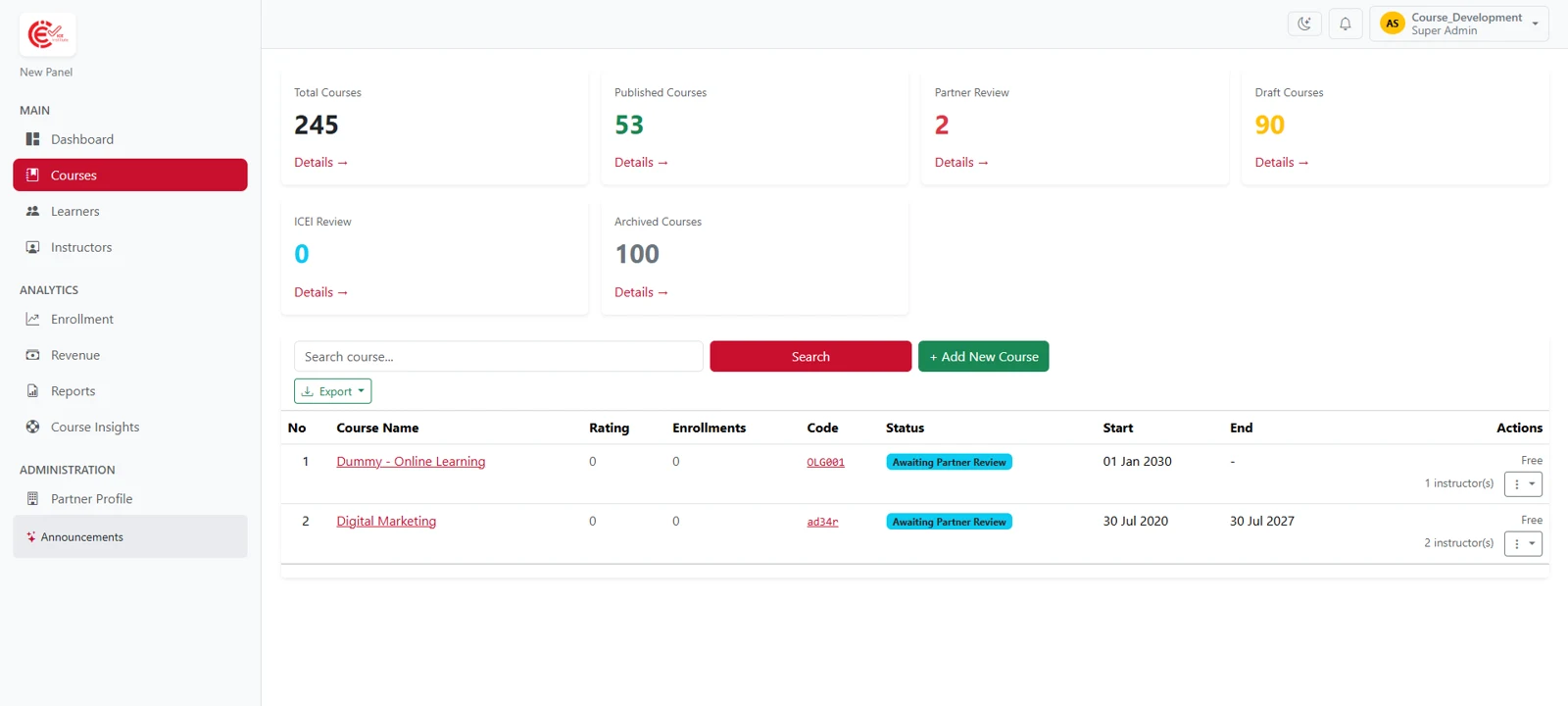
Figure 2.2 – Partner Review Page
To start the review, follow these steps:
Open the Courses menu.
Under the statistics section, click Details on the Partner Review Statistics Card.
In the displayed table, find the course that is pending review.
In the action column, select Curation Review.
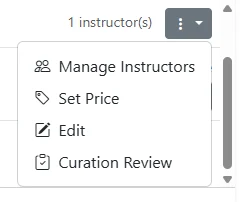

Figure 2.3 – Action Column
Curation
Review the course information and evaluation results.
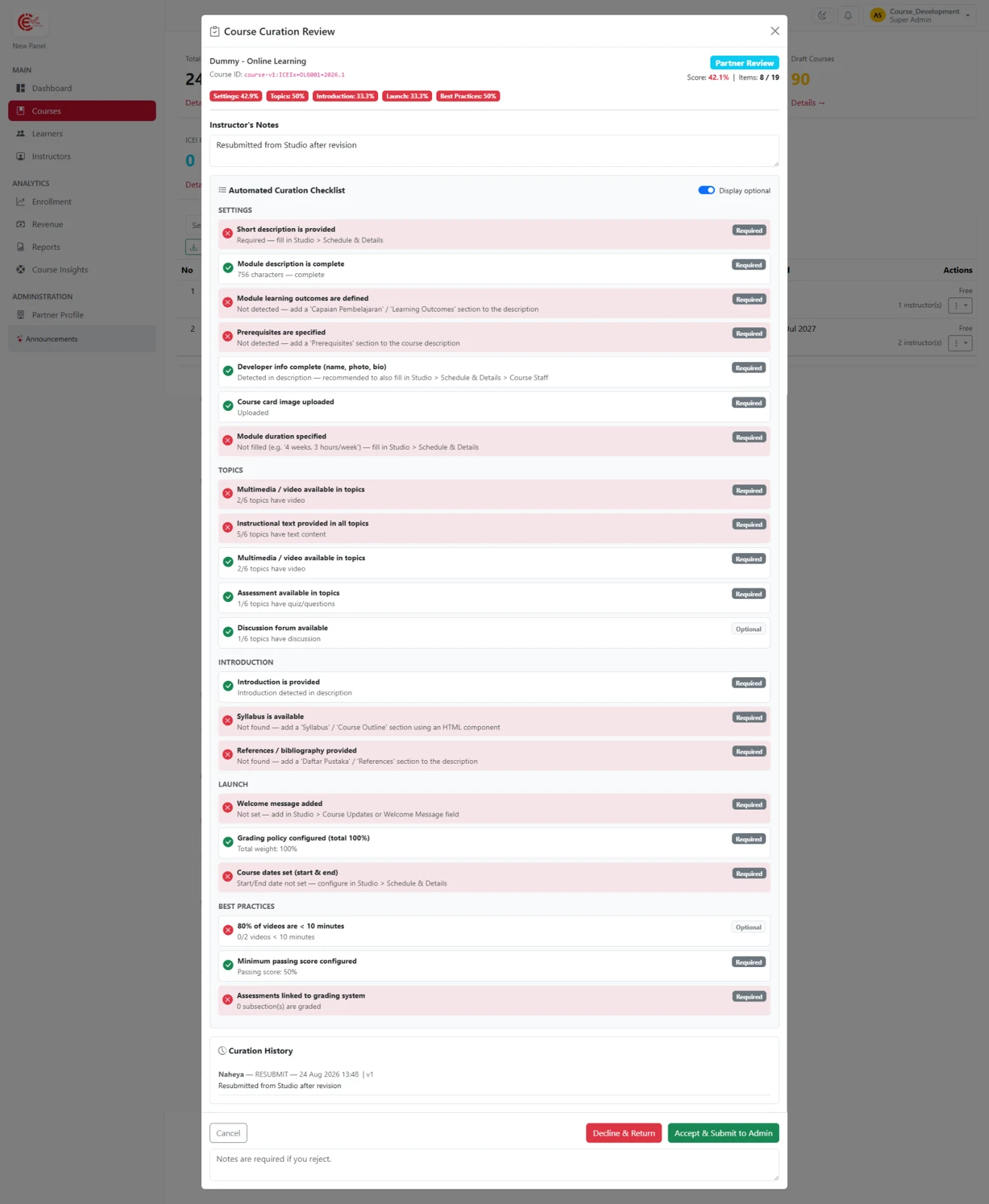
Figure 2.4 – Course Curation Review
On the course curation Review page, the Partner Administrator reviews the course for completeness and compliance through the Automated Curation Checklist. A green check mark indicates that a requirement has been met, while a red cross indicates that the requirement still needs to be addressed. The page also displays the Score, Instructor's Notes, and Curation History as supporting information for the review.
Based on the review results, the Partner Administrator can take the following actions:
If any section requires revision, enter the revision notes for the Lecturer in the notes field at the bottom of the page. Then, select  to return the course to the Lecturer for revision.
If no revisions are required, select  to proceed with the course to the next stage.
Revision
After the course is returned by the Partner Administrator, the Lecturer will receive a notification indicating that the course requires revision. The Lecturer can open the notification to review the notes or feedback provided by the Partner Administrator. The Lecturer will then be redirected to Studio to make the necessary revisions and resubmit the course.
Publication
Once the revised course has been successfully resubmitted, it will be forwarded to the ICE Institute for the publication process.