
The Analytics section in Partner Administration provides analytical information to help administrators monitor and evaluate the partner’s activities and performance. Through this section, administrators can access data related to enrollment, revenue, reports, and course insights in one place.
The Analytics section consists of the following main sections:
Enrollment
This page is designed to help partner administrators monitor and interpret learner enrollment data for their organization on the ICE Institute LMS platform, supporting data-driven decision-making.
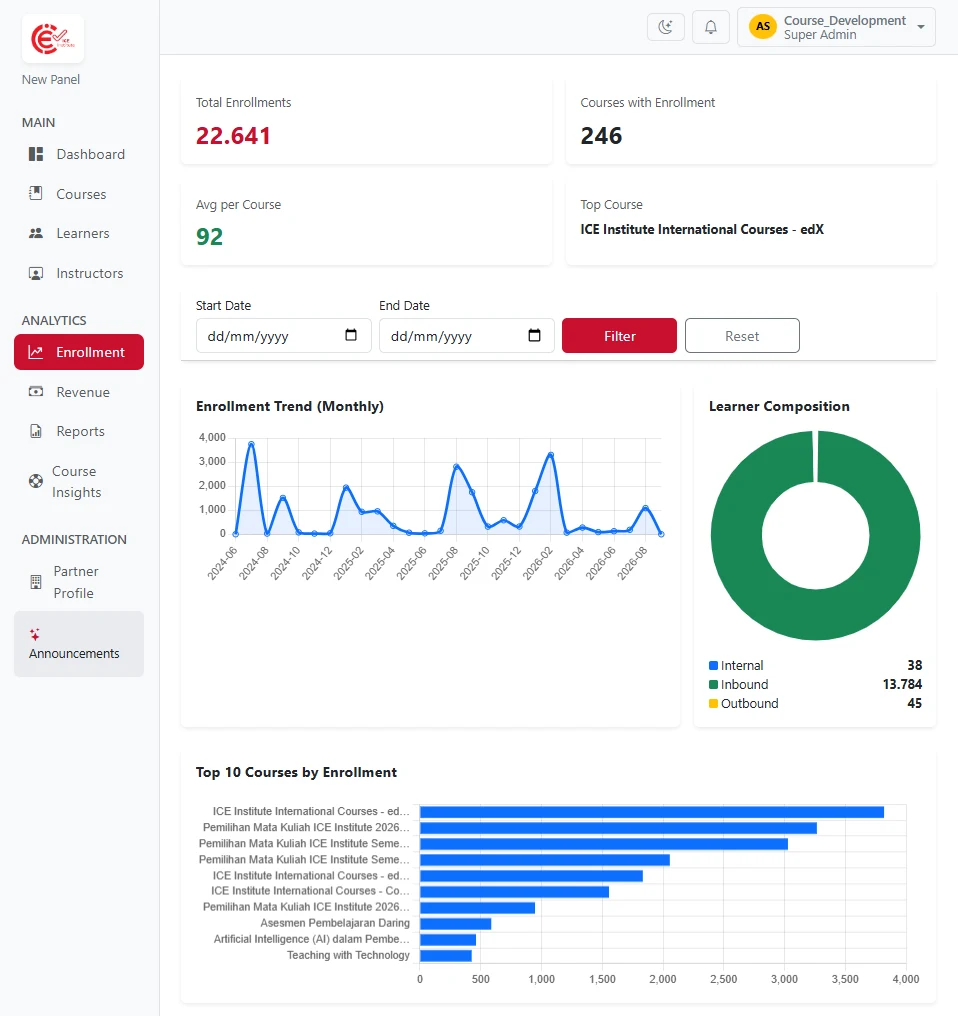
Figure 4.1 – Enrollment Menu
4.1.1 Statistics Cards
This section displays a summary of enrollment statistics:
Total Enrollments – Displays the total number of enrollments.
Courses with Enrollment – Displays the number of courses with enrollments.
Avg per Course – Displays the average number of enrollments per course.
Top Course – Displays the course with the highest number of enrollments.
4.1.2 Enrollment Trend (Monthly)
Displays the monthly enrollment trend in a graph. This graph helps administrators identify changes and patterns in enrollment over time.
4.1.3 Learner Composition
Displays the learner composition across three categories:
Internal – Users from the partner organization who take partner courses.
Inbound – External users who take partner courses.
Outbound – Users from the partner organization who take courses offered by other organizations.
4.1.4 Top 10 Courses by Enrollment
Displays the 10 courses with the highest number of enrollments. This information helps identify the most popular courses and supports course evaluation and development.
Revenue
The Revenue menu under Analytics is used to monitor and analyze revenue and transaction information from courses managed by the partner organization. This page provides financial summaries, transaction details, and features for searching, filtering, and exporting data.
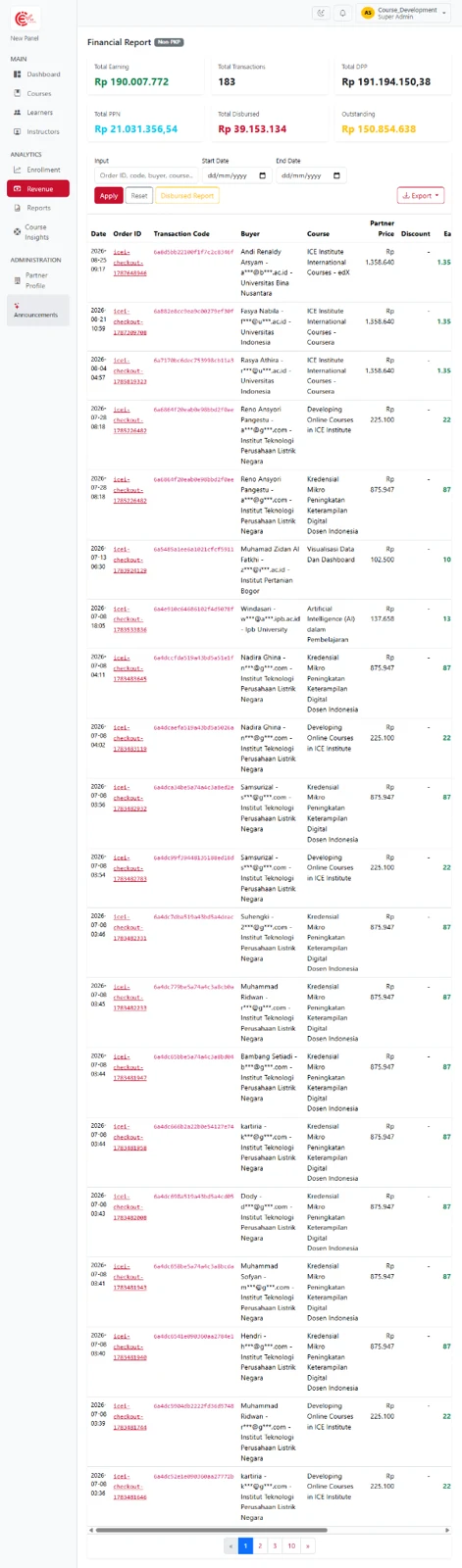
Figure 4.2 – Revenue Menu
4.2.1 Statistics Cards
This section displays a summary of revenue statistics:
Total Earning – Displays the total revenue generated from course transactions.
Total Transactions – Displays the total number of transactions.
Total DPP – Displays the total Taxable Base (DPP) from transactions.
Total PPN – Displays the total Value Added Tax (PPN) recorded.
Total Disbursed – Displays the total revenue that has been disbursed.
Outstanding – Displays the total revenue that has not yet been disbursed.
4.2.2 Filter and Search
This section provides features for searching and filtering transaction data:
Input – Used to search transactions by Order ID, code, buyer, course, or other related information.
Start Date – Specifies the start date of the transaction period.
End Date – Specifies the end date of the transaction period.
Apply – Applies the selected search and filter criteria.
Reset – Clears the selected filters and resets the data view.
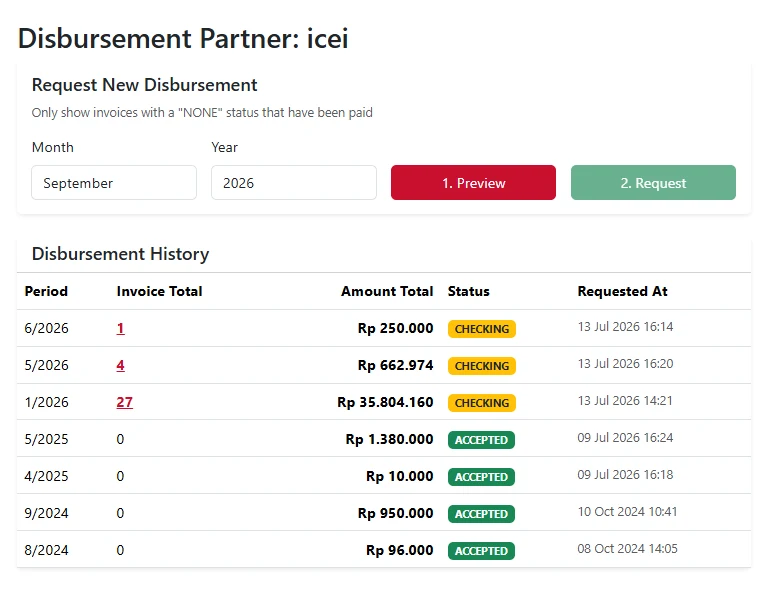
Figure 4.3 – Disbursed Report
Disbursed Report – Used to view reports related to disbursed revenue.
The Disbursement Partner page provides features to request partner revenue disbursement for a specific period by selecting the Month and Year, reviewing the disbursement details through Preview, and submitting the request using Request. The page also displays Disbursement History to monitor previous disbursement requests, including their amounts and statuses.
Export – Used to export learner data in Excel or CSV format.
4.2.3 Transaction List
This section displays transaction data in a table. The available information includes:
Date – Displays the transaction date and time.
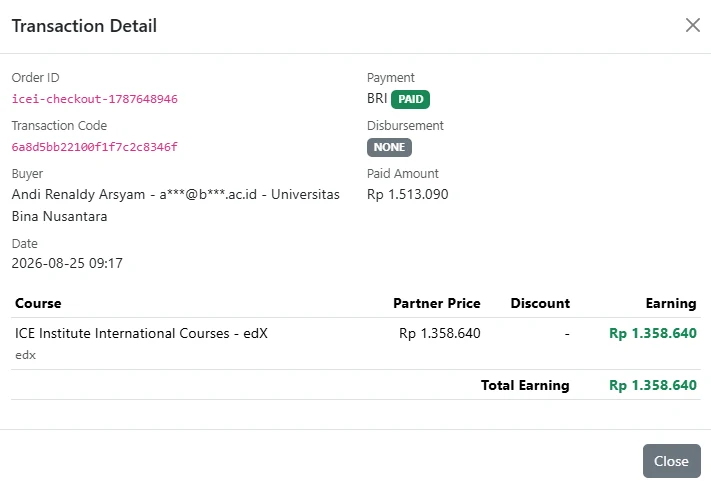
Figure 4.4 – Transaction Detail
Order ID – Displays the transaction order ID.
It displays information such as Order ID, Transaction Code, Buyer, Date, Payment, Disbursement, Paid Amount, and course details including Partner Price, Discount, and Earning. This information is used to review the payment details and revenue generated for the partner from a specific transaction.
Transaction Code – Displays the transaction code.
Buyer – Displays buyer information.
Course – Displays the purchased course.
Partner Price – Displays the price set for the partner.
Discount – Displays the discount applied to the transaction.
Earning – Displays the revenue generated from the transaction.
Reports
The Reports menu under Analytics is used to monitor and analyze the partner’s revenue performance based on transaction data. This page provides an overview of total revenue, number of transactions, payment methods, revenue trends, and courses with the highest earnings.
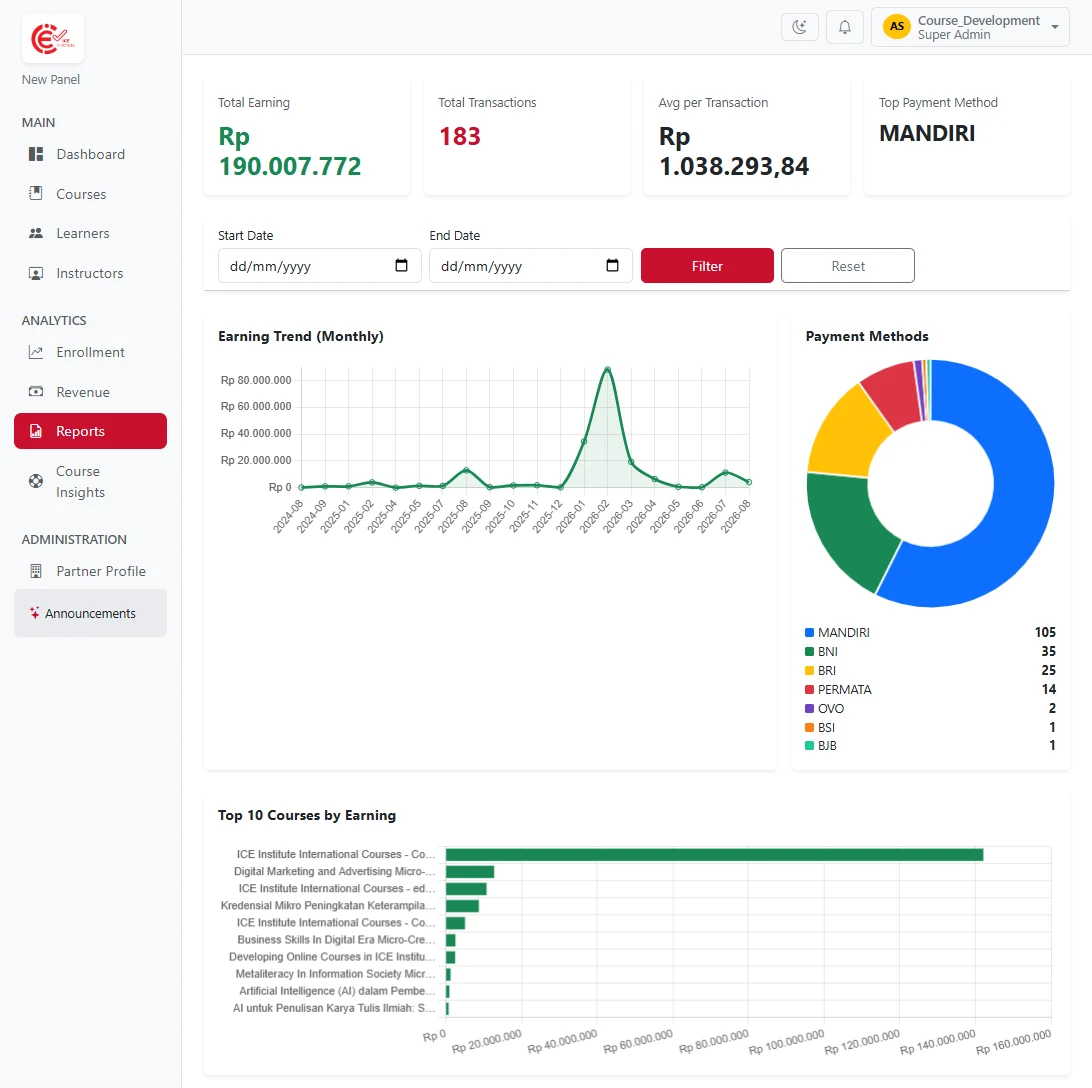
Figure 4.5 – Reports Menu
4.3.1 Statistics Cards
This section displays a summary of report statistics:
Total Earning – Displays the total revenue generated from transactions.
Total Transactions – Displays the total number of transactions.
Avg per Transaction – Displays the average revenue generated from each transaction.
Top Payment Method – Displays the most frequently used payment method.
4.3.2 Date Filter
This section is used to display data for a specific period.
Start Date – Specifies the start date of the period.
End Date – Specifies the end date of the period.
Filter – Applies the selected date range.
Reset – Clears the filter and restores the default data view.
4.3.3 Earning Trend (Monthly)
Displays the monthly revenue trend in a graph. This graph helps administrators identify changes and patterns in revenue over time.
4.3.4 Payment Methods
Displays the distribution of transactions by payment method. This information helps administrators identify the payment methods most frequently used by learners.
4.3.5 Top 10 Courses by Earning
Displays the 10 courses with the highest revenue. This information helps identify the courses that contribute the most revenue and supports course evaluation and development.
Course Insights
The Course Insights menu is used to monitor and analyze the condition and performance of courses managed by the partner. This page provides an overview of courses, enrollments, categories, ratings, and courses that require attention.
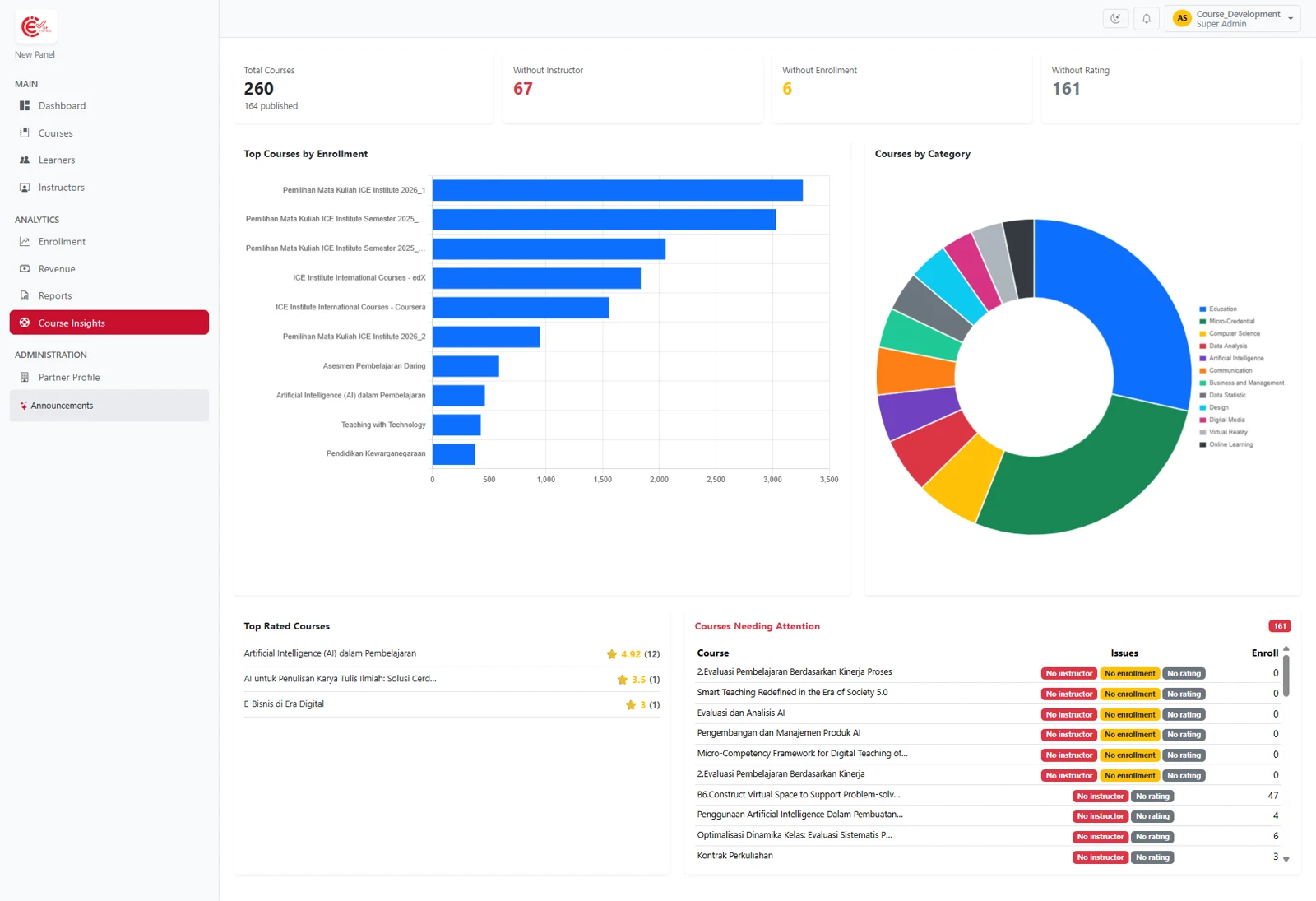
Figure 4.6 – Course Insights Menu
4.4.1 Statistics Cards
This section displays a summary of course statistics:
Total Courses – Displays the total number of courses managed by the partner, including the number of published courses.
Without Instructor – Displays the number of courses that do not have an instructor assigned.
Without Enrollment – Displays the number of courses with no enrollments.
Without Rating – Displays the number of courses that have not received any ratings.
4.4.2 Top Courses by Enrollment
Displays the courses with the highest number of enrollments. This information helps administrators identify the courses that are most popular among learners.
4.4.3 Courses by Category
Displays the distribution of courses by category in a chart. This information helps administrators understand how courses are distributed across different categories.
4.4.4 Top Rated Courses
Displays the courses with the highest ratings, along with their rating scores and number of ratings. This information helps administrators identify courses that receive positive feedback from learners.
4.4.5 Courses Needing Attention
Displays courses that require attention based on specific conditions, such as courses without an assigned instructor, courses with no learners enrolled, courses that have not received learner feedback, and other conditions that require follow-up.