
Before content development begins, the course must be configured. This section covers the settings that control how the course is scheduled and how it appears to prospective learners.
Schedule and details
The Schedule & Details page holds the information shown to prospective learners before they enrol. This information is what learners use to decide whether the course is suitable for them.
Select Settings in the menu bar and select Schedule & Details. Changes made on this page are not saved until Save Changes is selected.
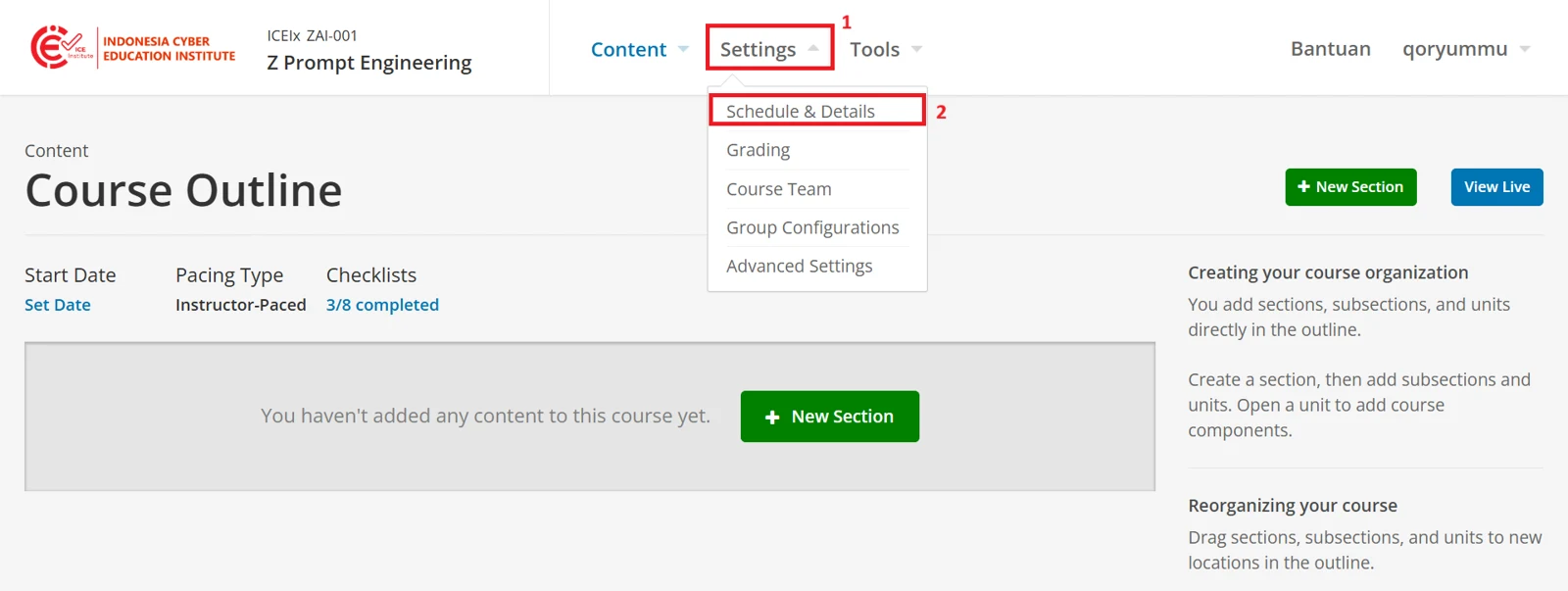
Figure 3.1 – Schedule & Details page
Course pacing
Course pacing determines how learners progress through the course.
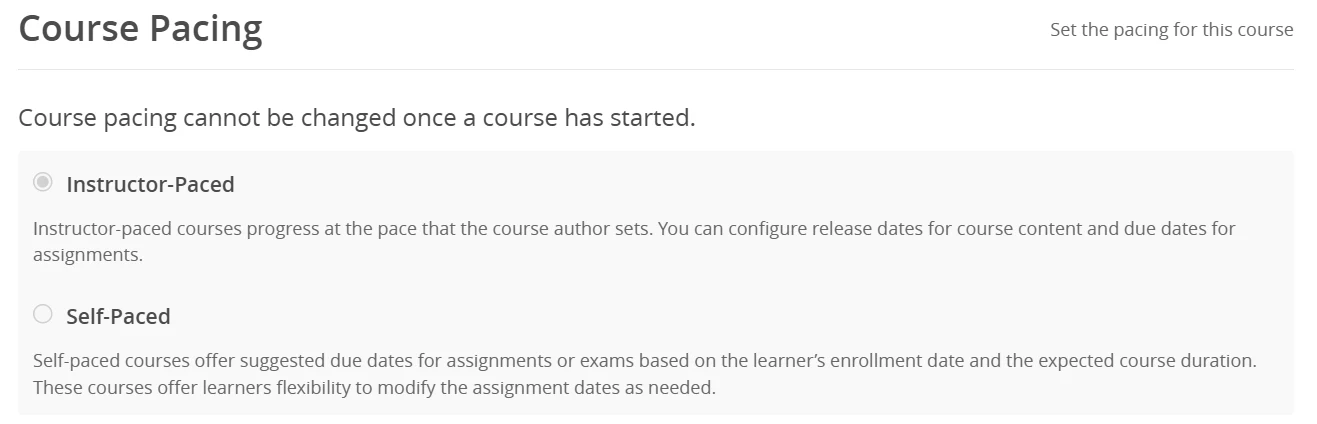
Figure 3.2 – Course Pacing
Two options are available.
Option | Description |
|---|---|
Instructor-Paced | Content is released and assignments fall due according to a schedule set by the lecturer |
Self-Paced | Learners work through the course at their own pace, and due dates are suggested relative to each learner's enrolment date |
Course schedule
The course schedule controls when the course can be viewed and when learners may enrol.
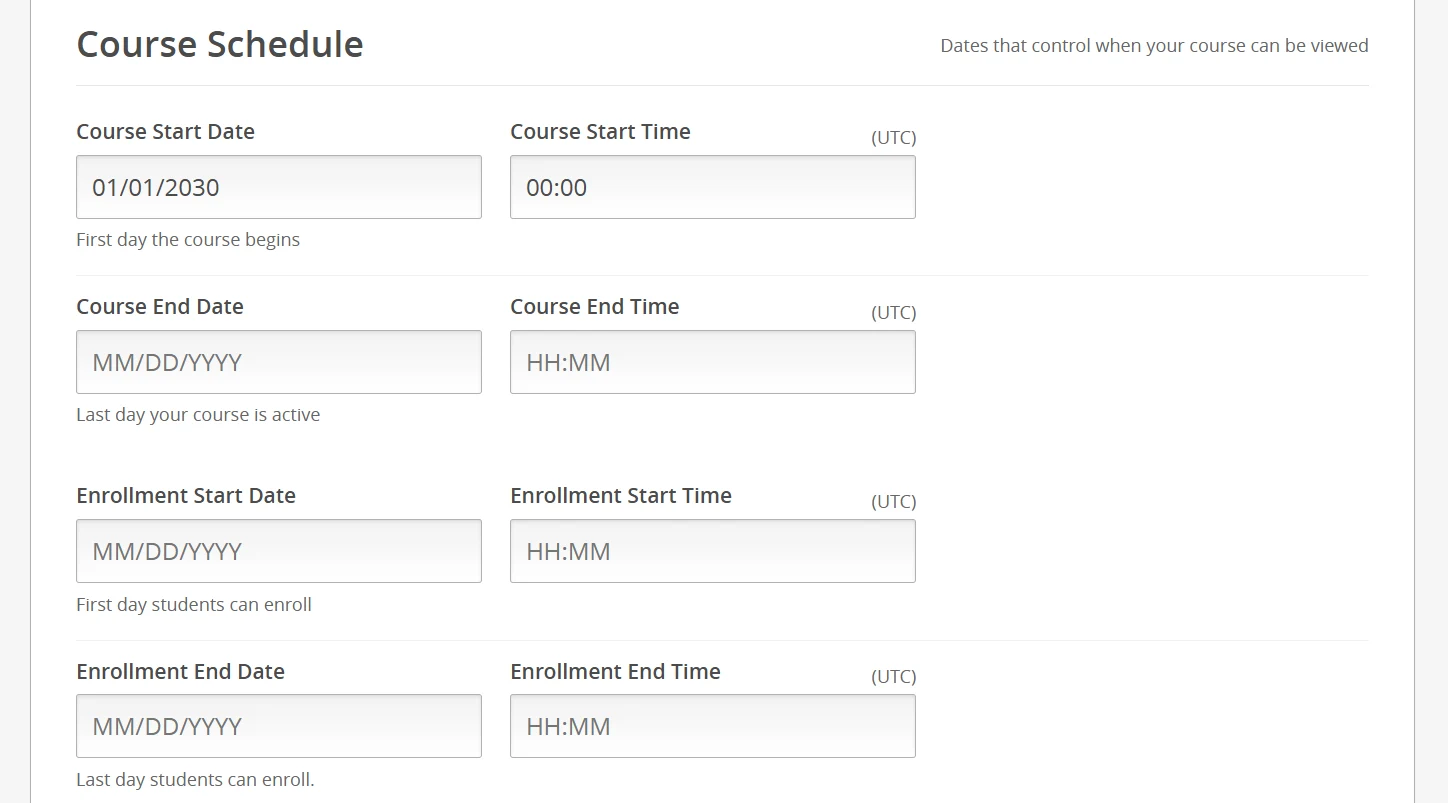
Figure 3.3 – Course Schedule
The schedule contains the following fields. All times are recorded in UTC.
Field | Purpose |
|---|---|
Course Start Date and Time | The date from which learners can access the learning materials |
Course End Date and Time | The date on which the learning period closes |
Enrollment Start Date and Time | The date from which learners may enrol |
Enrollment End Date and Time | The date after which no new learners may enrol. Learners already enrolled retain access for the remainder of the course |
Course language
Under Course Details, the course language identifies the language in which the course is delivered. This setting helps learners find courses taught in a particular language, and should match the language used in the learning materials.

Figure 3.4 – Course Language
Course short description
The short description gives prospective learners a brief overview of the content and purpose of the course, introducing its main topic and focus.
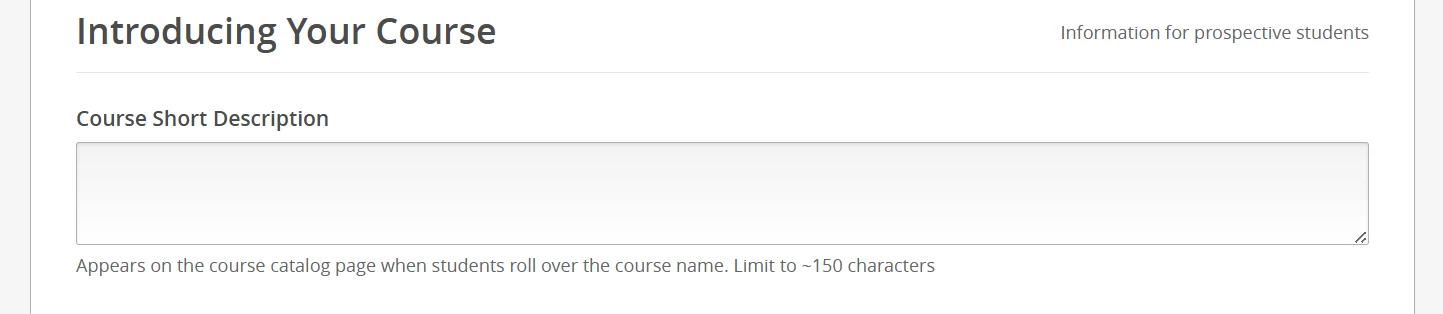
Figure 3.5 – Course Short Description
Course overview
The course overview is the main description of the course, covering its objectives, scope, and how the learning is carried out. It gives learners a complete picture of the course, states the outcomes expected of them, and sets out how the course is delivered and assessed.
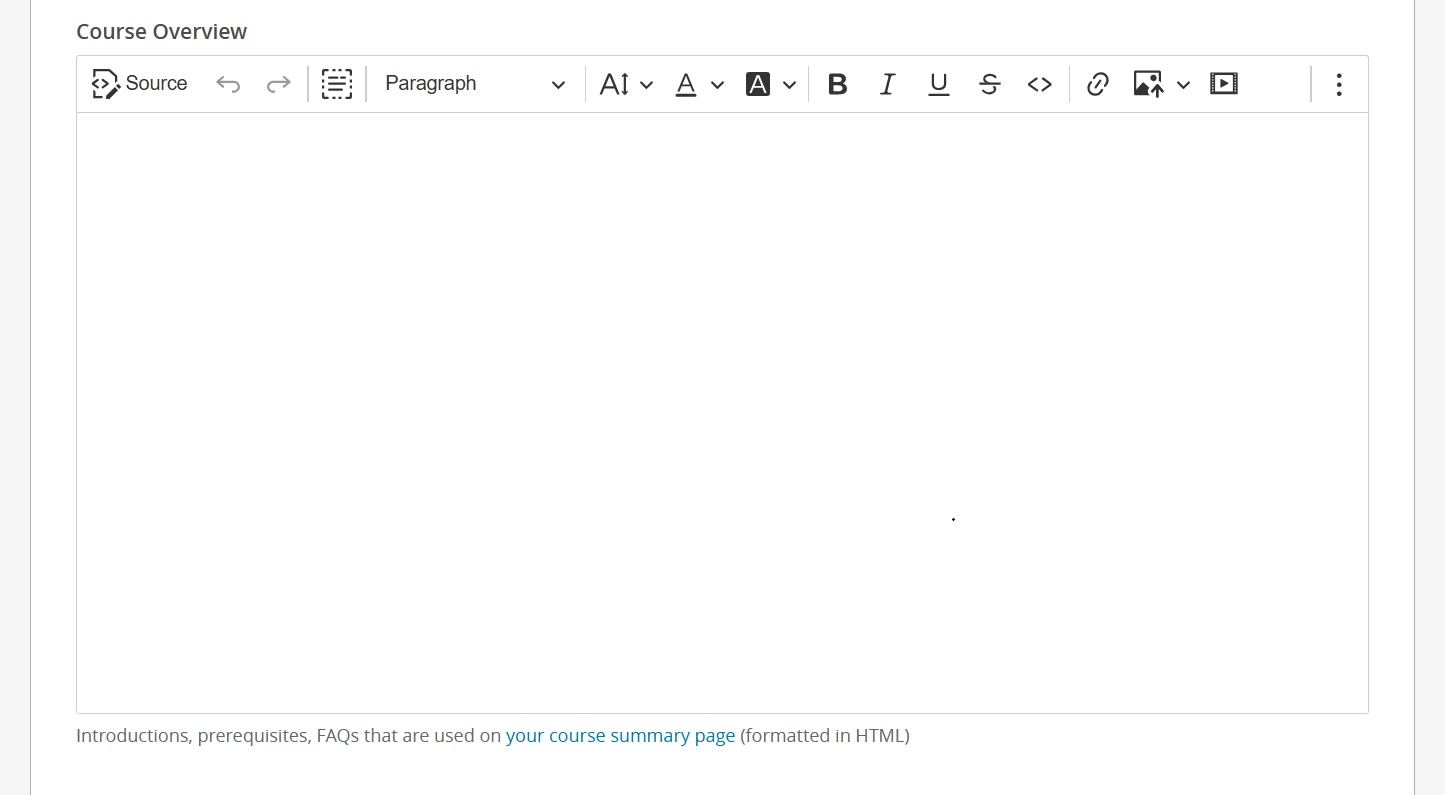
Figure 3.6 – Course Overview
The course overview must include the following.
Item | Content |
|---|---|
Course description | The topic, the scope of the material, and the benefit to the learner |
Learning outcomes | The competencies a learner is expected to achieve, stated clearly and measurably |
Prerequisites | The prior knowledge or experience required. Where none applies, this can be stated |
Assessment | The methods used to assess learners, such as quizzes, assignments, projects, or a final examination |
Developer information | The full name, email address, and photograph of each course developer, together with a short biography of no more than 150 words |
Course card image
The course card image is the visual identity of the course. Images must be in JPEG or PNG format, relate clearly to the topic of the course, and use a simple, uncluttered design with minimal text. Images must not infringe copyright or contravene institutional policy.
To upload an image, select Upload Course Card Image, select Choose File, select the image, then select Upload.
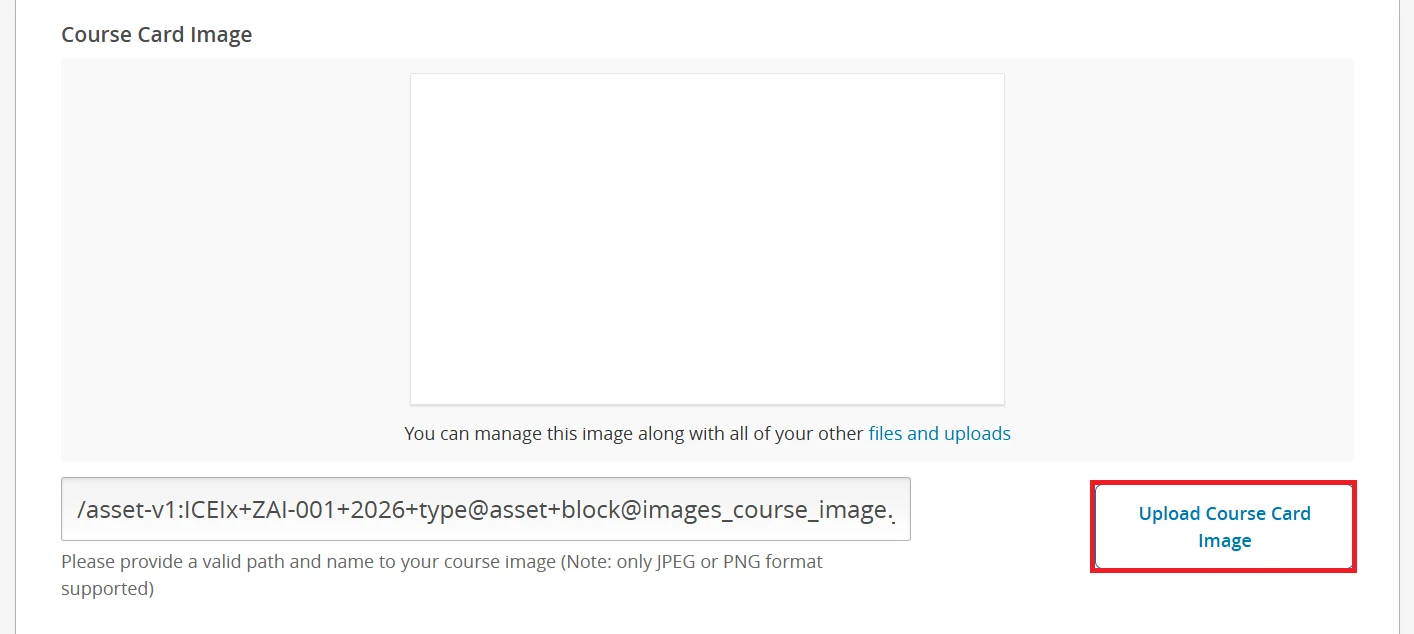
Figure 3.7 – Upload Course Card Image
The image is then displayed in the panel, and the file path below it is filled in automatically. To replace the image, repeat the same steps with a different image.
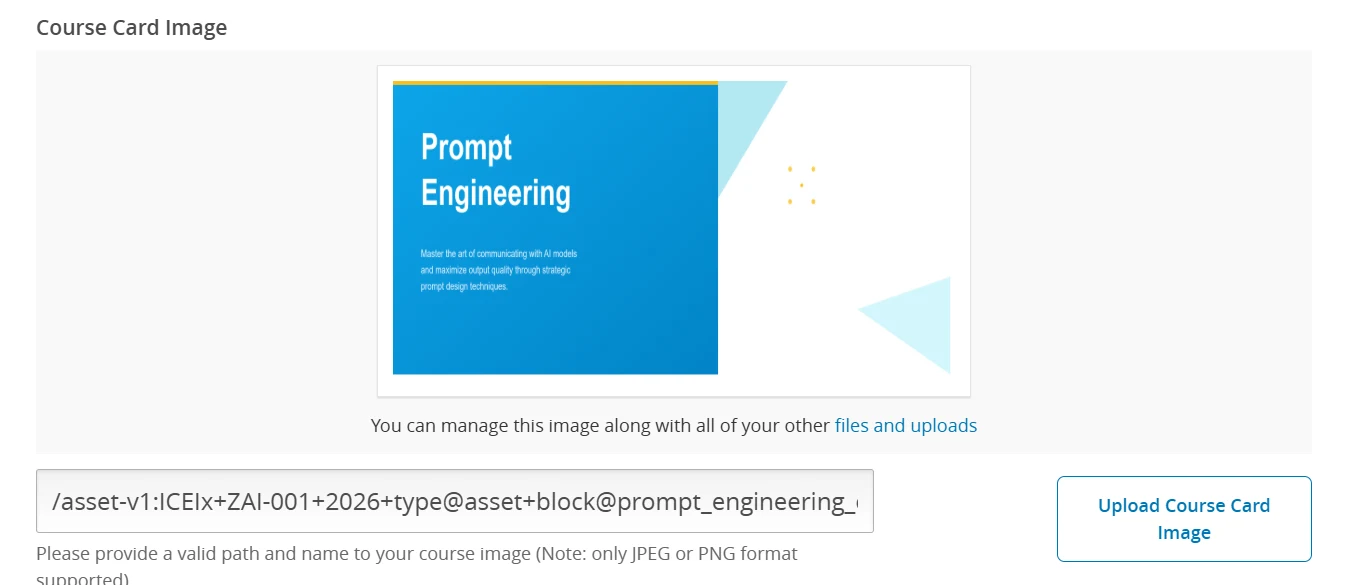
Figure 3.8 – Course card image uploaded
Course introduction video
The introduction video introduces the course to prospective learners. A video of approximately one to three minutes covering the main topic, the learning outcomes, and the nature of the learning activities is usually sufficient. The language used should match the course language, and the audio and picture quality should be clear enough to watch comfortably.
The video is hosted on YouTube, and its video ID is entered in the field provided. The ID is the string that follows the address when the video is shared. For example, in https://youtu.be/mKo2qBxYSOA , the video ID is mKo2qBxYSOA.
The video is then displayed above the field. To replace it, select Delete Current Video and enter a different video ID.

Figure 3.9 – Course Introduction Video
Requirements
In the Hours of Effort per Week field, enter the total study time expected of a learner, expressed in hours and weeks. For a course requiring 100 hours over 8 weeks, enter 100 hours for 8 weeks.
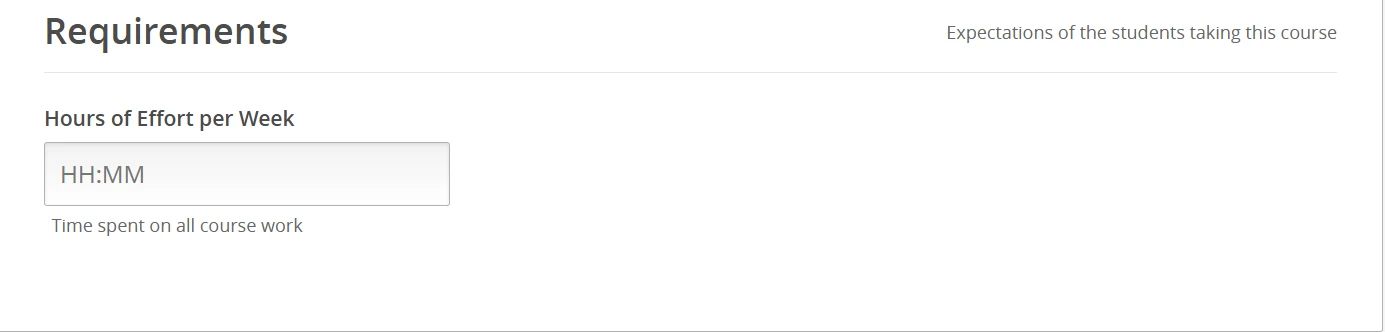
Figure 3.10 – Requirements
A notification appears at the bottom of the page whenever a change has been made. Changes do not take effect until Save Changes is selected.

Figure 3.11 – Unsaved changes notification
Grading
The Grading page sets the passing grade for the course and defines the assessment types that contribute to a learner's final grade.
Select Settings in the menu bar and select Grading. The page contains the following settings.
Overall grade ranges
The grade range sets the minimum grade a learner must achieve to pass the course. To adjust it, place the pointer on the boundary between the two ranges, then click and drag it to the required position.
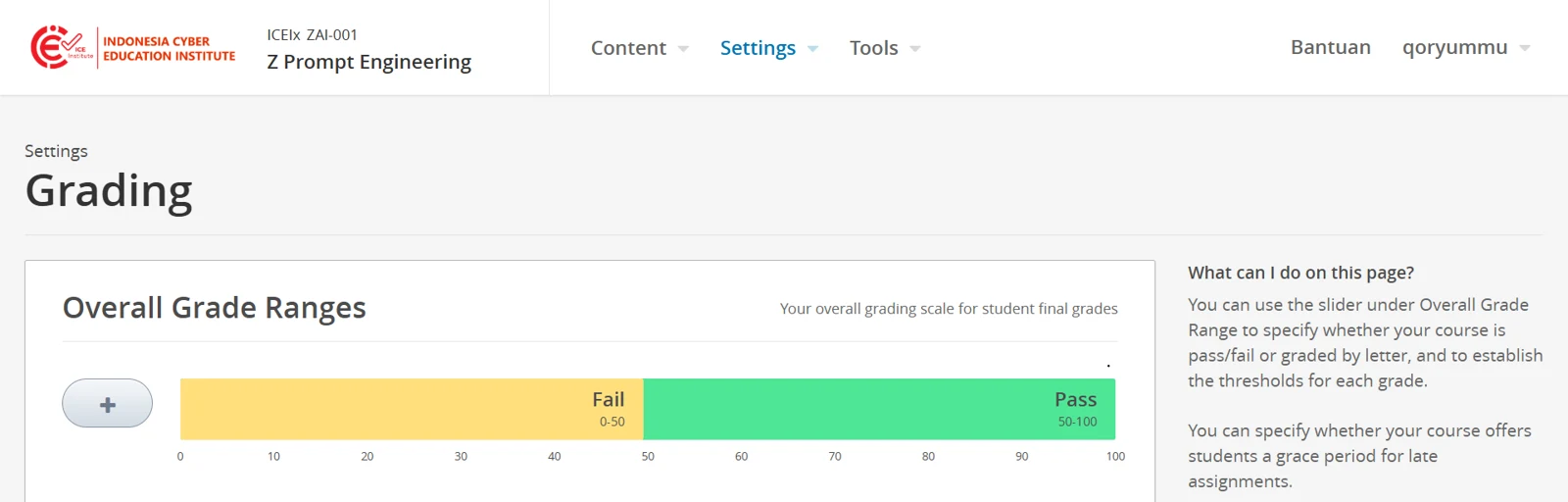
Figure 3.12 – Overall Grade Ranges
Assignment types
Assignment types define the categories of graded work in the course and the weight each carries towards the final grade. These should follow the assessment components already set out in the course syllabus. A course opens with a default set of assignment types, which can be replaced with the components used in the course.
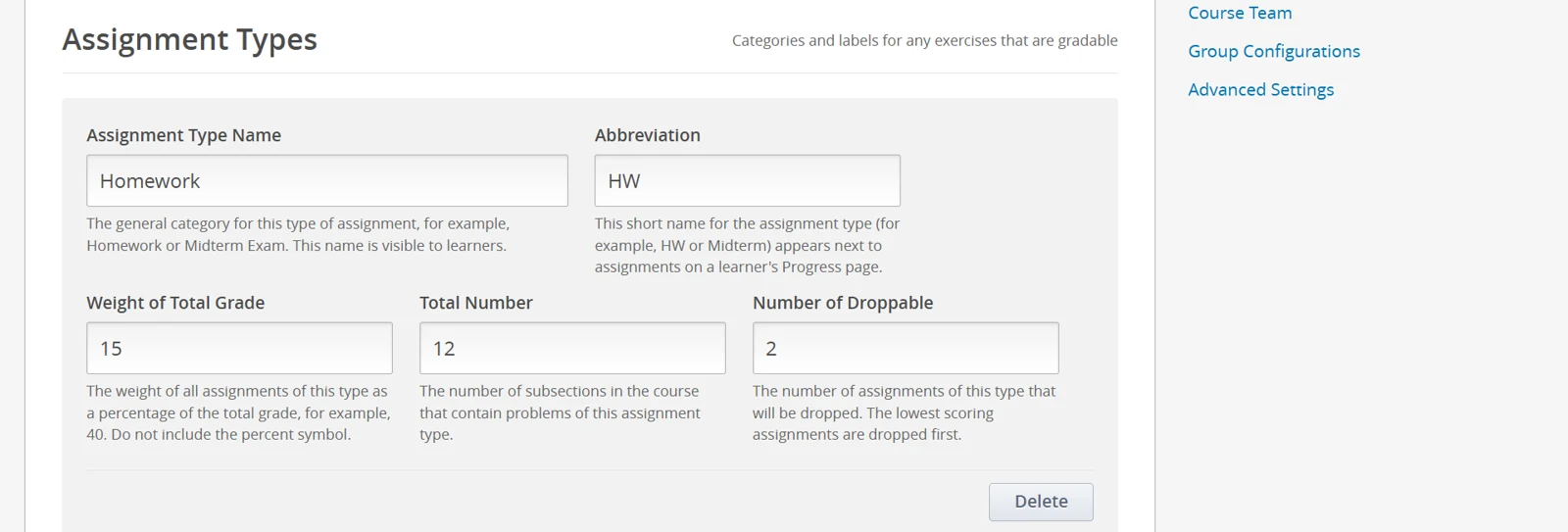
Figure 3.13 – Assignment Types
Each assignment type contains the following fields.
Field | Purpose |
|---|---|
Assignment Type Name | The name of the assessment category, as seen by learners |
Abbreviation | A short form of the name, shown beside assignments on the learner's progress page |
Weight of Total Grade | The percentage this category contributes to the final grade. The weights of all categories must total 100 |
Total Number | The number of subsections in the course that contain assessments of this type |
Number of Droppable | The number of lowest-scoring assessments in this category that are excluded from the learner's average |
Select Delete to remove an assignment type, or New Assignment Type below the last one to add another.
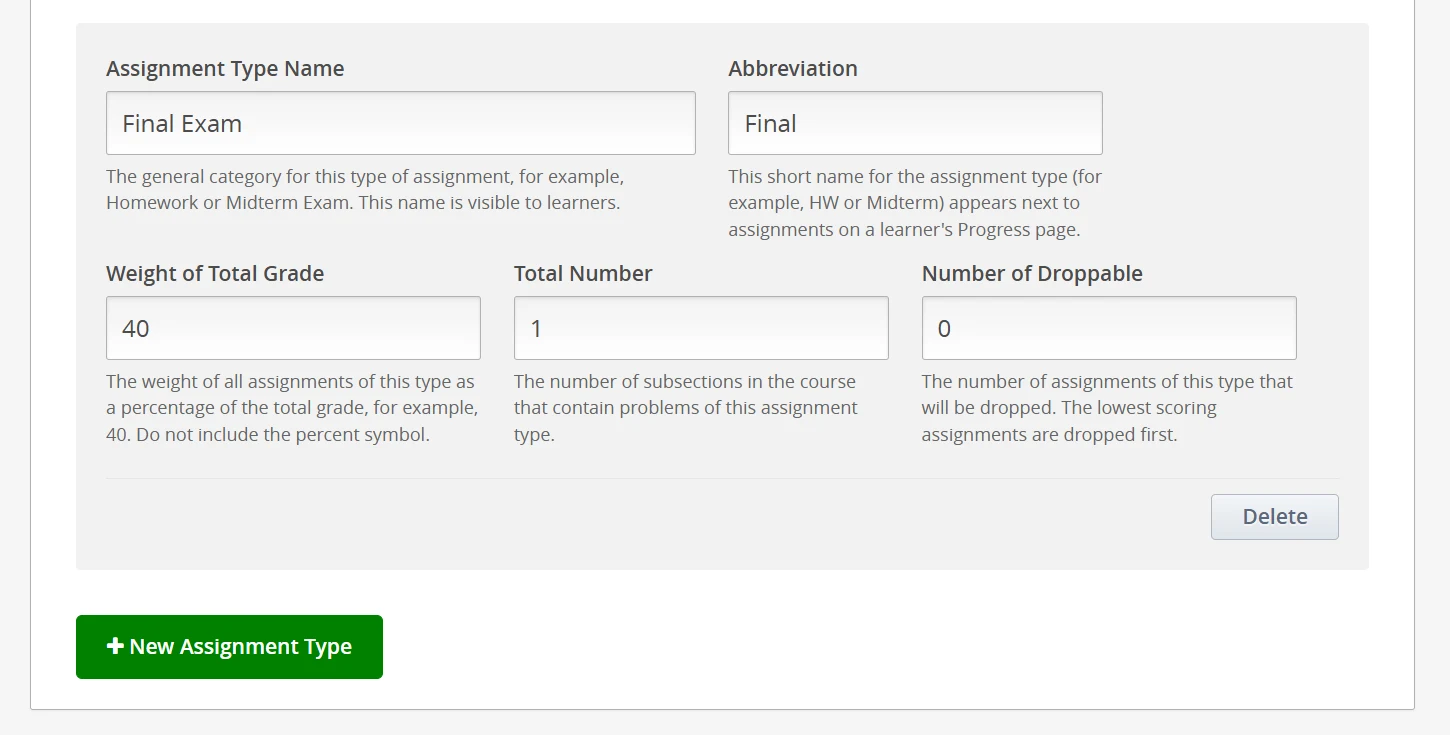
Figure 3.14 – Assignment Types, lower section