
Course content is built on the Course Outline page. This section covers the structure of a course and the steps for building it.
Course Structure
A course is organised in four levels, each contained within the one above it. Sections hold subsections, subsections hold units, and units hold the components that carry the learning content itself.
Level | Description |
|---|---|
Section | The largest division of a course, usually representing a week or a main topic |
Subsection | A division within a section, grouping material by learning objective. Assessment settings such as due dates and grade weighting are applied at this level |
Unit | A single page as seen by the learner, covering one small topic |
Component | The learning content itself, such as text, video, assessment items, or a discussion forum |
Material may be organised according to the needs of the discipline, provided the components required by the ICE Institute curation standards are present. The structure below is suggested as a starting point.
Introduction
The course introduction, description, learning outcomes, syllabus, concept map, learning pathway, developer information, and reading list.
Learning topics
Each topic contains a topic introduction, topic learning outcomes, a concept map, an instructional statement, reading material, multimedia material, assessment, a discussion forum, and a summary.
Creating sections
Select Content in the menu bar and select Outline.

Figure 4.1 – Content menu
A new course opens with an empty outline containing no sections. Selecting New Section adds a section to the outline with a default name.
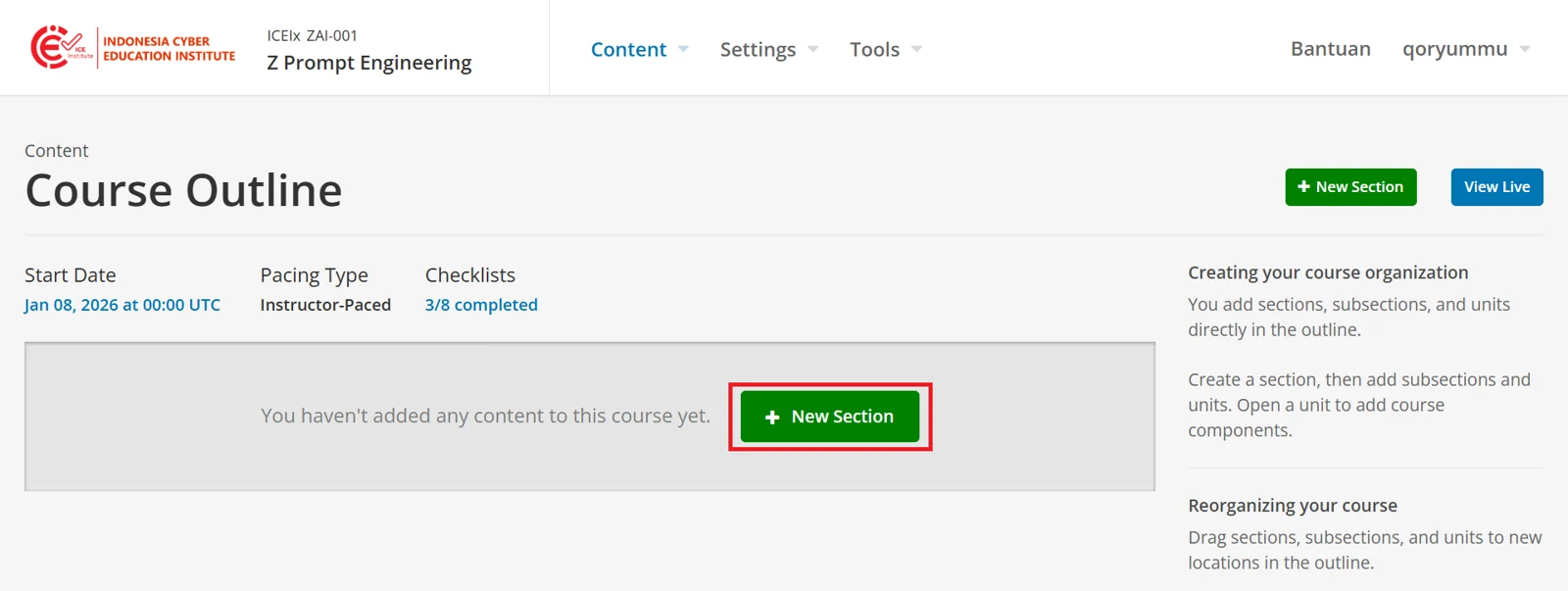
Figure 4.2 – Course Outline page
To rename it, select the section name and enter a new one.
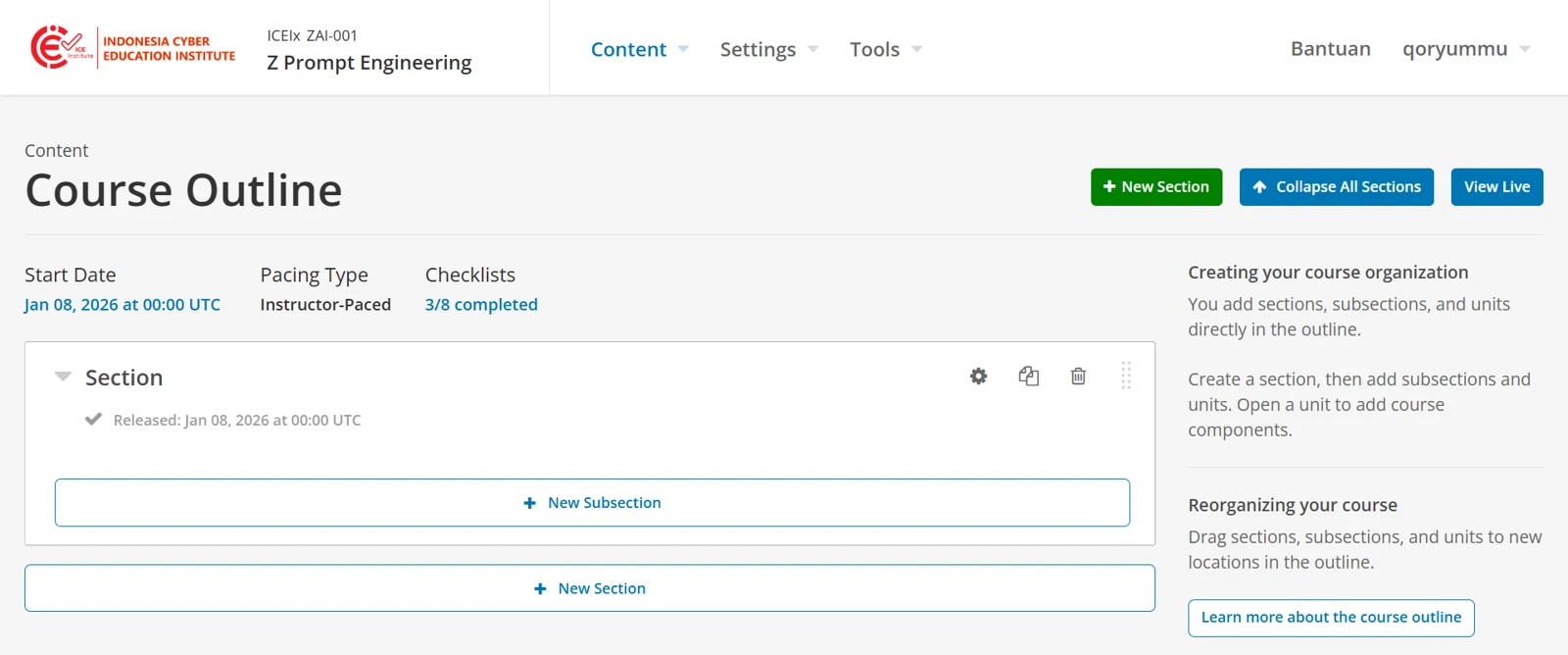 Figure 4.3 – New section added
Creating subsections
A subsection groups material within a section according to learning objective. Assessment settings such as due dates and grade weighting are applied at this level.
Select New Subsection within a section.
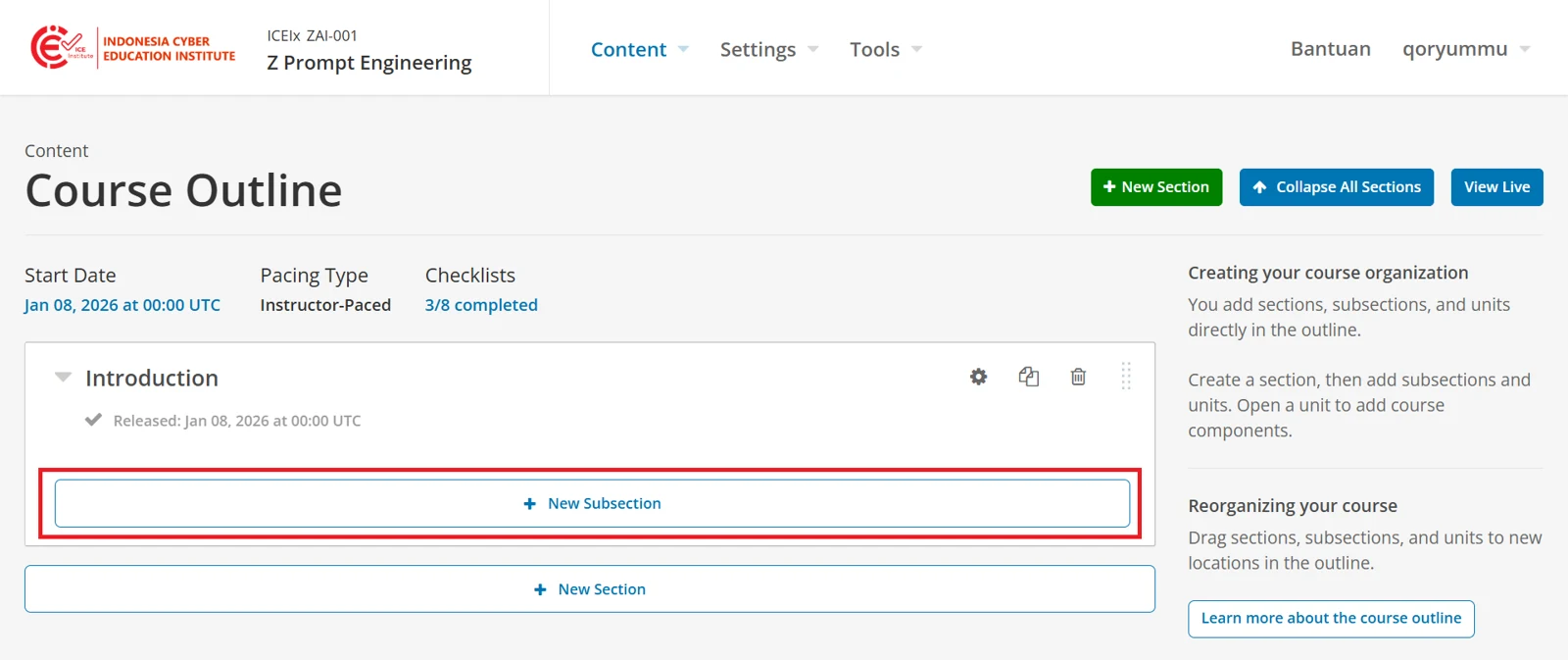
Figure 4.4 – New subsection
A subsection is then added with a default name, which is changed in the same way as a section name.
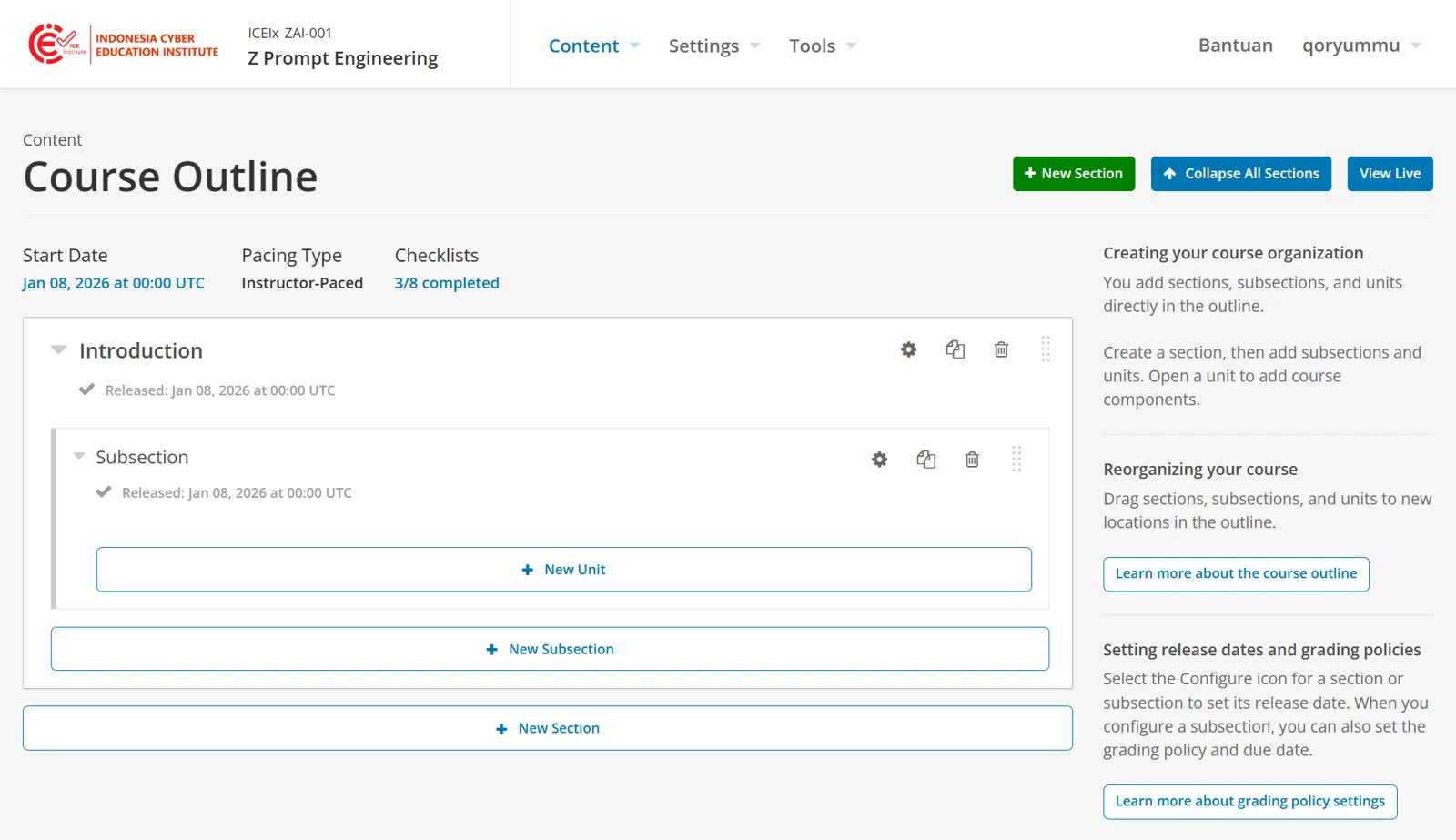
Figure 4.5 – New subsection added
Creating units
A unit is a single page as seen by the learner, and holds the components that carry the learning content.
Select New Unit within a subsection.
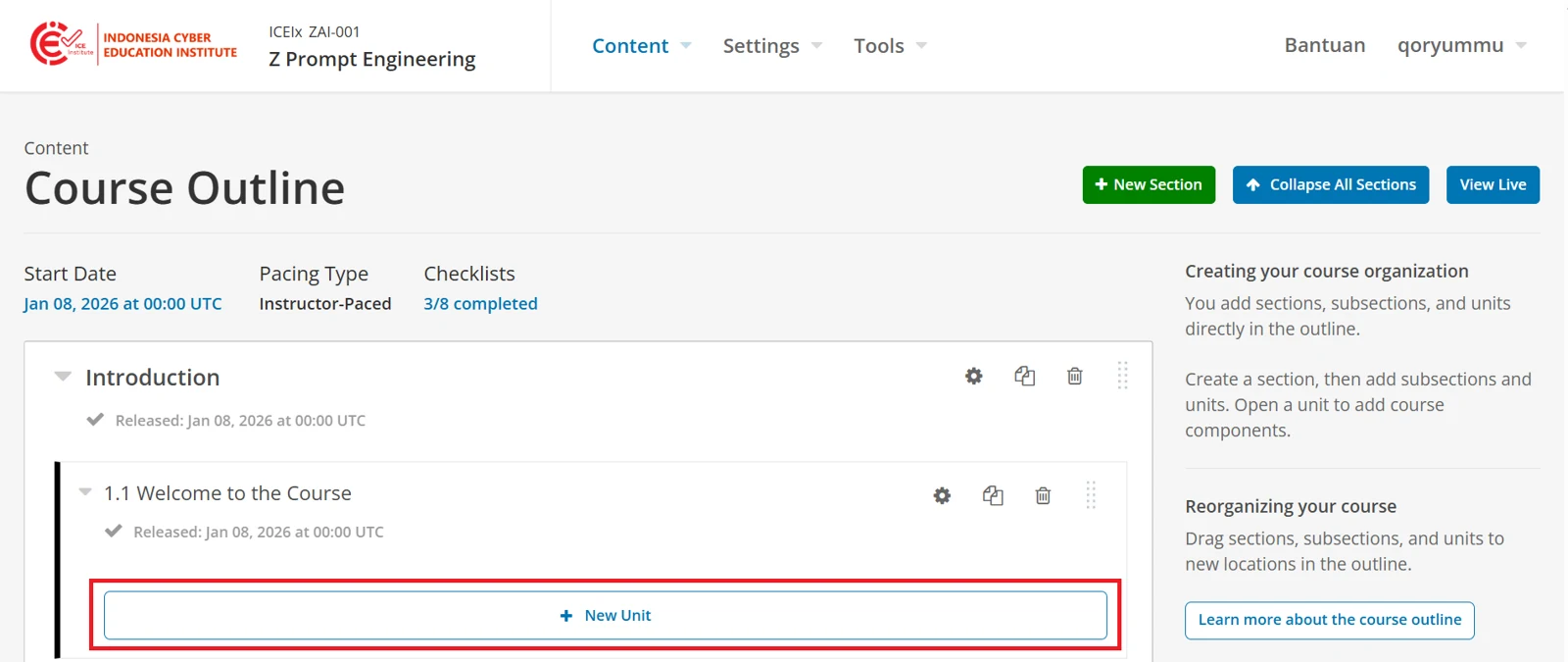
Figure 4.6 – New unit
The unit page then opens, showing the unit with a default name. To rename the unit, select the pencil icon beside its name and enter a new one.
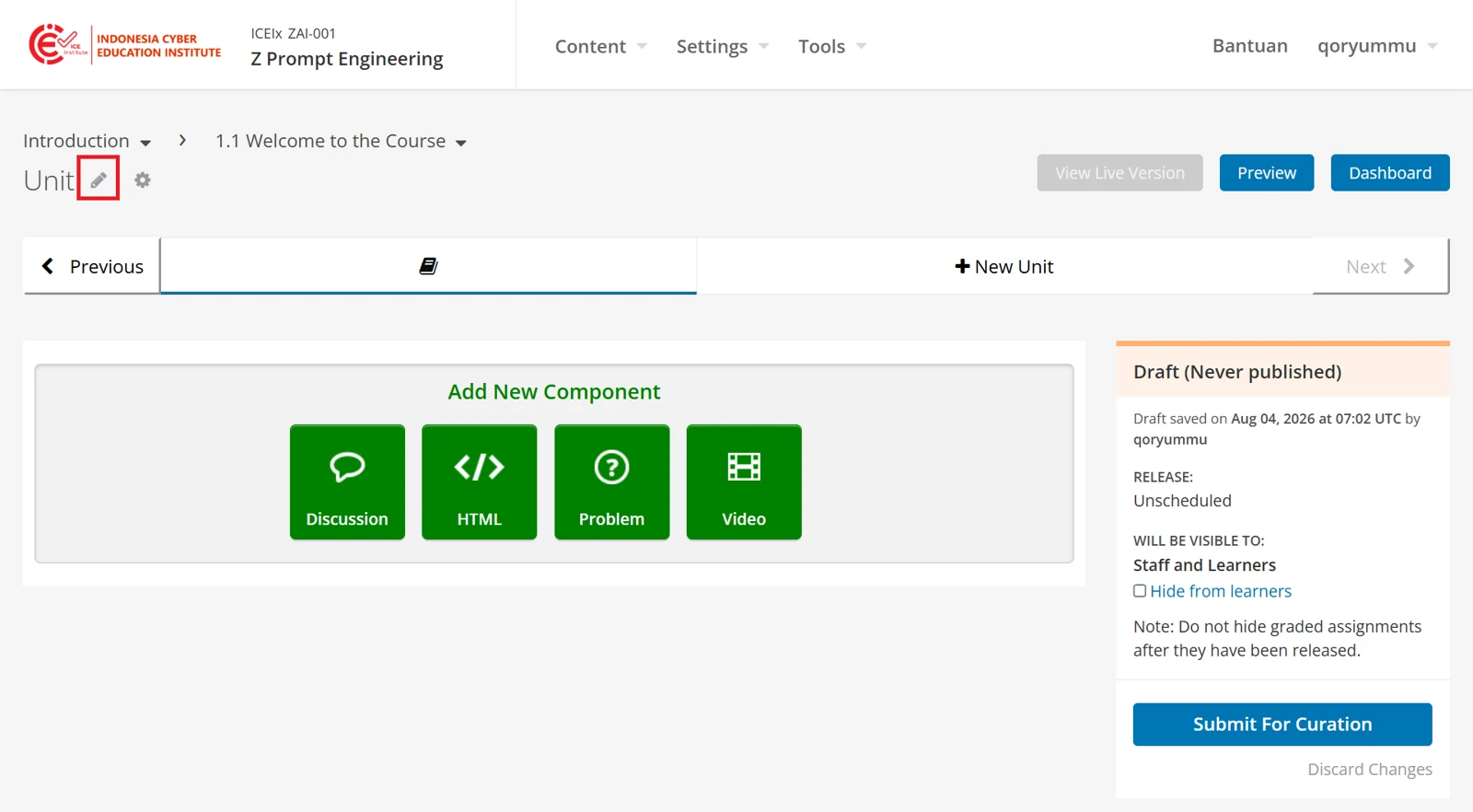
Figure 4.7 – Unit page
Further units are added by selecting New Unit at the top of the page.
Adding components
A component holds the learning content itself. A unit may contain several components, which are displayed to learners in the order they appear on the unit page.
Select a component type under Add New Component.
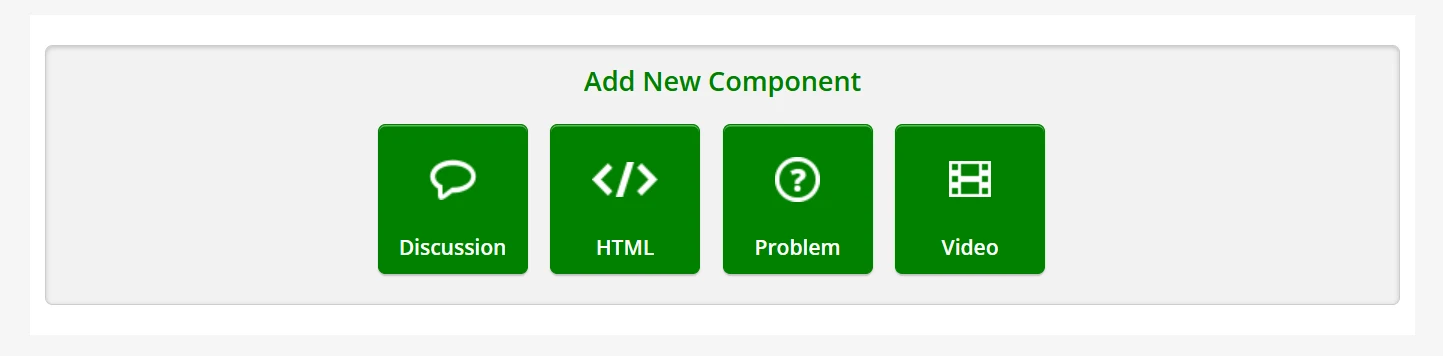
Figure 4.8 – Add New Component
The following component types are available.
Component | Purpose |
|---|---|
HTML
| Text, images, and other formatted content |
Video | Video hosted on YouTube |
Problem | Assessment items such as multiple-choice and written-response questions |
Discussion | A discussion forum for the unit |
Adding text and images
Text, images, and other formatted content are added through the HTML component.
Select HTML under Add New Component. A list of templates is then displayed.
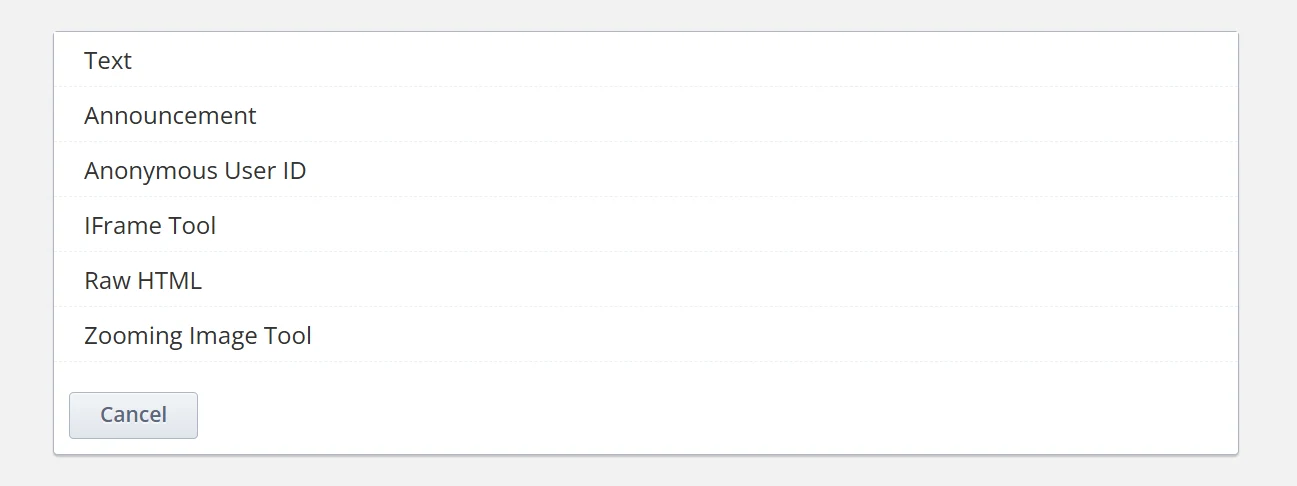
Figure 4.9 – HTML templates
The templates serve the following purposes.
Template | Use |
|---|---|
Text | Content entered through a visual editor, using the formatting toolbar. No knowledge of HTML is required |
Announcement | Opens the visual editor with example text showing how to format an announcement |
Anonymous User ID | Displays the learner's anonymous identifier, used when connecting to external tools |
IFrame Tool | Embeds an ungraded exercise or tool from an external site. The address must begin with https |
Raw HTML | Content entered directly as HTML, giving full control over layout |
Zooming Image Tool | An image learners can magnify. Requires the image files and a supporting script to be uploaded to Files & Uploads first |
The Text and Raw HTML templates are described below.
Using the Text template
Selecting Text adds an empty component to the unit page. Select Edit to open the editor.

Figure 4.10 – Text component
The visual editor provides a toolbar for headings, bold and italic text, lists, alignment, links, and images. Enter the content, then select Save.
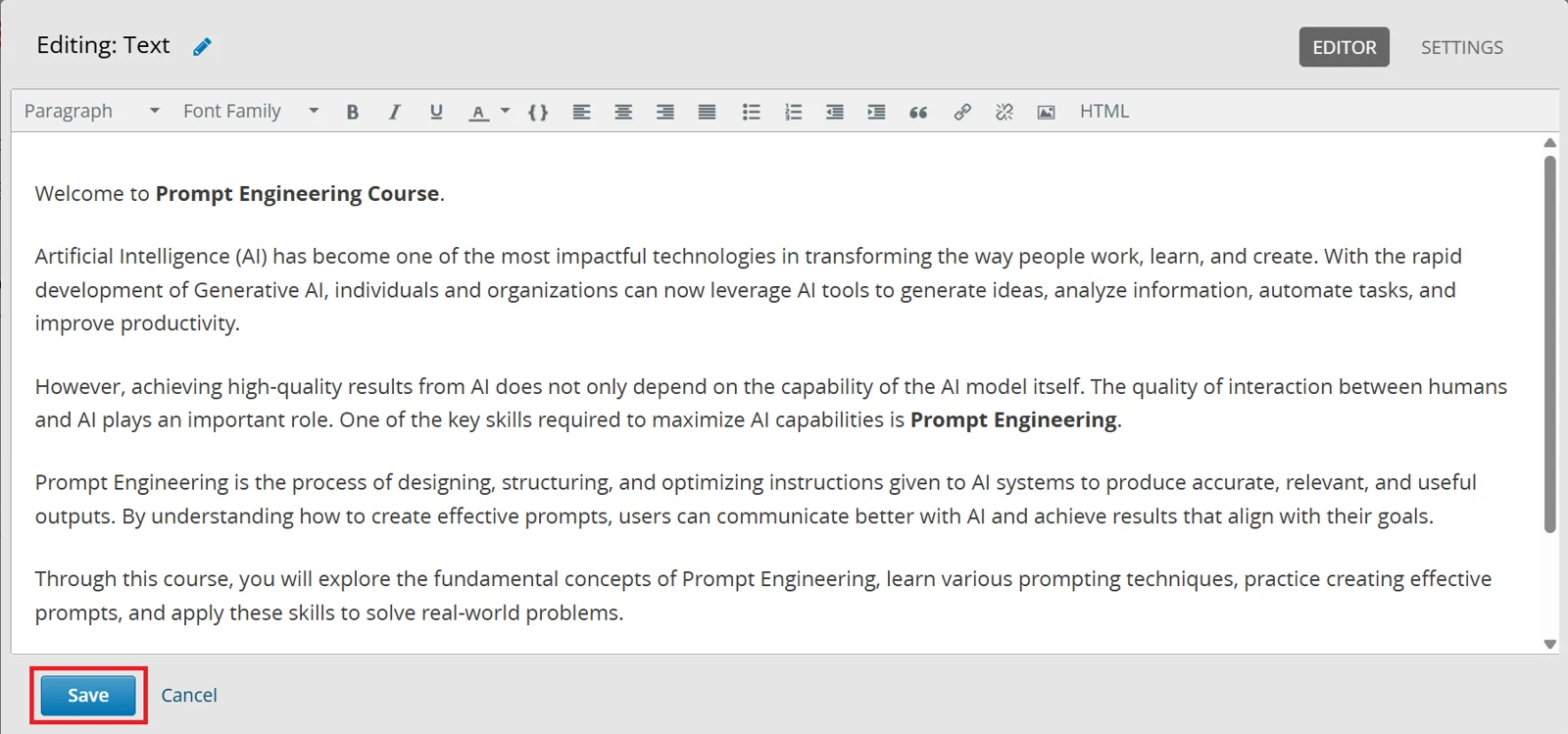
Figure 4.11 – Text editor
The component then appears on the unit page as learners will see it.
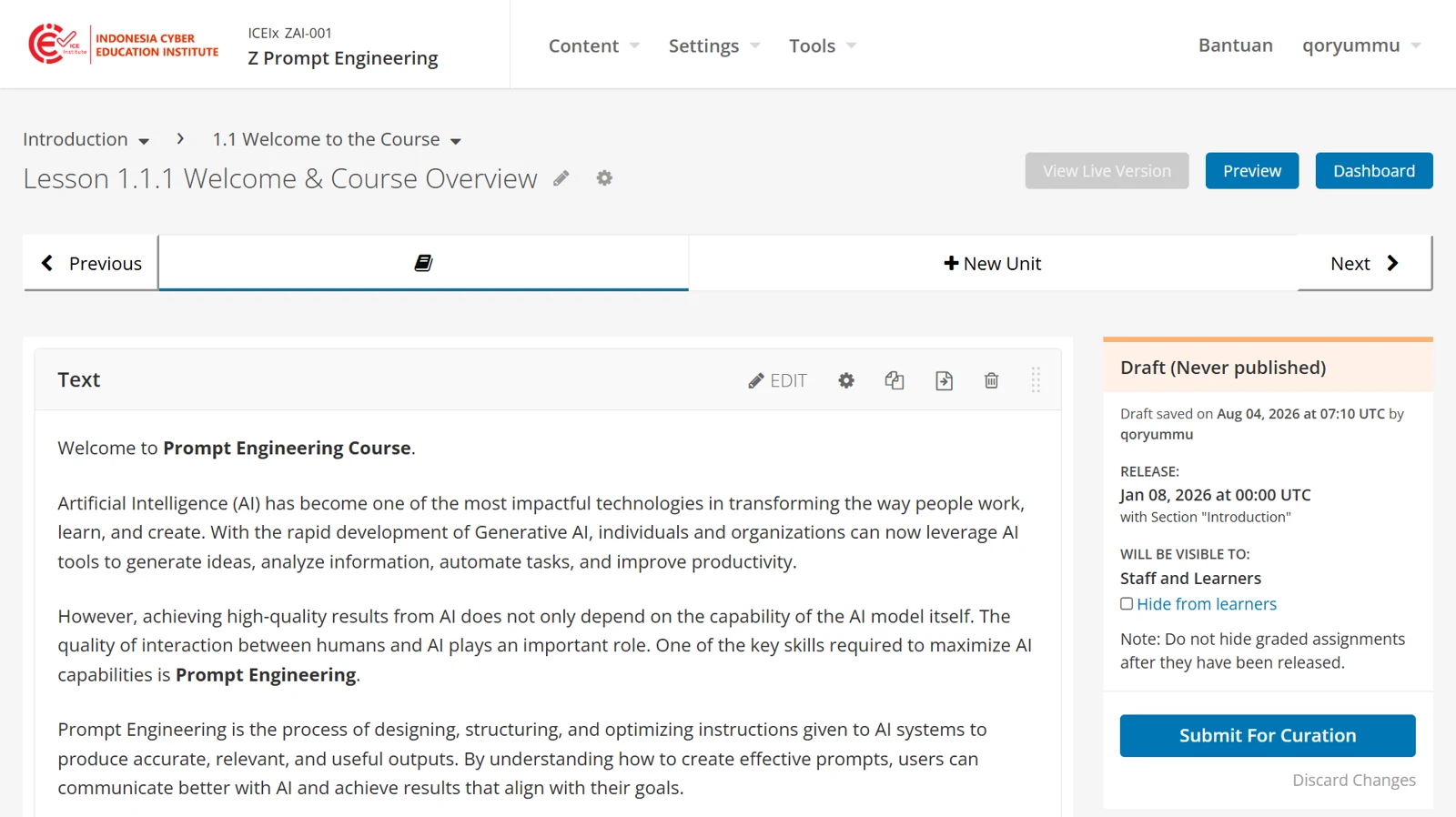
Figure 4.12 – Completed Text component
Using the Raw HTML template
Selecting Raw HTML adds a component containing default text. Select Edit to open the editor.
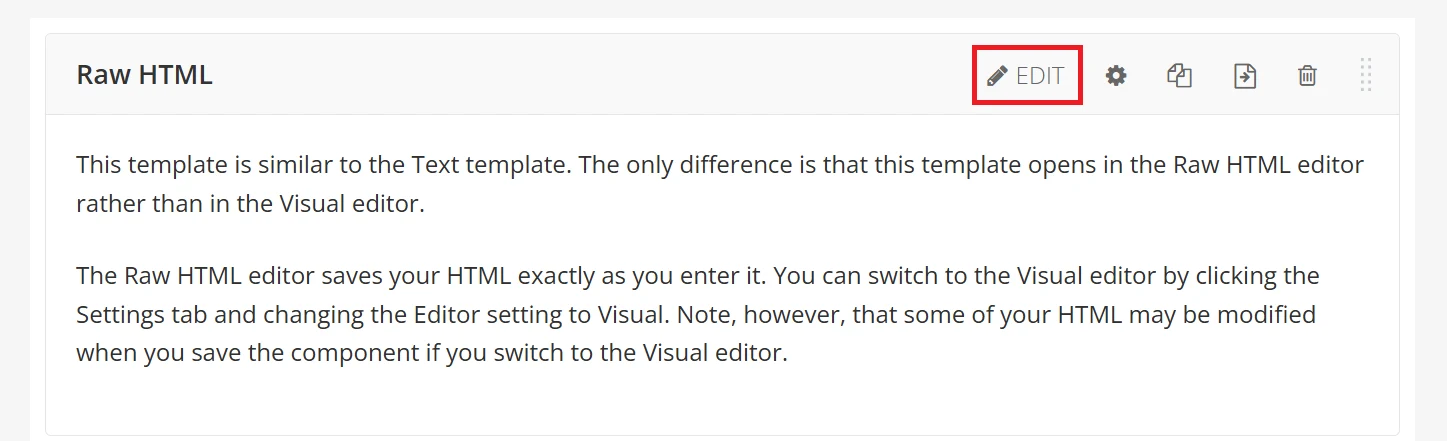
Figure 4.13 – Raw HTML component
The Raw HTML editor saves the HTML exactly as it is entered. Replace the default text with the content, then select Save.
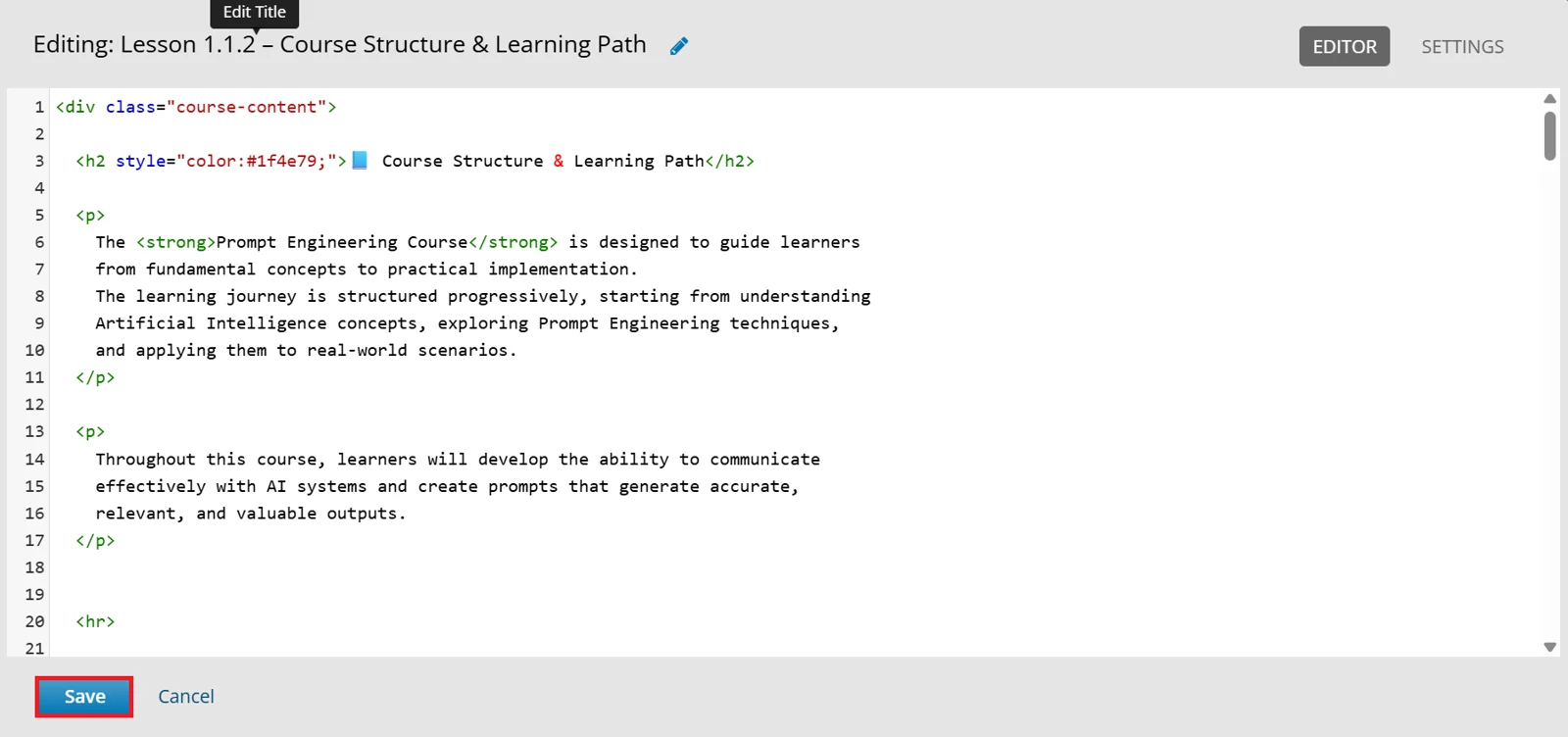
Figure 4.14 – Raw HTML editor
The component then appears on the unit page as learners will see it.
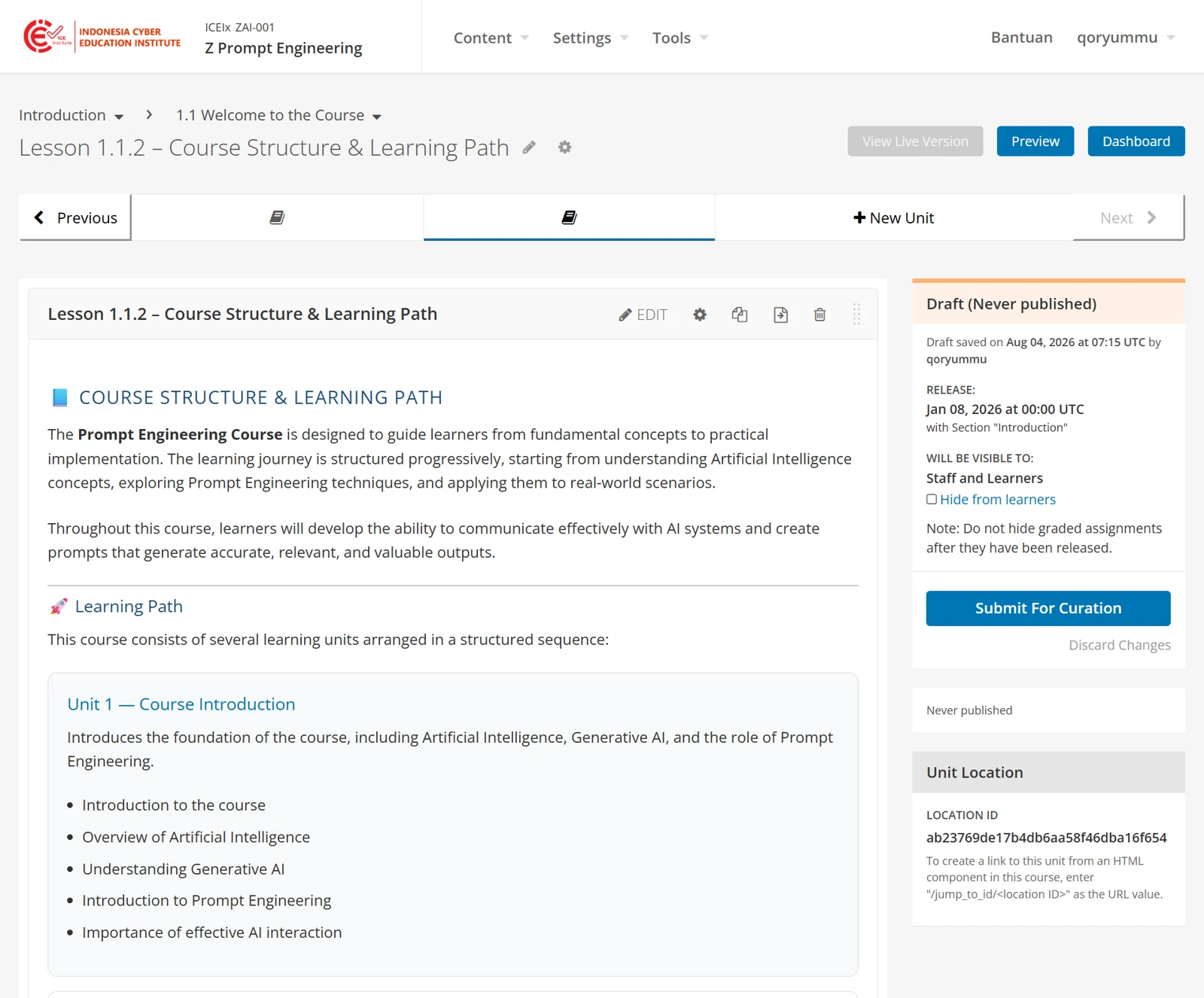
Figure 4.15 – Completed Raw HTML component
Adding video
Video is added through the Video component. The video is uploaded to YouTube or to an institutional server first, and then referenced in the course by its address.
Select Video under Add New Component. The component is added to the unit page. Select EDIT within it to open the video settings.
The video settings contain the following fields.
Field | Purpose |
|---|---|
Component Display Name | The name of the component, as seen by learners |
Default Video URL | The address of the video. This may be a YouTube address, or a link to an .mp4, .ogg, or .webm file hosted on an institutional server |
Default Timed Transcript | A transcript for the video. Where one is available it is detected automatically, and it can be uploaded, downloaded, or replaced as an .srt file |
Where a file hosted on a server is used, the address must point directly to the video file rather than to a page containing it. Enter the details, then select Save.
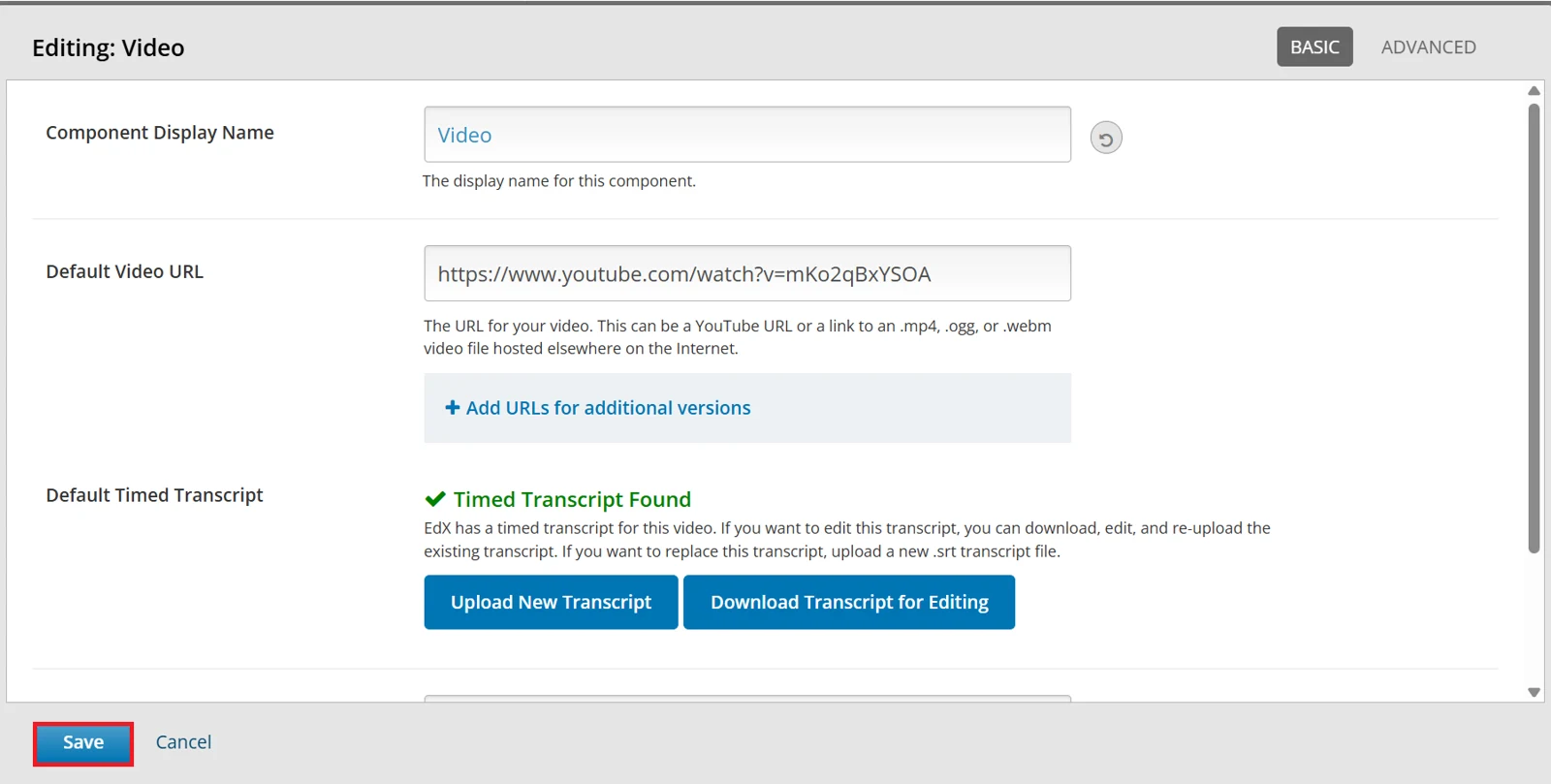
Figure 4.16 – Video settings
The video then appears on the unit page as learners will see it.
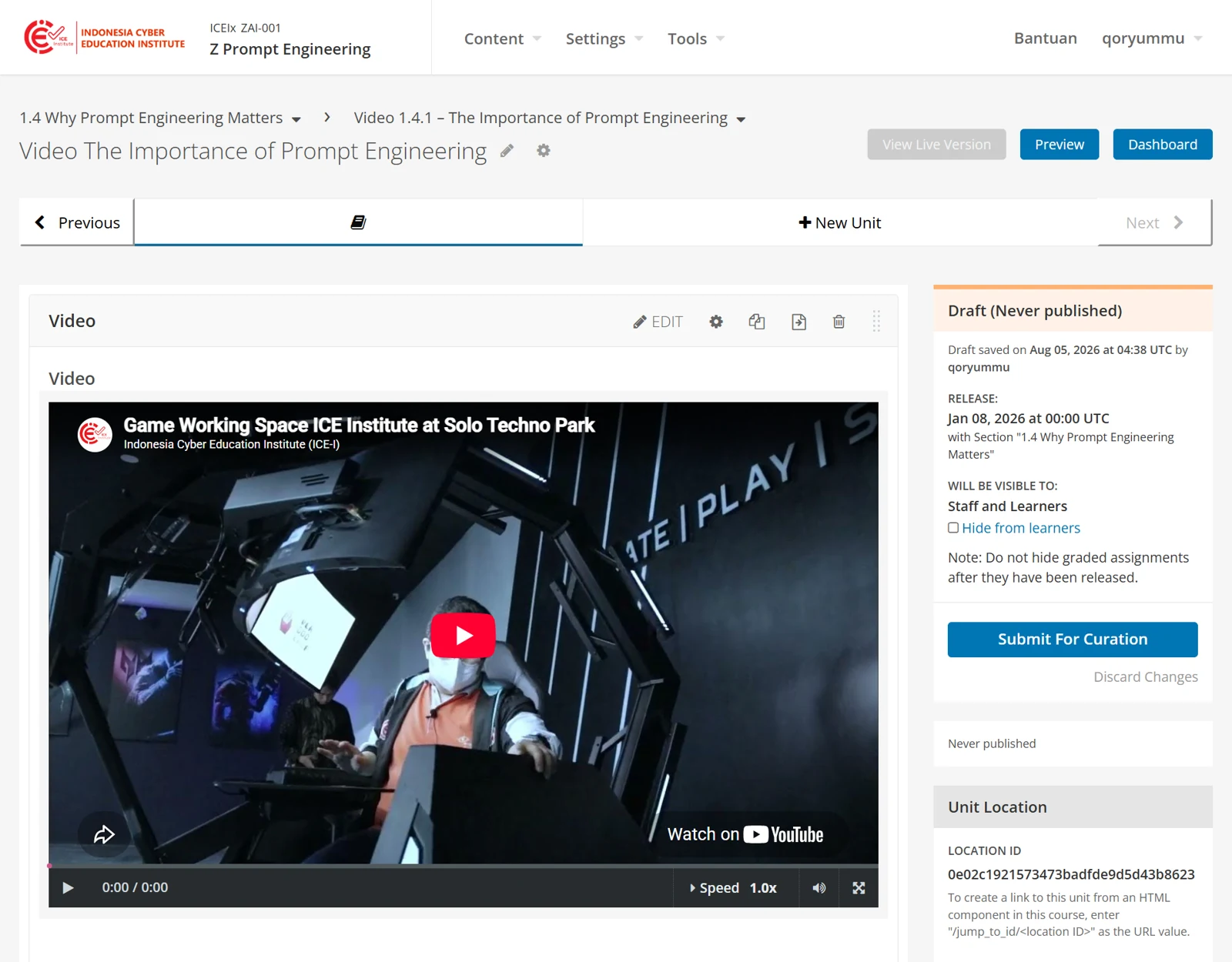
Figure 4.17 – Completed Video component
Adding assessments
Assessment items are added through the Problem component.
Select Problem under Add New Component. A list of problem types is then displayed.
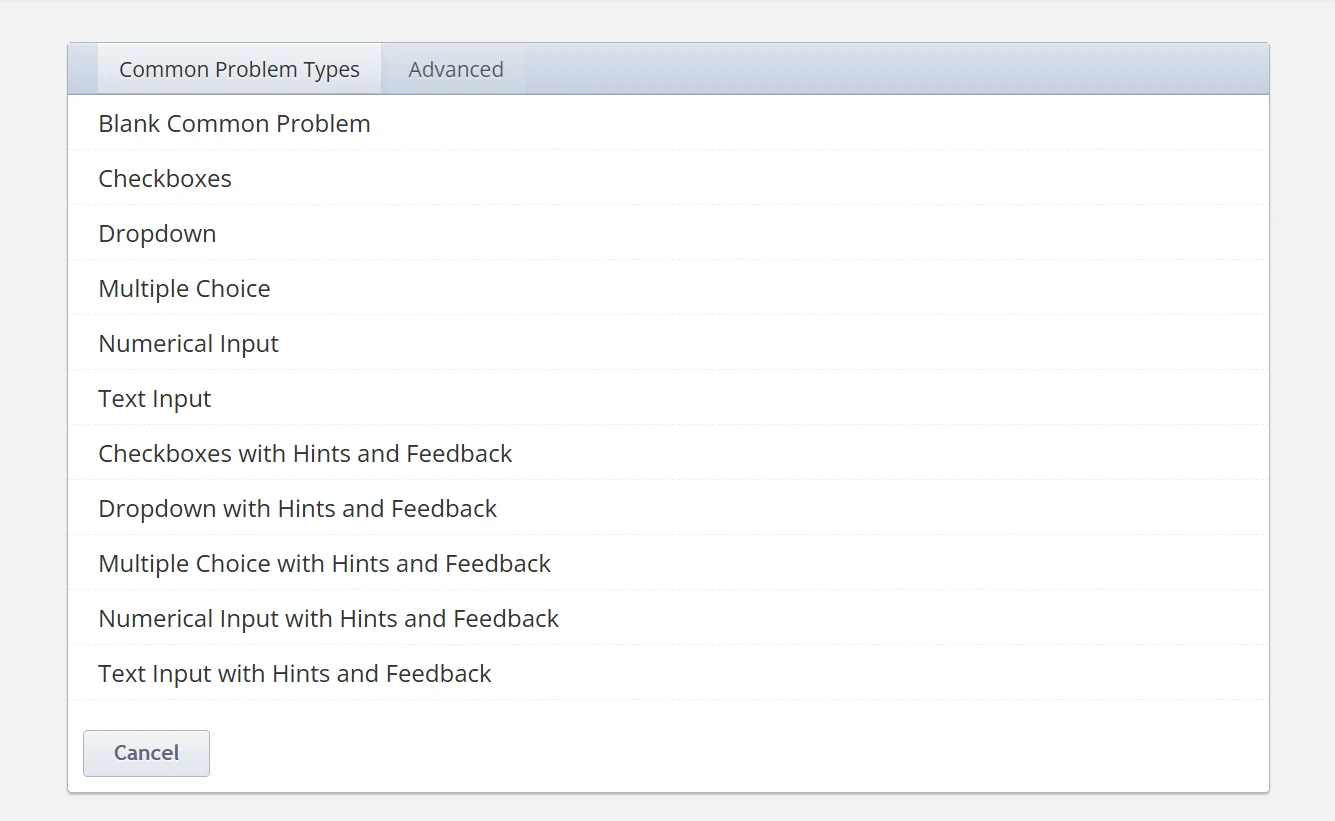
Figure 4.18 – Problem types
The Common Problem Types tab lists the types most often used. Each is available with or without hints and feedback.
Type | Purpose |
|---|---|
Multiple Choice | A question with one correct answer |
Checkboxes | A question with more than one correct answer |
Dropdown | A question answered by selecting from a list |
Text Input | A question answered by typing a word or phrase |
Numerical Input | A question answered by entering a number |
Blank Common Problem | An empty problem, for building a question from scratch |
Select a type, then select EDIT within the component to open the problem editor.
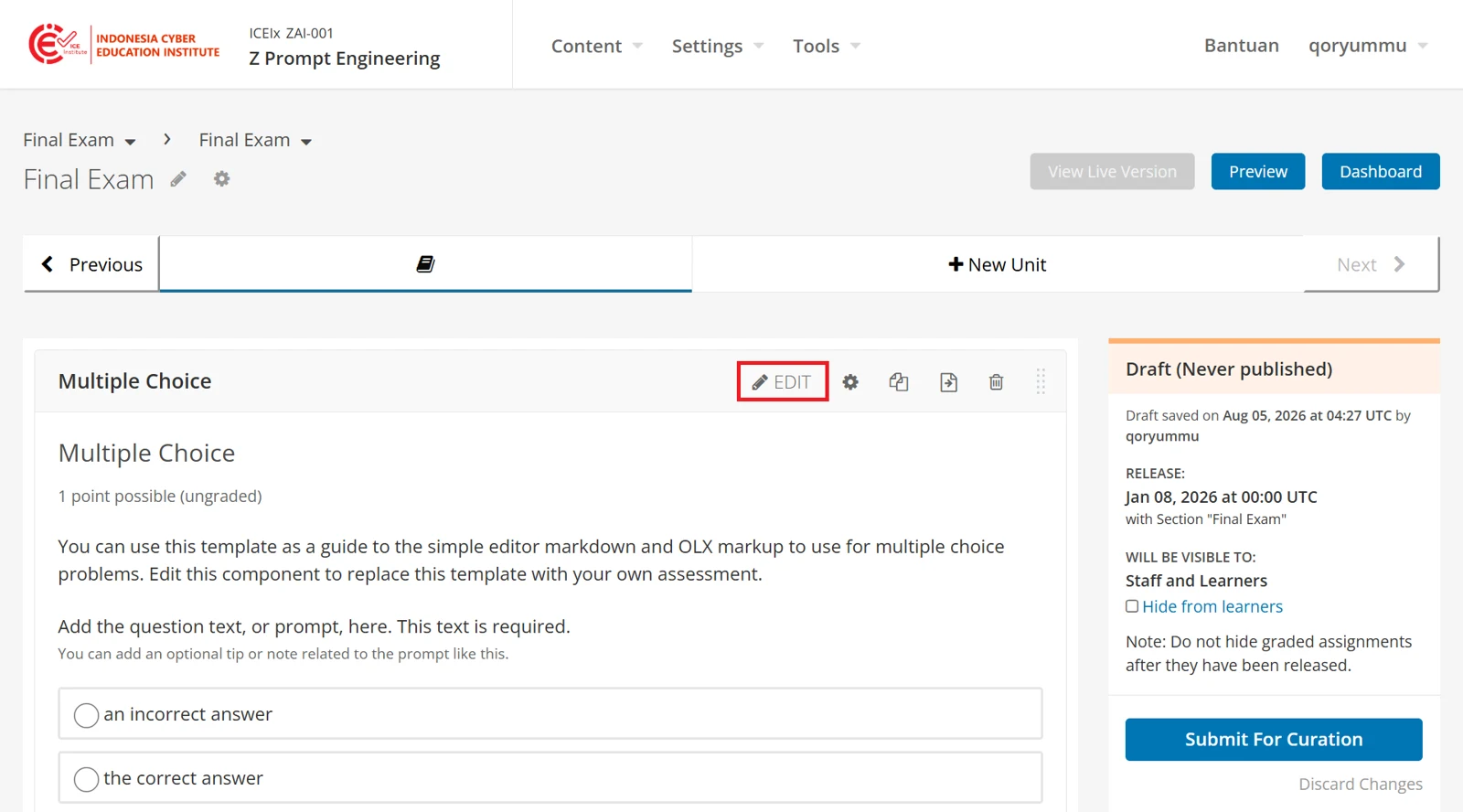
Figure 4.19 – Problem editor
The editor opens with a template showing the markup used for that problem type. The toolbar above the editor inserts the markup for each element, and the Markdown Help panel beside it shows the format each one uses. Question text is preceded by >> and followed by <<. In a multiple-choice question, ( ) marks an incorrect answer and (x) marks the correct one.
Replace the template with the question and answers, then select Save. Several questions can be entered in a single component by repeating this pattern.
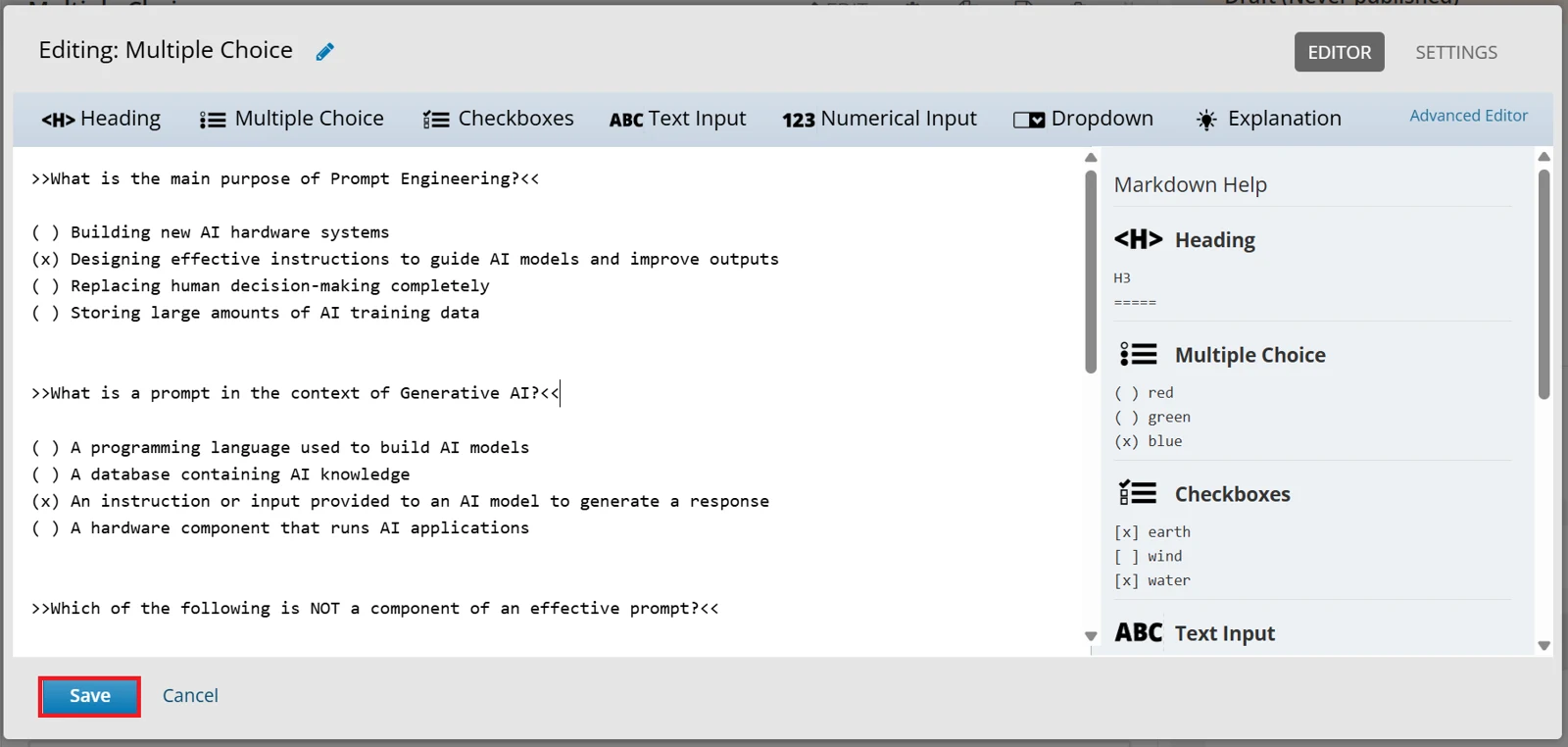
Figure 4.20 – Problem editor with question entered
The problem then appears on the unit page as learners will see it.
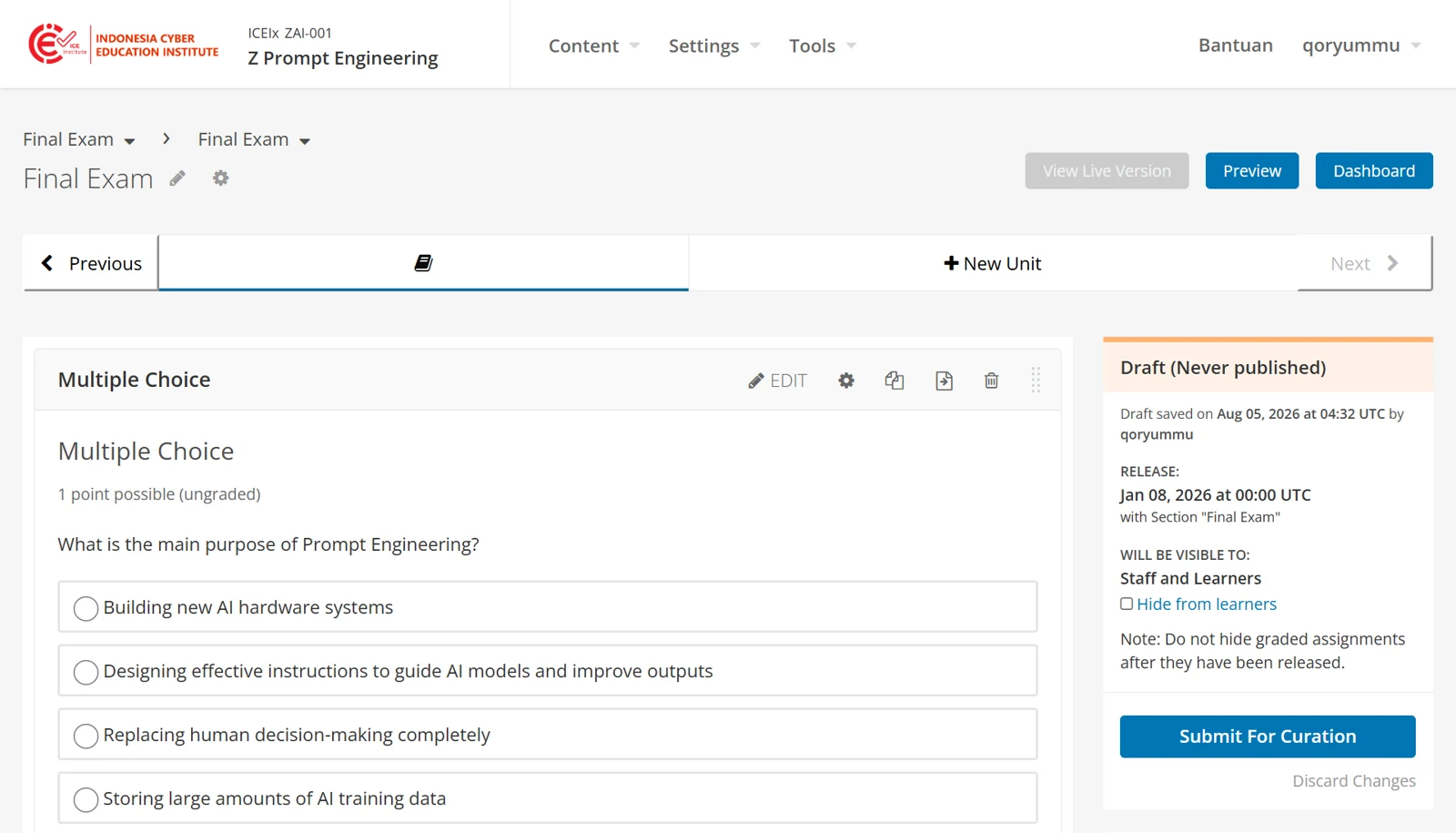
Figure 4.21 – Completed Problem component
Making the assessment count towards the grade
An assessment is ungraded by default. To include it in the final grade, the subsection containing it must be assigned to an assignment type.
Select the settings icon beside the subsection in the course outline.
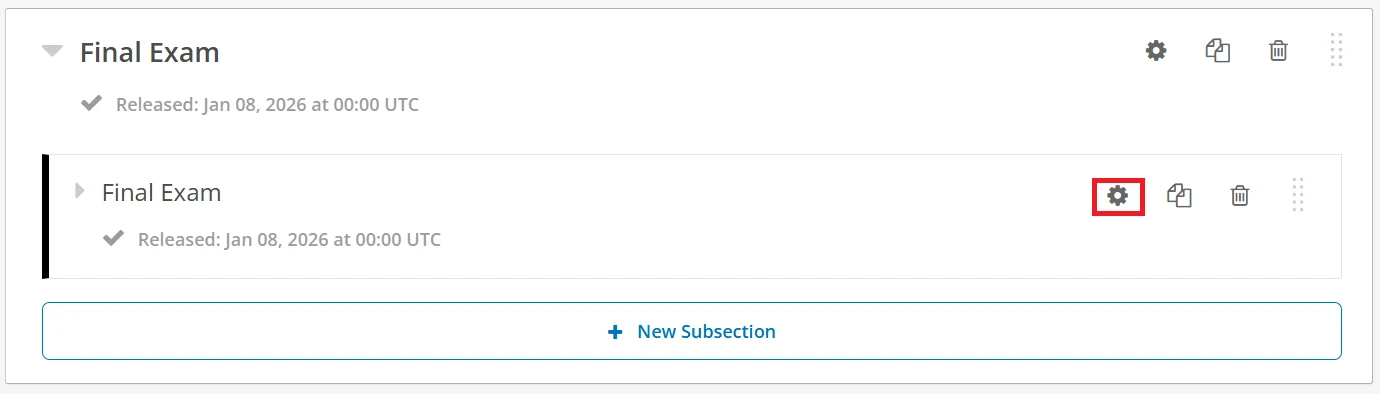
Figure 4.22 – Subsection settings icon
The subsection settings then open. Under Grade as, select the assignment type that applies. The types listed are those defined on the Grading page. Enter a due date if required, then select Save.
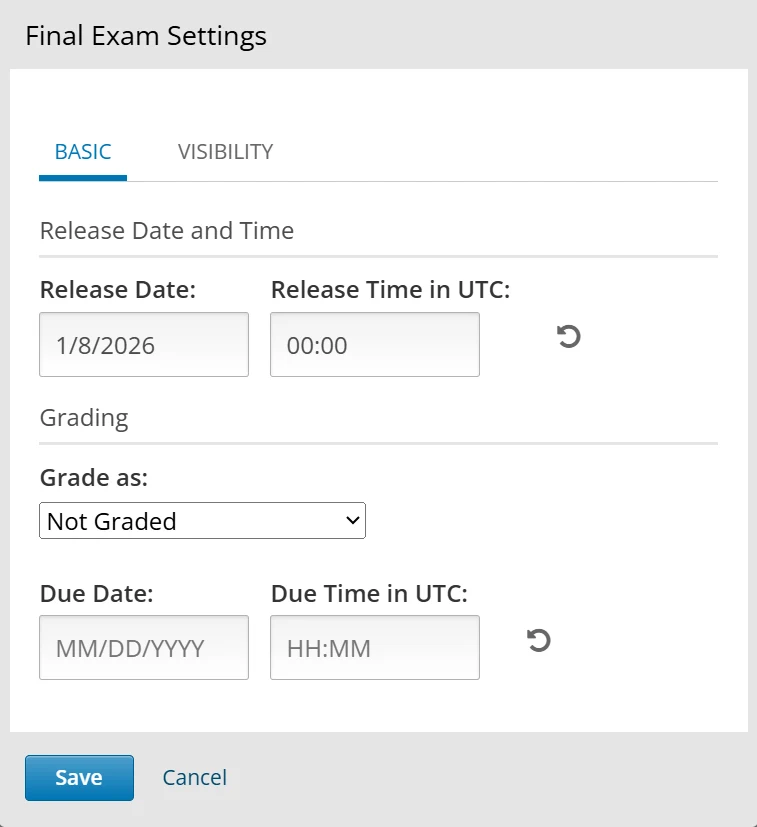
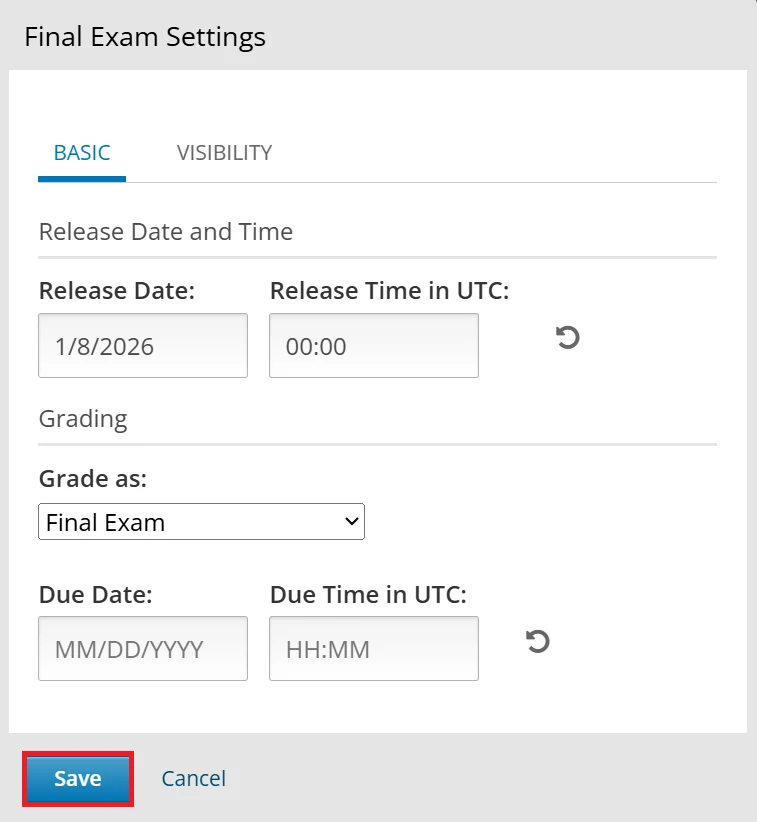
Figure 4.23 – Grade as
The subsection then shows the assignment type in the course outline, and contributes to the final grade according to the weight set for that type.
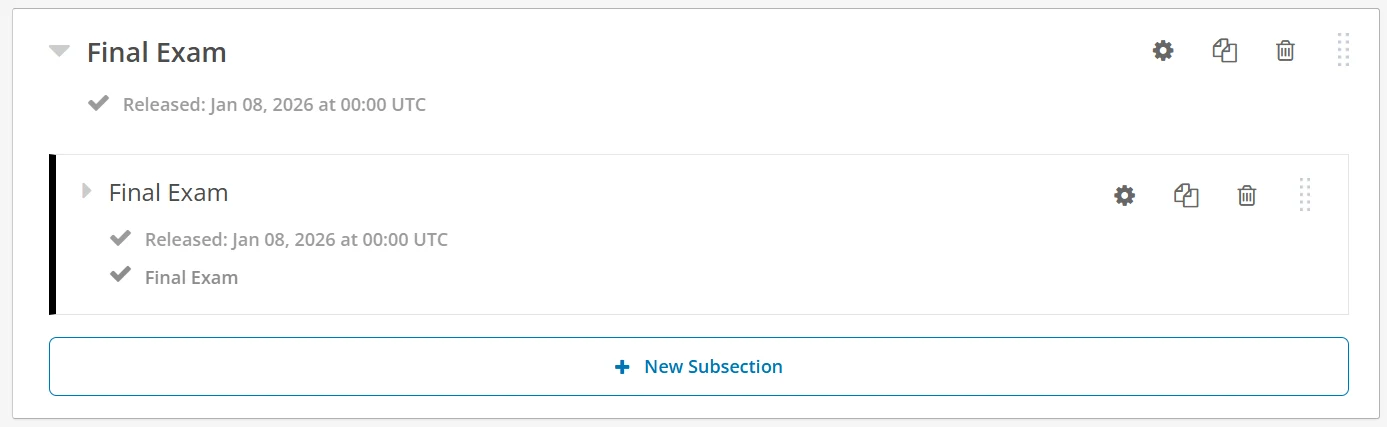
Figure 4.24 – Subsection settings completed
Adding open response assessments
An open response assessment collects a written answer from learners, which is then assessed against a rubric. Unlike other problem types, it is assessed by people rather than by the platform.
Select Problem under Add New Component and open the Advanced tab.
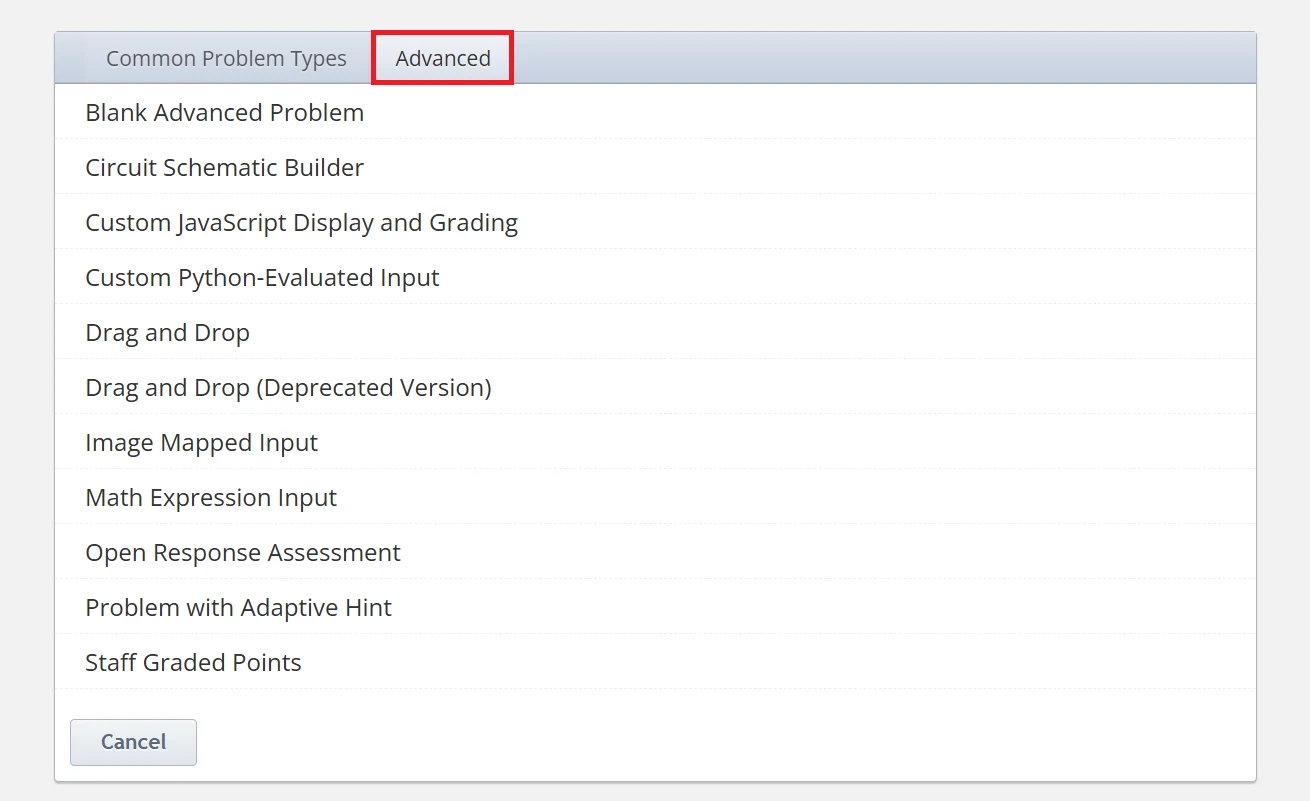
Figure 4.25 – Advanced problem types
Select Open Response Assessment, then select EDIT within the component to open the editor.
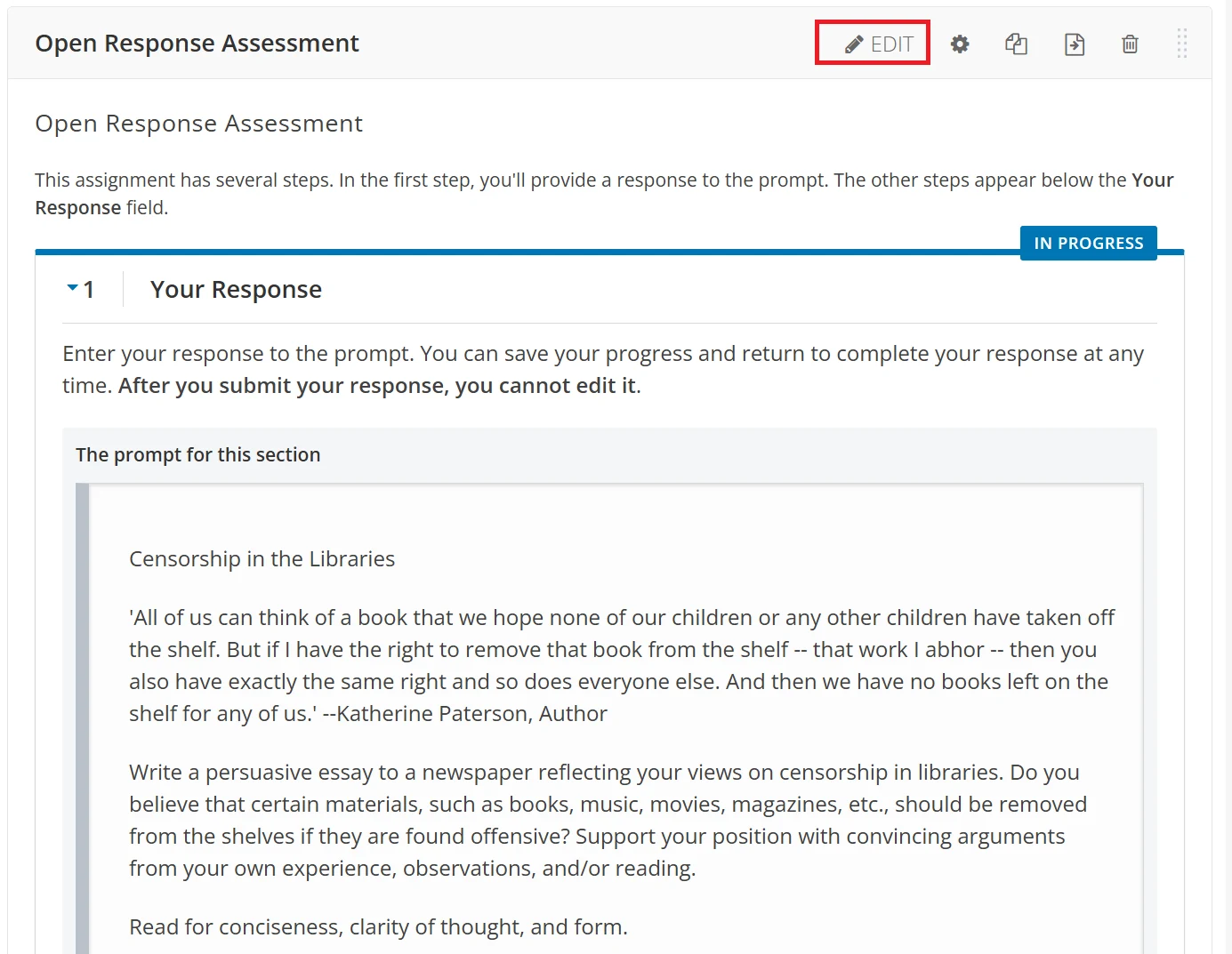
Figure 4.26 – Open Response Assessment editor
The editor contains five tabs, which are completed in turn.
Prompt
The prompt states the task set for learners. Replace the sample text with the task, the context learners need, and what the response is expected to cover. Select Add Prompt to set more than one task within the same component.
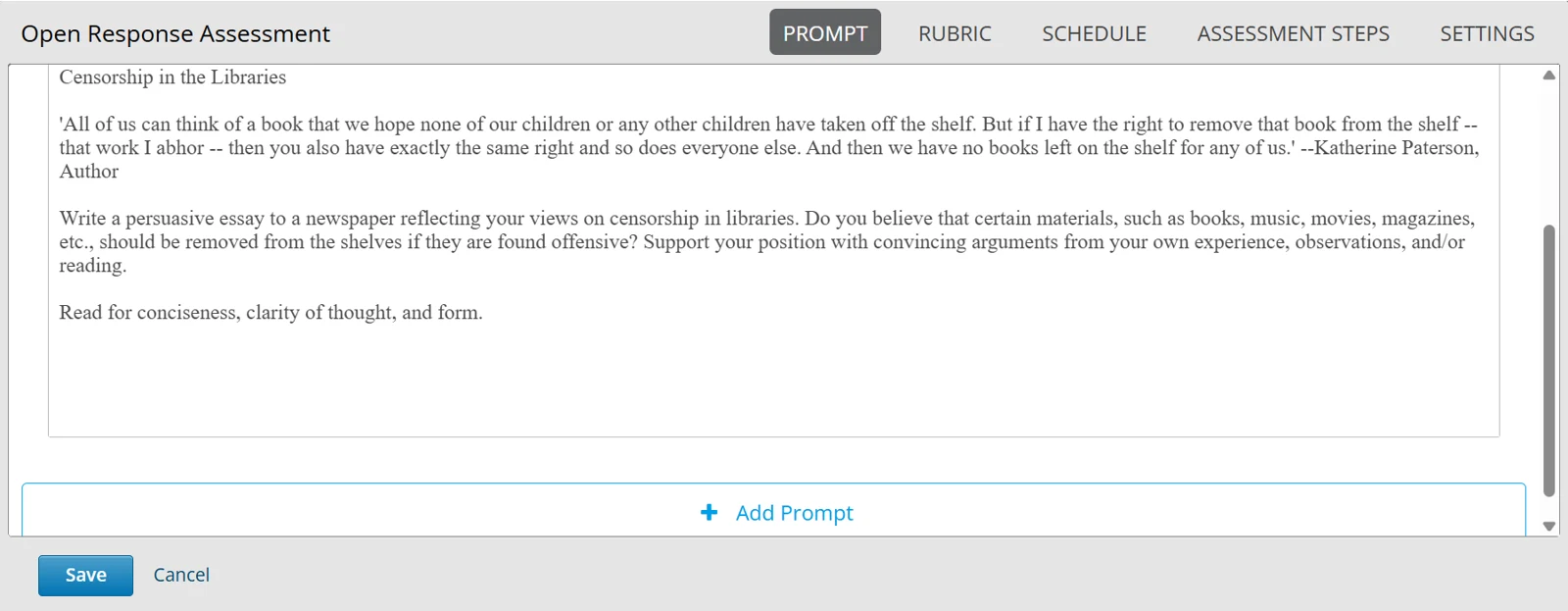
Figure 4.27 – Prompt tab
Rubric
The rubric defines how responses are assessed. It is made up of criteria, each containing the options that represent the levels of achievement for that criterion.
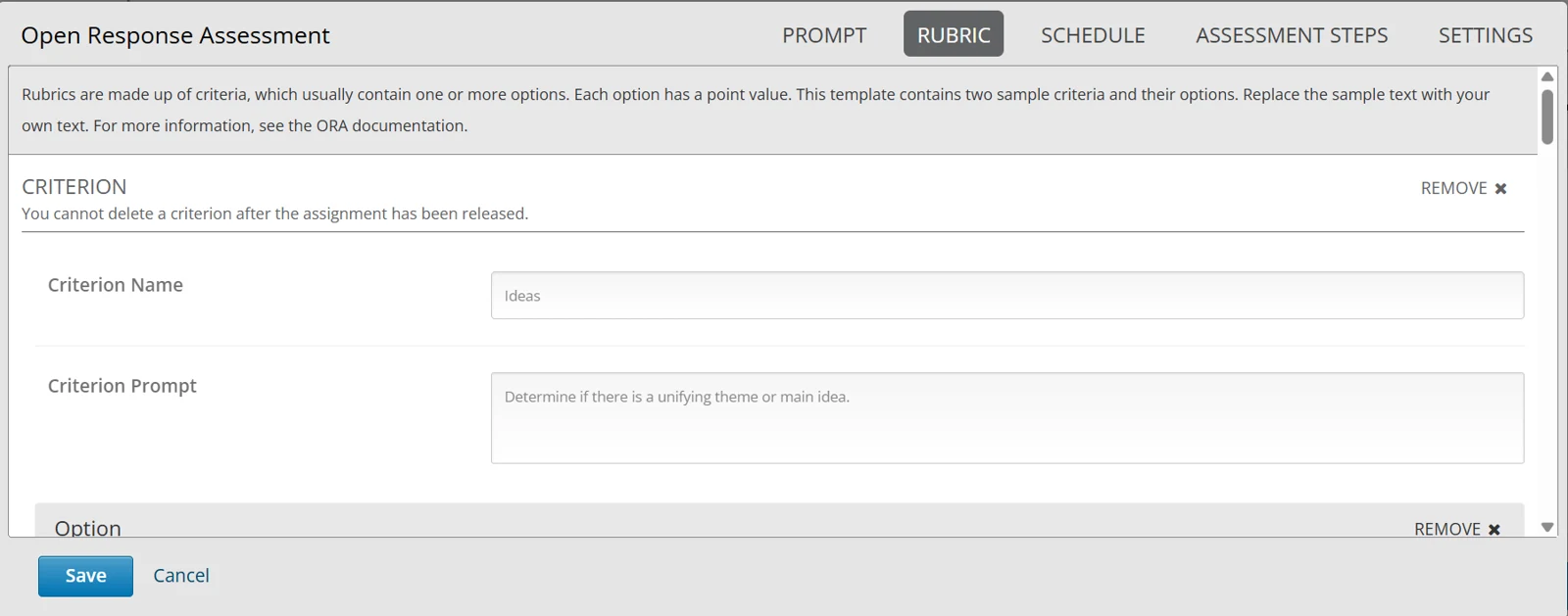
Figure 4.28 – Rubric tab
Each criterion contains the following fields.
Field | Purpose |
|---|---|
Criterion Name | The name of the criterion |
Criterion Prompt | What the criterion assesses |
Option Name | The name of a level of achievement |
Option Points | The score awarded for that level |
Option Explanation | What a response at that level looks like |
Feedback for This Criterion | Whether the assessor must add written feedback for the criterion |
Select Add Option to add a level, and Add Criterion to add a criterion. The highest scores available across all criteria form the maximum score for the assessment.
Criteria cannot be deleted once the assignment has been released to learners.
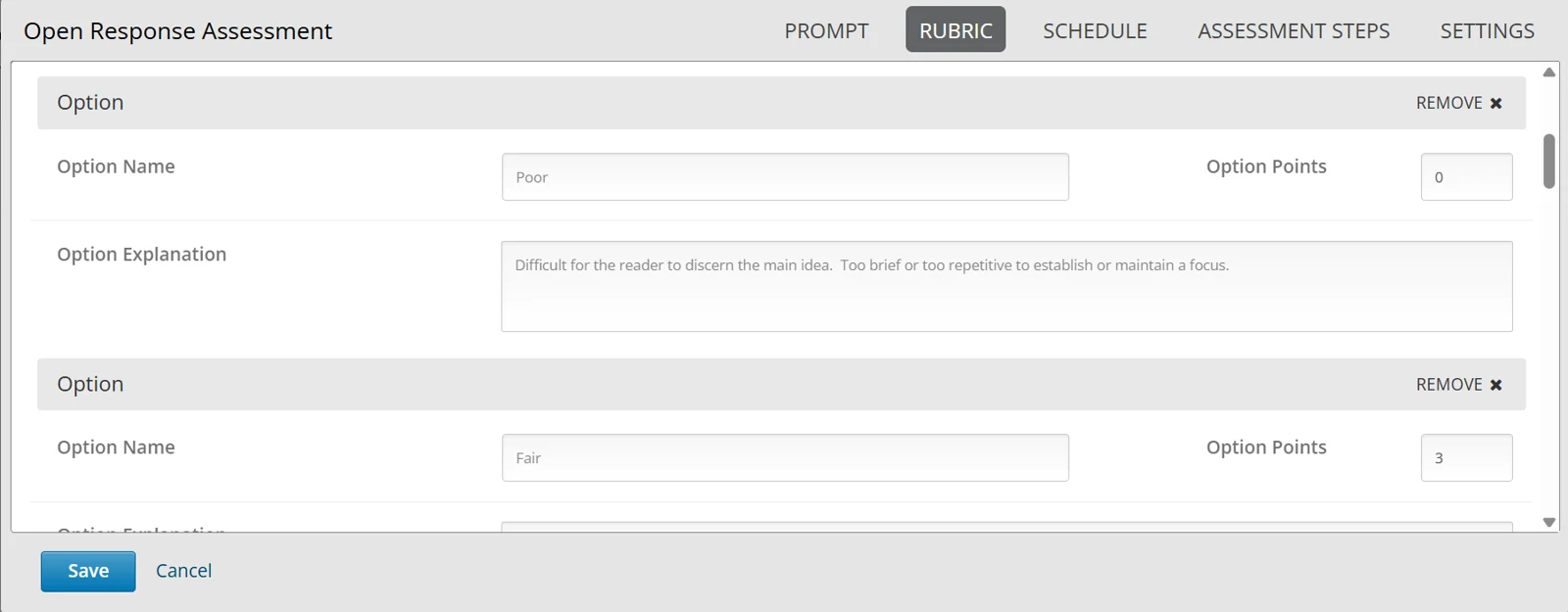
Figure 4.29 – Criterion options
Schedule
The schedule sets the period for each stage of the assessment.
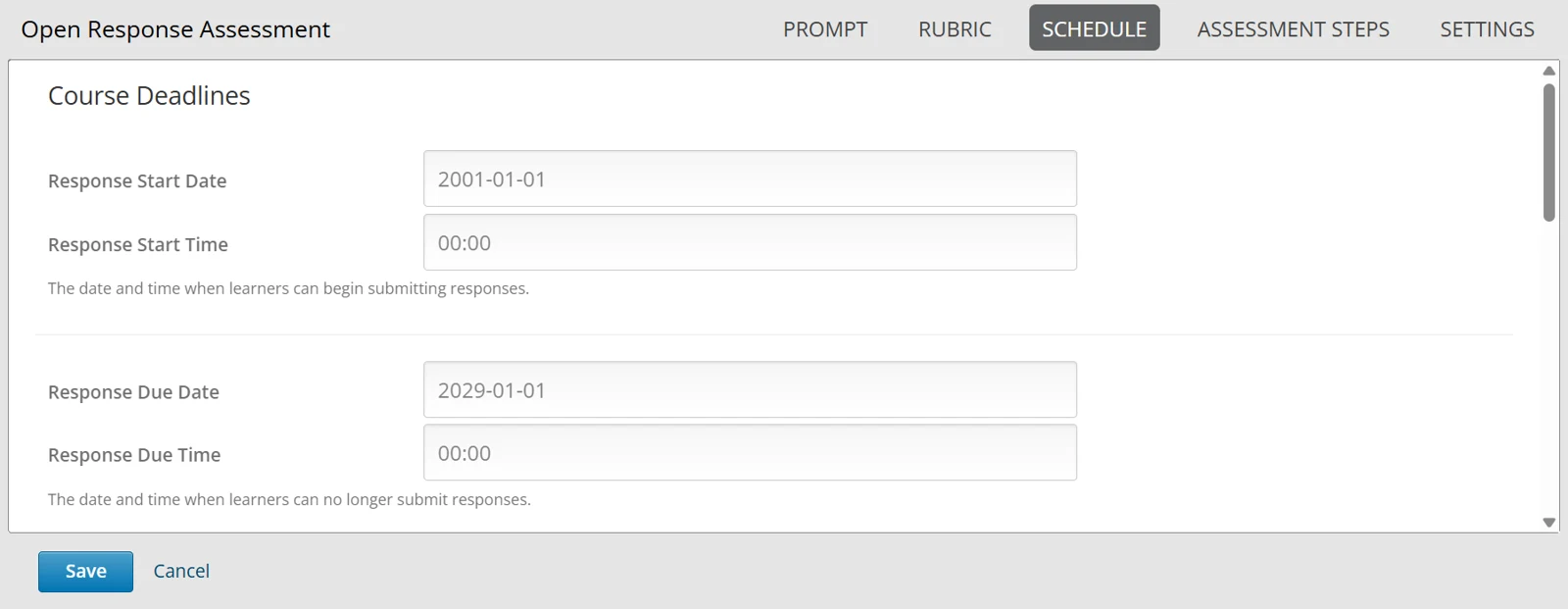
Figure 4.30 – Schedule tab
The schedule contains three groups of dates. Complete the groups that correspond to the assessment steps enabled for the component.
Group | Purpose |
|---|---|
Course Deadlines | The period during which learners may submit their responses |
Peer Assessment Deadlines | The period during which learners assess one another's responses |
Self Assessment Deadlines | The period during which learners assess their own response |
Assessment steps
The assessment steps determine who assesses the responses. Select the checkbox beside each step to be used, and clear it for those not required. Any combination may be enabled.
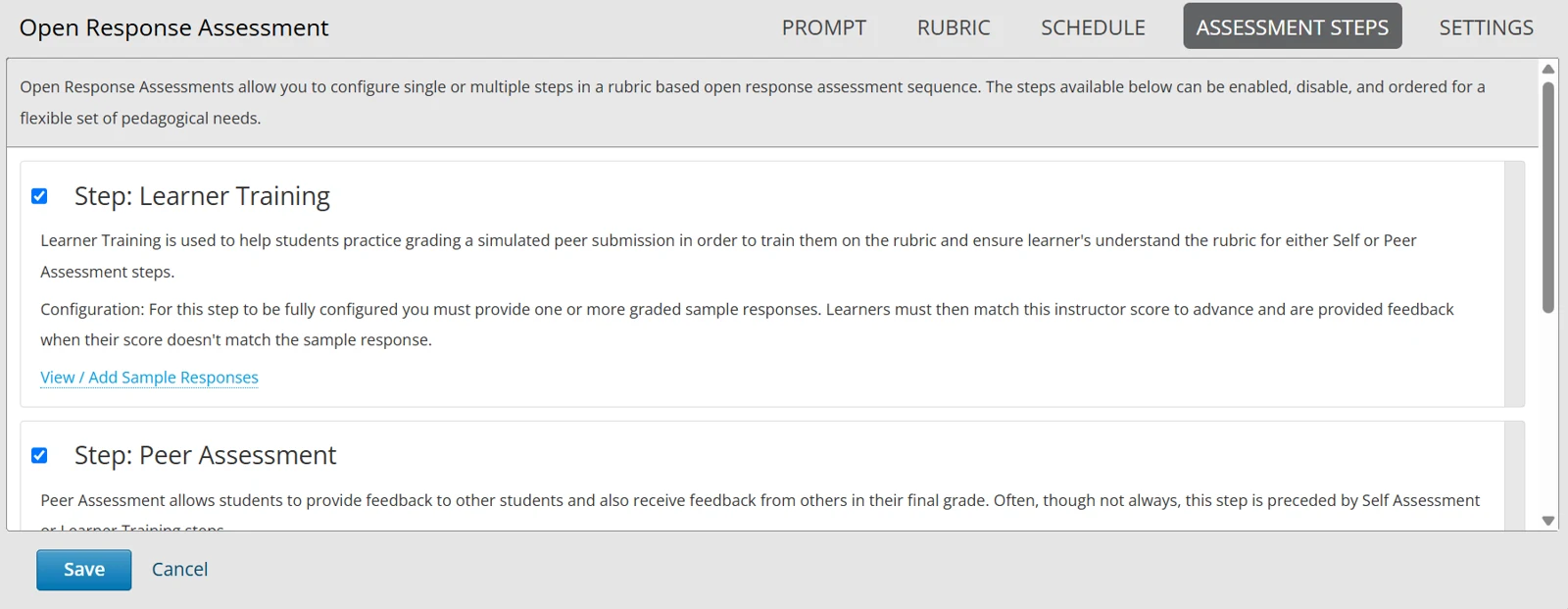
Figure 4.31 – Assessment steps tab
The steps are performed in the order shown.
Step | Purpose |
|---|---|
Learner Training | Learners practise applying the rubric to sample responses already graded by the lecturer. Requires at least one graded sample response |
Peer Assessment | Learners assess one another's responses. Requires the number of reviews each learner receives, and the number each must complete |
Self Assessment | Learners assess their own response against the rubric |
Staff Assessment | The lecturer assesses the responses. Where this step is enabled, it determines the final grade. It may also be used on its own |
The settings control the component name and the form the response may take.
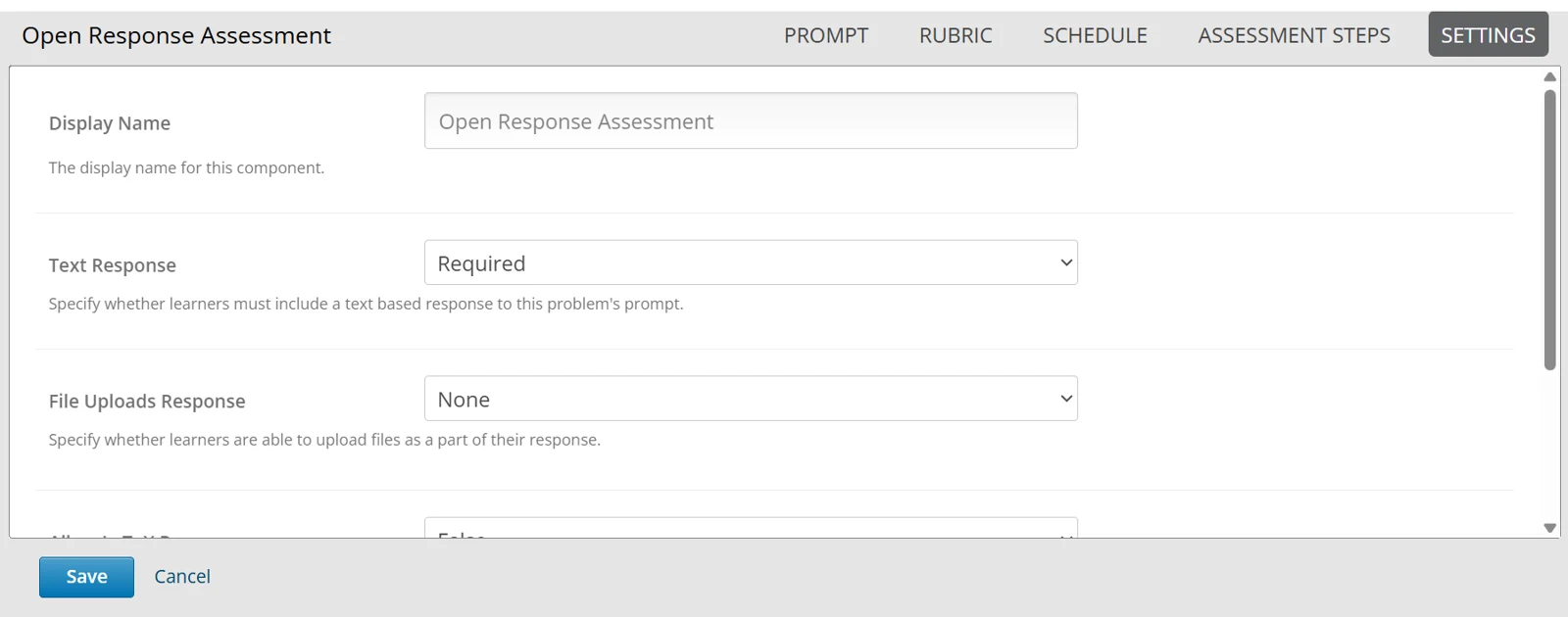
Figure 4.32 – Settings tab
The settings open with default values, which can be adjusted as required.
Field | Purpose |
|---|---|
Display Name | The name of the component, as seen by learners |
Text Response | Whether learners must include a written response |
File Uploads Response | Whether learners may upload files as part of their response |
Allow LaTeX Responses | Whether learners may enter LaTeX-formatted text |
Top Responses | The number of highest-scoring responses shown to learners. Enter 0 to hide this section |
Select Save once all five tabs have been completed. The assessment then appears on the unit page as learners will see it.
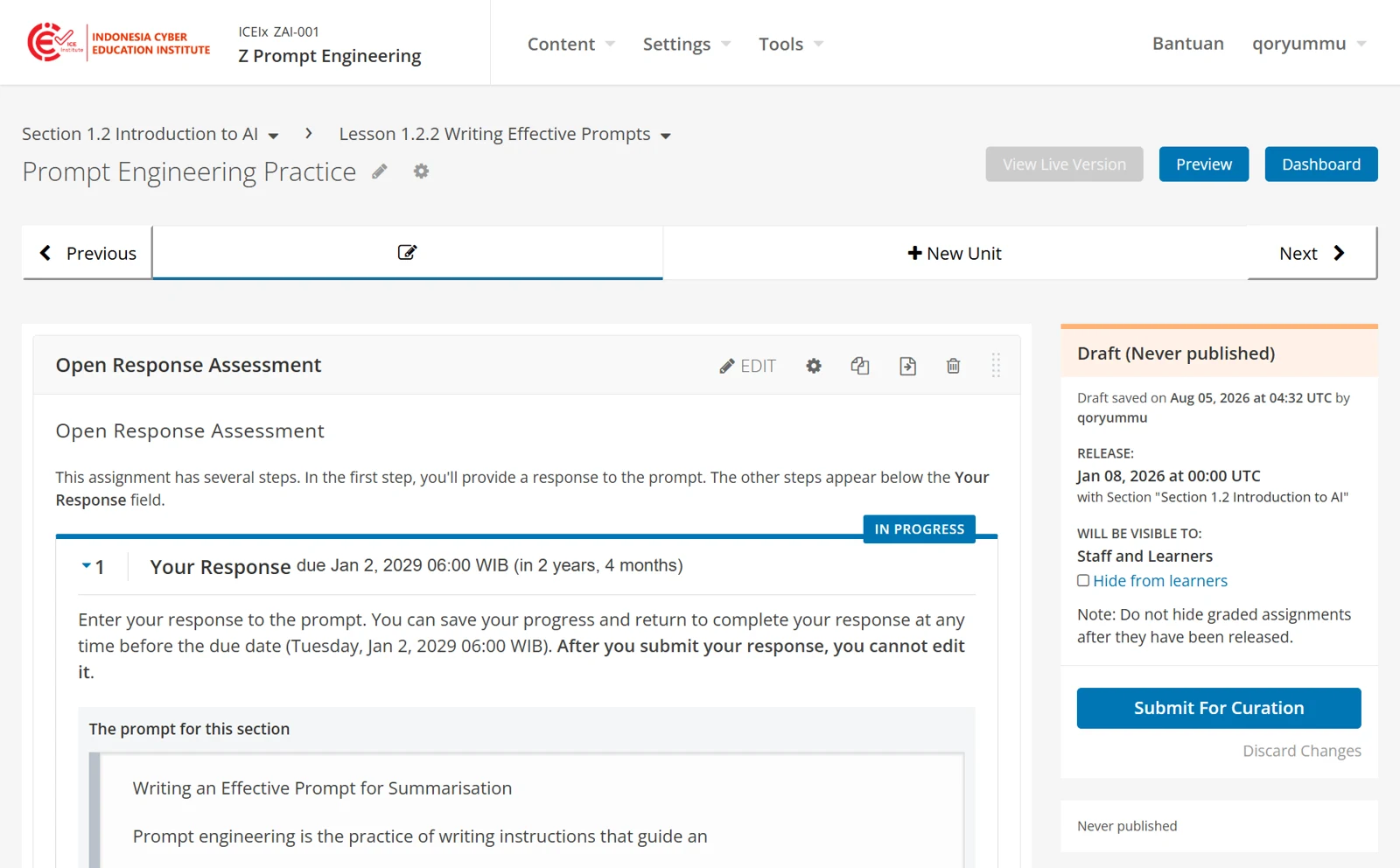
Figure 4.33 – Completed open response assessment
Like other assessments, an open response assessment is ungraded until the subsection containing it is assigned to an assignment type, as described in section 4.8.
Adding a discussion forum
A discussion forum allows learners to post and reply within a unit.
Select Discussion under Add New Component. The component is added to the unit page. Select EDIT within it to open the settings.

Figure 4.34 – Discussion component
The settings open with default values, which can be adjusted as required.
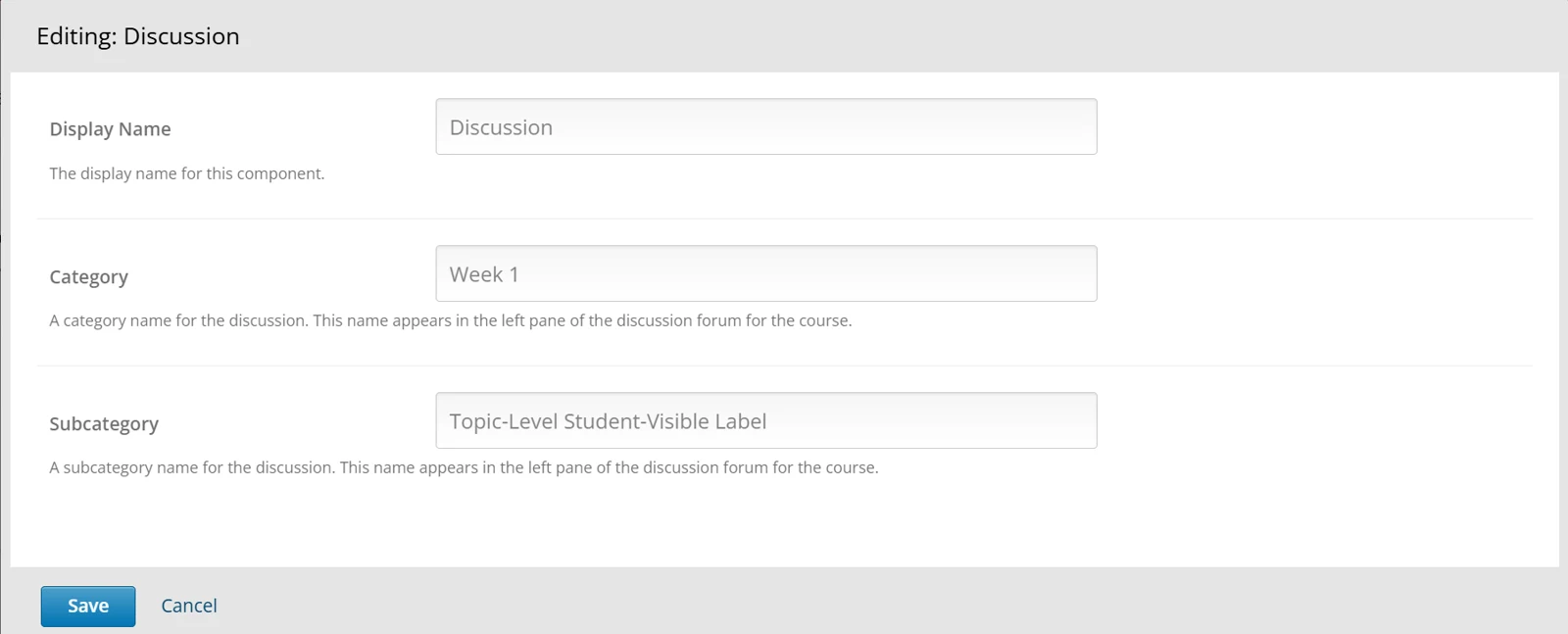
Figure 4.35 – Discussion settings
The settings contain the following fields.
Field | Purpose |
|---|---|
Display Name | The name of the component, as seen by learners |
Category | The category under which the discussion appears in the course discussion forum |
Subcategory | The subcategory under which the discussion appears within that category |
Select Save. The discussion then appears on the unit page.
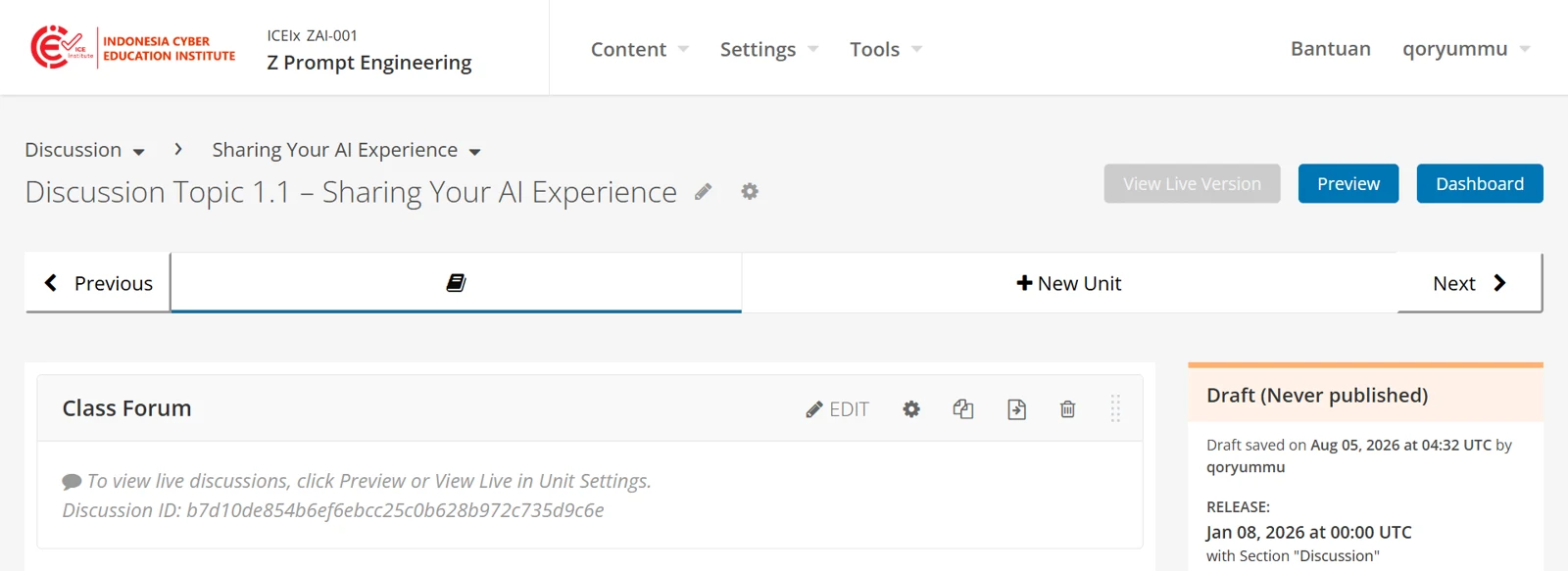
Figure 4.36 – Completed Discussion component
Adding Documents and Presentations
Google Docs and Google Slides files can be embedded in a unit. The component used for this must first be enabled for the course.
Select Settings in the menu bar and select Advanced Settings.
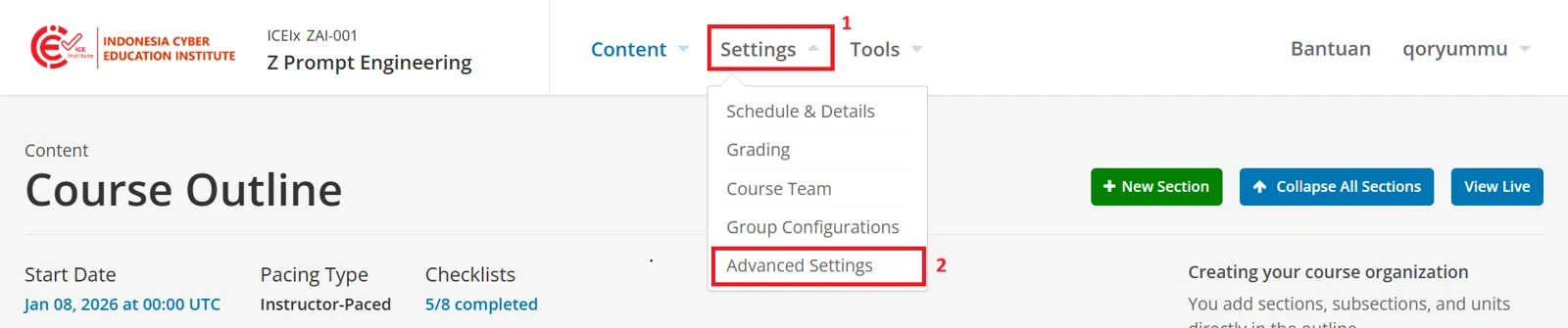
Figure 4.37 – Advanced Settings menu
In the Advanced Module List field, add google-document, then select Save Changes.
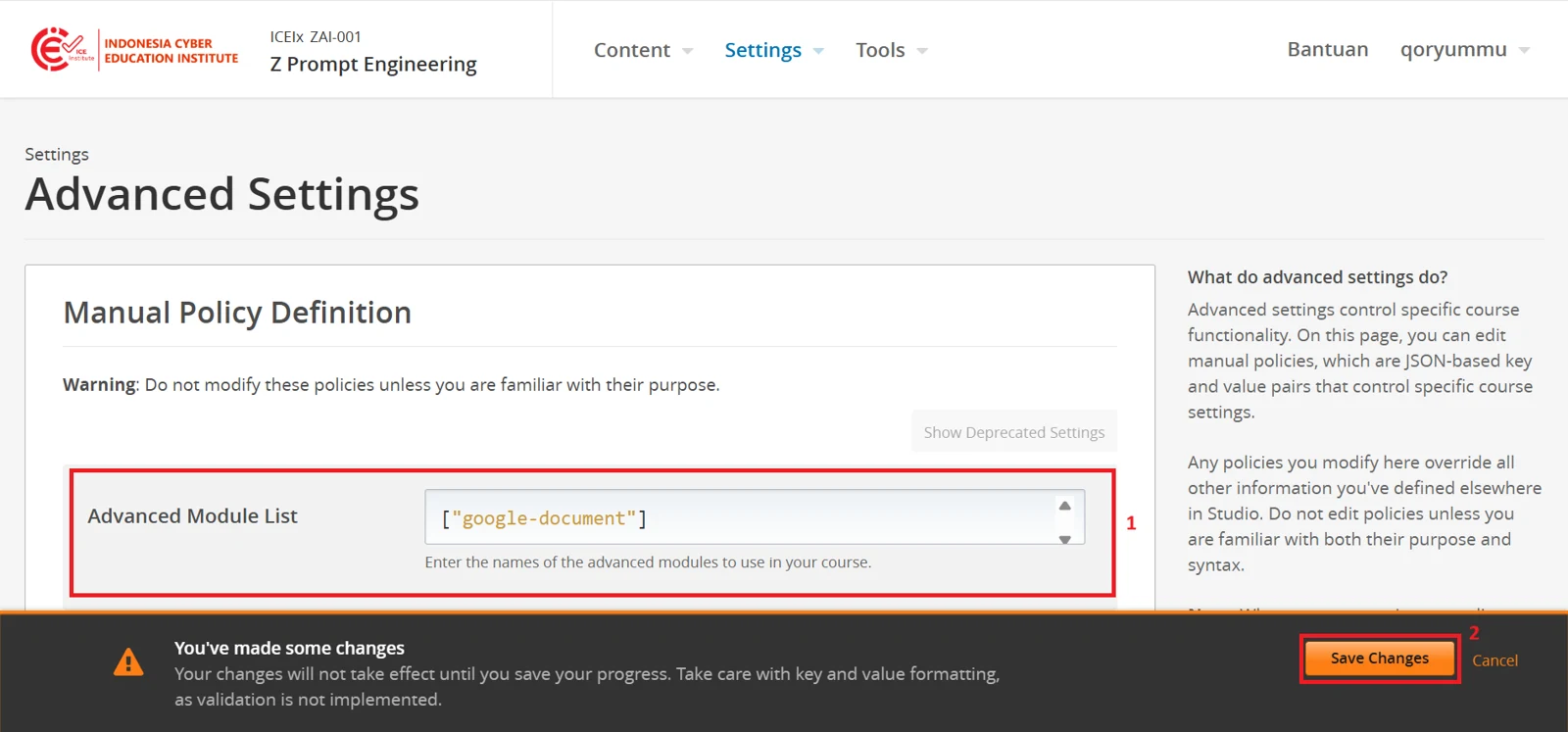
Figure 4.38 – Advanced Module List
Advanced then appears under Add New Component on the unit page.
Before adding the component, obtain the embed code from the file. Open the file in Google Docs or Google Slides. From the File menu, select Share, then Publish to the web.
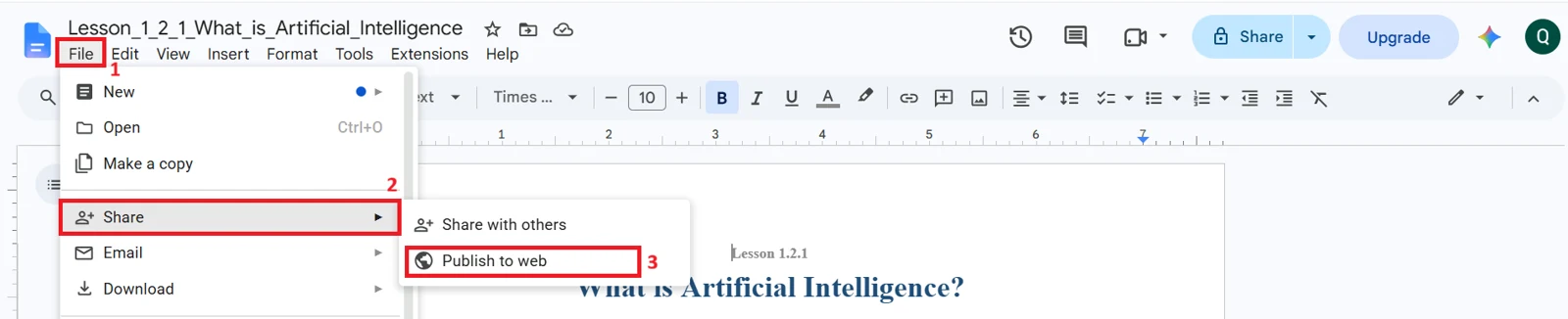
Figure 4.39 – Publish to the web
Select Embed, then select Publish.
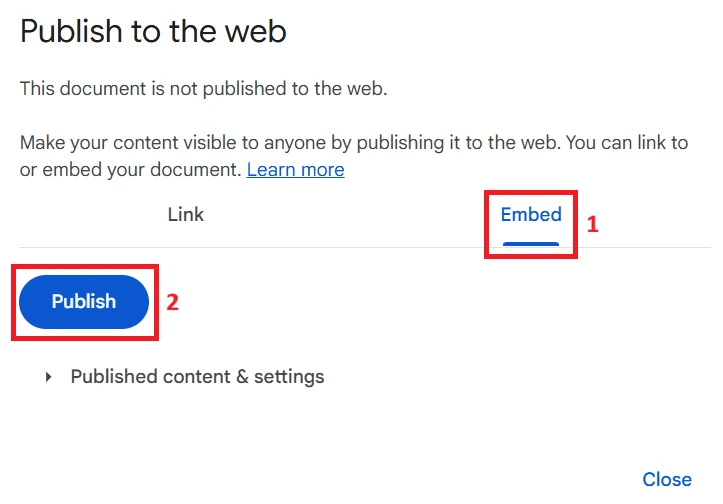
Figure 4.40 – Embed tab
Confirm the message that appears, then copy the embed code shown.
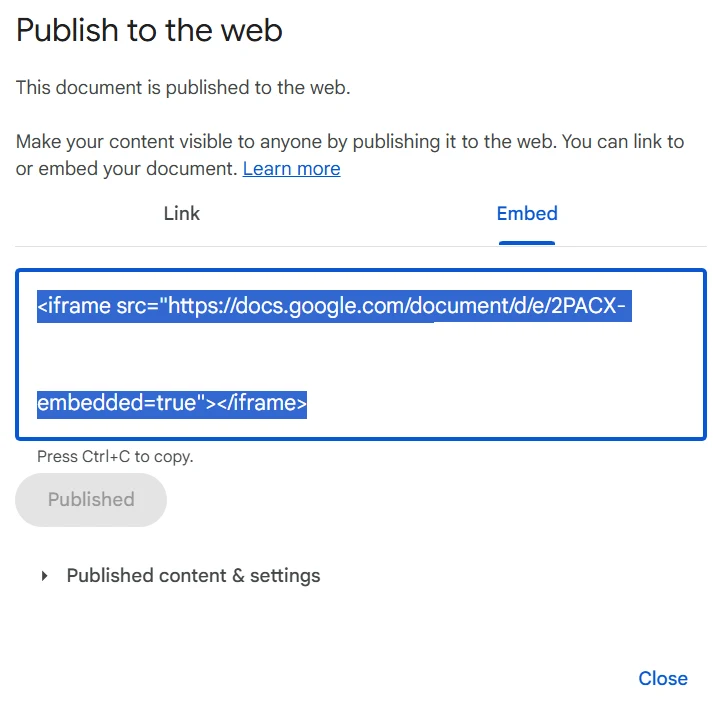
Figure 4.41 – Embed code
Return to the course editing view and open the unit where the file is to appear. Advanced now appears among the component types.

Figure 4.42 – Advanced component type
Select Advanced, then select Google Document.
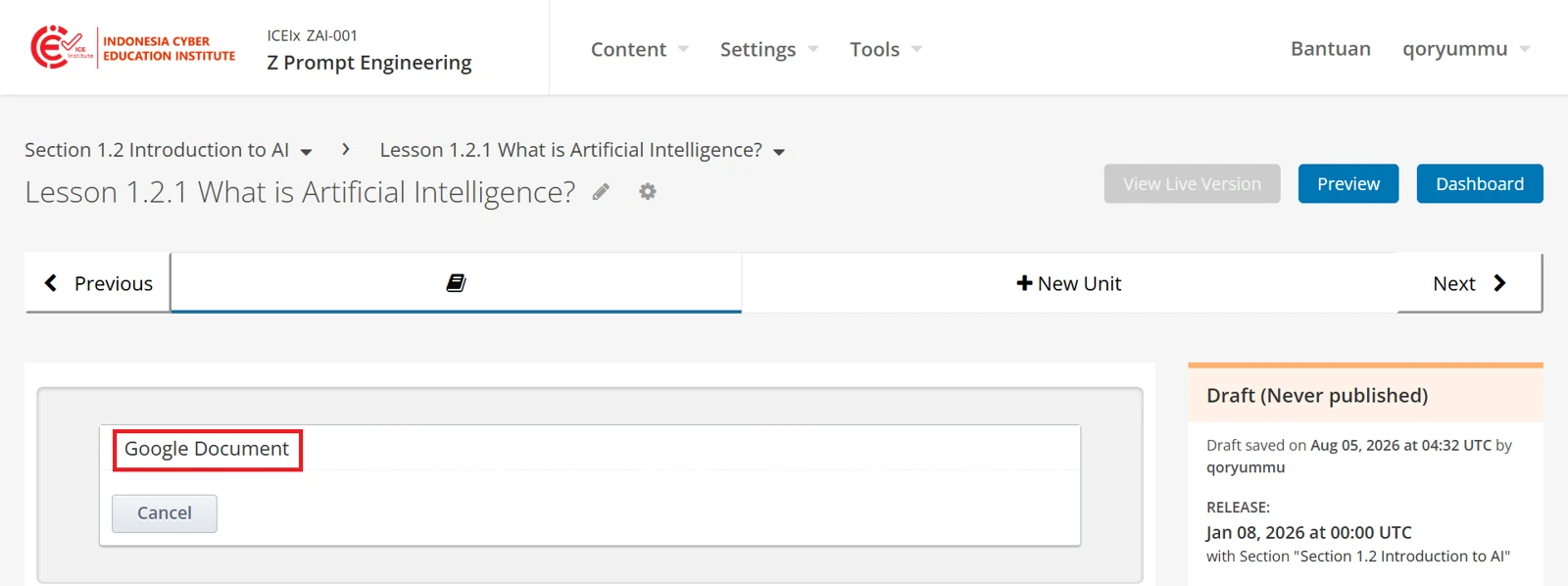
Figure 4.43 – Google Document component
Select EDIT within the component to open the settings.
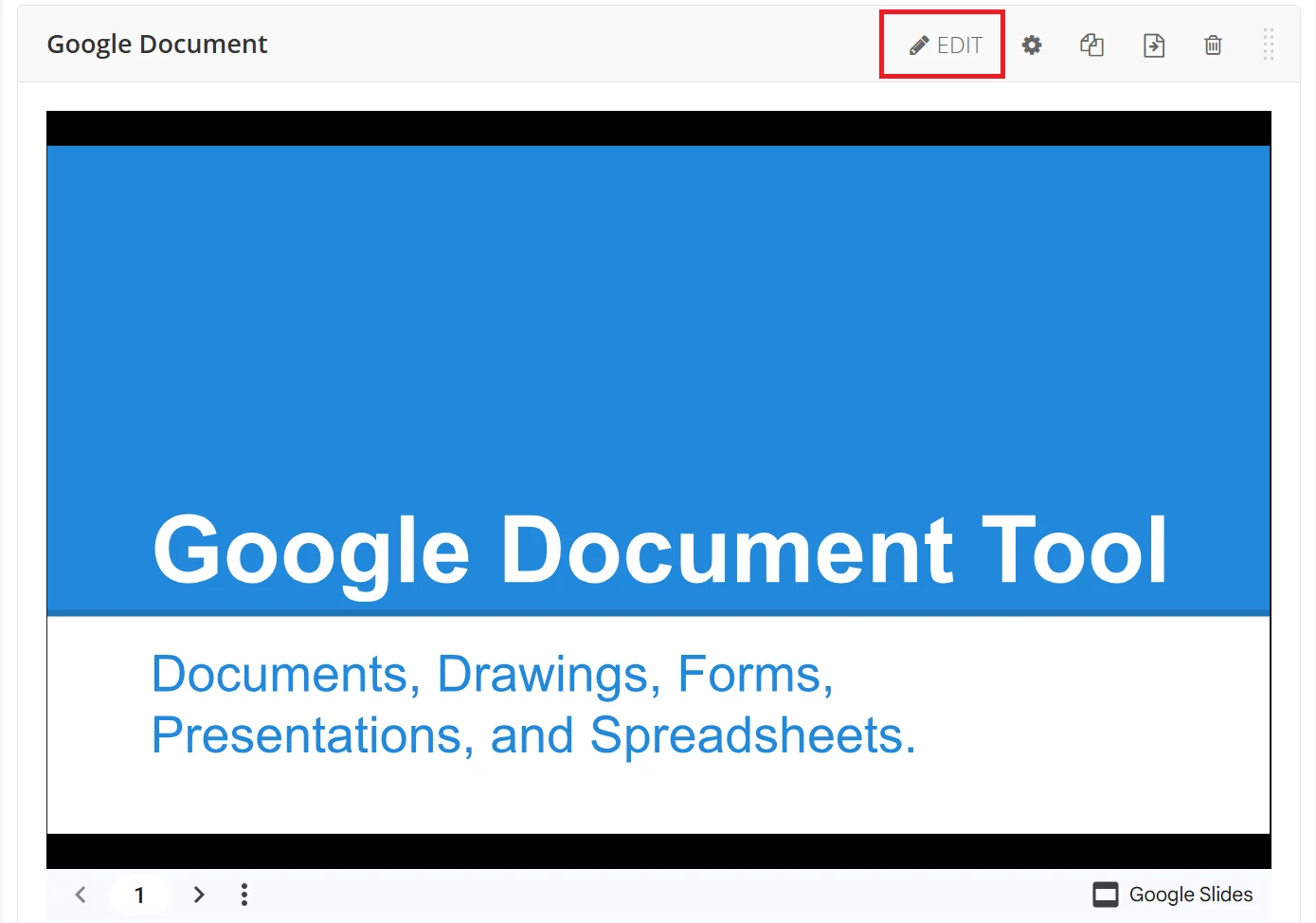
Figure 4.44 – Google Document editor
The settings then open. Enter the component name and the embed code, then select Save.
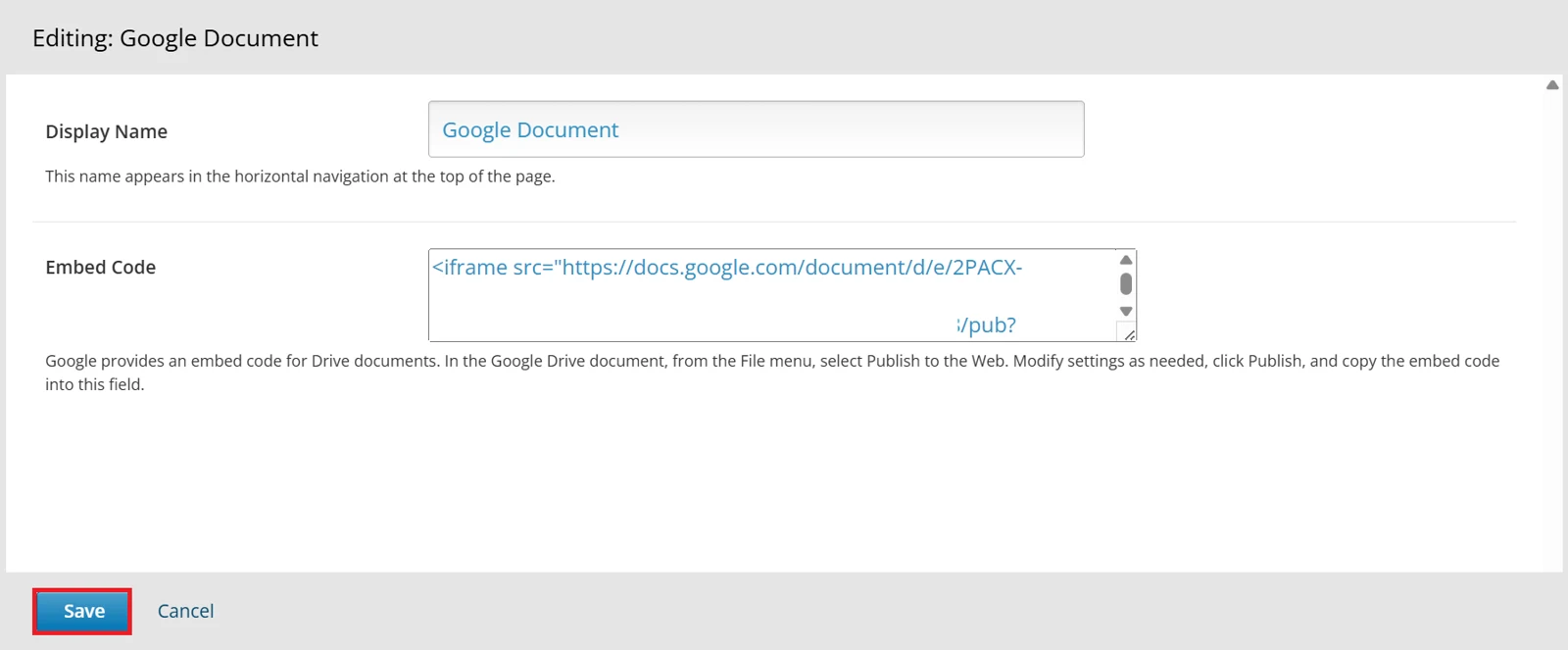
Figure 4.45 – Google Document settings
The settings contain the following fields.
Field | Purpose |
|---|---|
Display Name | The name of the component, as seen by learners |
Embed Code | The embed code copied from the file |
The document then appears on the unit page.
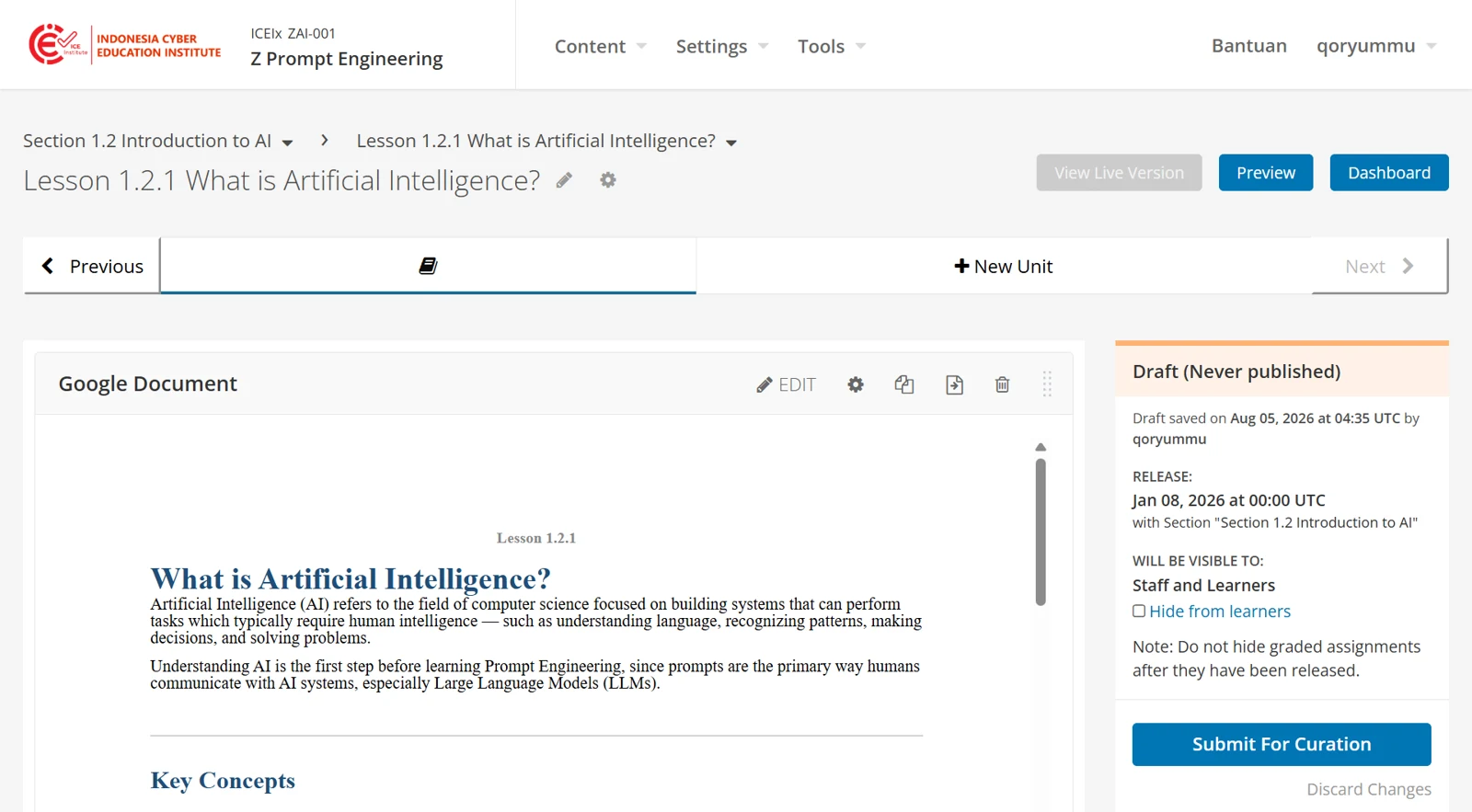
Figure 4.46 – Completed Google Document component
Adding an external tool (LTI)
External learning tools that support the LTI standard can be embedded in a unit. The tool may be used to display content alone, or, where the tool supports it, to return a grade to the course. H5P is one such tool.
Access to an external tool is arranged by the lecturer or the institution. ICE Institute provides the means to connect a tool, but not the tool itself.
Three items are required from the tool provider before configuration begins.
Launch URL
Consumer key
Shared secret
Enabling the component
As with the Google Document component, the module is enabled through Advanced Settings. In the Advanced Module List field, add lti_consumer alongside any modules already listed.
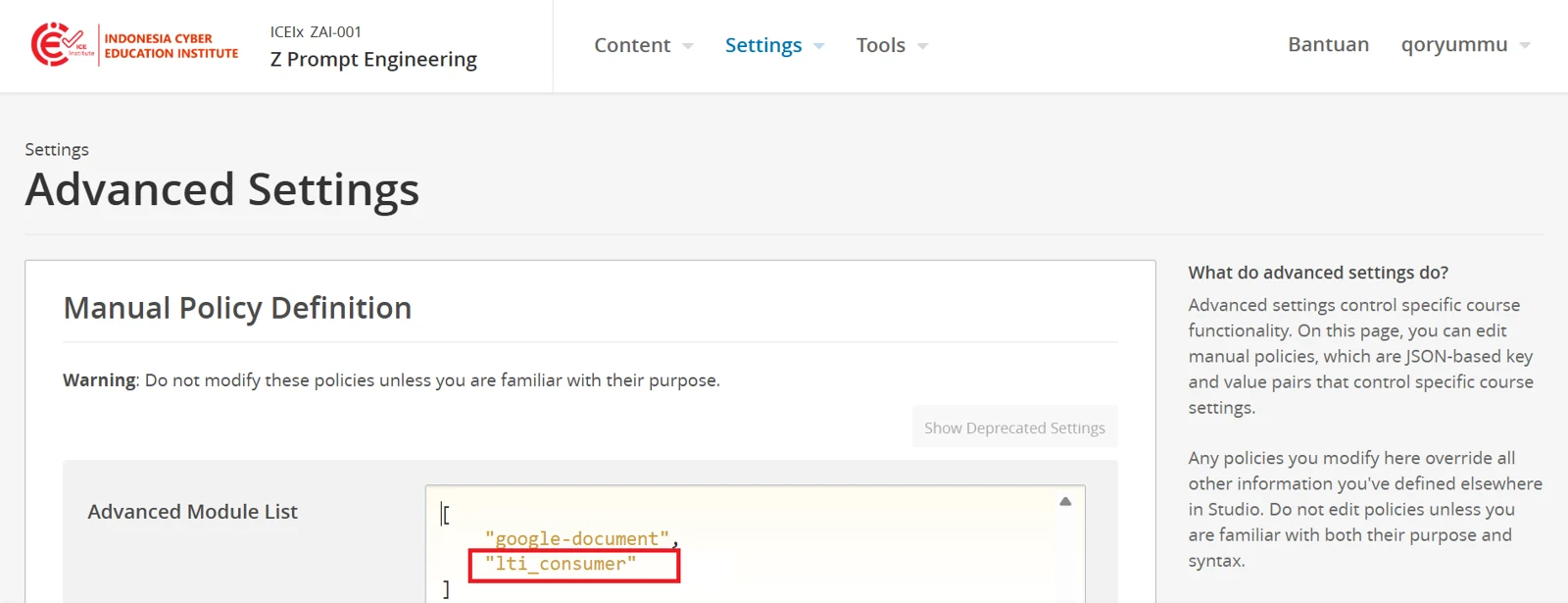
Figure 4.47 – Advanced Module List (LTI)
Registering the tool
The tool is registered for the course through an LTI passport, which allows the platform and the tool to recognise one another.
On the same page, locate the LTI Passports field and add an entry in the following form, then select Save Changes.
lti_id:client_key:client_secret |
|---|
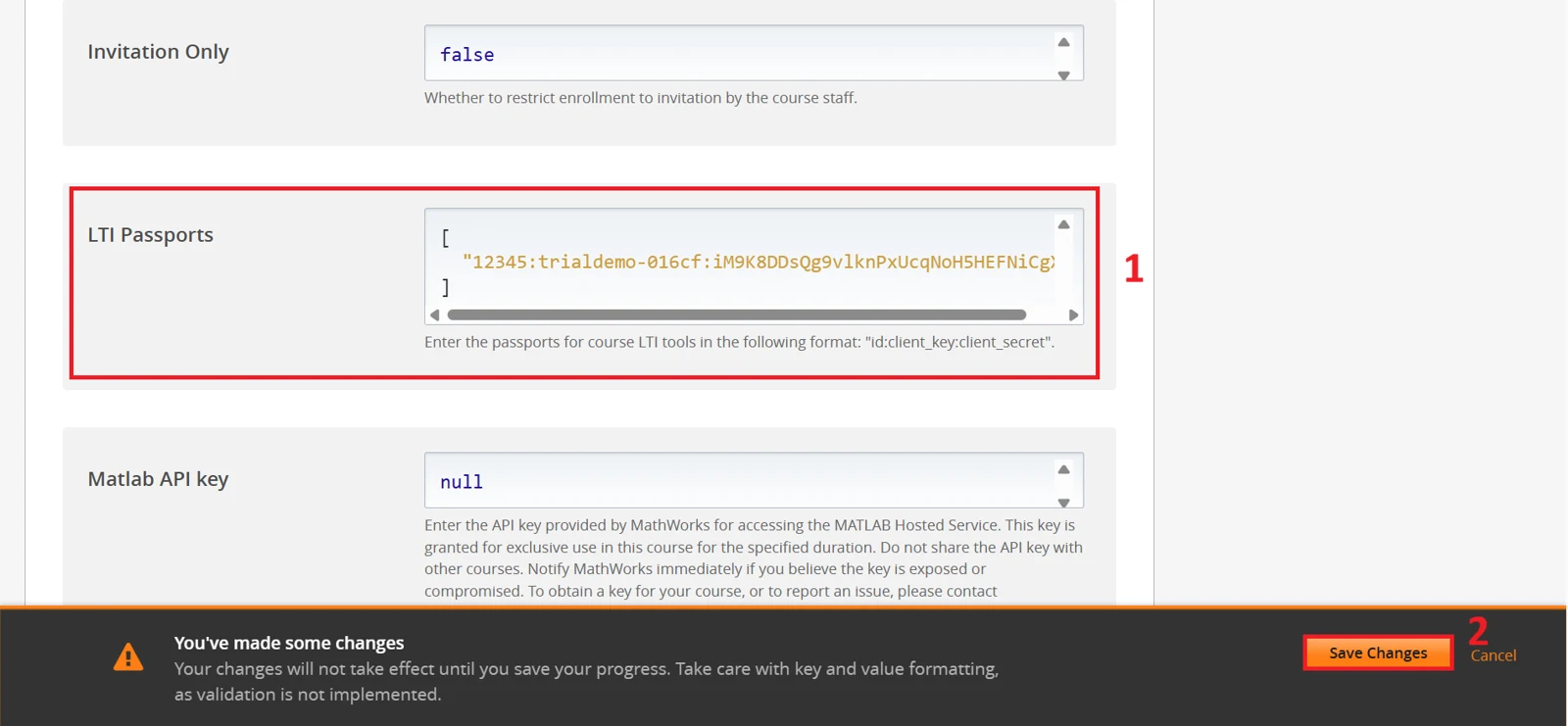
Figure 4.48 – LTI Passports
The entry consists of three parts, separated by colons.
Part | Meaning |
|---|---|
lti_id | A name chosen to identify the tool. Must be unique within the course |
client_key | The consumer key supplied by the tool provider |
client_secret | The shared secret supplied by the tool provider |
Open the unit where the tool is to appear. Select Advanced under Add New Component, then select LTI Consumer.
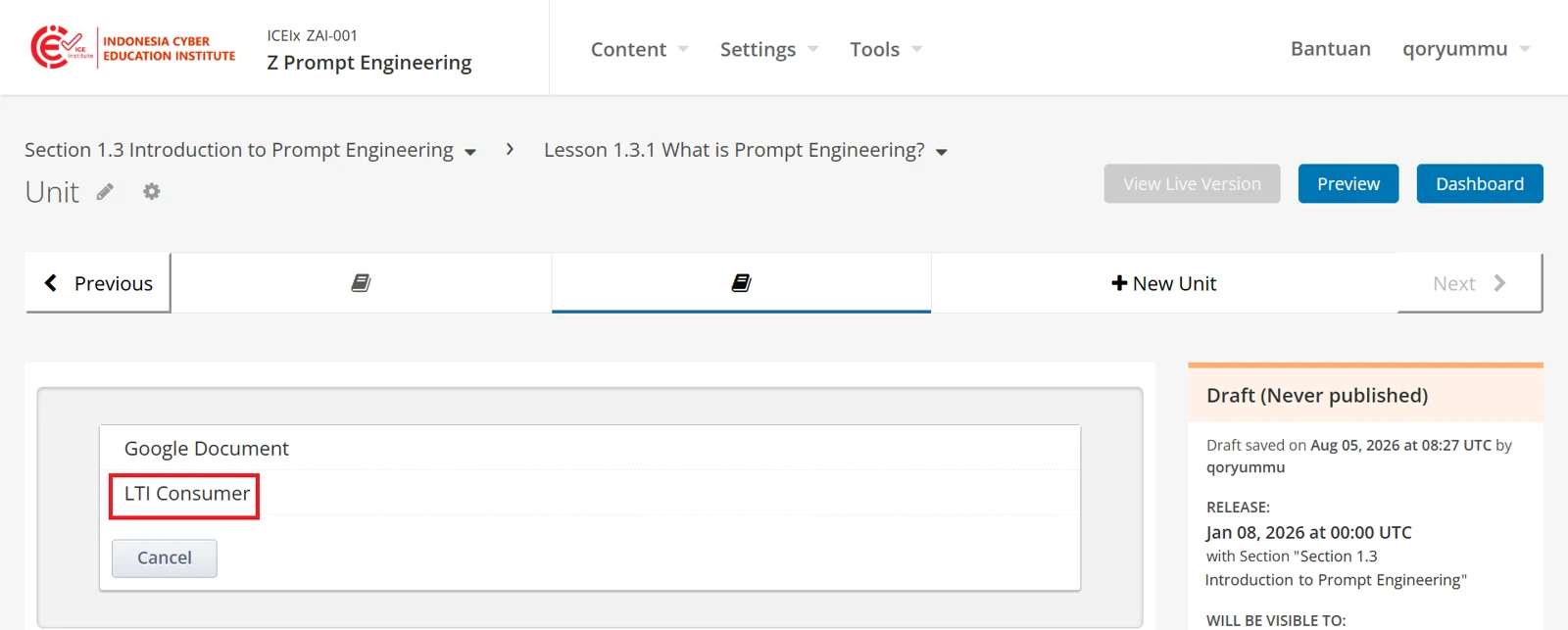
Figure 4.49 – LTI Consumer component
Select EDIT within the component.
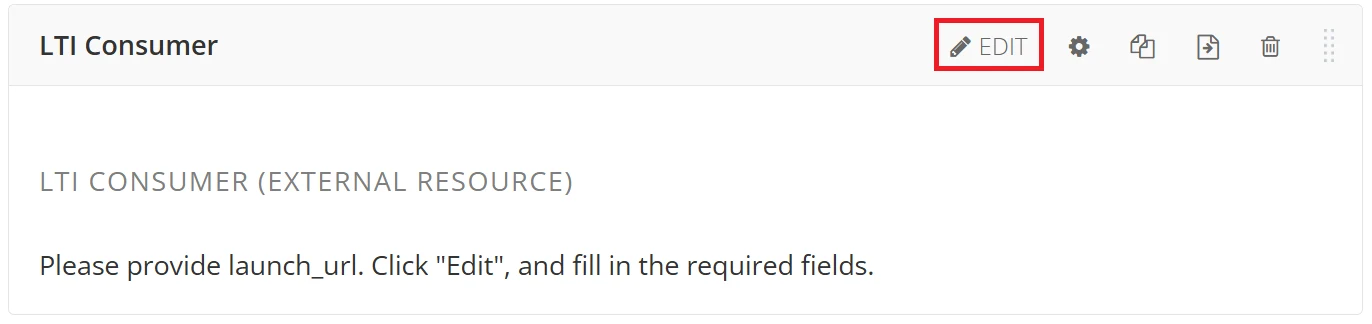
Figure 4.50 – LTI editor
The settings open in a single window, the contents of which are reached by scrolling. Where a field has been changed from its default value, an arrow appears beside it, by which the original value is restored.
Under Display Name, enter the name of the component as it is to appear to learners.
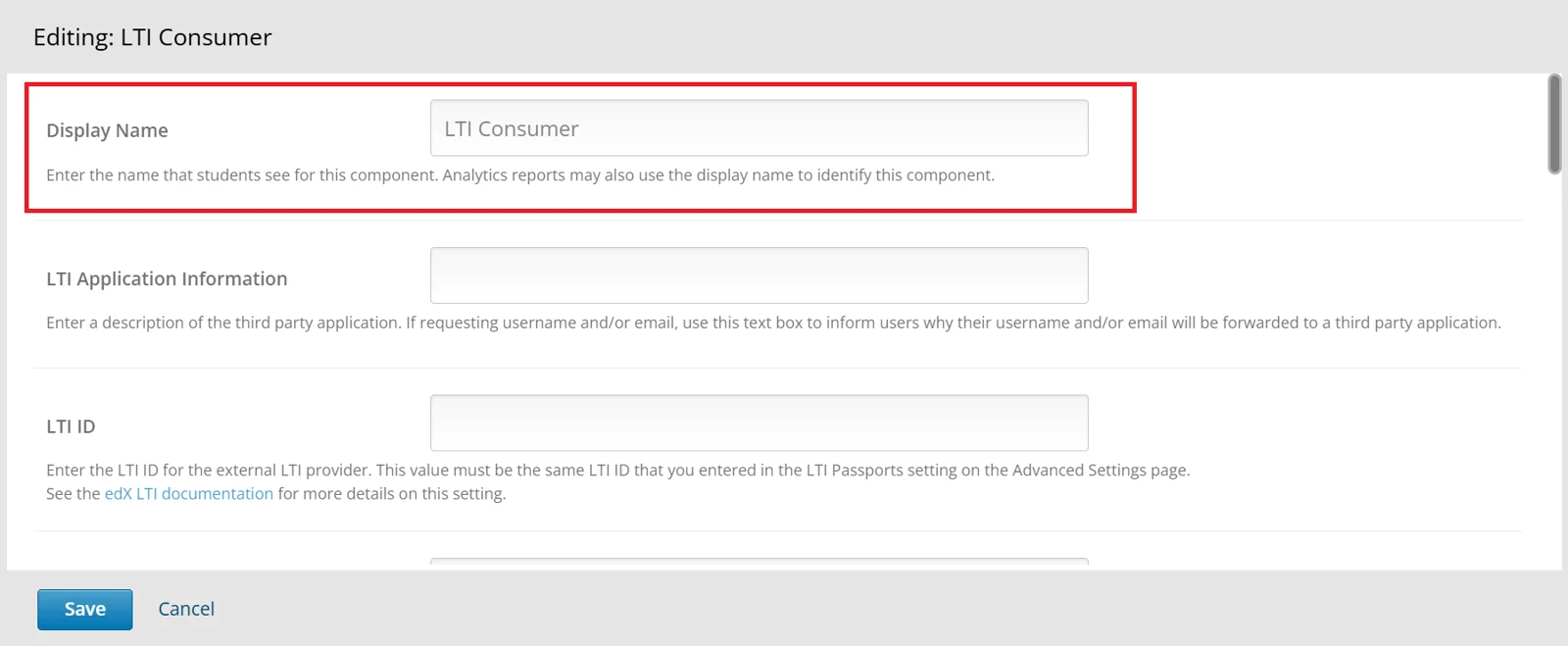
Figure 4.51 – Display Name
The LTI ID must match the lti_id set in the LTI Passports field earlier, and the LTI URL is the launch URL supplied by the tool provider.
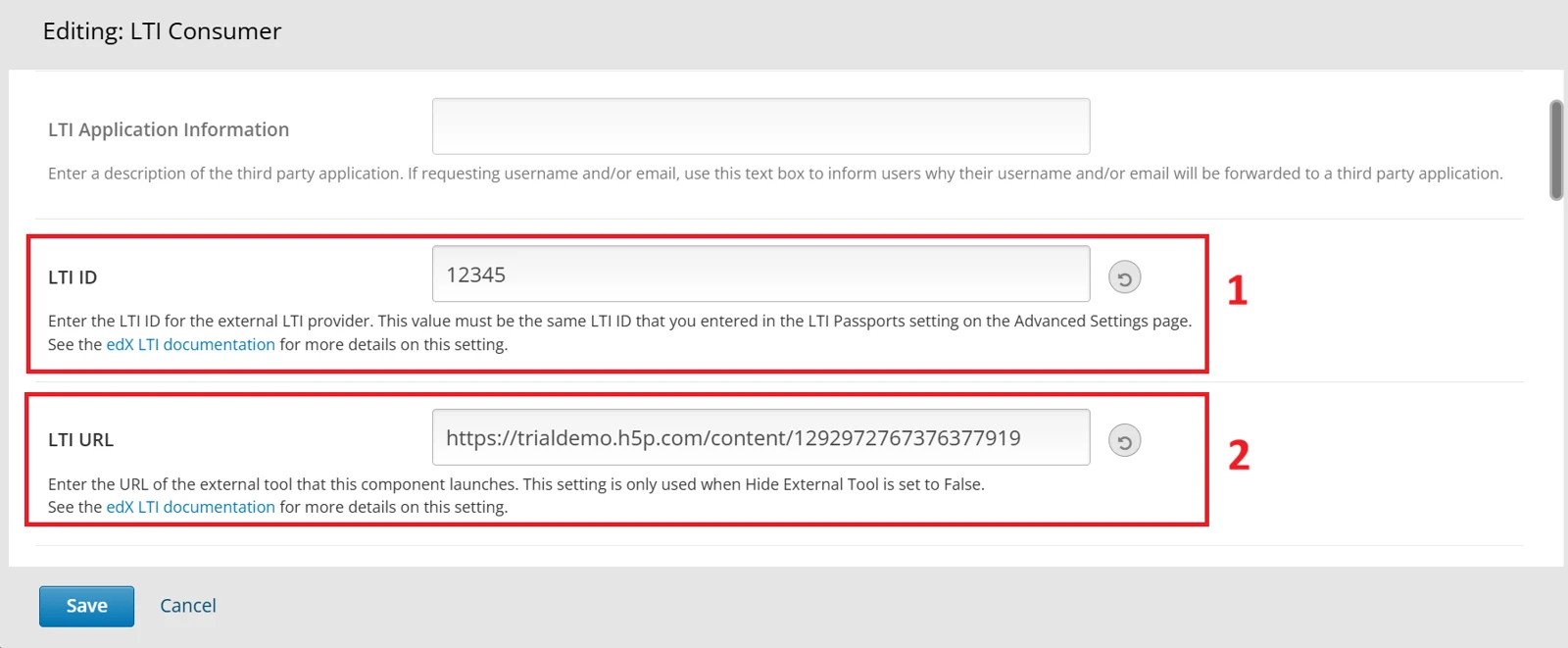
Figure 4.52 – LTI ID and LTI URL
Where the tool returns a grade to the course, scroll to the foot of the window, set Scored to True, and enter the points available under Weight. Select Save, at the foot of the window.
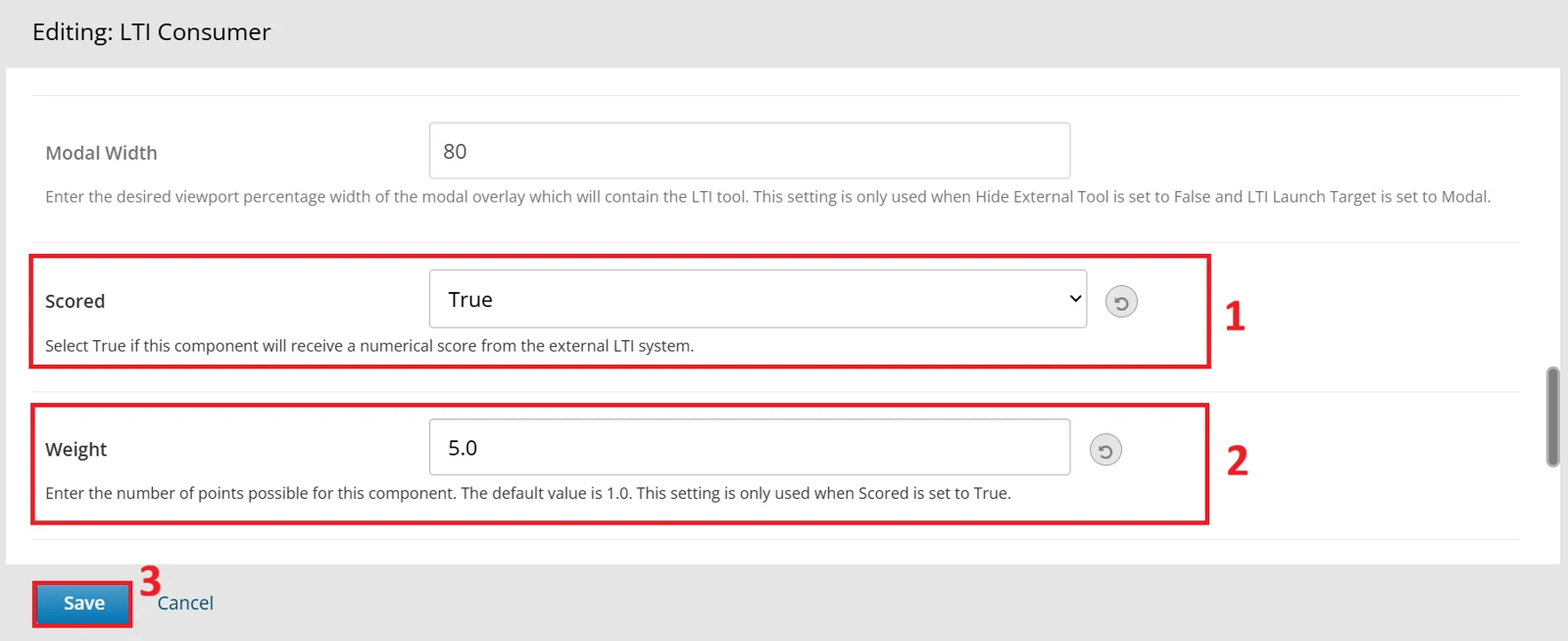
Figure 4.53 – Scored and Weight
The settings contain the following fields.
Field | Purpose |
|---|---|
Display Name | The name of the component, as seen by learners |
LTI Application Information | A description of the external tool. Where the tool requests a username or email address, this text explains to the learner why the information is forwarded |
LTI ID | The lti_id set in the LTI Passports field, entered exactly as it appears there |
LTI URL | The launch URL supplied by the tool provider. Used only where Hide External Tool is set to False |
Custom Parameters | Additional parameters identifying the specific content to display |
Modal Width | The width of the overlay, as a percentage of the viewport. Used only where LTI Launch Target is set to Modal |
Scored | Whether the component receives a numerical score from the tool |
Weight | The number of points available for the component. The default is 1.0, and the setting is used only where Scored is set to True |
Hide External Tool | Whether the tool is suppressed, for components used only to return a grade |
LTI Launch Target | Whether the tool opens within the unit, in an overlay, or in a new window |
The tool then appears on the unit page.
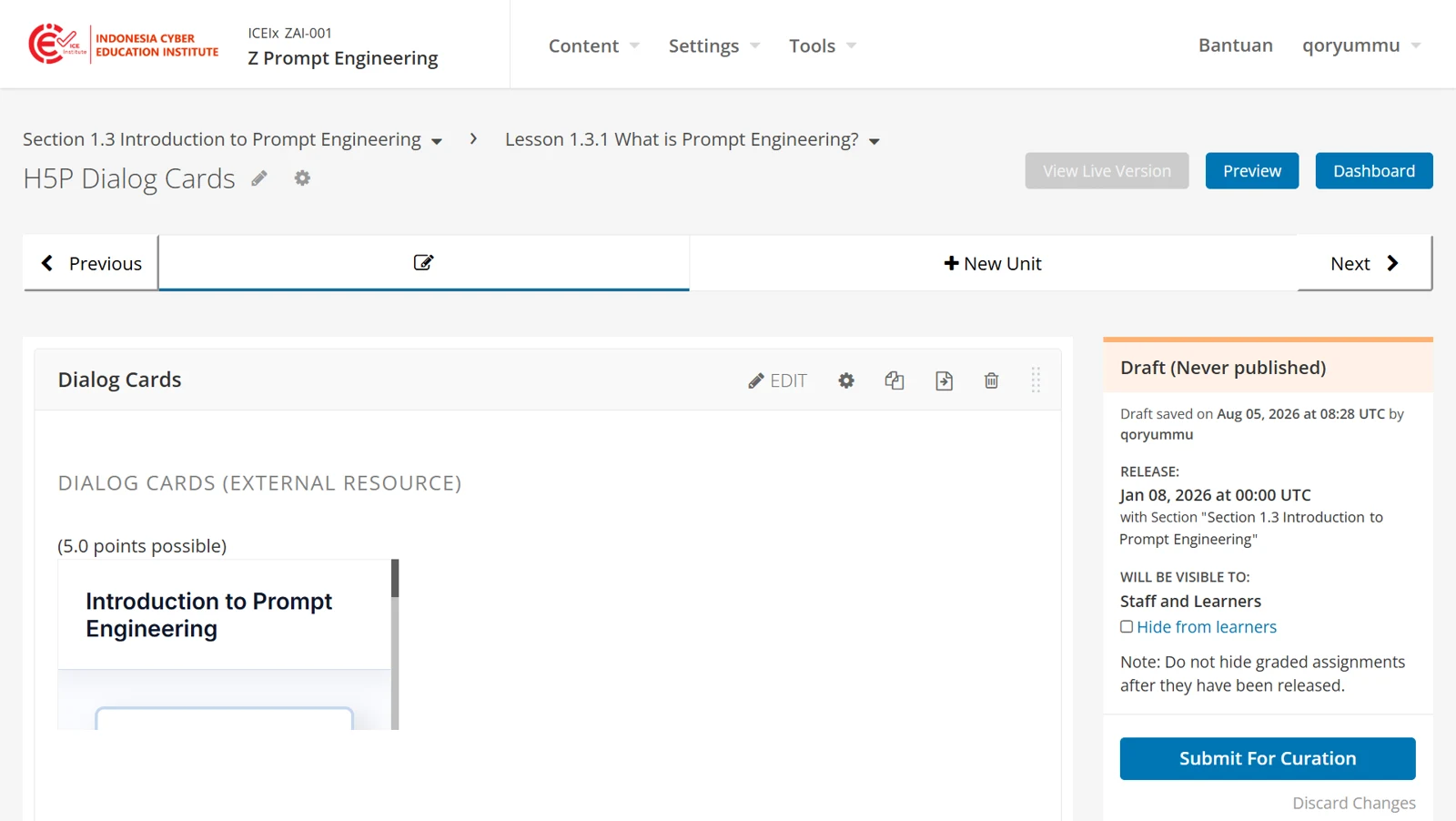
Figure 4.54 – Completed LTI component
A score is counted towards the course only where the subsection containing the component is set to an assignment type. This is set in the subsection settings, as described in Making the assessment count towards the grade.
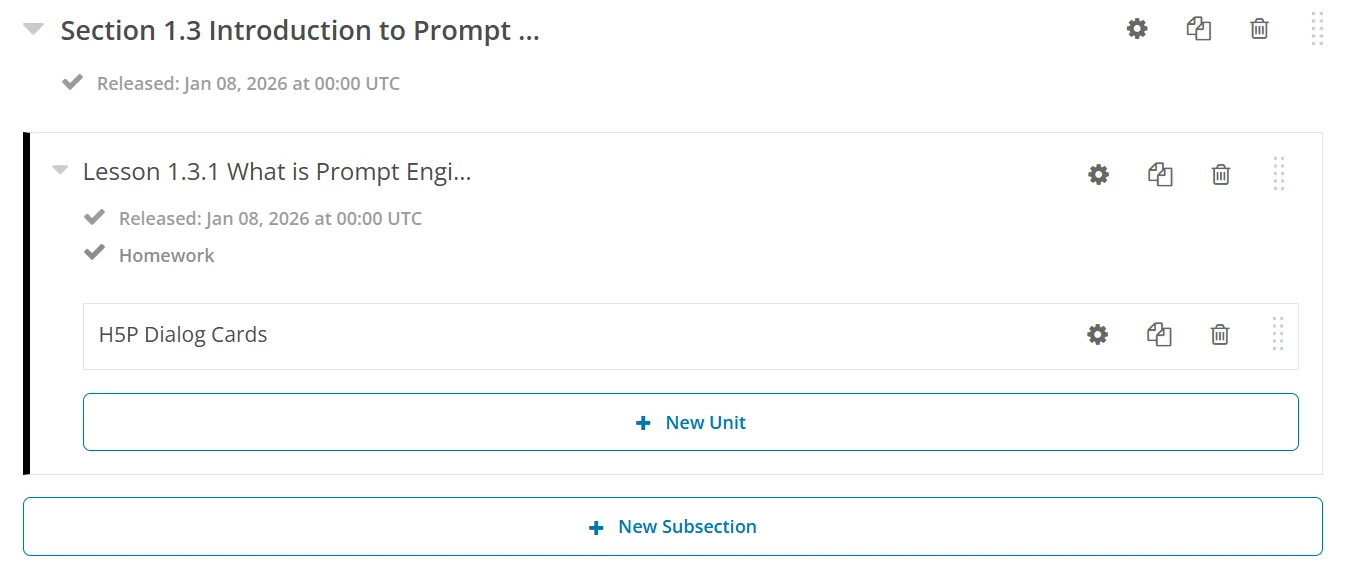
Figure 4.55 – Grade returned by the tool
Configuration values differ between tools. The documentation of the tool provider sets out the values required and how to obtain them.
With the content in place, the course may be submitted for curation, as described in Chapter 5.