
Once lecturer access has been granted, signing in opens the lecturer dashboard. This section describes the dashboard and how to open a course assigned to you.
Dashboard overview
The dashboard is displayed immediately after signing in. It summarises course and learner activity across the courses you manage.
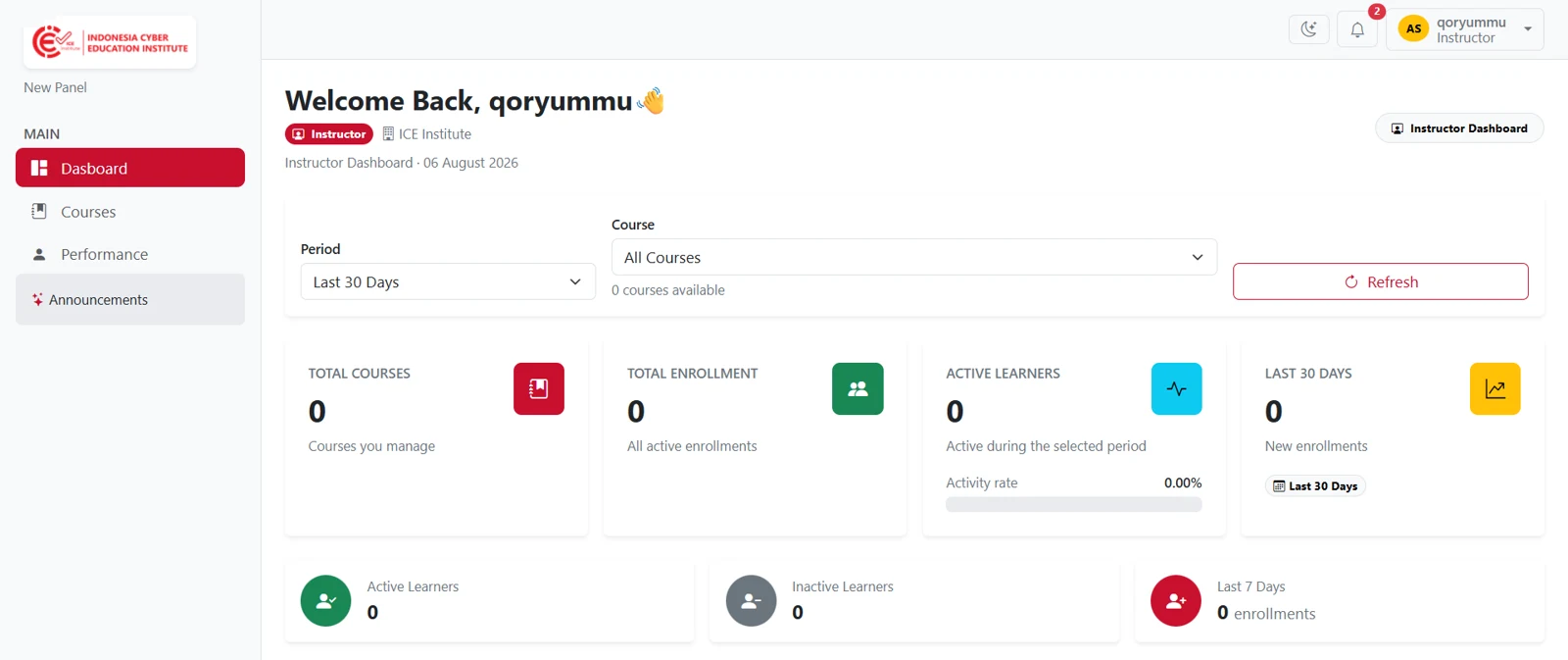
Figure 2.1 – Dashboard
By default, the dashboard shows data for all courses over the last 30 days. Use the Period and Course filters at the top of the page to change the range of data shown, allowing activity to be reviewed for a single course or over a shorter period. Select Refresh to update the values displayed.
The dashboard shows the following metrics.
Metric | Meaning |
|---|---|
Total Courses | The number of courses assigned to you |
Total Enrollment | The total number of learners enrolled across those courses |
Active Learners | Learners who have accessed a course during the selected period, shown as a number together with the activity rate as a percentage of total enrolment |
Inactive Learners | Enrolled learners who have not accessed a course during the selected period |
Last 30 Days | New enrolments recorded over the selected period |
Last 7 Days | New enrolments over the past 7 days. This figure is not affected by the Period filter |
The dashboard continues below with an enrolment trend chart showing new enrolments over time, and three summary cards highlighting the course with the highest enrolment, the course with the most learner activity, and courses with low activity that may need attention. A course performance table lists enrolment and activity figures for each course you manage.
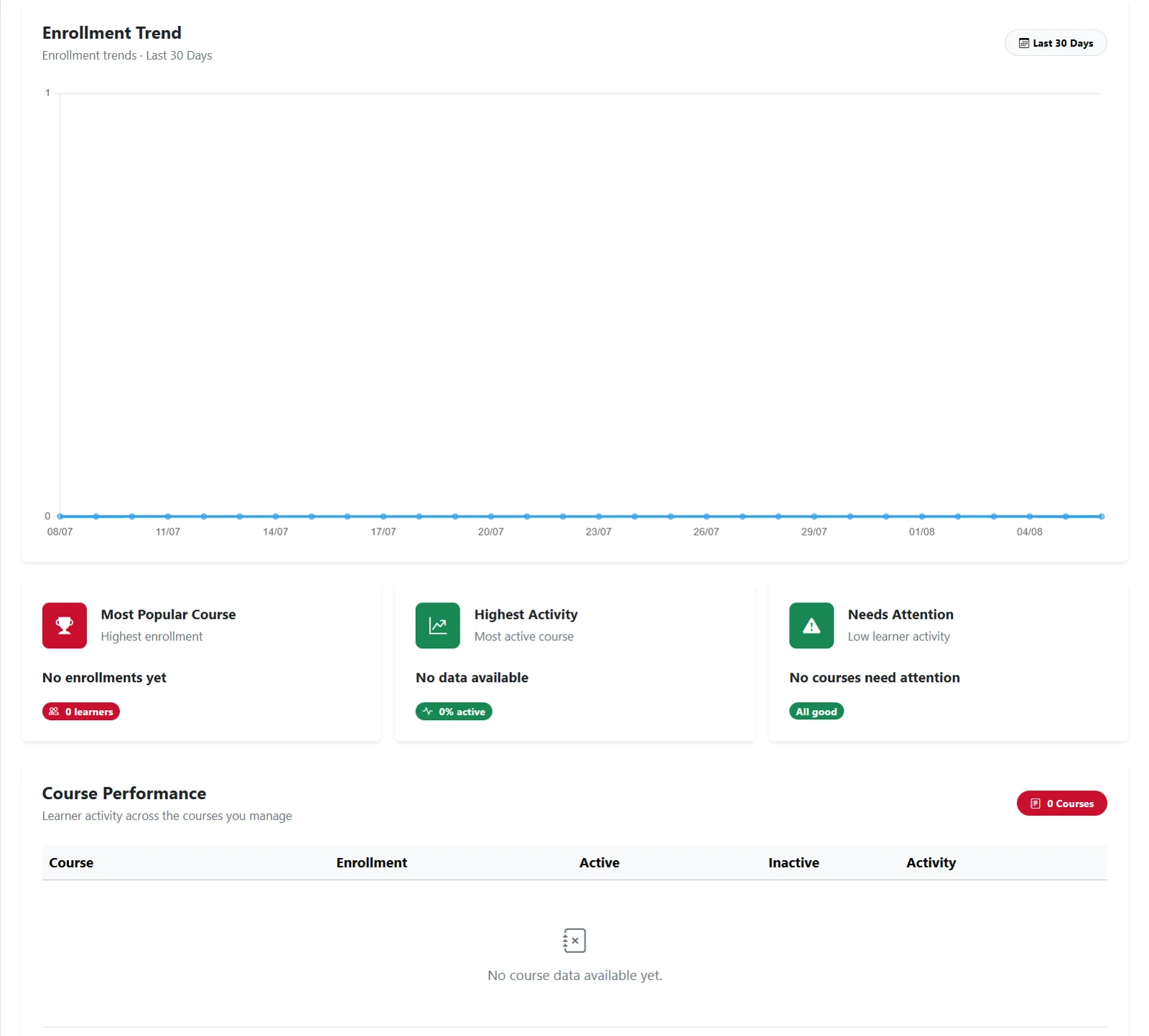
Figure 2.2 – Dashboard, lower section
Opening an assigned course
Courses are created by the partner administrator and assigned to the lecturer responsible for them. An assigned course appears automatically under Courses with the status Draft.
Select Courses in the navigation menu to open the My Courses page. The page lists every course assigned to you and shows the current status of each. Use the search field above the table to find a course by name or ID.
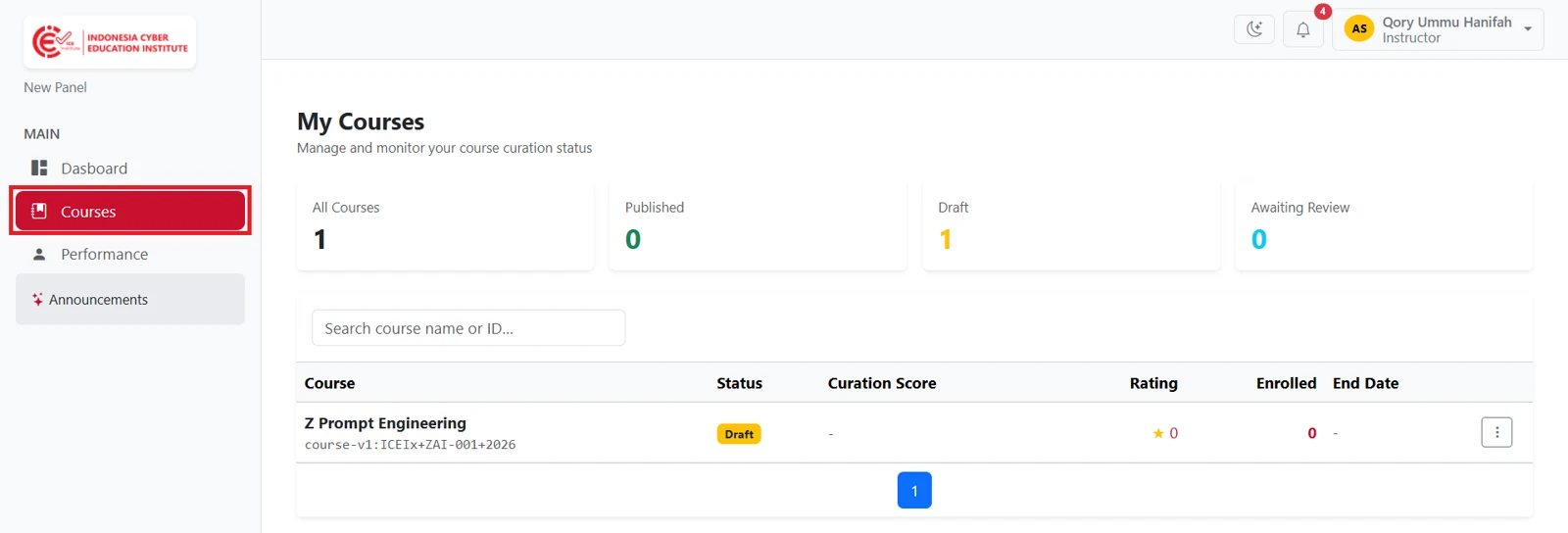
Figure 2.3 – My Courses page
The cards at the top of the page summarise the courses by status.
Card | Meaning |
|---|---|
All Courses | The total number of courses assigned to you |
Published | Courses that have been approved and published |
Draft | Courses still under development |
Awaiting Review | Courses submitted and awaiting review |
The menu also provides access to information about the course. Curation Review displays the review assessment, Rating displays learner ratings and feedback, Course Detail displays the course information recorded on the platform, and View Public Page opens the course page as learners see it.
To open a course for development, select the options menu (⋮) at the end of its row and select Open in Studio.
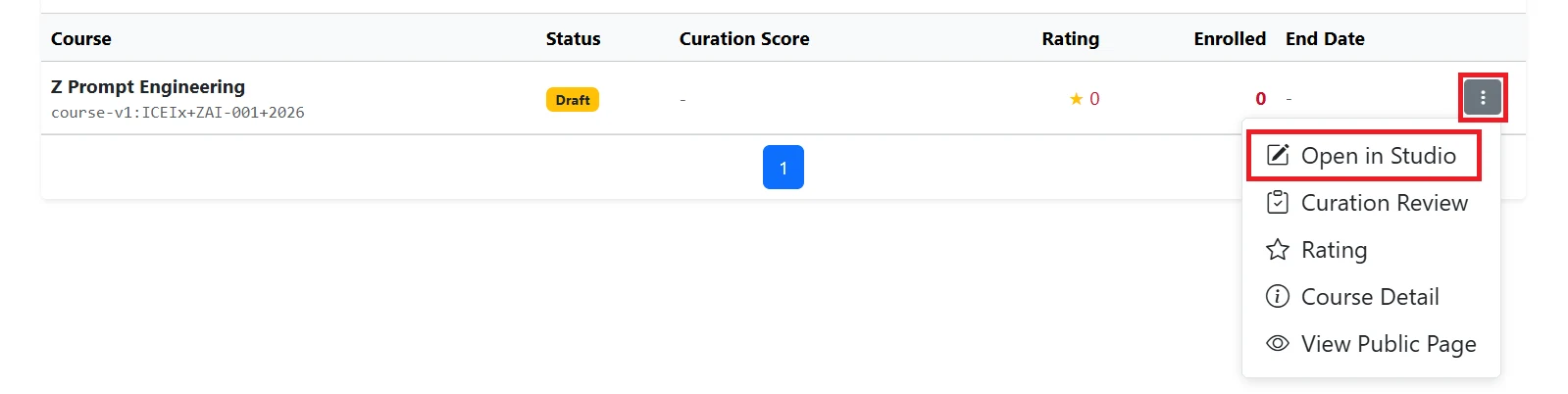
Figure 2.4 – Course Menu
Navigating the course editor
Selecting Open in Studio opens the course editing view, where all learning materials and assessments are built.
The menu bar at the top of the page provides access to the main areas of the editing view.
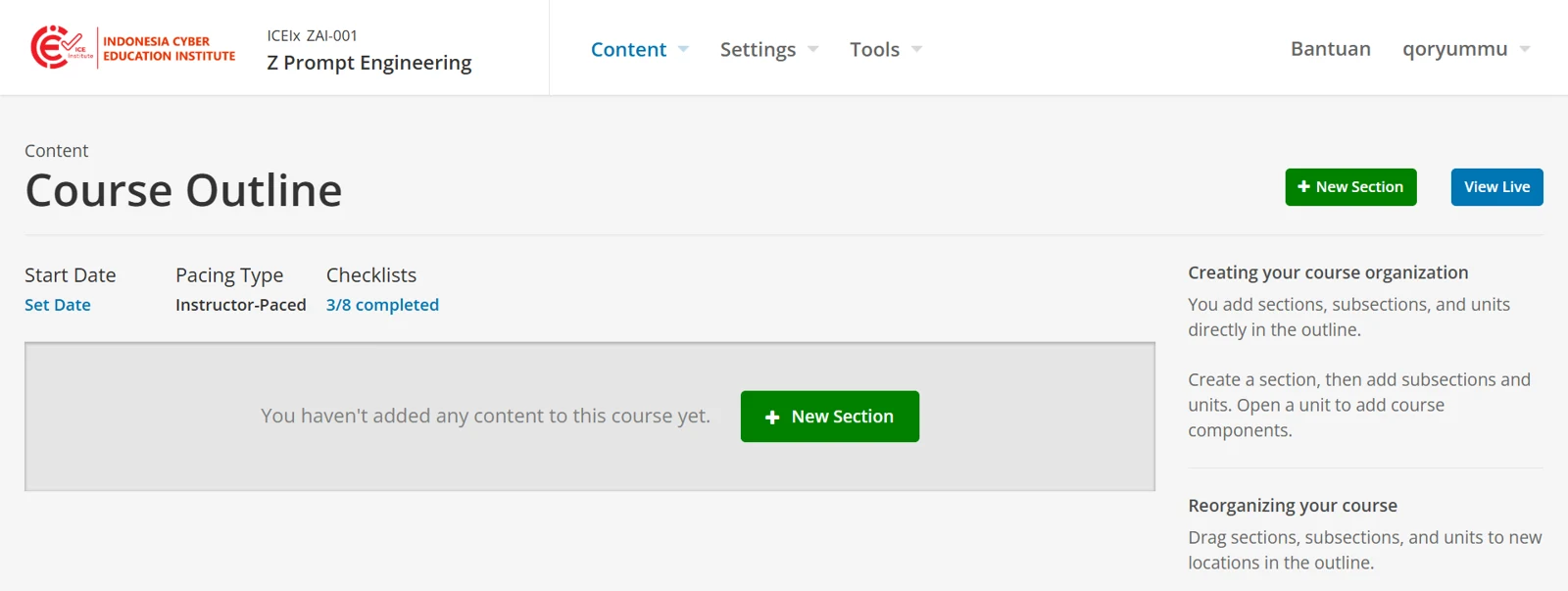
Figure 2.5 – Course editing view
Menu | Purpose |
|---|---|
Content | The course outline, pages, and uploaded files |
Settings | Course schedule and details, grading policy, course team, and advanced settings |
Tools | Import and export of course content |