
This section covers the steps required to obtain lecturer access to the platform, from account registration to approval by the partner administrator.
Before you begin
Course development is performed through a web browser on a desktop or laptop computer. A stable internet connection is required.
Every course submitted to ICE Institute must meet the platform's completeness requirements. These cover three areas:
Course information
The description, learning outcomes, syllabus, schedule, assessment components, and supporting materials that describe the course as a whole
Developer information
The name, photograph, email address, and short biography of each course developer
Topic content
The elements that must appear within every topic, including learning outcomes, reading and multimedia material, assessment, and a discussion forum.
Preparing these materials before development begins reduces the time spent working within the platform and avoids revision requests at the review stage.
Registering an account
Lecturers who already hold an ICE Institute account, including an account previously used as a learner, do not need to register again and may proceed directly to Requesting lecturer access (Section 1.3).
To register, open lms.icei.ac.id and select Register. An account may be created either with a Google account, by selecting Google, or by completing the registration form as described below.
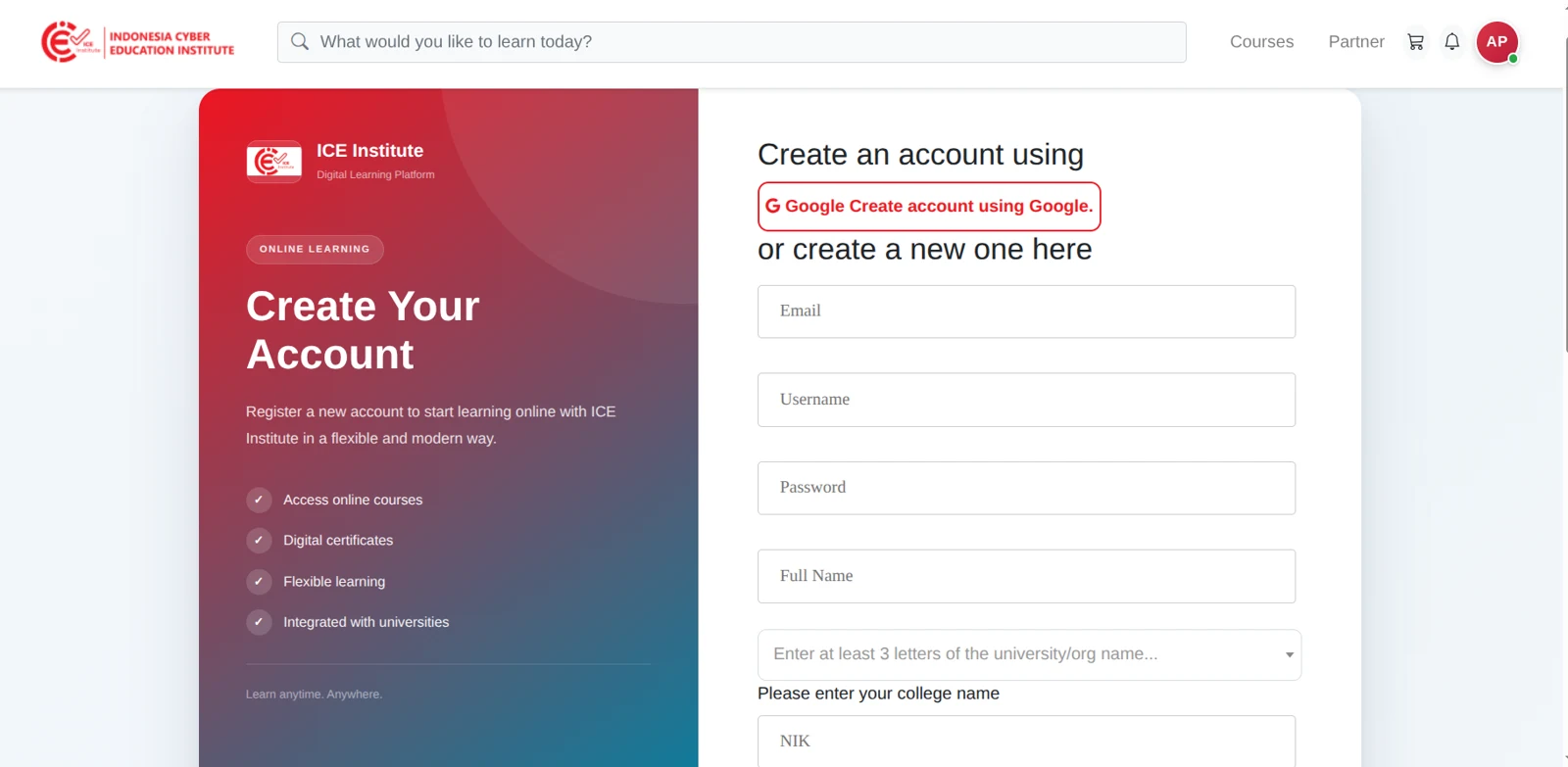
Figure 1.1 – Registration form
Complete all fields on the form. The email address entered is used to sign in and to receive platform notifications. Under Name of University, select the institution to which the course belongs.
The form continues below the visible area. Scroll within the form to complete the remaining fields, then select  .
.
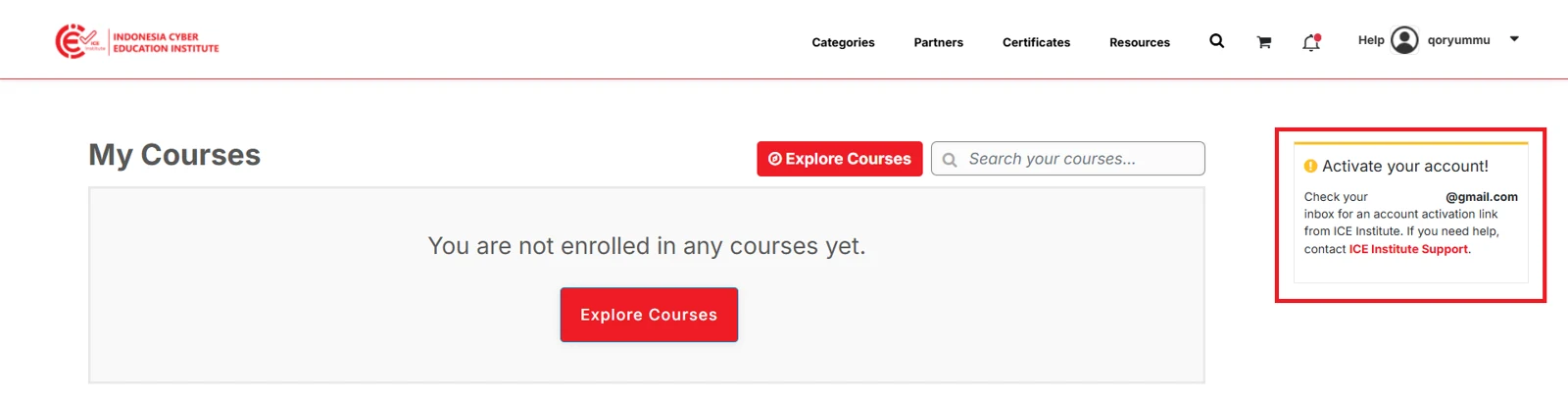
Figure 1.2 – Activation notice
A notice is then displayed confirming that an activation link has been sent to the address entered. The email address must be verified before the account can be used.
Verifying the email address
Open the message sent to the address entered during registration and select . The account is then activated and you are signed in directly. If the message does not arrive, check the spam folder.
Requesting lecturer access
A newly registered account has learner-level access. Lecturer access must be requested and granted before course development functions become available.
To submit a request, select the account menu in the upper right corner and select Profile.
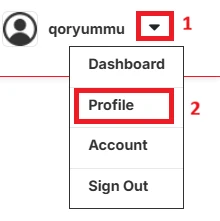
Figure 1.3 – Account menu
On the My Profile page, select Become a lecturer.
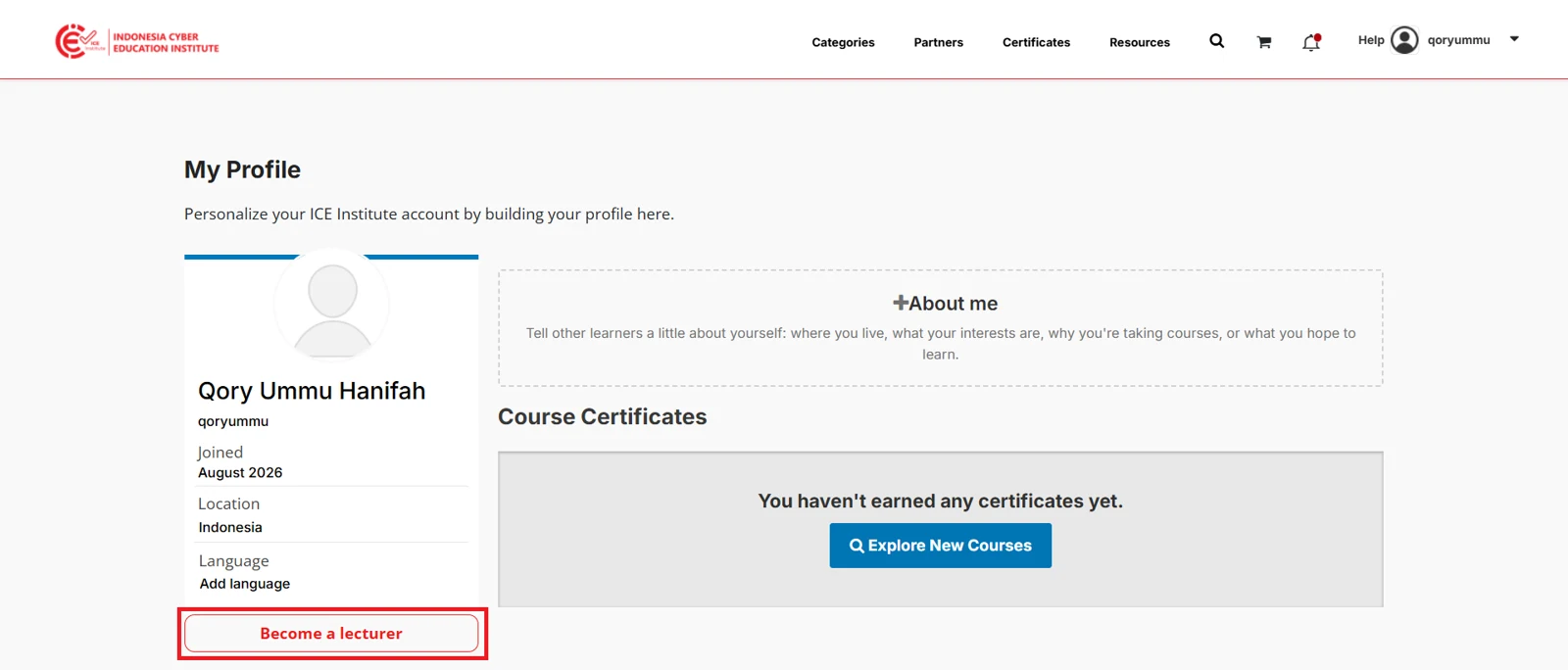
Figure 1.4 – Become a lecturer
A dialog then opens. Under Where do you want to lecture?, select the institution at which you will develop courses, then select Submit.
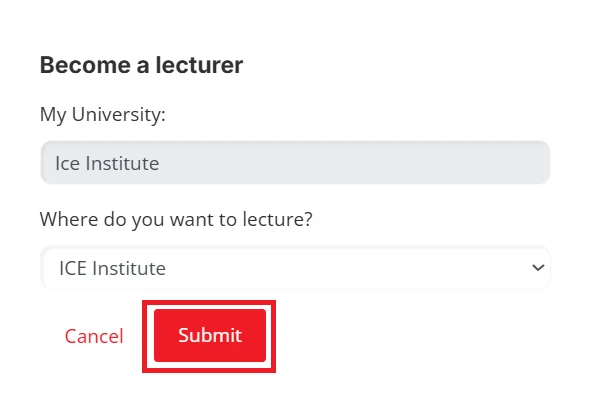
Figure 1.5 – Institution selection
The Become a lecturer button then changes to Request pending, indicating that the request is awaiting review by the administrator at the institution selected. Lecturer access becomes available once the request has been approved.
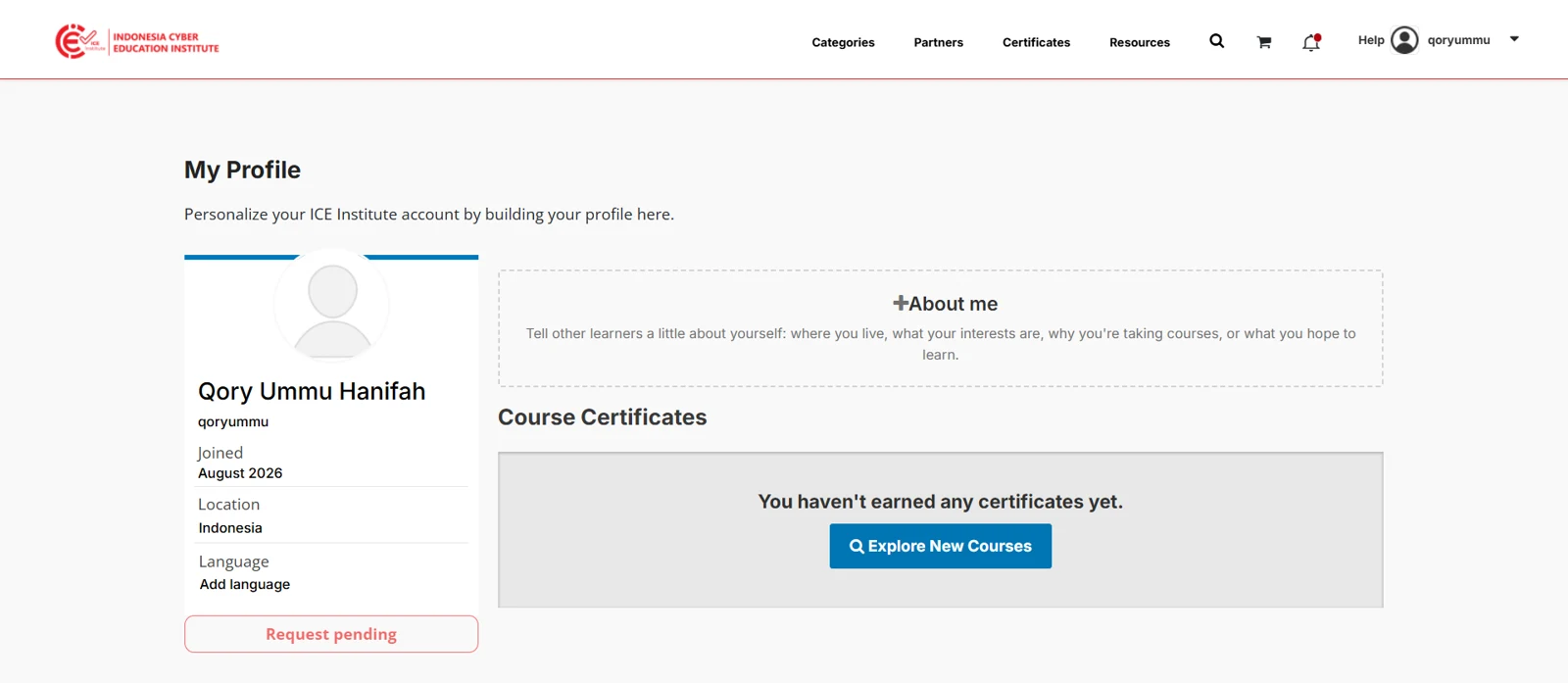
Figure 1.6 – Request pending
Confirming lecturer access
A notification confirming the outcome is displayed in the notification menu in the upper right corner once the request has been reviewed.
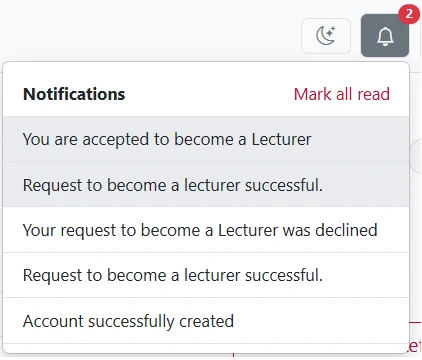
Figure 1.7 – Notifications
Once access has been granted, the display changes to the lecturer dashboard. Where a request has been declined or remains pending, contact the administrator at the institution selected.